Background checks within the ATS
Last updated: September 24, 2026
Alpaca can run a candidate's Checkr background check once the candidate is onboarding on My Team. It shows its status right on the same onboarding record where you already track their account setup and payroll. There is no separate form to fill out and no Checkr login required to see where things stand.
Once you request it, Alpaca can start the check on your behalf. If Checkr flags a result, Alpaca's team reviews the report in Checkr for you and records its decision on the panel. Nothing about the candidate's status in Alpaca changes until you update it yourself.
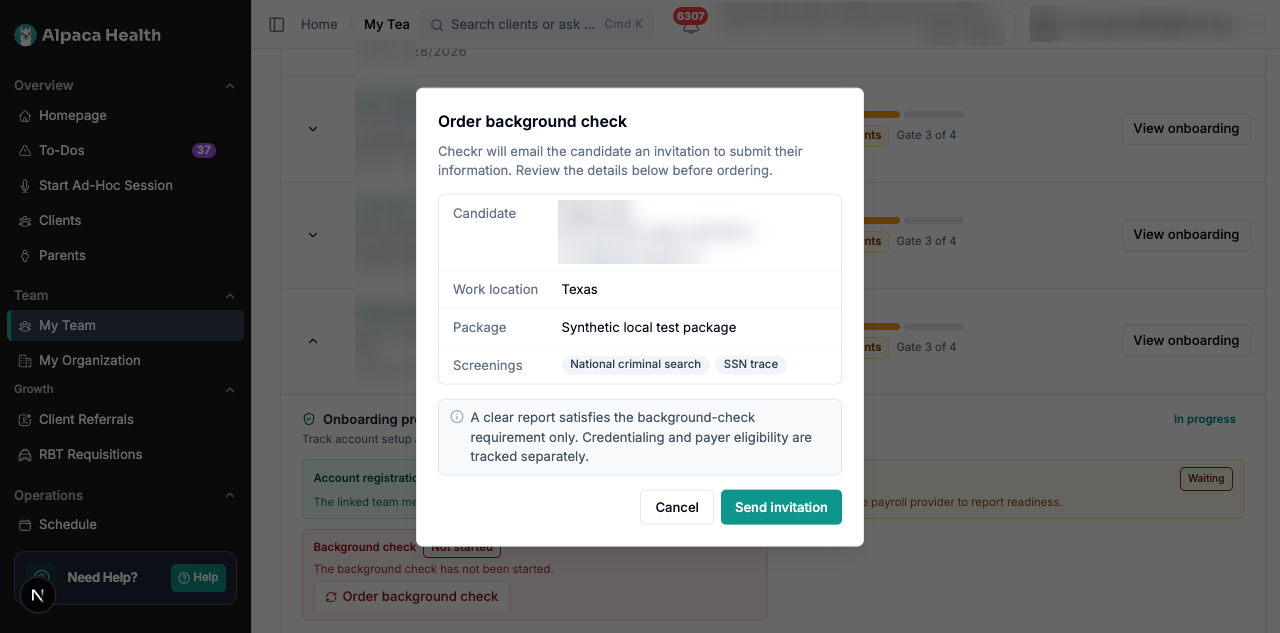
Find the background check panel
Open My Team and go to the Onboarding tab.
Open the card for the candidate you're checking on.
Look for the Background check panel next to their account registration and payroll status.
Order a background check
Checks are ordered from My Team → Onboarding. If nothing has been ordered yet, the panel shows Not started with an Order background check button. Selecting it previews the order before anything happens:
Candidate — name and email.
Work location — the state Checkr will screen for.
Package and included screenings — exactly what Checkr will run.
Nothing is sent until you select Send invitation. Closing the preview cancels it — Checkr never hears about a preview you don't confirm.
Once the invitation is sent, the new hire can also start their check from their Alpaca homepage with Start background check (Checkr also emails them).
If the candidate's package coverage or work state/email changes after an order was confirmed but before Checkr picked it up, the panel asks you to confirm again — Confirm the updated coverage or Confirm the updated candidate — rather than silently ordering against details that already moved. Once Checkr has the order, the panel shows Order queued while Alpaca finishes submitting it; don't start a second order from here.
Send it automatically
When you invite a clinician, turn on Run a background check automatically on the review step. Alpaca sends the check with the invite, or right after they sign if you're sending an offer letter. It's off by default and needs the hire's work state. You can always order one later from My Team → Onboarding.

The panel shows one label and a short explanation:
Not started — nothing has been ordered yet.
Waiting on candidate input — the candidate still needs to complete the Checkr invitation.
Waiting on background check — Checkr is processing it. Nothing is needed from you yet.
Candidate action required — Checkr needs more information directly from the candidate.
Complete — the background-check requirement is satisfied. This does not establish credential or payer eligibility on its own.
Incomplete screening coverage — the report came back, but a screening was canceled or its coverage couldn't be verified. This does not count as complete; contact Alpaca at support@alpacahealth.io.
Alpaca is reviewing (sometimes shown as Review required), then Cleared after Alpaca review or Not cleared after Alpaca review — Checkr flagged something and Alpaca's team is reviewing it for you. See Review a flagged result below.
Paused — contact Alpaca — Checkr paused the process. A pause is not automatically a dispute; contact Alpaca at support@alpacahealth.io.
Adverse action waiting period, Dispute in progress, and Adverse action complete — Checkr is managing the legally required notice period or a dispute. Alpaca has not changed the hiring decision at any of these stages.
Needs attention (sometimes shown as Invitation expired or canceled or Report canceled) — something interrupted the check, or the existing invitation/report can't continue. A Recover existing check, Review replacement order, or Order background check button appears if it's something Alpaca can recover from on its own; otherwise contact Alpaca at support@alpacahealth.io.
When the panel last synced with Checkr is shown under the status. If sync itself is failing, the panel says so directly — the status shown may be stale until that resolves.

Retry a stalled check
If the panel shows Needs attention with a Recover existing check button, select it to have Alpaca try again. That button only appears for failures Alpaca knows are safe to repeat, such as a missing detail or a transient provider error. If the check needs a person to step in instead, no button is shown.
Review a flagged result
When Checkr flags a report, Alpaca's team reviews the full report in Checkr and records a decision on the panel. You don't open the report in Checkr or start adverse action yourself, so Review in Checkr and Give candidate a chance to respond don't appear on these results.
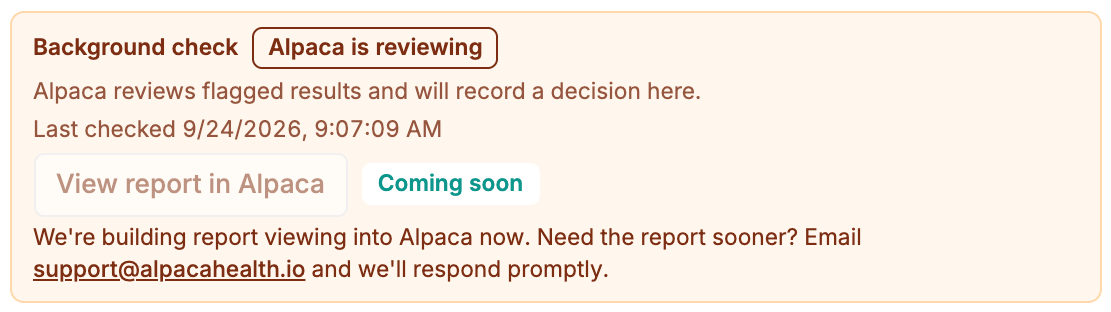
Alpaca is reviewing — Alpaca is reviewing the result and will record a decision here. Nothing is needed from you yet.
Cleared after Alpaca review — counts as complete. You can Mark ready or Mark started as usual.
Not cleared after Alpaca review — contact Alpaca before deciding next steps. Mark ready and Mark started are only available through the override described below.
We're building report viewing into Alpaca now, so you'll be able to view the report directly in Alpaca very soon. Until then, the panel shows a grayed-out View report in Alpaca button marked Coming soon. Need the report sooner? Email support@alpacahealth.io and we'll respond promptly.
Mark a hire ready or started with an unresolved check
If you mark a hire ready or started while their background check is still open, Alpaca uses your clinic's existing incomplete-readiness override. The card then shows Marked ready (or started) despite this result, who made that call, and when — and the check itself stays open for follow-up rather than being marked resolved.
Recover from common problems
What you see | What to do |
|---|---|
No Background check panel at all | Background checks are for clinical hires on My Team → Onboarding. If a clinical hire's row has no panel, contact your Alpaca contact. |
Not started | Select Order background check and confirm the preview. |
Confirm the updated coverage / candidate | Review what changed, then confirm the new preview. Nothing was ordered against the old one. |
Order queued | Wait — this clears once Checkr has the order. Don't start another one. |
Incomplete screening coverage | Contact Alpaca at support@alpacahealth.io; a replacement order may be needed. |
Needs attention with a recover / replacement button | Select it. This only repeats or replaces what Alpaca can safely recover. |
Needs attention with no button | The check needs a person to step in. Contact your Alpaca contact for help. |
Alpaca is reviewing, no Review button visible | Expected — Alpaca reviews flagged results and records the decision here. Need the report sooner? Email support@alpacahealth.io. |
Not cleared after Alpaca review | Contact Alpaca before deciding next steps. To mark the hire ready or started anyway, use the override above. |
Good to know
Every clinical hire who hasn't been marked started has a background check on their onboarding row. Clinical hires added after background checks were turned on need a complete check before Mark ready or Mark started, or the override above. Hires who were already onboarding when background checks were turned on can be sent one, but aren't held back. Candidates still interviewing or deciding on an offer don't have one yet.
Alpaca never shows you Checkr's internal report or candidate ID numbers, and any adverse action runs through Checkr, never in Alpaca.
Recovery and replacement only cover failures Alpaca recognizes as safe to redo. If a check fails for another reason, your Alpaca contact can help.