Inviting a Parent to Alpaca
Last updated: September 22, 2026
Inviting a parent gives them their own Alpaca login and their own parent portal, where
they can follow their child’s sessions, see invoices and balances, upload documents and
sign paperwork.
You do this once per parent, not once per child — one invitation can cover all of their
children at your clinic.
This option is only available for Admin, Assistant Admin or Director roles.
Step 1 — Open the Parents page
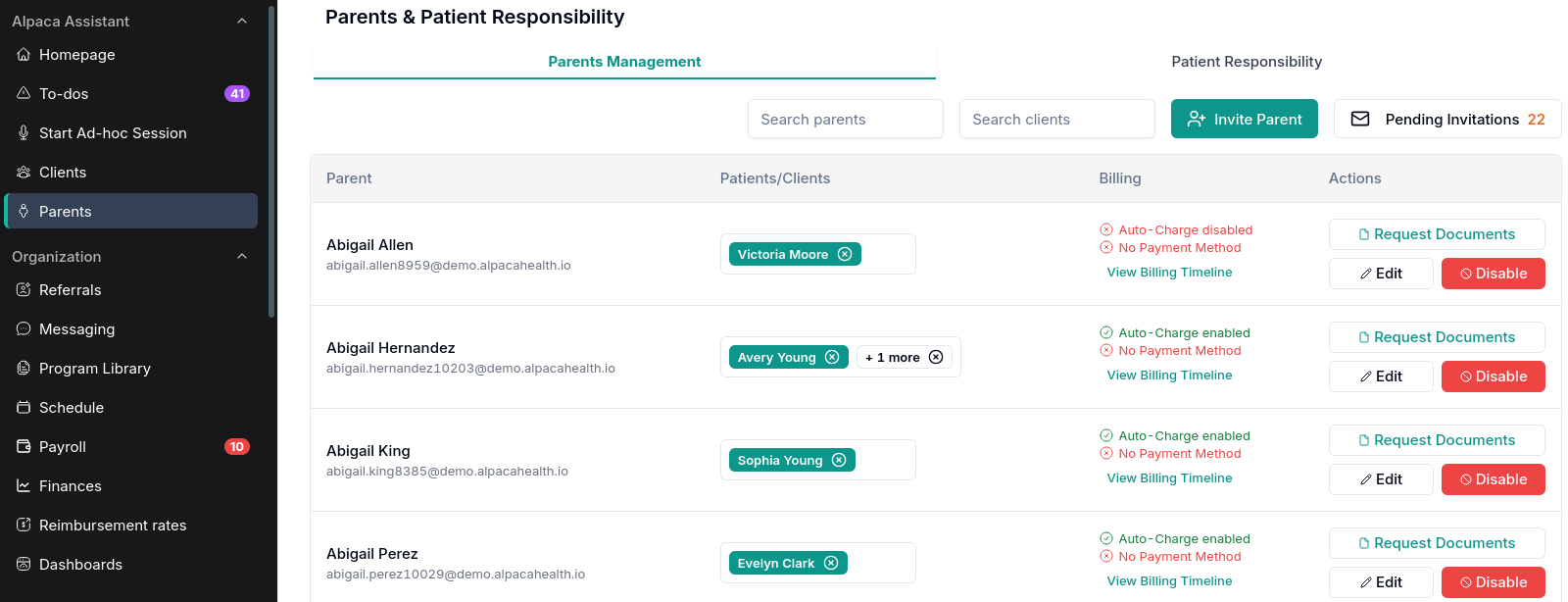
In the left sidebar, click Parents. The page is called Parents & Patient
Responsibility and opens on the Parents Management tab, which is where you’ll work.
Step 2 — Click “Invite Parent”
The Invite Parent button sits above the table, on the right.
Step 3 — Add the parent’s details
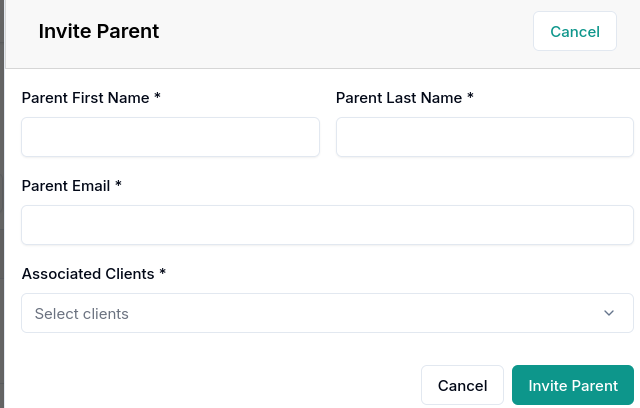
A panel slides in from the right. All four fields are required:
Field | What to enter |
|---|---|
Parent First Name | The parent’s first name. It’s pre-filled on their sign-up screen, so spell it the way they’d want to see it. |
Parent Last Name | The parent’s last name. |
Parent Email | The address the invitation goes to. This becomes their username, and they can’t change it while signing up — double-check it before you send. |
Associated Clients | The child (or children) this parent is a caregiver for. Click the box and pick from the list. |
Siblings: if the parent has more than one child at your clinic, select all of them
here. One invitation, one login, every child in the same portal.
Step 4 — Send it
Click Invite Parent at the bottom of the panel. The button reads Sending Invite…
While it works, then the panel closes and you’ll see “Invitations sent successfully.”
That’s it — the invitation is on its way.
What the parent receives
An email with the subject “Welcome to [your clinic name] 🎉”, branded with your
clinic’s name, containing a Complete registration button. (If the button doesn’t work
in their email app, the same link is spelled out in plain text at the bottom of the
message.)
The email asks them to register within 48 hours. If they take longer, nothing is lost —
you can resend the invitation at any time, see below.
What they do next:
They click Complete registration and land on a sign-up screen that says
“Please select a password for your parent account.”Their name and email are already filled in. The email is locked — that’s how Alpaca knows which invitation they’re completing.
They choose a password. It has to be at least 8 characters and contain an uppercase letter, a lowercase letter and a number; the requirements tick off in green as they type.
They agree to the terms and click through.
They’re signed in straight away and land in their parent portal — no second confirmation
email, no separate step for you.
“Can they sign up with Google?” No. New parent accounts have to be created with a
password. Google sign-in works for people who already have an Alpaca account, but not
for signing up.
Checking on an invitation
Next to Invite Parent you’ll see a Pending Invitations button with an orange
number on it. That number is how many invited parents haven’t finished signing up yet.
No button? Then nothing is pending — everyone you’ve invited has registered. The button only appears when there’s at least one outstanding invitation.

Click it to open the list. For each invitation, you’ll see the parent’s name and email, the
children they’re linked to, and Sent at — the date and time the last email went out, in
your local time.
Each row has three options:
Resend — sends the same invitation email again and updates Sent at. The link the parent already has keeps working; this is just a nudge. Use it whenever a parent says they can’t find the email.
Delete — cancels the invitation. Use it when you’ve made a mistake, not to tidy up.
Request Documents — sends the parent a separate link for uploading paperwork, without waiting for them to register.
What happens once they register
The invitation disappears from Pending Invitations — that list only ever shows people
who still haven’t signed up. Once it’s empty, the button goes away entirely.
The parent’s row in Parents Management is there from the moment you invite them — you don’t have to wait for them to register to find it, and you can link children, correct
their name or request documents right away. Pending Invitations is how you tell who has and hasn’t signed up yet, not the main table.
From their row in Parents Management you can:
Patients/Clients — add or remove the children they’re a caregiver for, any time.
Billing — see at a glance whether auto-charge is on and whether they’ve added a payment method, and open View Billing Timeline for their payment history.
Request Documents — send them a paperwork upload link.
Edit — correct their first name, last name, phone number or email.
Disable — switch off their access. Their row greys out and drops to the bottom of the list, and the button becomes Enable if you ever need to switch it back on.
Use the Search parents and Search clients boxes above the table to find someone
quickly — searching by client name shows you the parents linked to that child.

Common questions
The parent says they never got the email.
Ask them to check spam and promotions folders first — it comes from Alpaca, not from your clinic’s own address. Then open Pending Invitations and check the email address on their row. If it’s right, click Resend. If it’s wrong, see the next question.
I typed the email address wrong.
The address is fixed once the invitation is sent, and Resend goes to the same wrong
address — so fix it in this order:
Open Pending Invitations and Delete the invitation.
Find the parent in Parents Management, click Edit, and correct the email.
Click Invite Parent again with the corrected details.
Doing it in that order keeps everything on one parent record. Inviting again without
deleting and editing first leaves you with two rows for the same person.
This parent already has an Alpaca account — can I just invite them again?
No, and it won’t work if you try: they’ll get the email, click through, and hit “Email is already used. Please sign in.” An already-registered parent doesn’t need a new
invitation. To connect them to another child, find them in Parents Management and add
the child in the Patients/Clients column instead.
They clicked the link and got “Account was already created with this invite code.”
They’ve already registered. Send them to the normal Alpaca sign-in page and have them log in with their email and password — or use Forgot password if they don’t remember it.
A parent has a second child starting with us. Do I re-invite them?
No. Add the new child from the Patients/Clients column on their existing row. It takes
effect immediately, and both children appear in the same portal.
A family has left the clinic.
Click Disable on their row. Their access stops, their record and billing history stay
intact, and you can re-enable them later if they come back.
Does the invitation ever stop working?
The email asks them to register within 48 hours because we’d rather they didn’t sit on it.
If they’re slower than that, just click Resend — no need to start over.
Can two parents in the same family each have their own login?
Yes. Invite each of them separately, with their own email address, and select the same
child (or children) for both.
Still stuck? Contact support and we’ll take a look with you.