How to Use the Time Off / Leave TimeFeature in Alpaca Health
Last updated: August 10, 2026
How to Use the Time Off Feature in Alpaca Health
Alpaca’s Time Off system makes it easy to request and track all types of leave, including PTO, Sick Time, Holidays, and more. Below is a step-by-step guide to help you manage your time off directly in the Alpaca platform.
📅 Requesting Time Off
You can request time off directly from the Schedule page.
Go to the Schedule tab in your Alpaca account from the Side Bar
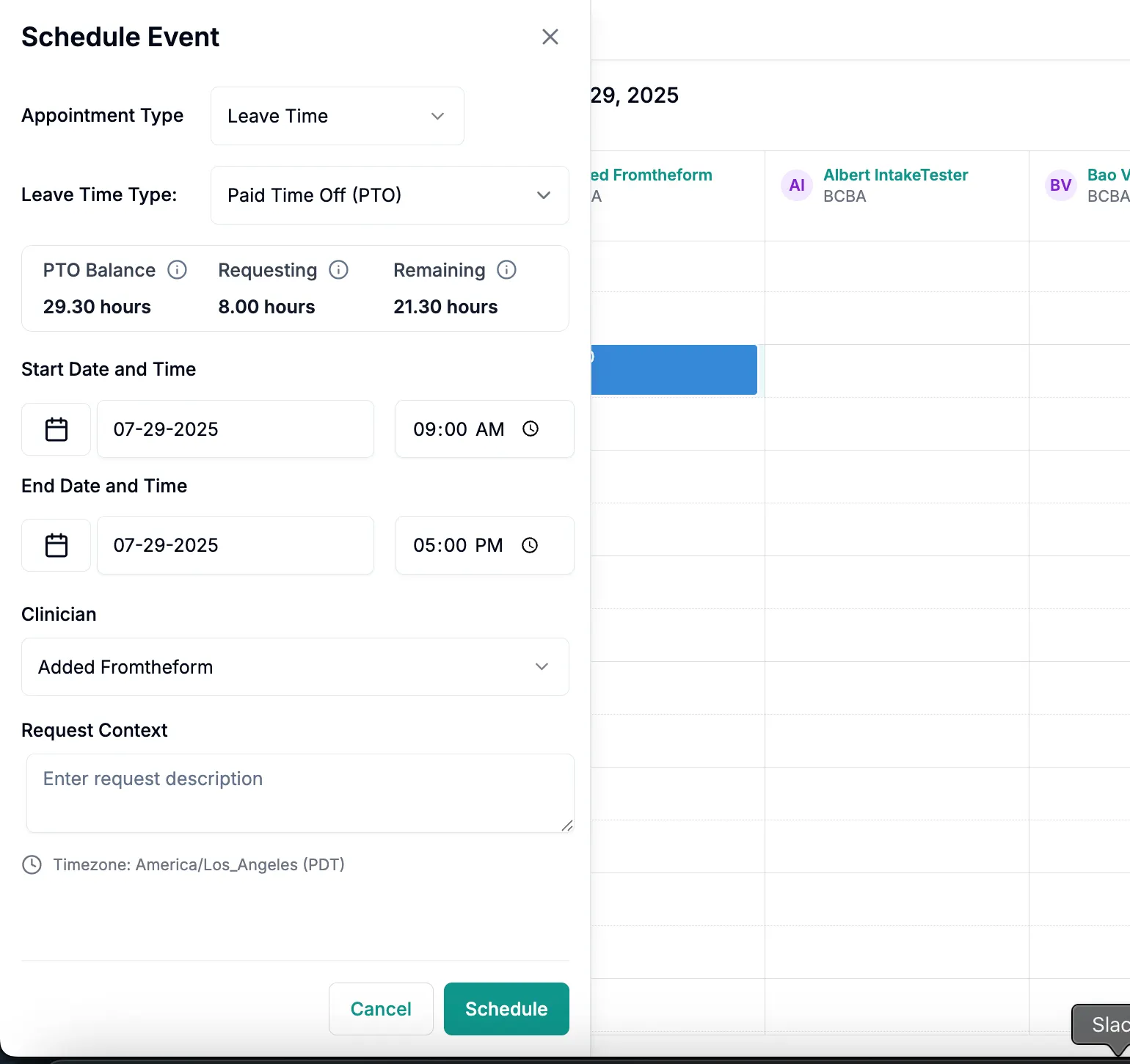
Tap the either Schedule Event or directly into a time block on the calendar UI
Choose "Leave Time" as the event type.
Select the Leave Type (e.g. PTO, Sick Pay, Holiday).
Enter the dates and times of your requested time off.
Add any notes if needed in Request Context that might be helpful for approval (optional).
Hit Schedule.
📊 Viewing Your Time Off Balance
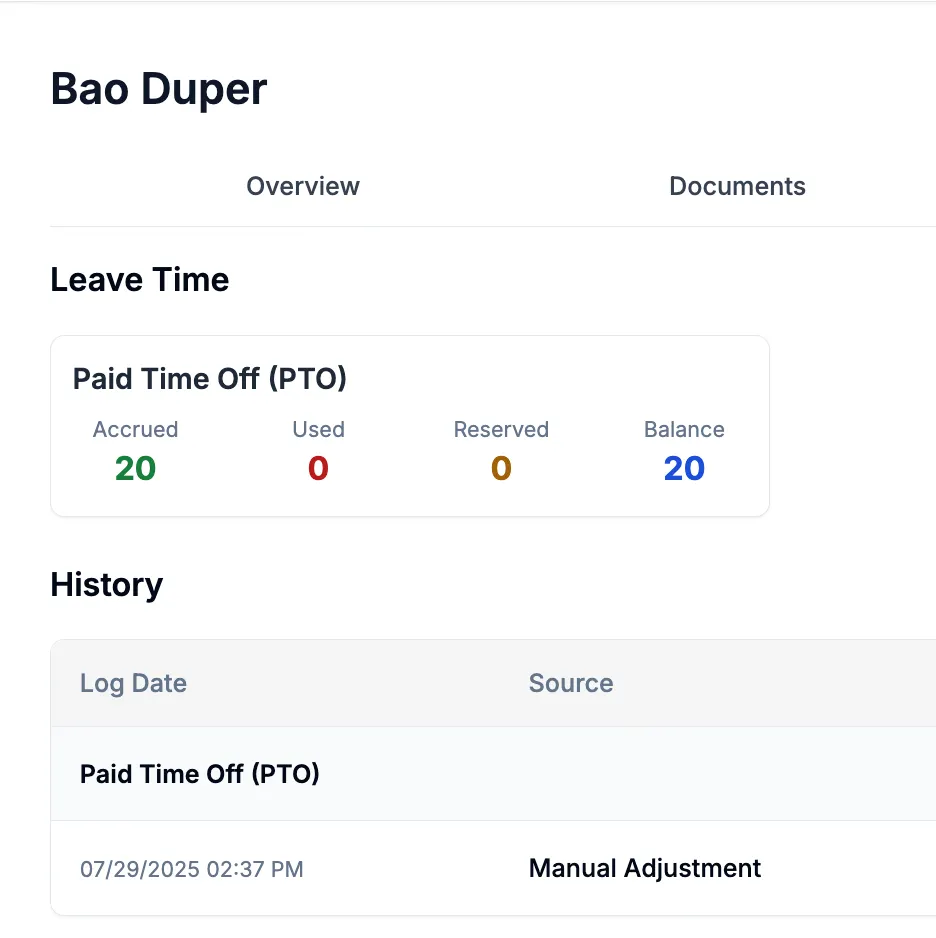
You can see your current accruals and remaining balances by going to:
My Profile → Leave Time (tab)
You’ll see a breakdown of:
Accrued hours
Used hours
Reserved time
Remaining available time balance
👍 Approving Time Off Requests (for Managers/Admins)
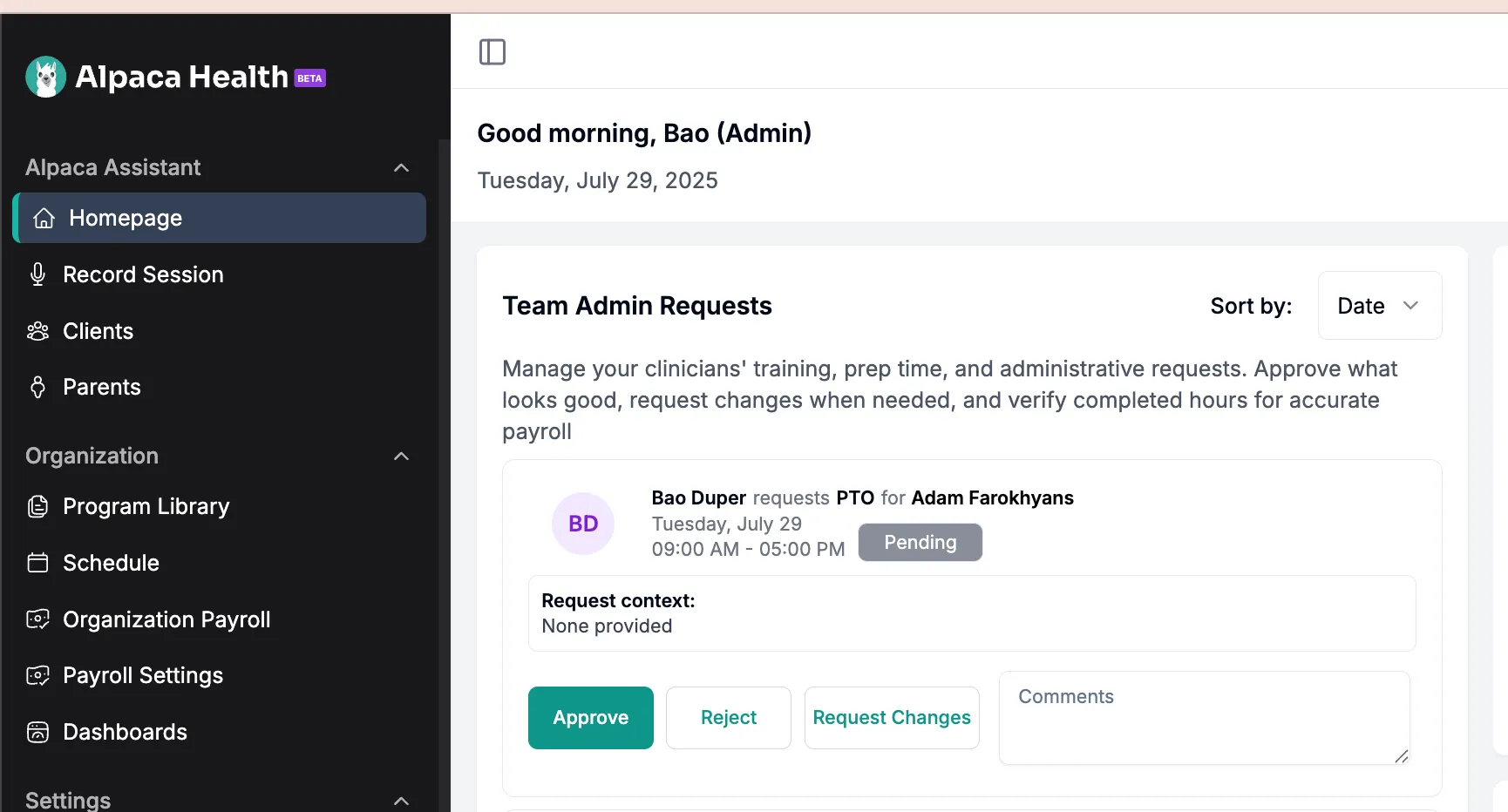
As a manager or administrator, you'll be responsible for reviewing and approving time off requests from your team members. Here's how to manage this process:
Access the Homepage → Team Admin Requests
Review pending requests, which will show employee name, dates, leave type, and any notes
Click on a request to see details including the employee's current balance
Select Approve or Reject (you can add comments for either)
❓ Leave Types Supported
Paid Time Off (PTO)
Sick Leave
Holidays
Unpaid Leave
Custom Clinic-Specific Leave Types (Ask your admin if unsure)
🧾 Reminders
All time off requests must be submitted in advance when possible.
Pending requests will show on the calendar but will not deduct from your balance until approved.
Finalized payroll periods lock PTO balances.