Adding Pay Entries and How Overtime Works in Alpaca Payroll
Last updated: July 30, 2026
Alpaca payroll gives you two things this guide covers end to end: adding extra money to a paycheck with a pay entry (a reimbursement, a stipend, or a bonus), and understanding how overtime is calculated and shown when a worker goes over 40 hours in a week. This article walks through both, from a single one-off entry all the way to recurring entries and the overtime report you review before you finalize a run. Readers are practice owners and anyone who runs or reviews payroll for your organization.
A quick heads up on timing: Alpaca's payroll system pays based on the date a session note is signed, not the date of service. So if your payroll cycle is 1/1 to 1/15 and a note is signed on 1/16, that session automatically falls into the next payroll run. If you want to pay it sooner through an off-cycle payroll, email support@alpacahealth.io first. Otherwise the system may double-pay your worker.
What a pay entry is
A pay entry is any money you add to a team member's paycheck for a pay period that isn't their regular hours or salary. Reimbursing someone for miles they drove, paying a monthly phone stipend, or handing out a performance bonus are all pay entries.
Every pay entry is one of three types, and the type controls how the money is taxed:
Reimbursement (non-taxable). Payments for business expenses like mileage, supplies, or equipment. Does not affect taxable income.
Taxable Stipend (taxable). Regular allowances such as a phone stipend or a wellness allowance. Subject to income and payroll taxes.
Bonus (taxable). Discretionary or performance-based pay. Subject to supplemental wage tax withholding.
Pick the type that matches what the money is for, and Alpaca applies the right tax treatment for you. For more on the tax difference, see the Taxable Stipends vs Non-Taxable Reimbursements article.
How to get there: Log in to Alpaca, click Payroll in the left-hand navigation, and open the Payroll Details tab (this is the tab you land on by default). The action buttons (Add Pay Entry, Add Deduction, Recurring) sit above the payroll table.
Add a single pay entry
You can add a one-off pay entry two ways: onto the next payroll cycle, or as a separate off-cycle pay run when the current run is already finalized or too far away.
On the next payroll cycle
1. On the Payroll Details tab, make sure a pay period is selected (not a custom date range). Pay entries are tied to a pay period, so Add Pay Entry is grayed out while you're viewing custom dates, and while there are no eligible employees for the period. Use the selector at the top to pick the period you want.
2. Click Add Pay Entry to open the "Add Pay Entry" dialog.
3. Choose the Pay Type: Reimbursement, Taxable Stipend, or Bonus. Each option shows a short reminder of what it's for, and a colored info box at the bottom of the dialog explains the tax treatment for the type you picked.
4. Under Employees, select the person who should get this entry. (You can select more than one person here to create the entry for everyone at once. See "Bulk pay entries" below.)
5. Enter the Amount ($).
6. Add a Memo describing the entry (for example, "supplies" or "performance bonus"). A memo is required, and the placeholder text changes to match the pay type you chose.
7. Click the button at the bottom. It reads Add Reimbursement, Add Stipend, or Add Bonus depending on the type. Alpaca creates the entry for the pay period, and it appears in that person's Additional Pay column in the payroll table, where you can open the breakdown or delete the entry.
As an off-cycle pay run
If the pay run for the period is already complete, or the next one is too far away, run an off-cycle pay run instead. The same signed-date timing note above still applies, so email support@alpacahealth.io first if you're pulling a session forward. An off-cycle pay run should only be used for reimbursements, bonuses, and taxable stipends.
1. On the Payroll tab, open the Dashboard.
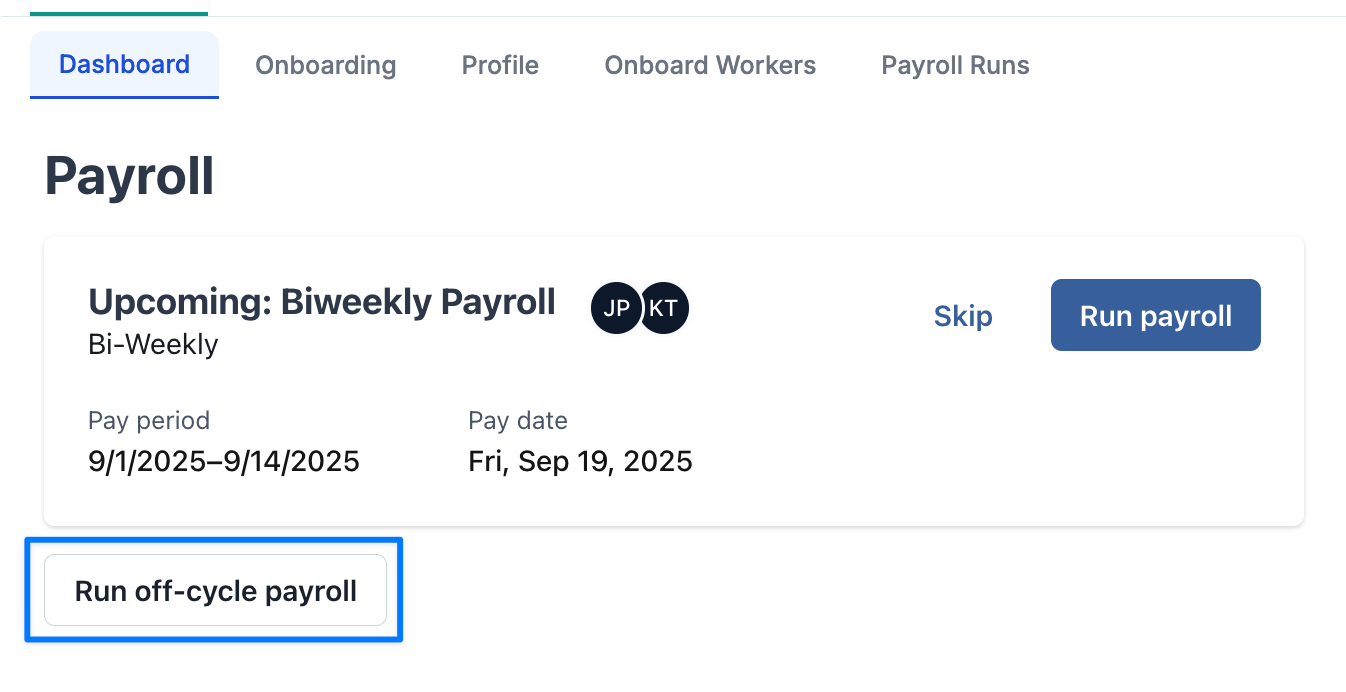
2. Either edit the upcoming payroll run or start an off-cycle payroll run.
3. Select the relevant workers for the additional pay run and add pay types.
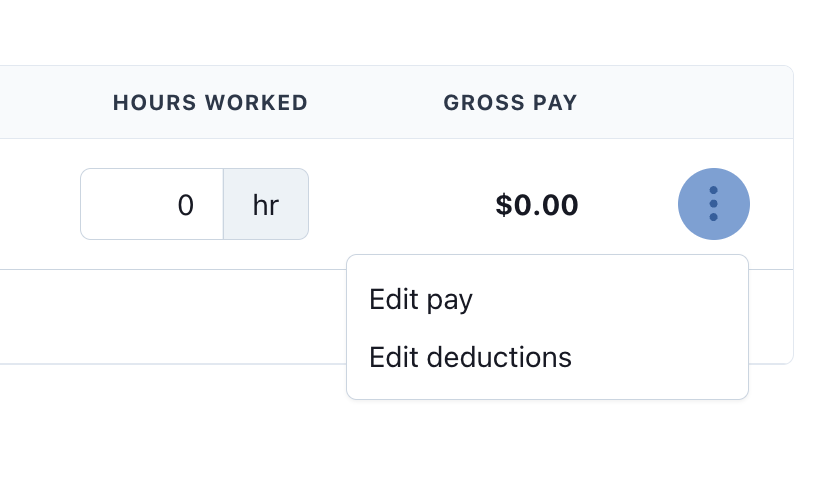
4. Select the correct pay type. You can add reimbursements directly. For a bonus, select the Billable type and enter the number of hours and a pay rate (for example, a $200 bonus is 1 hour x $200). The numbers you enter here do not affect any other pay run.
Mileage
If you reimburse staff for driving, you can calculate the mileage right inside a pay entry and pay it as a reimbursement in payroll. You enter the miles and a per-mile rate, and Alpaca fills in the dollar amount and a memo for you.
The mileage fields only appear when the Pay Type is Reimbursement, since mileage is a non-taxable business expense. If you switch the type away from Reimbursement after entering miles, Alpaca clears the mileage fields and removes the amount and memo it auto-filled, so a mileage note never rides along on a bonus or stipend.
1. Open Add Pay Entry and set Pay Type to Reimbursement.
2. Select the Employees who should be reimbursed.
3. In the Mileage (optional) section, enter the number of Miles and the Rate ($/mi).
4. Alpaca automatically fills in the Amount (miles multiplied by the rate) and writes a Memo in the form "Mileage reimbursement: [miles] mi @ $[rate]/mi." Both the amount and the memo stay editable, so you can adjust them. If you clear the miles, the auto-filled amount and memo are removed.
5. Click Add Reimbursement.
About the rate: The rate defaults to your organization's configured mileage rate, and you can always type a different rate for a one-off entry.
Bulk pay entries
When the same entry applies to several people (a team-wide bonus, a shared stipend, the same reimbursement for a group), you can add it to everyone at once instead of creating it over and over. You pick the people, set the amount once, and each person you selected gets that entry for the pay period.
1. Open Add Pay Entry and choose the Pay Type (Reimbursement, Taxable Stipend, or Bonus).
2. Under Employees, select everyone who should get this entry. This is what makes it a bulk entry: each person you add gets the same entry.
3. Enter the Amount ($). When you have more than one employee selected, a note under the field confirms that each of the selected employees will receive this amount.
4. Add a Memo (required) and click the button. It shows the count of people it applies to, for example Add Bonus (5). Alpaca creates one entry per selected person for the pay period.
If an entry can't be created for one or two people, Alpaca tells you exactly who failed, keeps the dialog open with only those people still selected, and leaves the entries that did save in place. Submit again to retry just the ones that didn't go through, with no risk of double-paying anyone.
Recurring pay entries
If the same pay entry repeats every pay period (a monthly phone stipend, a standing allowance), you can set it up once as a recurring entry. Alpaca then creates that entry automatically each pay period, so you don't have to add it by hand every time.
How to get there: Payroll page, Payroll Details tab, then the Recurring button.
1. Click Recurring to open the Recurring Entries window. It lists the recurring deductions and pay entries you already have, with a count of how many are active.
2. Click Add New to open the Add Recurring Entry form.
3. Set Type to Pay Entry (Reimbursement/Stipend/Bonus). (The other option, Deduction, is for money taken out rather than added.)
4. Choose the Employee and the Pay Type (Reimbursement, Taxable Stipend, or Bonus).
5. Enter the Amount per period. Add a Memo if you'd like (optional here).
6. Set the Effective from period and, if the entry should stop at some point, the End period. Leave the end period as Ongoing (no end) to keep it repeating indefinitely. The entry applies to every pay period from the start through the end period, inclusive.
7. Click Create Recurring Entry. Alpaca applies it to the current and upcoming periods and confirms how many periods it created entries in.
Entries that Alpaca generates from a recurring rule are marked with a small repeat icon in the person's Additional Pay breakdown, so you can tell them apart from one-off entries you added by hand.
Managing recurring entries
From the Recurring Entries window you can adjust an entry without deleting its history.
Edit an active entry (the pencil icon) to change its amount, memo, or end period. Changes apply to future pay periods only.
Pause an entry (the pause icon) to stop it from being applied going forward. You'll be asked to confirm, since it changes future pay. Paused entries stay in the list so you can bring them back.
Reactivate a paused entry (the play icon) to start applying it again.
Turn on Show inactive to see entries you've paused.
Overtime
Separate from the pay entries above, Alpaca also handles overtime for you. When you submit daily payroll data, overtime is calculated based on hours accumulated across the workweek, not the pay period. This section explains how Alpaca handles overtime under U.S. federal law, how the calculation works when workweeks span multiple pay periods, and where you see and control overtime right inside your payroll run.
When overtime is turned on for your organization, Alpaca works out the overtime premium each eligible worker earned and shows it to you on your payroll, so you can see what is driving pay before you finalize a run. For overtime to apply to a given worker, that employee also needs to be marked as overtime eligible in their contract.
How overtime works under U.S. law
Under the Fair Labor Standards Act (FLSA), non-exempt employees must receive overtime pay at 1.5x their regular rate for all hours worked over 40 in a workweek.
A few key rules shape how Alpaca calculates this:
A workweek is a fixed, recurring 168-hour period (7 consecutive 24-hour periods).
Overtime eligibility is determined by the workweek, not the pay period. Pay frequency (weekly, biweekly, semimonthly, monthly) has no effect on when overtime is owed.
Hours cannot be averaged across workweeks. Federal law explicitly prohibits this.
For example:
Week | Hours Worked | Overtime Hours |
|---|---|---|
Week 1 | 50 | 10 |
Week 2 | 30 | 0 |
Even though the two-week average is 40 hours per week, the provider is still owed 10 overtime hours for Week 1.
Regular rate of pay
Overtime is calculated using the weighted regular rate of pay for the workweek. When a provider has multiple pay rates or earning types in the same workweek, Alpaca blends them into a single rate before applying the overtime multiplier.
Step 1: Total all regular earnings for the workweek.
This includes earnings at all pay rates and earning types.
Step 2: Divide by total hours worked.
This gives the weighted regular rate.
Step 3: Apply the 0.5x multiplier for each overtime hour.
Since straight-time pay is already included in the blended rate, only the premium (0.5x) is added per overtime hour.
Here is a worked example:
Pay Type | Hours | Rate | Earnings |
|---|---|---|---|
Regular | 32 | $15.00 | $480.00 |
Shift Differential | 12 | $18.00 | $216.00 |
Total | 44 | $696.00 |
Weighted regular rate: $696.00 ÷ 44 hours = $15.82 per hour
Overtime premium: 4 OT hours × ($15.82 × 0.5) = $31.64
📌 Note: Non-discretionary bonuses are excluded from the regular rate of pay calculation.
How Alpaca calculates overtime for you
You do not have to compute overtime yourself. Overtime in Alpaca is calculated through your payroll integration (Salsa), which is why you will see a small "from Salsa" note next to the overtime report. Alpaca sends the worked hours and pay rates, and the premium is computed and returned for you to review.
Two kinds of premium are accounted for:
Overtime (1.5x), the standard time-and-a-half premium.
Double time (2x), where it applies.
Overtime is figured week by week within each pay period, not as a single lump for the whole period. So if a pay period spans two workweeks, each week is evaluated on its own and the premiums are added up. This means the overtime you see reflects how the hours actually fell across the weeks.
Only workers who are set up for payroll and who actually earned a premium in the period show up in the overtime numbers. If nobody earned overtime in a period, there is simply nothing to show for it.
Turning overtime on or off
Overtime is an organization-level setting. When it is on, Alpaca applies overtime premiums to eligible workers on your payroll runs. If you need overtime turned on or off and do not see the option, contact support@alpacahealth.io.
Where you see overtime on payroll
Overtime shows up on your main Payroll Details view, in two places: a compact chip for a quick read, and a full report when you want the detail.
The overtime chip
When overtime is enabled and there is overtime in the pay period you are viewing, a compact Overtime chip appears in the status row near the top of the page. It shows, at a glance:
total overtime hours,
total overtime dollars, and
how many workers had overtime.
Two things you can do with the chip:
Hover it to see a quick per-worker breakdown (each worker with their overtime hours and amount).
Click it to open the full overtime report.
If a period has no overtime, the chip simply does not appear. An empty status row means there was nothing to pay in overtime for that period, not that something is broken.
The full overtime report
Clicking the chip opens the full report. It lists every worker who earned overtime in the period, with their overtime hours and overtime amount. At the top you will also see the period totals for hours and dollars.
A few details in the report:
Split between 1.5x and 2x. If your organization had any double time in the period, the report shows a summary line breaking the totals into Overtime (1.5×) and Double (2×). Any worker who earned both sees the same split on their own row.
Weekly breakdown. Each worker has an optional Weekly breakdown you can expand. Because overtime is calculated per workweek, this shows the overtime hours, rate, and amount for each week in the period.
Projected vs. paid
The report label tells you where the pay period stands:
Overtime (projected) appears before the payroll run is finalized. This is Alpaca's best estimate for the period so far, and it can still move as more hours come in.
Overtime (paid) appears once the run is confirmed. This reflects what was actually paid.
So if you are reviewing mid-period, expect to see "projected." After you finalize the run, the same report reads "paid."
Frequently asked questions
Do I have to calculate overtime myself?
No. When overtime is enabled, Alpaca calculates it for eligible workers automatically and shows it on your Payroll Details view. You review it; you do not compute it.
Does pay frequency affect overtime eligibility?
No. Whether your clinic runs payroll weekly, biweekly, semimonthly, or monthly, overtime eligibility is still determined by hours worked in each individual workweek.
What earnings are included in the regular rate of pay?
All straight-time earnings for the workweek, including earnings at multiple pay rates or earning types. Non-discretionary bonuses are excluded.
I don't see an overtime chip on Payroll Details. Is something wrong?
Not necessarily. The chip only appears when overtime is enabled for your organization and there is overtime in the period you are viewing. No chip means no overtime to pay for that period. If you expected overtime and see nothing, check that overtime is enabled on your Payroll Configuration screen and that you are viewing the right pay period.
What is the difference between "projected" and "paid" overtime?
Projected is the estimate before a payroll run is finalized. Paid is what was actually paid once the run is confirmed.
What does the split between 1.5x and 2x mean?
1.5x is standard time-and-a-half overtime. 2x is double time, which applies in certain situations. When both occur in a period, the report separates them so you can see how each contributed to the total.
Why is overtime broken out by week?
Overtime is earned week by week, so Alpaca evaluates each workweek in the pay period on its own. The weekly breakdown under each worker lets you see exactly which weeks drove the premium.
Will turning overtime on or off change pay right away?
It changes how pay is computed on your next payroll run, which is why you are asked to confirm. It does not retroactively change a run that is already finalized.