How to use Calendar Appointments?
Last updated: August 10, 2026
A calendar appointment is a plain entry for something that isn’t your practice’s work —
“client is with their OT,” an office closure, a team lunch. It is purely visual.
No session note. No claim. No payroll. No approval or cancellation workflow.
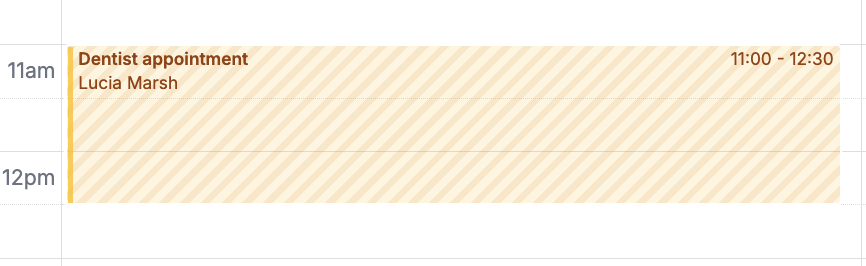
Who can do this: anyone who can edit the schedule.
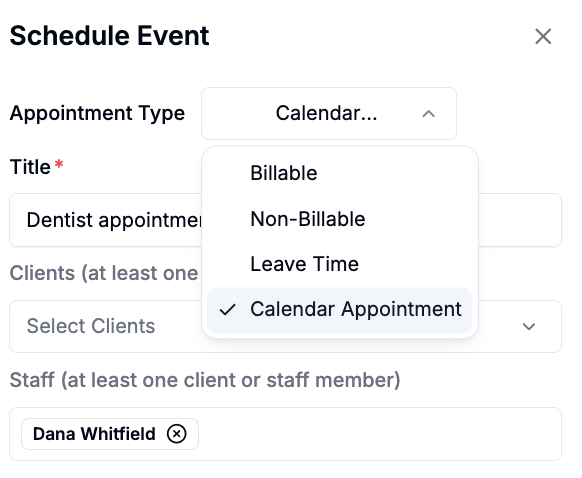
Where: Schedule → Create → Calendar appointment.
Give it a title — free text, and it’s what everyone sees on the calendar.
Optionally attach clients or staff, so it appears on their calendars.
Set the time, or make it recurring if it repeats.
What it will and won’t do
It will warn you if it overlaps a client’s other appointments — an advisory notice,
not a block. It will not stop you scheduling over it.
It will not put hours into payroll. If someone is being paid for the time, it needs
to be a non-billable appointment instead.
If it doesn’t work
“It’s not on my payroll.” Correct, and not fixable here — recreate it as a
non-billable appointment.
“I deleted it and support can still see it.” Deletes are soft, so the audit trail
survives. It’s gone from your calendar.