Send schedule reminder to patients
Last updated: September 10, 2026
Please contact us at support@alpacahalth.io to enable this feature for your organization.
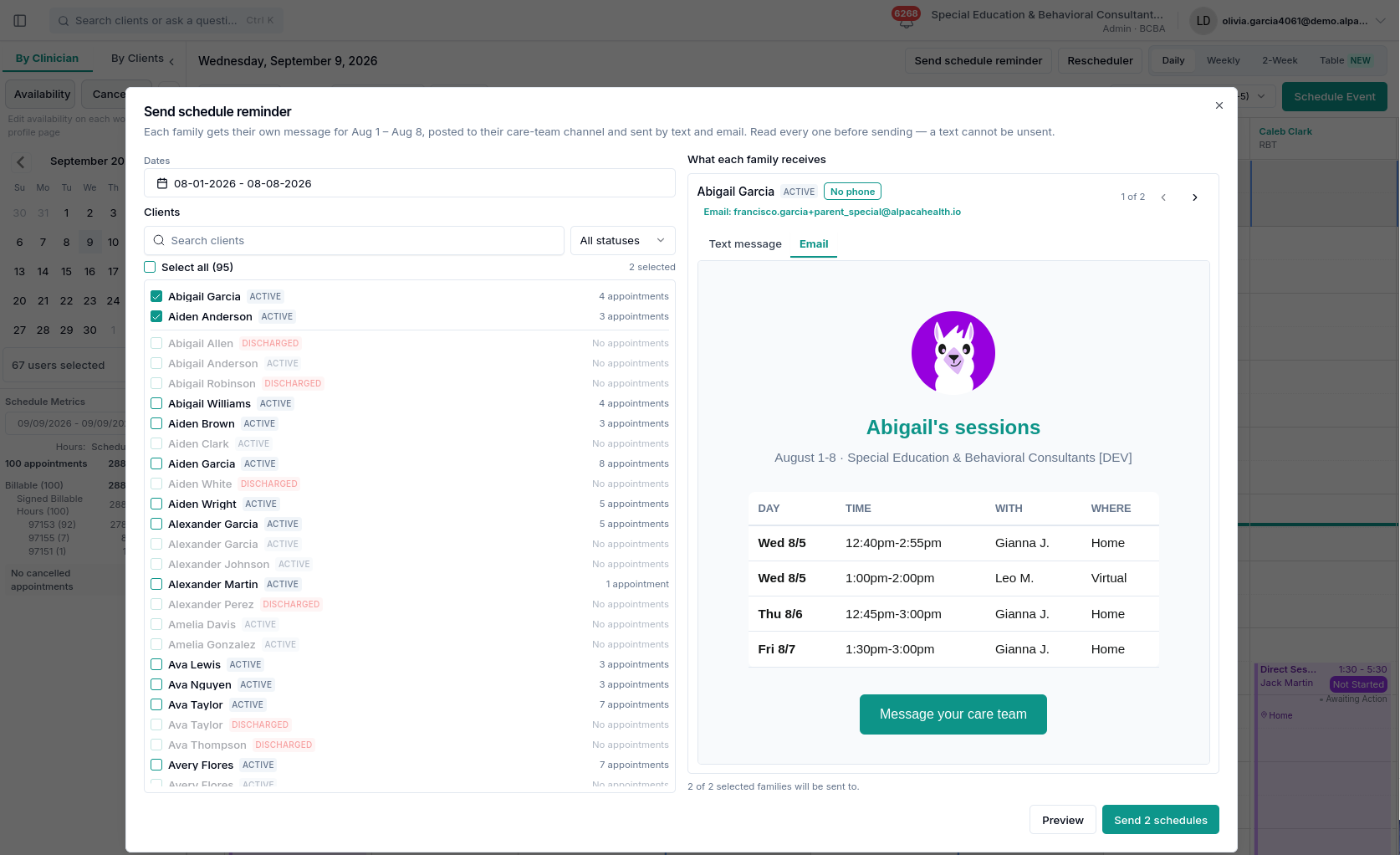
Families ask "when are we on this week?" more than almost anything else. This sends them the answer: each family gets their own message listing their child's sessions for the dates you choose, by text and by email, and the same message is posted into their care-team channel so it stays on the record.
You send to many families in one go, but every family gets their own message. Nobody is copied on anybody else's.
Open Schedule, then click Send schedule reminder at the top right.
Before you start
You can only send to families whose care team you are on. The client list is built from that, not from everyone you can see elsewhere in Alpaca. If you open the window and the list is empty, you will see "You are not on any client's care team, so there is nobody to send a schedule to." That is the reason: ask to be added to the care teams you cover.
Your clinic also has to have messages to families and care-team channels switched on. If either is off, the families affected are listed as not sent, with the reason.
What the family actually receives
Three things, from one click:
Where | What it looks like |
|---|---|
Text message | Your clinic name, the child's first name, one line per session, then how to reach you and how to stop texts |
The same sessions as a table: day, time, who with, and where | |
Care-team channel | The same message posted into the thread, so the family can re-read it in the portal and your colleagues can see what went out |
A session line reads like Wed 8/5 12:40pm-2:55pm with Gianna J., Home.
Two deliberate choices in that line. Clinicians appear as a first name and last initial, and children by first name only, because a family does not need a full surname to recognise who works with their child. And the location is a place name where there is one (Springfield Elementary), otherwise the kind of place: Home, School, Daycare, Clinic, Community or Virtual.
Every text ends with "This number isn't monitored. To message your care team, log in: …" and "Reply STOP to stop texts". That number does not receive replies, which is why the message points families at the portal.
Sending, step by step
1. Pick the dates
Click the Dates field and choose a start and end day. Both ends are included.
You can pick any span up to 31 days. Pick one day for a reminder about tomorrow, or a fortnight before a holiday. Until you have picked both ends, Preview stays greyed out.
2. Pick the families
The list underneath shows every client whose care team you are on, alphabetically, with their status and how many appointments they have in the dates you chose.
Search by name, or filter by status, to narrow the list.
Select all ticks everyone the filters currently match, so searching for "Garcia" and clicking it selects only those.
Families you have already ticked stay at the top of the list, so a filter can never hide who you are about to text.
Families with no appointments in your dates cannot be ticked. They are greyed out and read No appointments. There is nothing to tell them, so the checkbox is disabled rather than letting you select a family who would silently receive nothing.
Change the dates and the counts change with them. A family who was greyed out for one week may be selectable for the next.
3. Preview
Click Preview. Nothing is sent. This builds the exact message each family would get.
4. Read every message
The right-hand pane shows one family at a time, with a counter like 1 of 2 and arrows to step through them. Read them. This is the point of the two-step flow.
Two tabs show the same message in each channel:
Text message shows the text exactly as it will arrive, including the fixed first and last lines.
Email shows the email as the family will see it, table and all.
Beside the family's name you may see:
Badge | What it means |
|---|---|
No phone | No mobile number on file. The email still goes. |
Opted out | They replied STOP to a previous text. No text will be sent; the email still goes. |
Email: … | The address the email will reach. Worth a glance for typos. |
Edited | You have rewritten this family's message. |
At the bottom you get a running count: "2 of 2 selected families will be sent to."
5. Edit anything that needs it
Click Edit this message on the family you are looking at.
You can rewrite the schedule itself: fix a line, add a note like "Please bring the signed consent form", or drop a session that has just moved. Done applies it, Cancel discards it, and Reset to generated puts the original back.
What you cannot edit is the first line (your clinic name and the child's name) and the last lines (the portal link and the STOP notice). The STOP line is required by mobile carriers, so Alpaca always adds it.
An edit goes to all three places: the text, the email and the care-team thread. They never disagree.
Two things to know before you edit:
Editing replaces the table in the email with your text. The email normally shows a neat day/time/with/where table. Once you edit, the family sees your words instead.
If the text was too long, it was already shortened. A very full fortnight can exceed what one text can carry, so the message ends with "…and 3 more - see your parent portal". If you then edit that family, your edit starts from the shortened list, and the email will show the shortened list too. For a long range, prefer to leave those families unedited so the email keeps the full table.
The counter under the box shows how much room is left. It is a guide rather than a hard limit: some characters cost double on a phone network, so a message that looks like it fits can still come back as too long. If it does, you will be told so directly and can shorten it.
6. Send
The button names the number: Send 2 schedules. Underneath, the summary tells you how many are edited.
A text cannot be unsent. There is no recall and no undo. This is why the window makes you preview first, and why it is worth stepping through every family.
Afterwards you get a confirmation of how many messages were queued, and a warning naming any family who did not get one.
Who will not receive it, and why
Some selected families are set aside before anything is sent. They are listed under the preview as Not sent, grouped by reason, and named, so you can go and fix the cause.
What you see | What to do |
|---|---|
No sessions in this range | Nothing is wrong. They have no appointments in those dates. |
No phone or email on file — nothing would be delivered | Add contact details to the caregiver's profile. |
No timezone on file — cannot work out their local times | Set the client's timezone, or the clinic's. |
You are not on this client's care team | Ask to be added to that care team. |
This clinic has not turned on messages to families | An admin needs to enable it. |
This clinic has not turned on care-team channels | An admin needs to enable it. |
Posted to the thread, but delivery could not be queued — not yet sent | The message is in the thread but the text and email did not go. Report it. |
What counts as a session
The list a family receives is not simply "everything on the calendar". Alpaca leaves out anything a family should not be told to attend:
Cancelled appointments never appear. Telling a family to turn up to a cancelled session is the worst thing this feature could do, so cancellation is checked thoroughly.
Non-billable time never appears: PTO, training, admin, drive time. Some of that can be recorded against a client, and no family should be told about their clinician's holiday.
Rejected requests never appear.
Group sessions appear for every family attending.
Times are shown in the family's own timezone, not yours. Two families in different states see the same session at their own local times.
Common questions
Can I send to a family I am not on the care team of? No. The list only offers families whose care team you are on, because that is also the channel the message is posted into.
Will the family reply to the text? No, that number is not monitored. The message tells them to reply in the portal, which lands in the care-team channel where you and the rest of the team will see it.
What if a family replied STOP? They are marked Opted out and get no text. The email still goes, and the message is still posted to their channel.
Can I check what was sent? Yes. Open Messages, find the client's Care team channel, and the message is there in the thread exactly as the family received it.
Why is a family greyed out when I know they have sessions? Check the dates first: the count is only for the range you picked. If the dates are right and it still says no appointments, the sessions may be cancelled or recorded as non-billable.
What is the longest range I can send? 31 days. Beyond that you are told how long the range is and Preview stays disabled.