Client To-Dos
Last updated: August 26, 2026
Client To-Dos are the items that need your action to keep a client moving through care — a referral waiting on your decision, an assessment that’s ready to book, an authorization about to lapse. Alpaca watches every client automatically and opens a To-Do the moment someone gets stuck, so nothing slips.
You never create these — Alpaca does, and closes them automatically once the blocker clears.
An empty queue means nothing is blocking care right now. That’s the goal.
Note: To-Dos were previously called “Escalations.” If you see that older wording in an email or an older article, it’s the same thing.
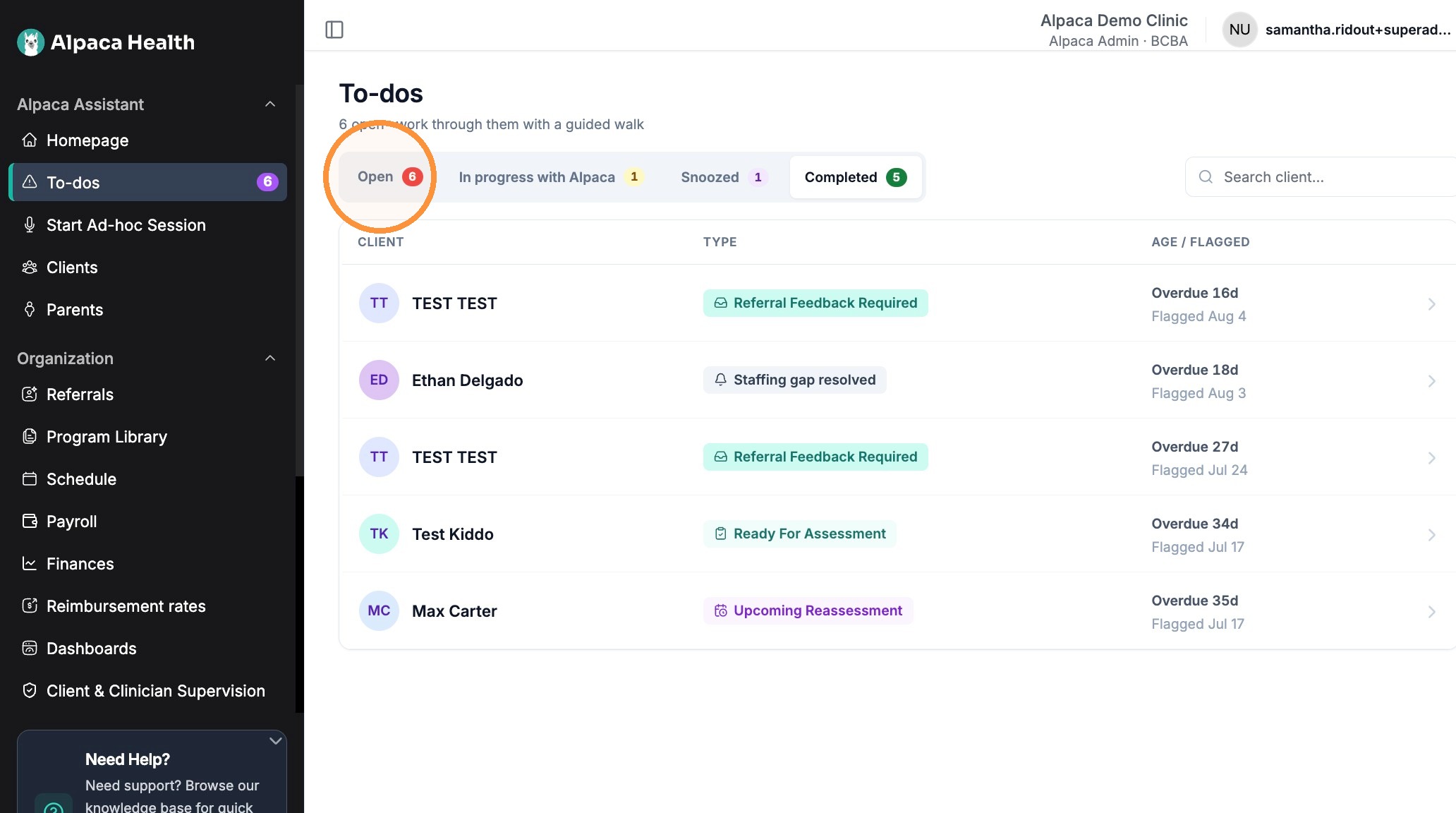
Priorities and due dates:
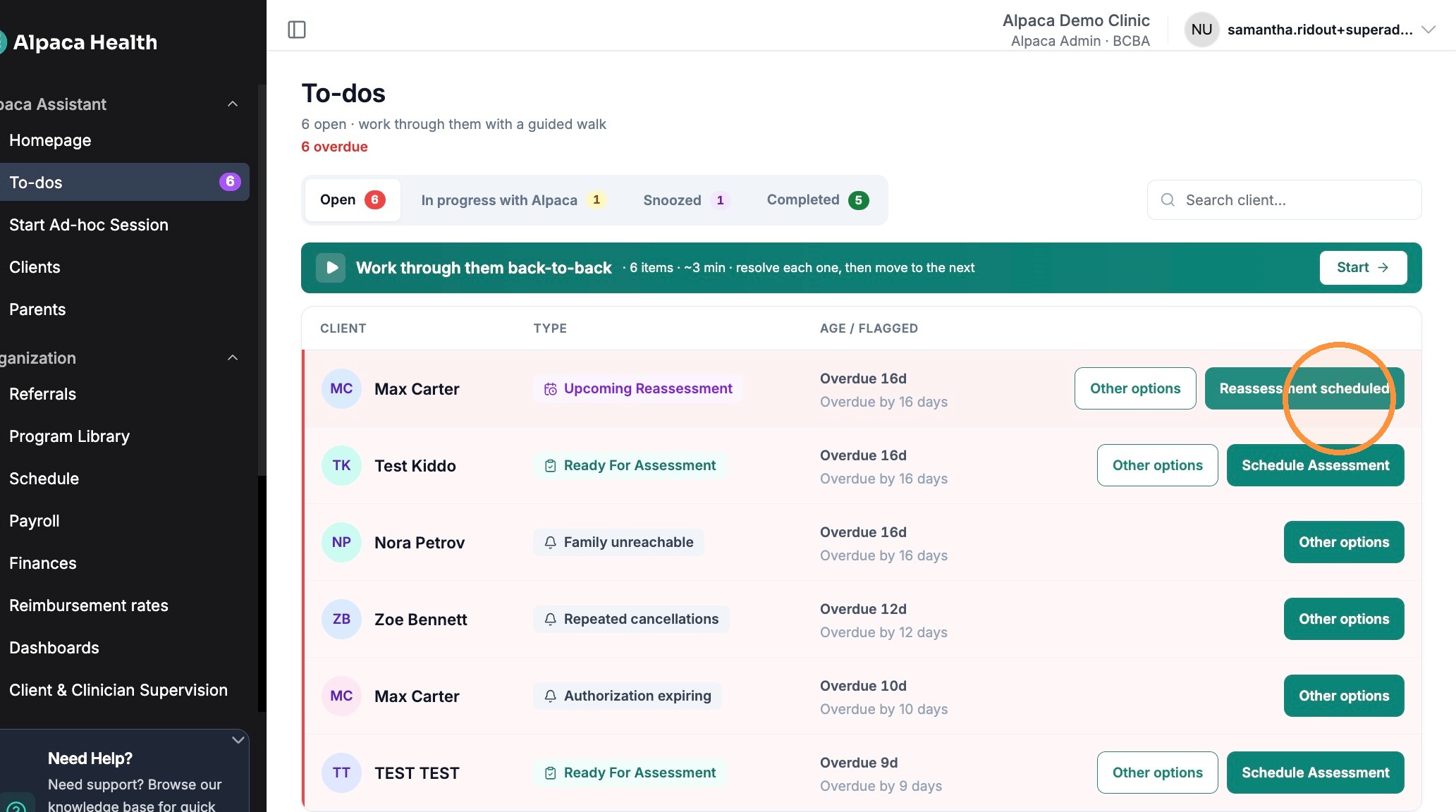
The queue is ordered so you can tell what needs you.
Red = overdue. Pinned to the top, most overdue first. Handle these now.
Gray = on track. Below the red items — either still inside its normal response window, or an early heads-up about something coming (like a reassessment we flag ahead of time).
When does a gray item turn red?
Most items: about three business days after they reach you.
An upcoming reassessment: about a week before the authorization lapses.
A few, like a missed assessment, arrive already overdue.
Statuses: whose move is it?
The tabs across the top — Open, In progress with Alpaca, Snoozed, and Completed — group your To-Dos by status. You can also search by client name and click a column header to re-sort.
Open — your move. Gray = on track; red = overdue, handle now.
In progress with Alpaca — our move. You handed it to us and we’re acting on your behalf.
Snoozed — paused until a date you chose. It returns to Open then, or sooner if the issue resolves on its own.
Completed — fully resolved and final. Review past items here any time.
Acting on a Client To-Do:
Act straight from the row when the case is obvious, or open the To-Do for a guided flow with the client’s details and full history.
Quick solve — the green button on the right of the row.
Other options — Opens a short, plain-language questionnaire that lands you on the right action for your specific case. This is also where you hand the item to Alpaca, snooze it, or discharge the client.
Inside a To-Do
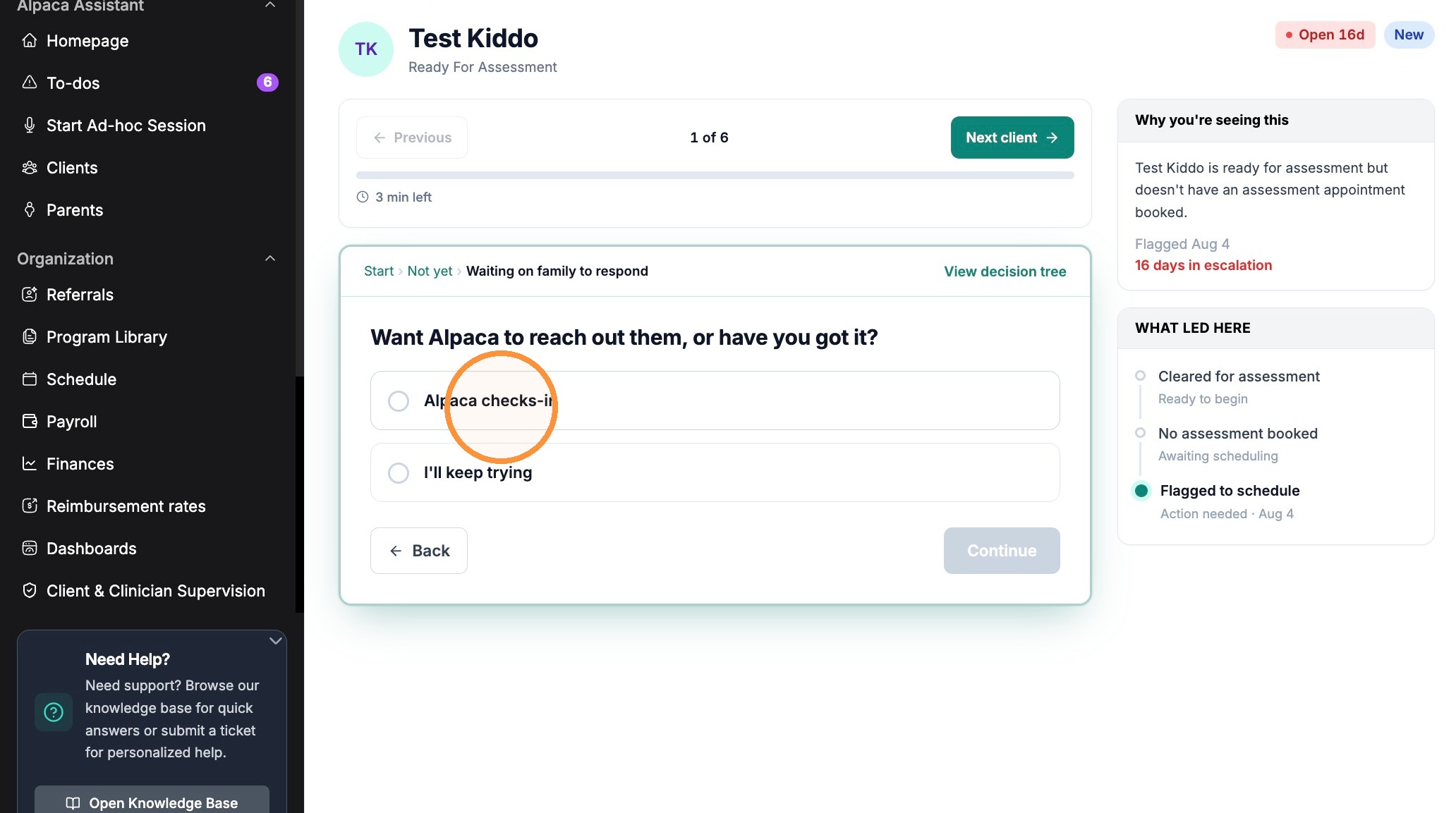
Clicking a row (or Other options) opens the guided view. It gives you everything you need to decide without leaving the page:
Why you’re seeing this — a plain-language reason, plus when it was flagged and how long it’s been open.
What led here — the sequence of events that triggered the To-Do.
The guided questions — answer them one at a time
Next client / Previous — work the queue back-to-back without returning to the list.
Click Other options on the row.
Answer each short question (for example, “Is the assessment scheduled?” → Book assessment / Already done / Not yet), then click Continue.
Keep answering until you reach an action button, then submit. You’ll see “Response submitted successfully.”
Handing a To-Do to Alpaca
flow you’ll often be offered the choice to hand the work to us:
Choose Alpaca checks-in (vs. I’ll keep trying) to hand it over. The item moves to the In progress with Alpaca tab and its status becomes “Alpaca working on it.”
Alpaca takes on things like re-engaging an unresponsive family or sourcing an RBT, and hands it back if it needs you again.
Types of Client To-Do
Ready For Assessment — insurance is verified; Quick solve (Schedule Assessment).
Upcoming Reassessment — an authorization is nearing its end date.
Snoozing a Client To-Do
Waiting on someone else? Open Other options and choose Snooze to pause a To-Do and pick a return date.
Snooze up to two weeks with a single click.
For longer than two weeks, Alpaca asks for a short reason (at least 10 words) so we know what’s holding it up.
A snoozed To-Do returns to Open on the date you chose — or sooner if the blocker clears on its own.
Client To-Dos vs. Alpaca To-Dos
Every item in your queue is a “to-do,” but they split into two groups depending on who needs to act:
Client To-Do
Who acts: you (the provider or clinician).
Status shown: Open (gray or red).
Examples: accept a referral, book an assessment, log sessions.
Alpaca To-Do
Who acts: Alpaca, on your behalf.
Status shown: In progress with Alpaca.
Examples: re-engage an unresponsive family, source an RBT.
You turn a Client To-Do into an Alpaca To-Do by choosing Other options and handing it to us.
FAQs
A To-Do disappeared before I acted on it — what happened?
It almost certainly auto-closed because the blocker resolved, often because you handled it elsewhere in Alpaca. Confirm on the Completed tab.
The red badge doesn’t match the number of items in my list. Why?
The badge counts overdue items only, not your total open items.
I clicked the wrong button — how do I undo it?
There’s no undo; responses process immediately. Email support@alpacahealth.io and we’ll correct it.
Still stuck? Reach out to support@alpacahealth.io.