RBT Hiring Management Page
Last updated: October 21, 2026
RBT hiring is a hiring workspace for the person who interviews RBTs. It answers one
question first — what do I owe a candidate right now — and then lets you answer it without
leaving the page. Three tabs: Needs action, Candidates, Requisitions.
It replaces reading a long list of requisitions and working out for yourself which
candidates are stuck. The queue arrives already ordered, already counted, and already
narrowed to work that is actually yours.
Three promises hold the page together:
Everything in the queue is genuinely yours. A candidate nobody has matched to your
clinic yet, and an interview a recruiter is booking, raise nothing.One number, in every place it appears. The tab badge, each requisition’s count, the
drill-in button and the queue itself are the same number from the same place. They cannot
disagree.It never shows a due date it cannot stand behind. Where the clock has not started,
the page says so instead of printing a date.
Who can use it
You can open RBT hiring when all of these are true:
your active organization has RBT hiring turned on;
your role can already see RBT Requisitions — the same permission covers both; and
you are working in that organization.
In practice that is clinic admins, directors, HR, assistant admins and ATS managers.
Clinicians, RBTs and parents do not see it. Holding the permission does not widen what you
see: the page is scoped to your active organization, and a candidate on another practice’s
requisition is never returned, by id or by search.
Until the flag is on for your organization, RBT hiring appears in the Growth group
of the sidebar as an inert row with a Soon label, and the address itself does not
resolve.
If the page loads and says Access Restricted — You do not have permission to view RBT
hiring — your role is missing that permission. Ask your organization administrator.
Open the page
Select RBT hiring under Growth in the sidebar. Needs action is the landing tab,
because it is the question the page exists to answer.
The Needs action tab carries a count beside its name. That count is practice-wide: it
does not move when you search or filter, and it disappears rather than reading zero while
the request is still in flight.
Read the queue
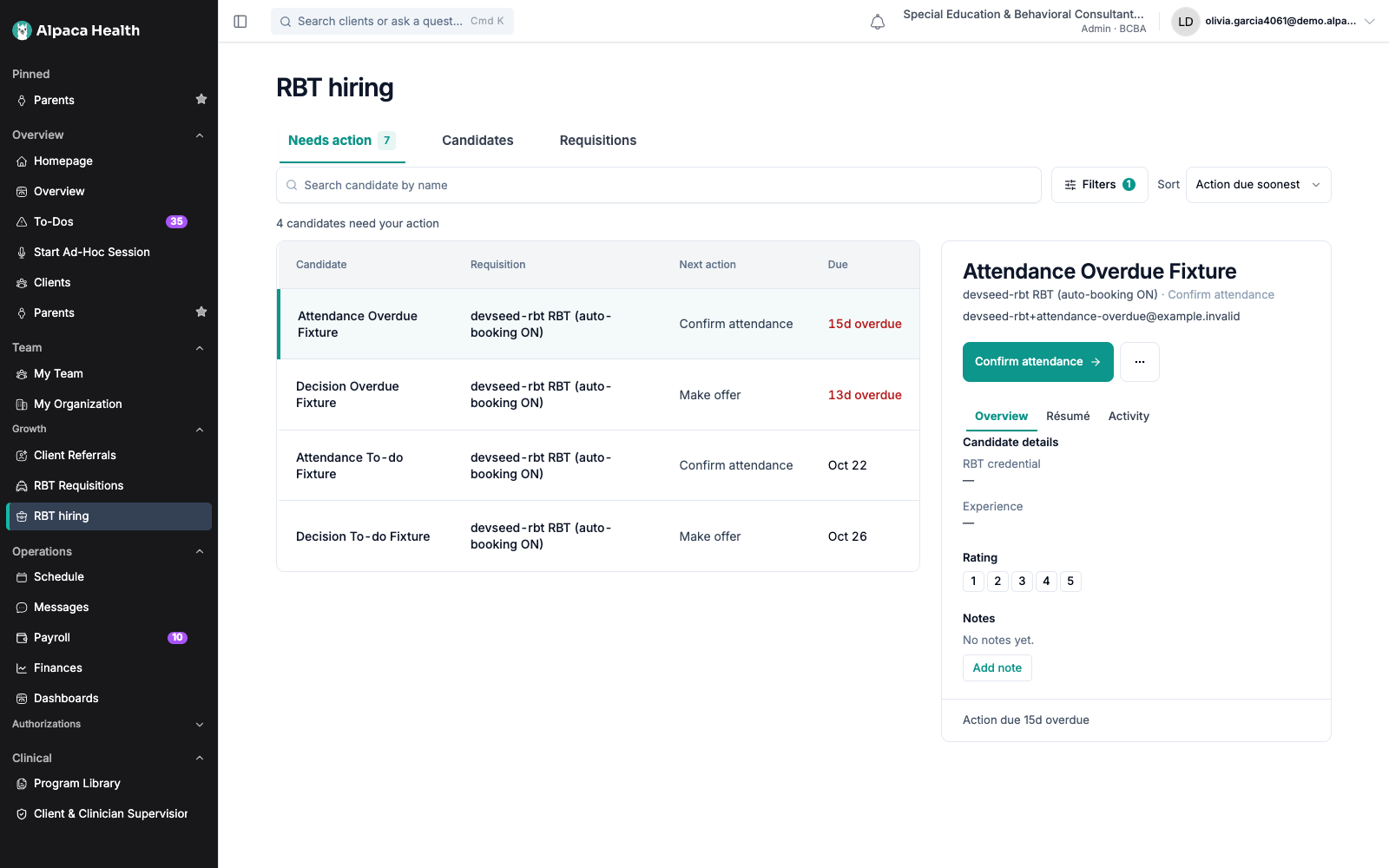
The queue is a four-column table: Candidate, Requisition, Next action, Due.
It is ordered overdue first, then due soonest. Nothing is re-sorted in your browser.
Due reads one of four ways:
Due reads | Meaning |
|---|---|
3d overdue, in red | The deadline passed three days ago. |
Today | Due today. Due today is not overdue. |
Tomorrow | Due tomorrow. |
Oct 24 | A date further out. |
No action due at this time | Something is owed, but the timestamp the clock runs from was never recorded. |
Only three stages raise a row here:
Stage | Next action | Clock |
|---|---|---|
Matched | Confirm application | 5 business days from the match — and only on roles where your clinic books its own interviews |
Confirm attendance | Confirm attendance | 3 business days from the interview start time |
Awaiting decision | Make offer | 5 business days from the interview being recorded |
Everything else is visible on Candidates and on its requisition, and owes you nothing:
New application, Interview scheduled, Offer sent, Keep under consideration,
Offer accepted, Onboarding, Started. Rejected, No show and Routed
elsewhere are finished.
Two of those absences are deliberate and are the biggest change from the old page:
A candidate at New application has not been matched to your clinic yet. It is not
your work until it is assigned, so it raises nothing.Where Alpaca books interviews automatically for a role, a matched candidate is the
recruiter’s to schedule. Your clinic sees them, but is not asked to do anything.
Writing interview feedback is optional and never raises a task. A completed interview goes straight to Awaiting decision whether or not feedback was written.
Work a candidate from the card
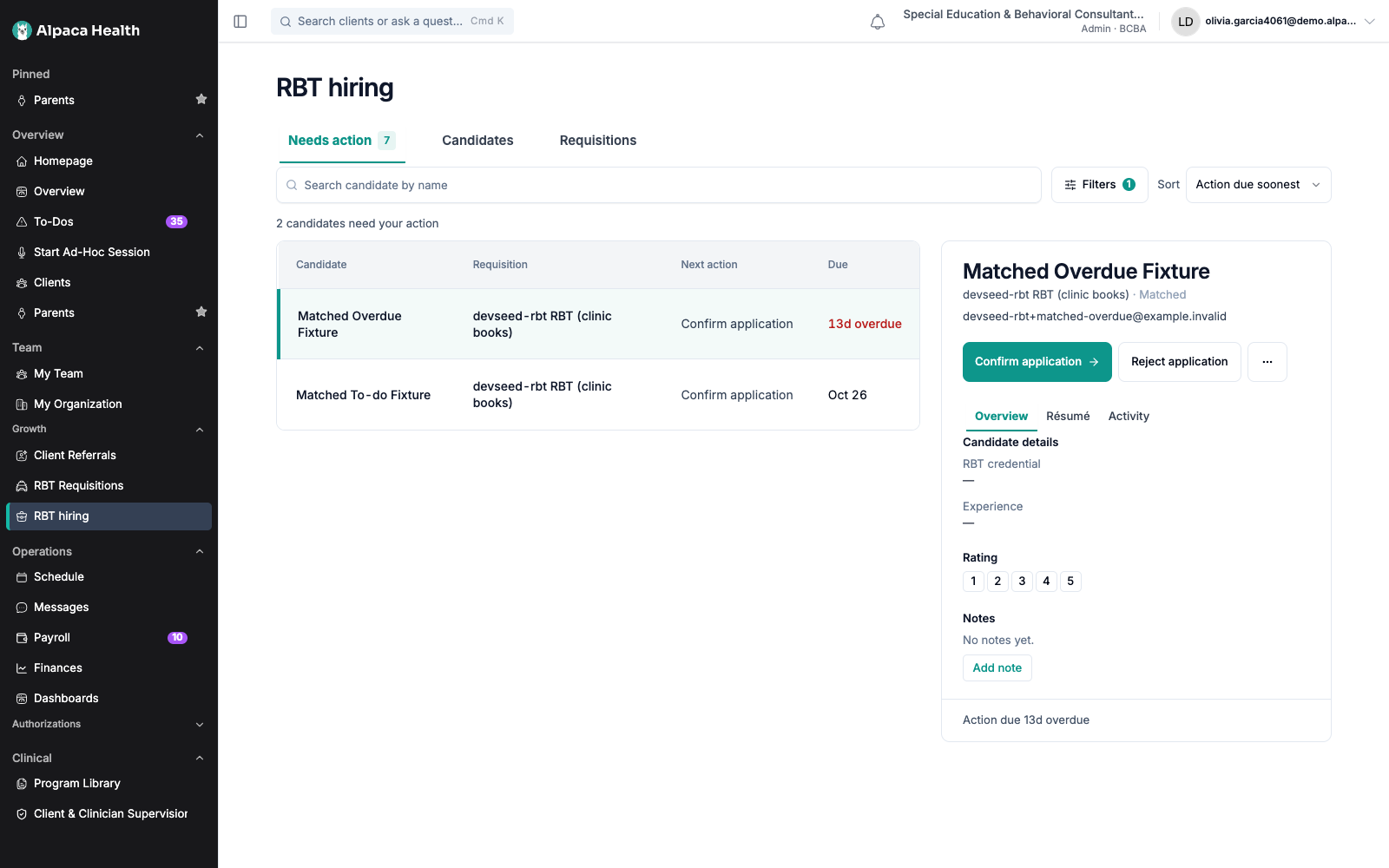
The first row is selected when you arrive, and the card opens beside the queue rather than
over it, so working down the list never costs you your place. Select any row to swap the
card.
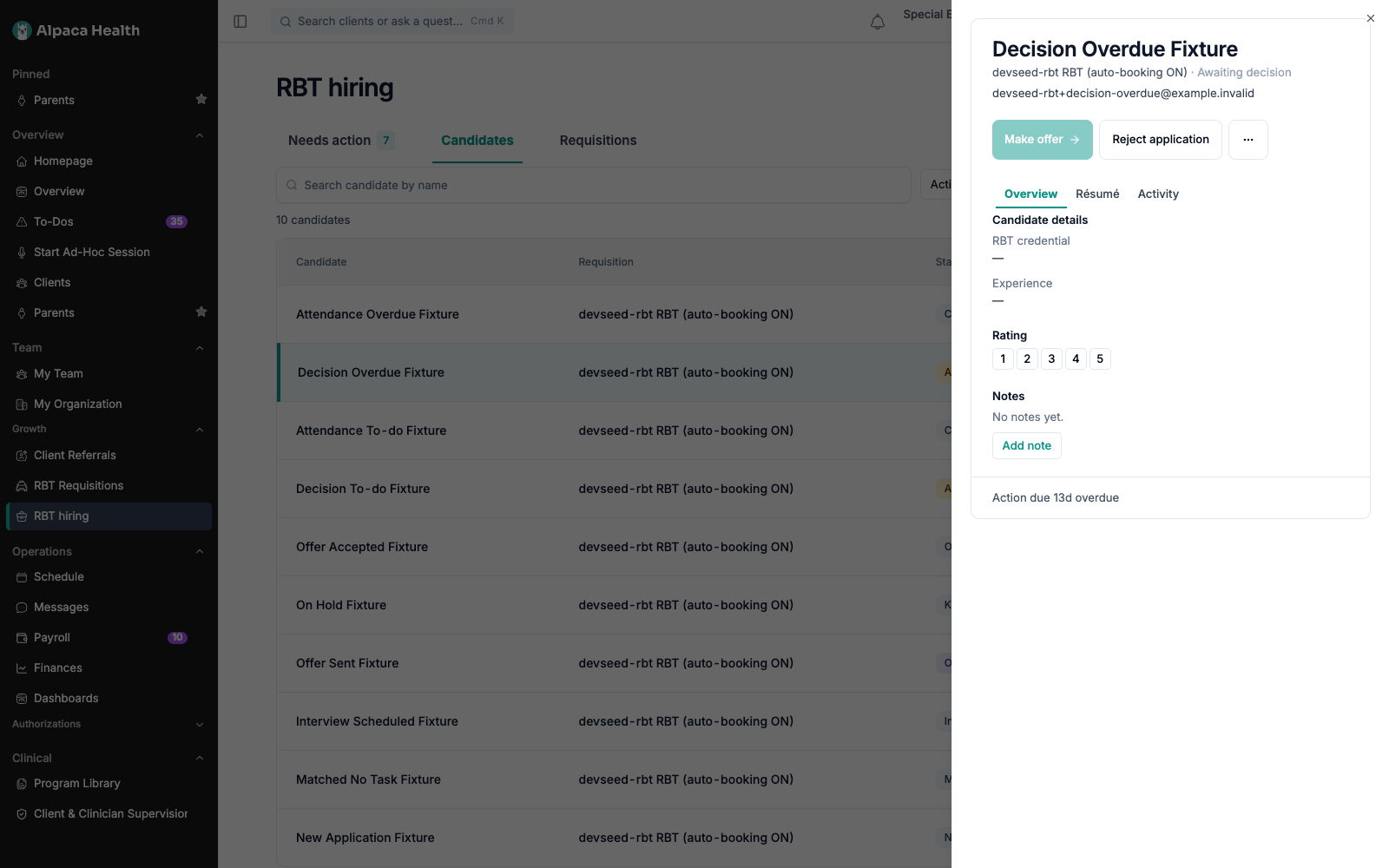
The card carries the candidate’s name, the role and stage beneath it, and their email and
phone. The email is a link. Then:
the primary button, which names the next action;
Reject application, beside it at every stage except Confirm attendance;
a three-dot menu; and
three tabs — Overview, Résumé, Activity.
The footer reads Action due Today (or the relevant date), and stays visible whichever
tab you are on. Where nothing is owed it reads No action due at this time.
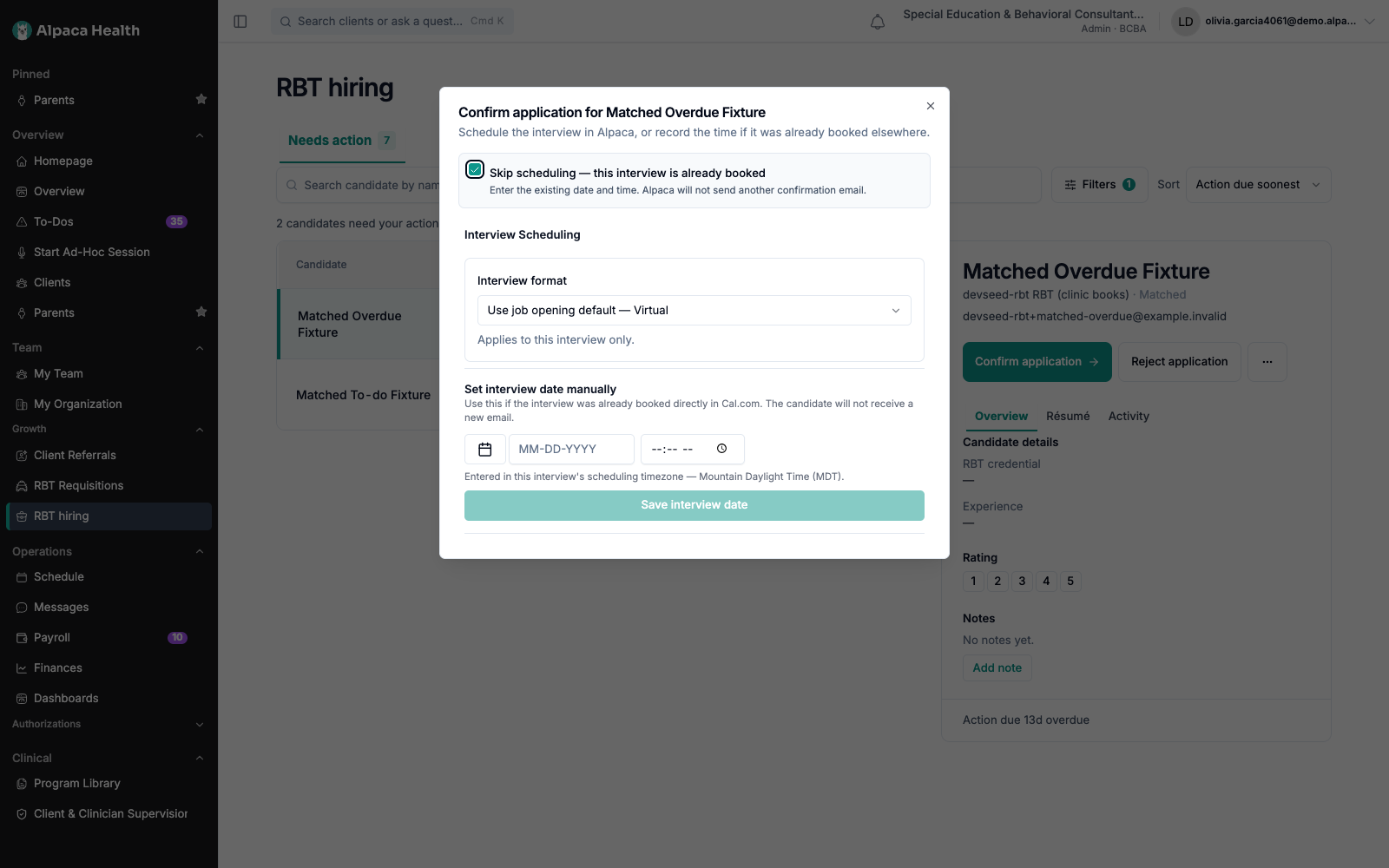
The three-dot menu holds Email candidate, Add a note, Keep under consideration,
Schedule another interview, Hire candidate and Reject application. Items that
have no write path yet are visibly disabled — see What it will not do.
Accept a match and book the interview
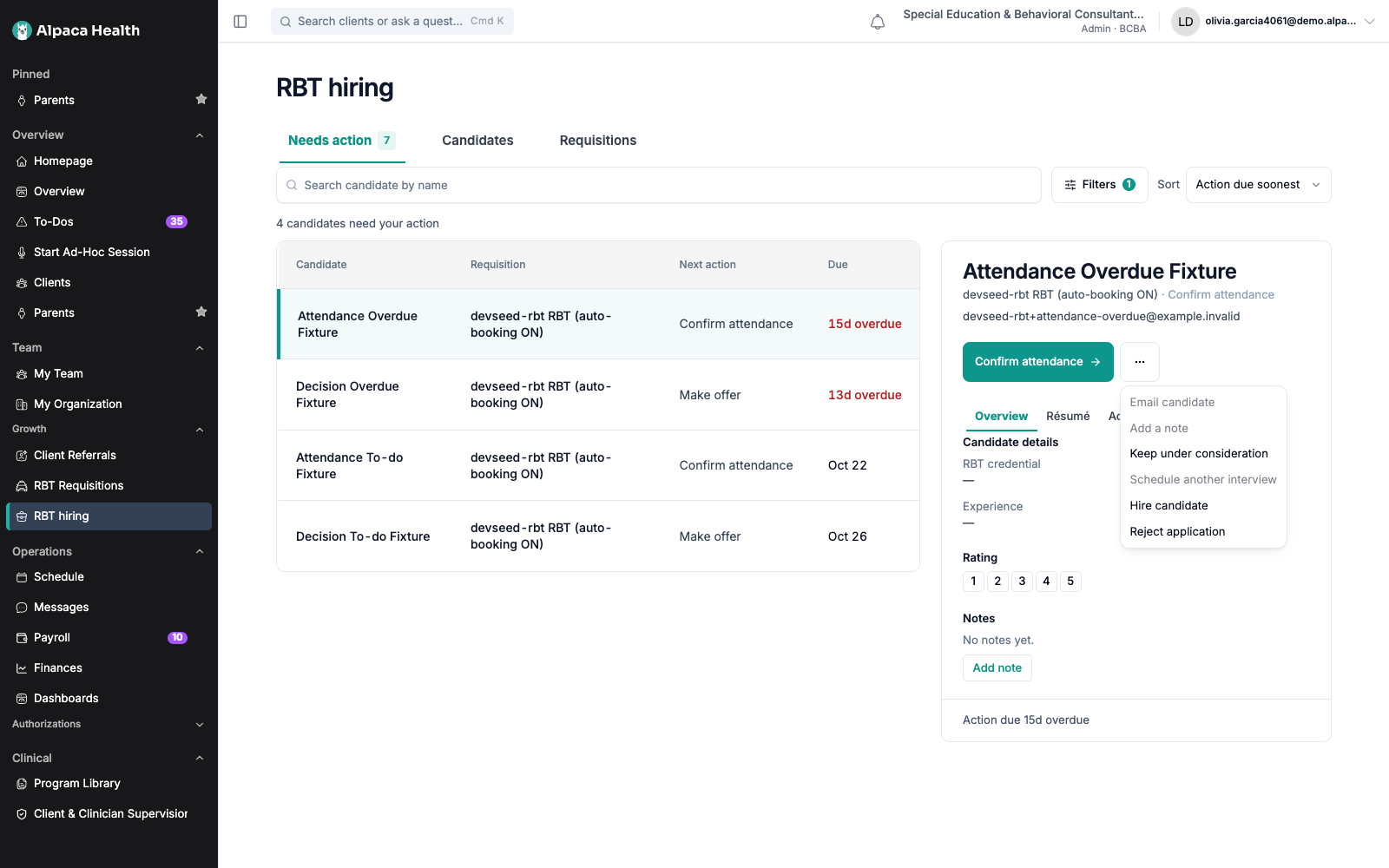
At Matched, the primary button is Confirm application. It opens Confirm application
for [candidate] — Schedule the interview in Alpaca, or record the time if it was already
booked elsewhere.
Accepting the candidacy and booking are one step, not two, because they are one decision.
Interview format sits at the top and defaults to Use job opening default. Changing it
applies to this interview only, not to the role.
The normal path is to pick a time from the booking calendar. Alpaca creates the interview
and emails the candidate a confirmation.
If you already booked it yourself, tick Skip scheduling — this interview is already
booked. The calendar is replaced by Set interview date manually — Use this if the
interview was already booked directly in Cal.com. The candidate will not receive a new
email. Enter the date and time and select Save interview date, which stays disabled
until both are filled. Times are read in the interview’s own scheduling timezone, which the
form names underneath.
Either way the candidate moves to Interview scheduled and leaves your queue until the
interview time passes.
This step only appears on roles your clinic books for itself. Where Alpaca books interviews
automatically, a recruiter schedules and you are never asked.
Confirm whether an interview happened
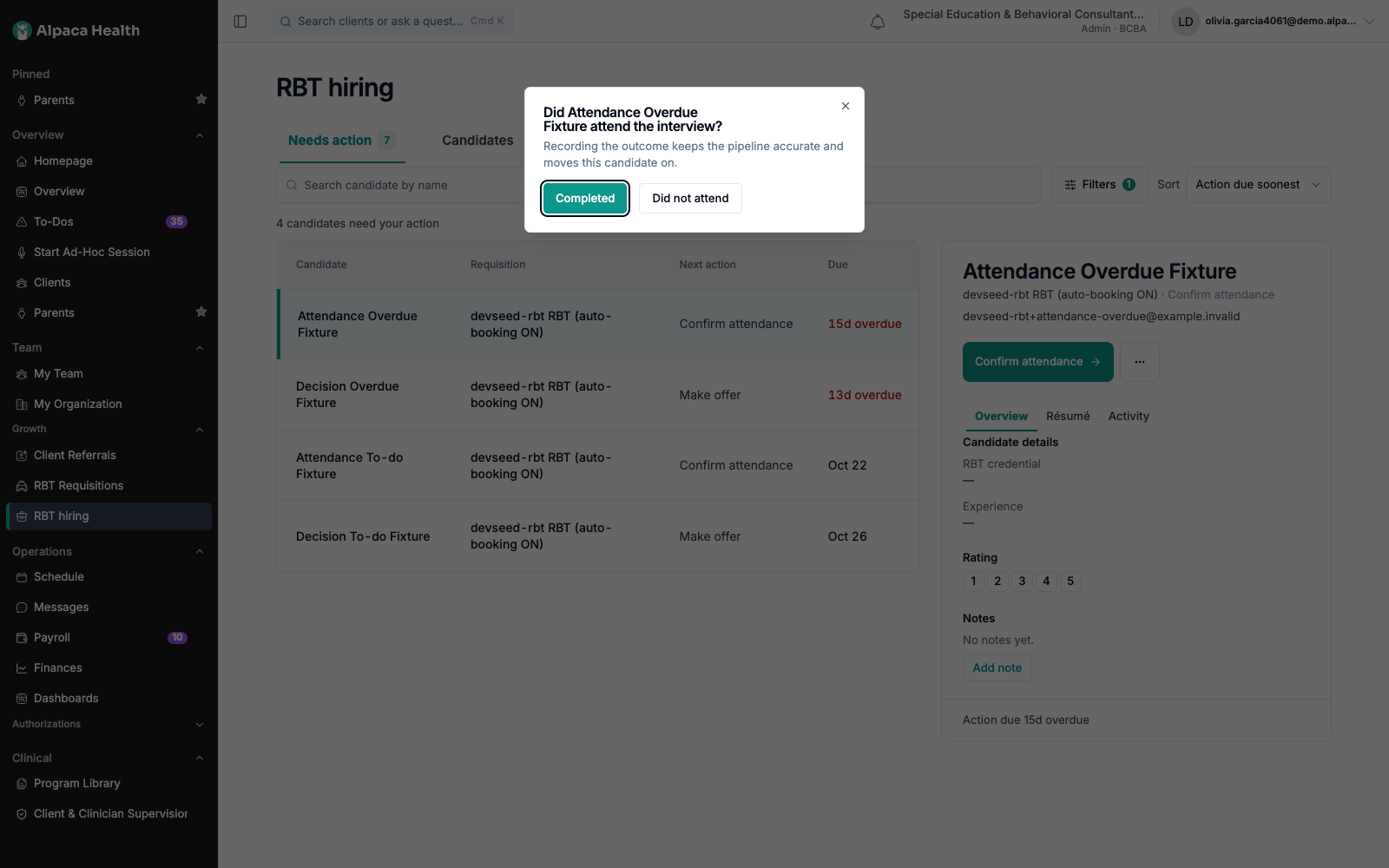
At Confirm attendance, the primary button opens a question rather than writing
immediately: Did [candidate] attend the interview?
Completed records a held interview. The candidate moves to Awaiting decision and
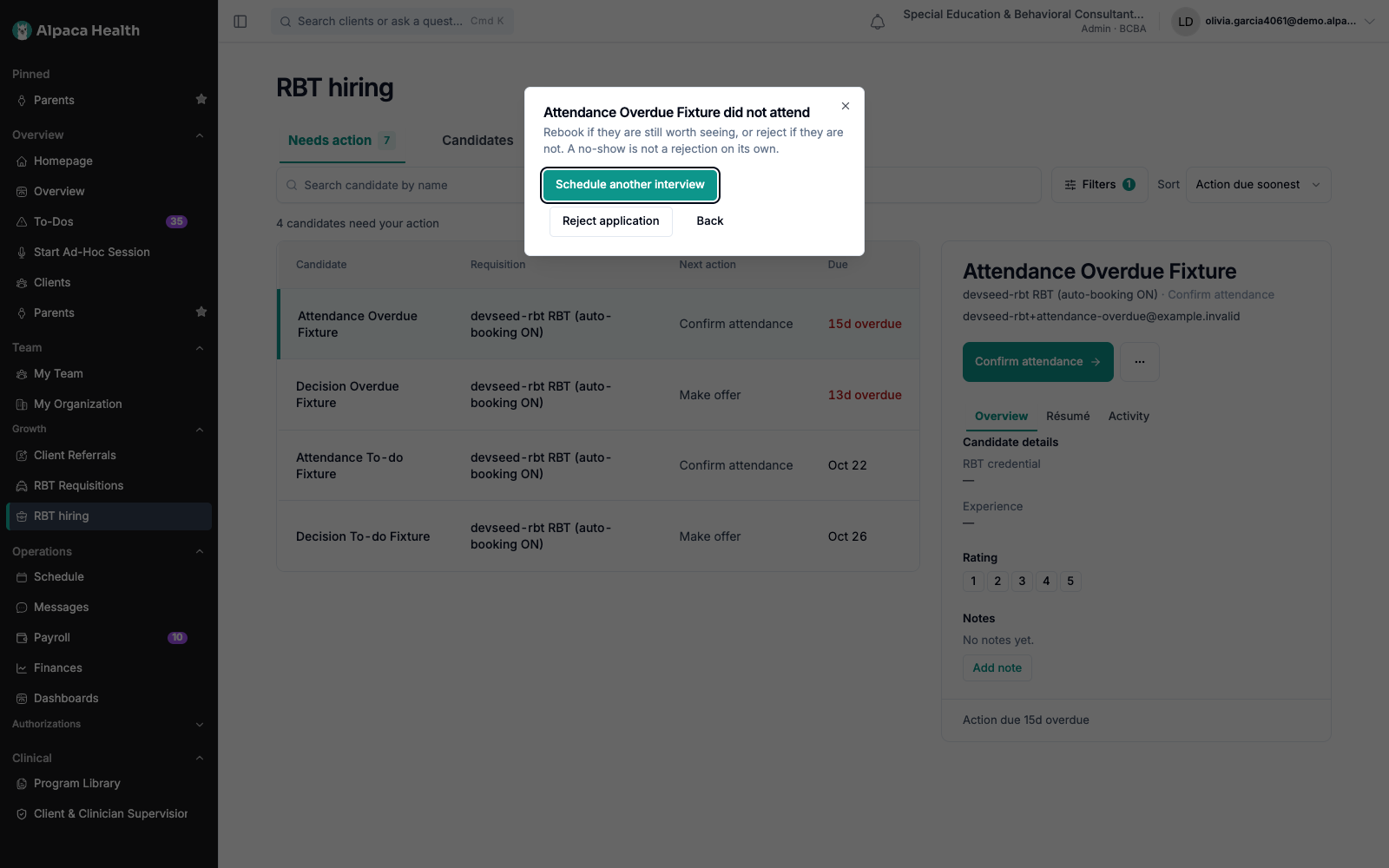
leaves this stage.Did not attend opens a second step, which replaces the first so there is only ever
one question on screen.
The second step says A no-show is not a rejection on its own, and offers three choices:
Schedule another interview clears the stale slot so the interview can be booked again.
Reject application opens the rejection dialog with the no-show reason pre-selected.
The reason stays editable.Back returns to the question. Closing the dialog with the x does the same, and
records nothing either way.
Did not attend deliberately does not reject anybody. A no-show and a decision not to
hire are different facts, and an interview that merely slipped is the common case.
Hire a candidate
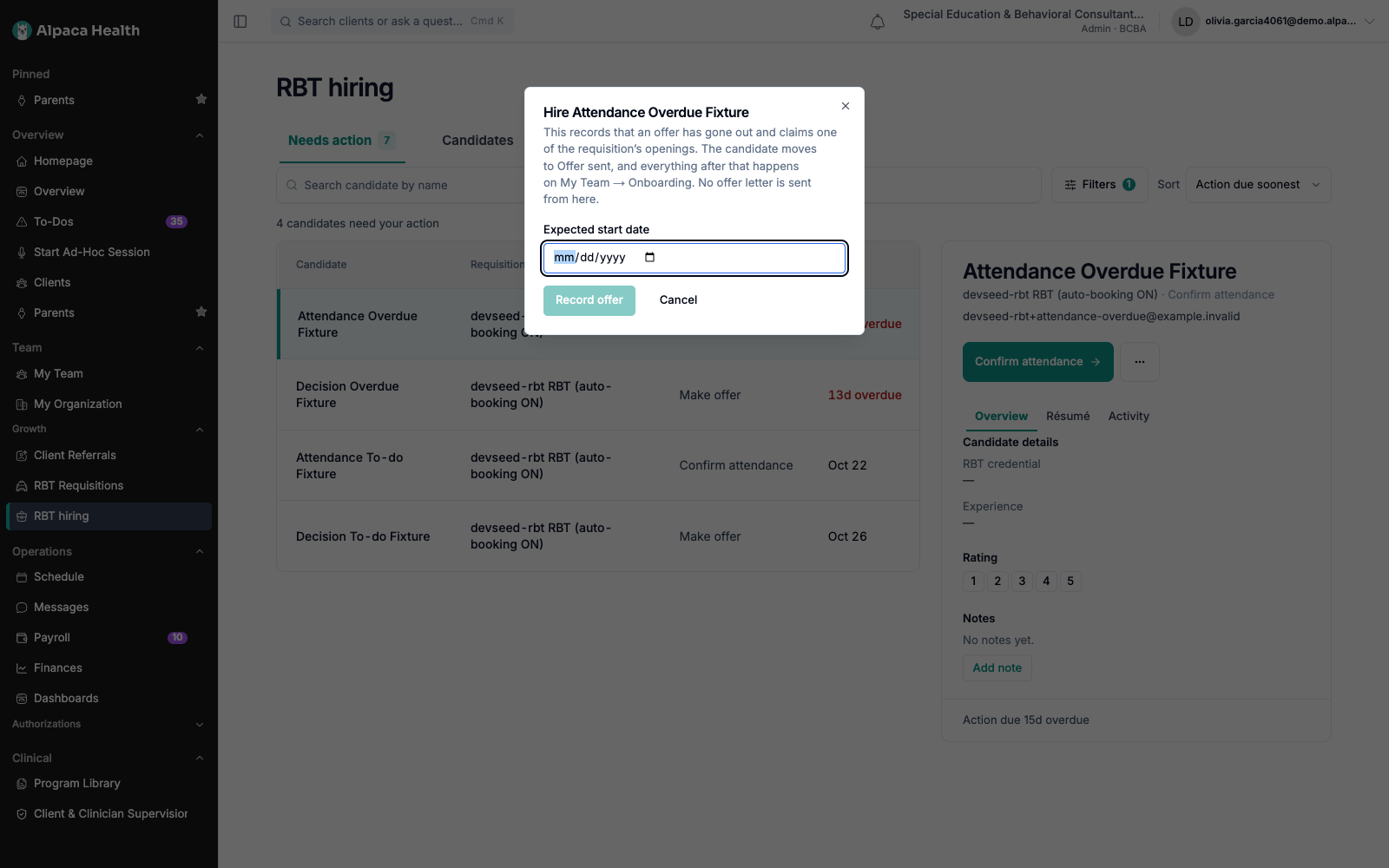
Hire candidate in the three-dot menu opens a short form. It asks for one thing —
Expected start date — and Record offer is disabled until you give it.
What it does, in its own words on the dialog: This records that an offer has gone out and
claims one of the requisition’s openings. The candidate moves to Offer sent, and everything
after that happens on My Team → Onboarding. No offer letter is sent from here.
Both halves matter.
It claims an opening. That is why it is a form and not a menu item that fires on
click. Marking somebody offer-sent without claiming the opening would leave the
requisition advertising a vacancy it had already promised away.It sends nothing. No offer letter, no email. The Alpaca offer letter is its own flow
on the ATS offer screen.
Hire candidate is available from every stage before an offer. It is absent at Offer
sent — which is where it puts people — and at the post-offer and finished stages, where
reopening a candidacy is a different decision with its own route.
Once an offer is out, the candidate leaves Needs action entirely. They stay searchable
on Candidates and listed on their requisition’s drill-in.
Park a candidate, reversibly
Keep under consideration takes a candidate out of the queue without rejecting them.
They keep their place on Candidates with no due date. The same menu item then reads
Remove from consideration hold and brings them straight back, so parking somebody by
mistake costs nothing.
Notes and rating
Overview stacks three sections in the order the decision is made: who the candidate is,
what you thought of them, then what you wrote down.
Candidate details — RBT credential and Experience, read from the candidate’s
prescreen answers. A dash means the question was not answered.Rating is five buttons, 1 to 5 — the only values accepted. It is your own record. It
is never shown to the candidate, is never used for matching, and never gates a transition
— saving it changes nothing else on the card, which is asserted by a test rather than left
to habit.Notes runs the full width of the panel, because interview notes are the case it is
built for. Add note (or Edit note when there is one) opens a text area with Save
and Cancel. With no note yet it reads No notes yet.
Résumé opens the document in a new tab, or says No résumé on file for this
candidate. Activity is the candidate’s application history.
Narrow the list
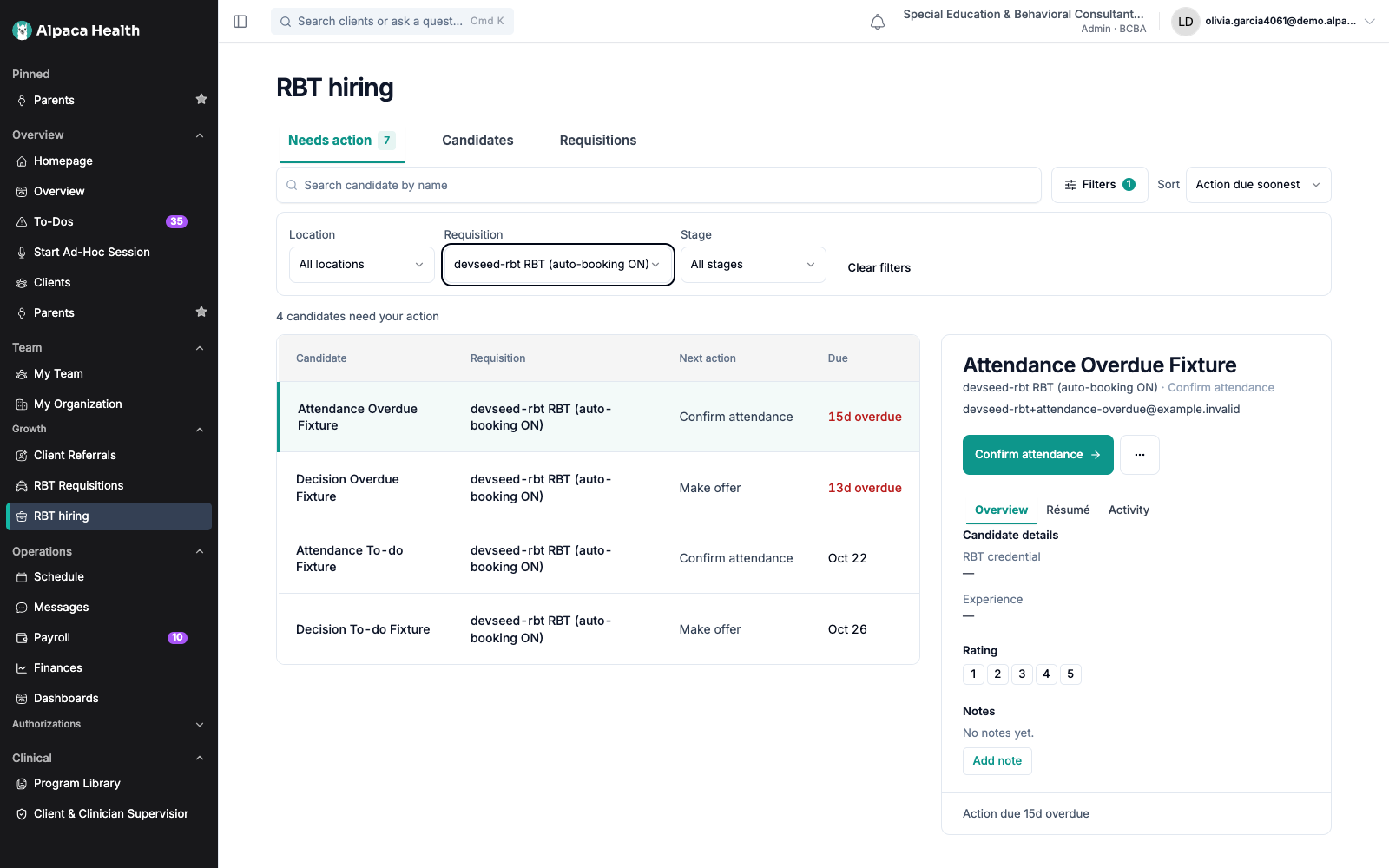
Above each table:
Search candidate by name matches a prefix, so “Wen” finds Wendy. One request per
pause in typing, not one per keystroke.Filters discloses Location, Requisition and Stage, plus Clear filters.
The trigger carries a count of how many filters are active, because a filtered list that
looks identical to an unfiltered one is how “the list is wrong” starts.Sort is its own control, not buried in Filters: Action due soonest or Name
A–Z.
Filter options come from your own requisitions, so you are never offered a location your
clinic does not hire in. Changing any filter returns you to the first page.
Tables page rather than grow. The control row reads 51–100 of 361 and Page 2 of 8,
with Previous and Next. Acting on a row shrinks the set; the page clamps itself
rather than leaving you on an empty page with no way back.
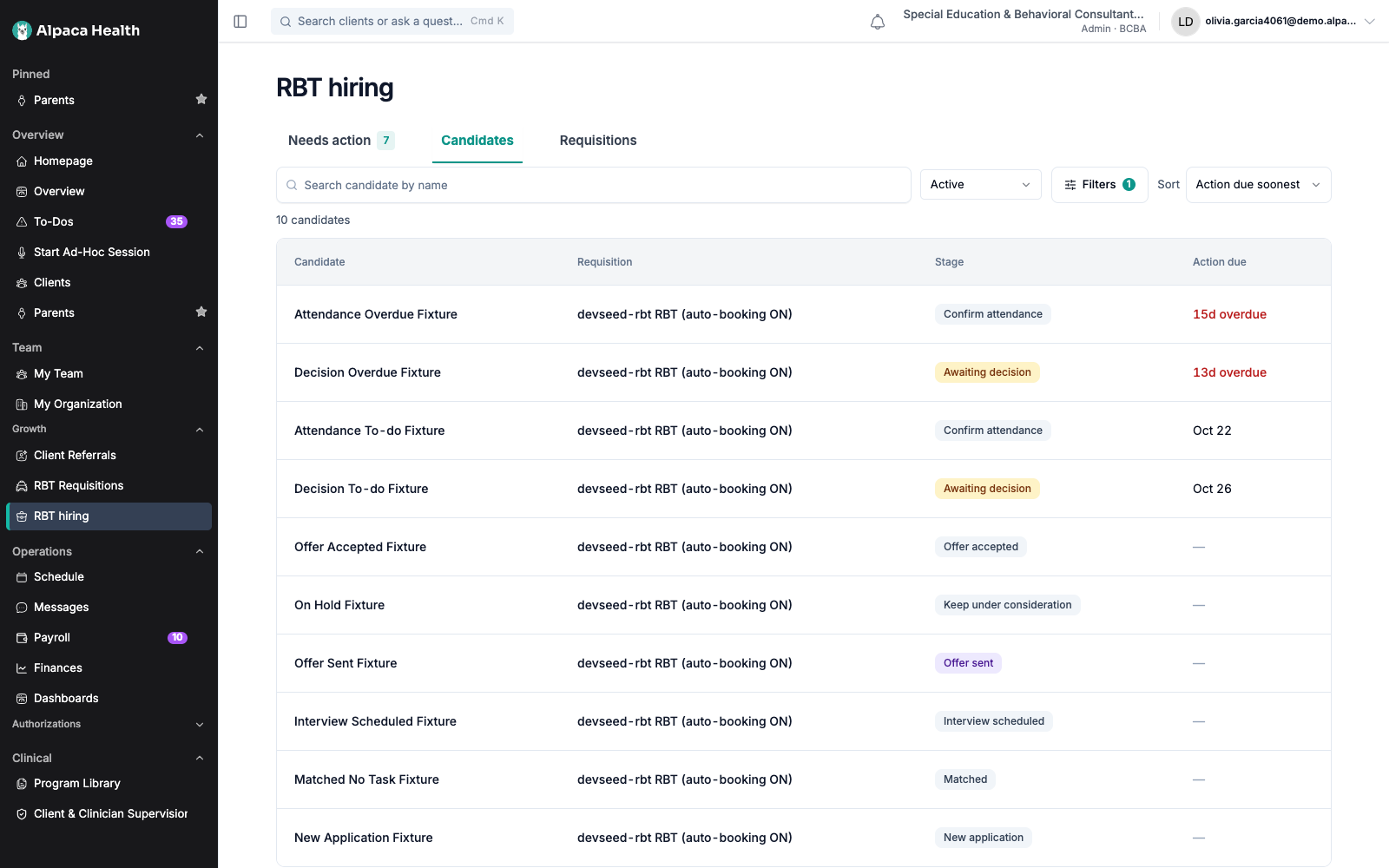
Candidates
Candidates answers a different question: where does everyone stand. It includes people
who owe you nothing, and it has no Next action column — that belongs to the queue.
Four columns: Candidate, Requisition, Stage, Action due. Stage renders as a
pill. Action due shows an em dash where nothing is owed, rather than the queue’s full
sentence.
A scope control offers Active and Archived. Archived is rejections.
Selecting a row opens the same candidate card as a dismissible panel from the right, rather
than a second pane — this table is full width, and a side-by-side card would squeeze both.
Needs action is always a subset of Candidates. That is a tested property, not a
coincidence of the data: both tabs read one collector with a different scope, so a
candidate’s stage and due date are identical on each.
Requisitions, and one role in detail
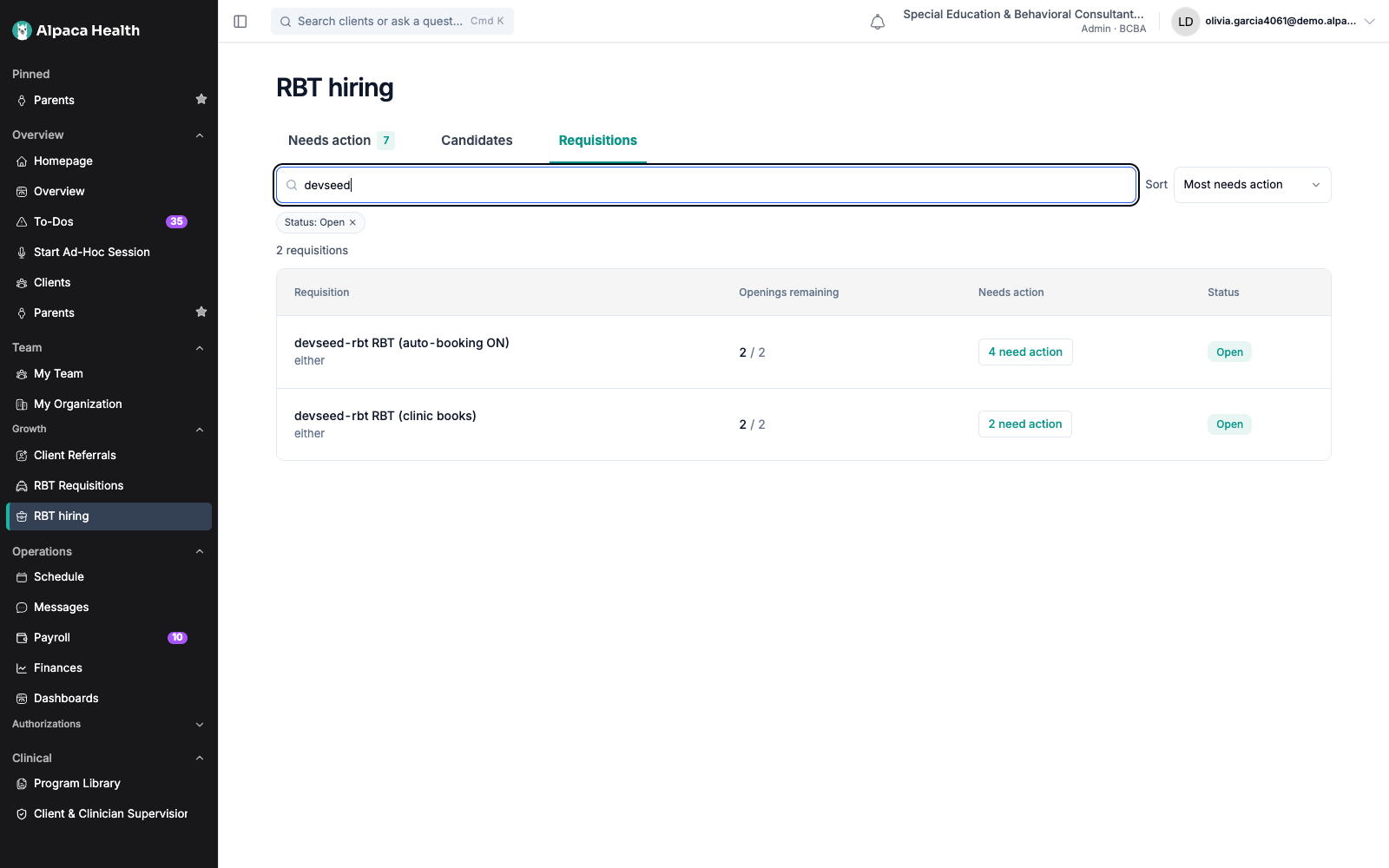
Requisitions lists open roles ranked by how many candidates need action, not by
creation date. A role with three stuck candidates outranks one opened yesterday.
Four columns: Requisition (title over location and employment type), Openings
remaining (shown as remaining of target), Needs action, Status.
The Needs action cell is a button reading 5 need action. It opens the queue
pre-filtered to that requisition. The tab badge still shows the practice-wide total, so
the two numbers legitimately differ.Status defaults to Open and shows as a removable chip — Status: Open with an
x — so the tab never silently hides filled and closed roles.Sort offers Most needs action or Newest created.
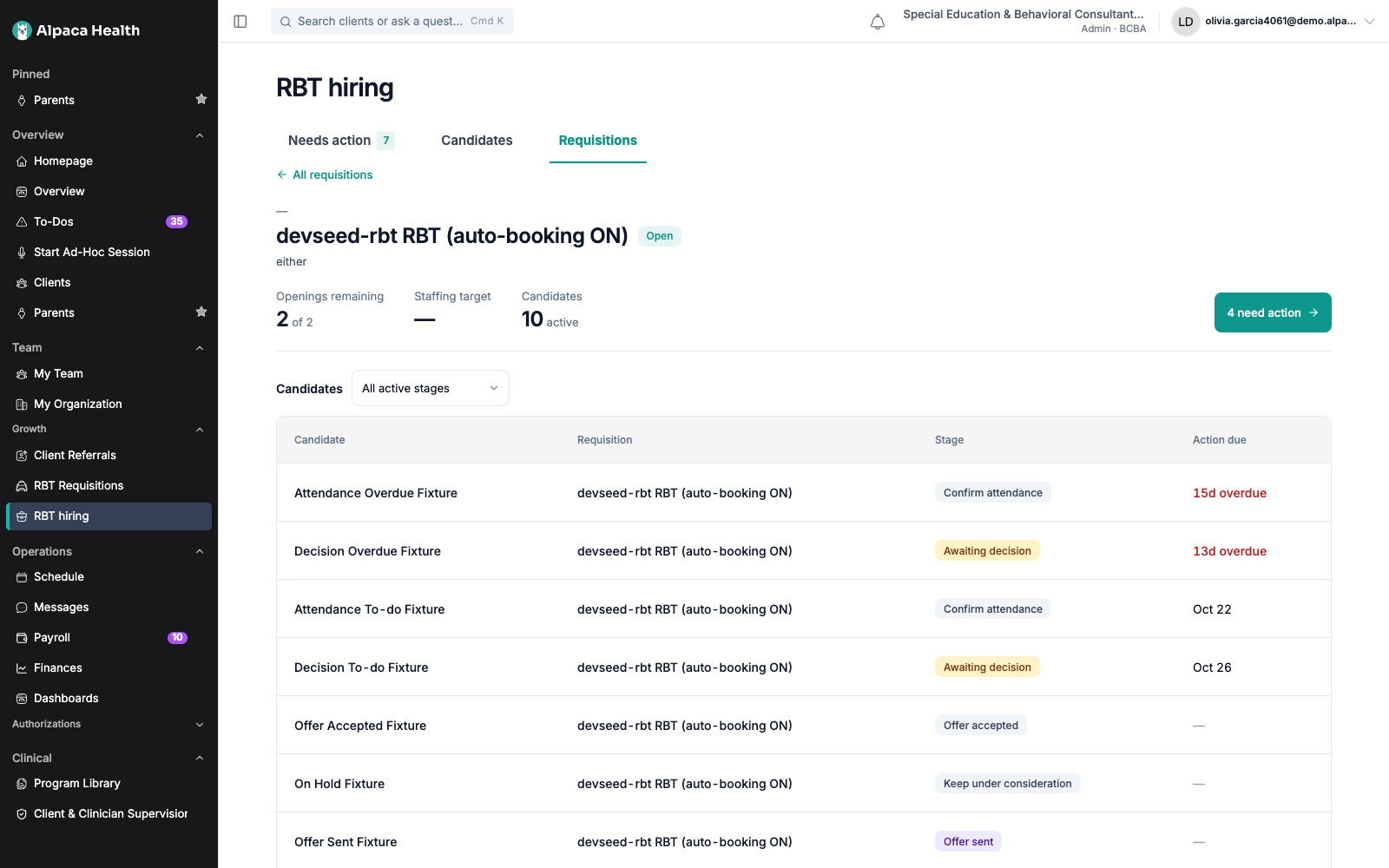
Selecting a row opens the drill-in, inside the tab, with an All requisitions link back.
The browser Back button does not pull you off the page mid-task.
The drill-in shows the location, title and status, the employment type and hiring manager,
then three figures — Openings remaining, Staffing target and Candidates — and
the n need action button. Below that is the same four-column candidate table, with a
Pipeline stage selector defaulting to All active stages.
Staffing target is a dash on most roles. It is the needed-by date, which only exists
when a client is attached, so a dash is a normal answer rather than missing data.
On your Overview page
RBT hiring work also appears on the Overview page, under its own RBT hiring heading
beside Approvals, Supervision, Escalations to answer and Referrals.
Where it appears is decided by the deadline, not by a special rule for hiring:
before the due date it sits under To-dos;
after it, under Escalations.
So the per-stage thresholds above are the escalation thresholds. A matched application
escalates after five business days, an unconfirmed interview after three, a pending decision
after five.
Rows read Confirm an RBT application, Confirm an RBT interview or Decide on an RBT
candidate. Two or more candidates on the same role collapse into one row — Act on 6 RBT
candidates — which opens them one at a time.
Selecting a row opens the task drawer with the same facts as the hiring card — candidate,
role, location, stage, credential, experience, email, phone — then a sentence saying what is
being asked, then the action. Where the action has no write path, the drawer offers Open
in RBT hiring instead of a dead button.
The candidate is never named in the row title and their name is not stored on the task.
Everything about them is read when you open the drawer.
Screenshot still to capture. The Overview-page integration is behind a second flag that is
not yet on in any environment, so this section cannot be photographed yet. Capture the
section heading and the task drawer once it is enabled, in an organization with no real
clients, since the surrounding list names them.
What makes this safe
Deadlines count business days, in your clinic’s timezone. A Friday interview is not
overdue on Monday. Federal holidays are skipped too, so a deadline never lands on
Thanksgiving. An interview finishing at 6pm in Denver counts from Wednesday, not from the
Thursday it already is in UTC.A deadline expires at the end of your day, not at midnight UTC — which for a US clinic
would be the previous afternoon, and would escalate a task while you still had a full day
to act.Nothing about the stage is stored. It is worked out from the application each time it
is read. That is why a rescheduled interview or a lifted hold moves a candidate backwards
cleanly, and why there is no stale status to repair.A finished candidacy is checked first. A rejected candidate usually still carries a
completed interview, so reading the interview first would put them back in your queue as
Awaiting decision. It does not.A state the page does not recognise is treated as finished, not as work. If a newer
version of Alpaca records something this build cannot read, the candidate is kept out of
your queue rather than having work invented for them.A hold outranks the interview. You put somebody on hold after interviewing them, as
the decision not to decide yet. The queue stops asking.The queue cannot quietly lose work. The narrowing that makes the query fast is
deliberately wider than what actually qualifies, and the final call is made afterwards. A
test checks that over every combination of fields, because a filter that is too tight makes
work vanish with no error anywhere.Hire refuses rather than over-promising. If the requisition has no opening left, the
offer is refused and you are told so.Every action re-reads the queue. Acting on a candidate changes their stage, which
changes whether they belong in the queue at all. The row leaves, the badge moves, and the
counts stay in agreement.Your candidates are not filed under a child. A candidate is a job applicant, so these
tasks carry no client and never appear under a client’s name.
What it will not do
Re-book an interview from the three-dot menu. Schedule another interview is
disabled there. Booking is reachable in the two places it is part of a decision you are
already making — Confirm application at Matched, and the Schedule another
interview button inside the no-show step — and nowhere else, because a booking sends a
real invite to a real person.Email a candidate. Email candidate is disabled. There is no composer a clinic
user can reach yet, and a plain mail link would send an email Alpaca has no record of.
The email address on the card is a link if you want to write from your own client.Record that you reviewed an application. “Reviewed” is not a state Alpaca keeps, so
there is nothing to write.Send an offer letter. Hire candidate records that an offer went out and claims
the opening. Generating and sending the Alpaca offer letter is a separate flow with its
own employment setup.Make the hiring decision for you. Nothing on this page acts on its own. The queue
ranks and reminds; every write is a click.Show you another practice’s candidates. Not by search, not by filter, not by opening
a link to a requisition that is not yours.Guess a date. Where the timestamp a clock runs from was never recorded, the page
says No action due at this time rather than printing something plausible.
Your data
What it reads. Candidate applications, candidates and requisitions in your active
organization. Candidate names, contact details, RBT credential status and prescreen
experience answers are read when you open a card or a drawer — never earlier.
What you write. The interview outcome, the optional feedback marker, the consideration
hold, your rating, your notes, and the offer record with its expected start date. The hold
and the feedback marker are stamped by Alpaca when you press the button; you cannot backdate
either.
What is stored on your Overview page. Identifiers and the derived stage. No candidate
name, no email, no phone, no role title. Those tasks sit in a collection shared with
client-linked work, so a name written there would outlive any later correction.
What is logged. Identifiers only.
What leaves Alpaca. Nothing new. This page sends no email and creates no calendar
invite. Rejecting a candidate runs the existing rejection flow, unchanged.
Who can see your rating and notes. Anyone at your clinic who can open the page. Never
the candidate.
Recover from common problems
What you see | What it means | What to do |
|---|---|---|
Nothing needs your attention right now. / Candidates still in your pipeline appear under Candidates. | Your practice genuinely owes nothing right now. | Nothing. Open Candidates to see where everyone stands. |
No candidates match these filters. / Clear the filters to see all 81 candidates needing action. | Work exists; your filters are hiding it. | Open Filters and select Clear filters, or clear the search box. |
No candidates on your requisitions yet. | No candidate has reached a requisition at this clinic. | Check Requisitions for open roles, and confirm candidates are being matched. |
No archived candidates. | Nobody has been rejected on these requisitions. | Switch the scope back to Active. |
No requisitions match these filters. / Clear the status chip above to include filled and closed roles. | The default Status: Open chip is hiding filled and closed roles. | Select the x on the status chip. |
No active candidates on this requisition. | The role has no live candidates. | Check Status on the role, and whether candidates are being matched to it. |
No candidates at this stage. | Nobody on this role is at the stage you selected. | Set the stage selector back to All active stages. |
No action due at this time | The stage owes work, but the timestamp its clock runs from was never recorded. | Act on the candidate from the card. Report it if it persists across a whole requisition; a missing timestamp is a data gap, not a quiet deadline. |
Not available yet for this stage (on hover) | Make offer at Awaiting decision has no write path on the button itself. | Use Hire candidate in the three-dot menu, which does the same thing and claims the opening. |
Could not record the offer. The requisition may have no openings left. | Most often the role has already promised every opening. | Open the requisition and check Openings remaining. Raise the target, or close the role. |
Could not save that. Try again. | The write did not land. | Retry once. If the row did not move, reload before retrying again — do not assume the first attempt failed silently. |
Could not load the queue. Refresh to try again. / Could not load candidates. Refresh to try again. / Could not load requisitions. Refresh to try again. | The request failed. | Reload the page. |
Could not load this requisition. | The role could not be read, or is not your clinic’s. | Select All requisitions and open it from the list. |
Could not load this candidate’s details. / Could not load this candidate’s activity. | The candidate record could not be read. | Reload. The queue row itself is unaffected. |
No résumé on file for this candidate. | No résumé was uploaded. | Nothing to fix here. |
No notes yet. | Nobody has written a note on this application. | Select Add note. |
A no-show is not a rejection on its own. | You are on the second step of the attendance question. | Choose Schedule another interview, Reject application, or Back. |
Save interview date stays greyed out | You ticked Skip schedulingbut have not given both a date and a time. | Fill both fields. The time is read in the interview’s scheduling timezone, named under the fields. |
The candidate got no confirmation email after you booked | Expected when Skip scheduling — this interview is already booked was ticked. | Nothing. That path deliberately sends nothing, because the booking already exists elsewhere. |
Access Restricted / You do not have permission to view RBT hiring. | Your role cannot see the ATS. | Ask your organization administrator for the permission that covers RBT Requisitions. |
RBT hiring in the sidebar with a Soon label and no link | The feature is not turned on for your organization. | Ask your Alpaca contact. |
The queue badge and a requisition’s count disagree | Expected. The badge is practice-wide; a requisition’s count is that role only. | Nothing. Clear the requisition filter to see the whole queue. |