Write a treatment plan with the new quality checks
Last updated: September 22, 2026
The Treatment Plan Generator now asks you to confirm a handful of clinical and
authorization details before a plan can move forward, and it ends with an audit step that
carries the finished plan into an authorization request. The goal is to surface a gap while
you are still editing, instead of after a payer sends the plan back.
Two things stay true everywhere in this workflow:
AI-written content is a draft. Review every generated paragraph against the source
record and your clinical judgment before you sign.Alpaca leaves a blank instead of guessing. When a source document does not contain a
detail, the generator now omits the statement rather than writing filler such as
”specific weekly hours were not able to be collected.”
Who can use it
You are working in the Treatment Plan Generator or the Reassessment Generator,
reached from a client’s Treatment Plans tab.Signing a plan requires the clinician credential your clinic uses for plans of record
(normally a BCBA). Reviewing and editing does not.The generator now has nine steps. Step 8 is still Review/Sign; step 9 is the new
Audit & Submit.
Two School-specific fields (below) depend on a rollout setting. If your organization does
not have them switched on yet, that part of the Requested Services panel will not appear —
everything else in this article applies.
What changed, in one table
Where | What is new |
|---|---|
General Info | School information or an explicit “not enrolled” choice |
General Info | Clinical Observation must be written; there is no default text |
General Info | A date administered is required for every assessment used |
General Info | An explicit No referring provider choice when the payer allows it |
Goals | Behavior Reduction Goals come first, and a BIP without one is flagged |
Last Steps | 97151 and 97152 are always the entire authorization period |
Last Steps | Separate School and Community detail fields; 99 — Other is retired |
Last Steps | The weekly session schedule must cover the requested 97153 hours |
Audit & Submit | A new step 9: audit, preview, edit, finalize, create the request |
Step 2 — General Info
Every field marked Required has to be resolved before you can move to another step or
sign the plan. The Next button tells you which one is outstanding.
School information
Enter the school information, or select Client is not currently enrolled in school. One
of the two is now required — the field no longer has a Use Default shortcut that could
carry placeholder text into the exported plan.

Selecting the checkbox states that explicitly in the plan and replaces the school-specific
fields — grade level, educational setting, and support structure — with fields for the
services the client receives outside school.

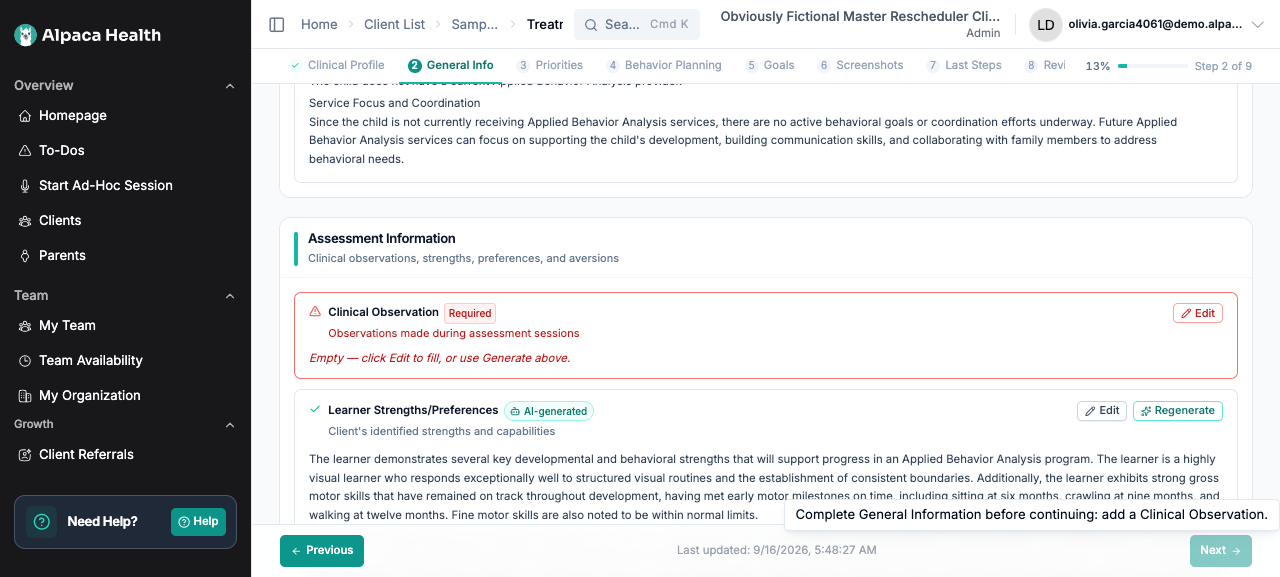
Clinical Observation
Write the observation from your assessment sessions. The old Use Default shortcut has
been removed, because the default text was reaching payers as though it were an
observation. Until the field has real content, Next stays disabled and names it.
Assessment dates
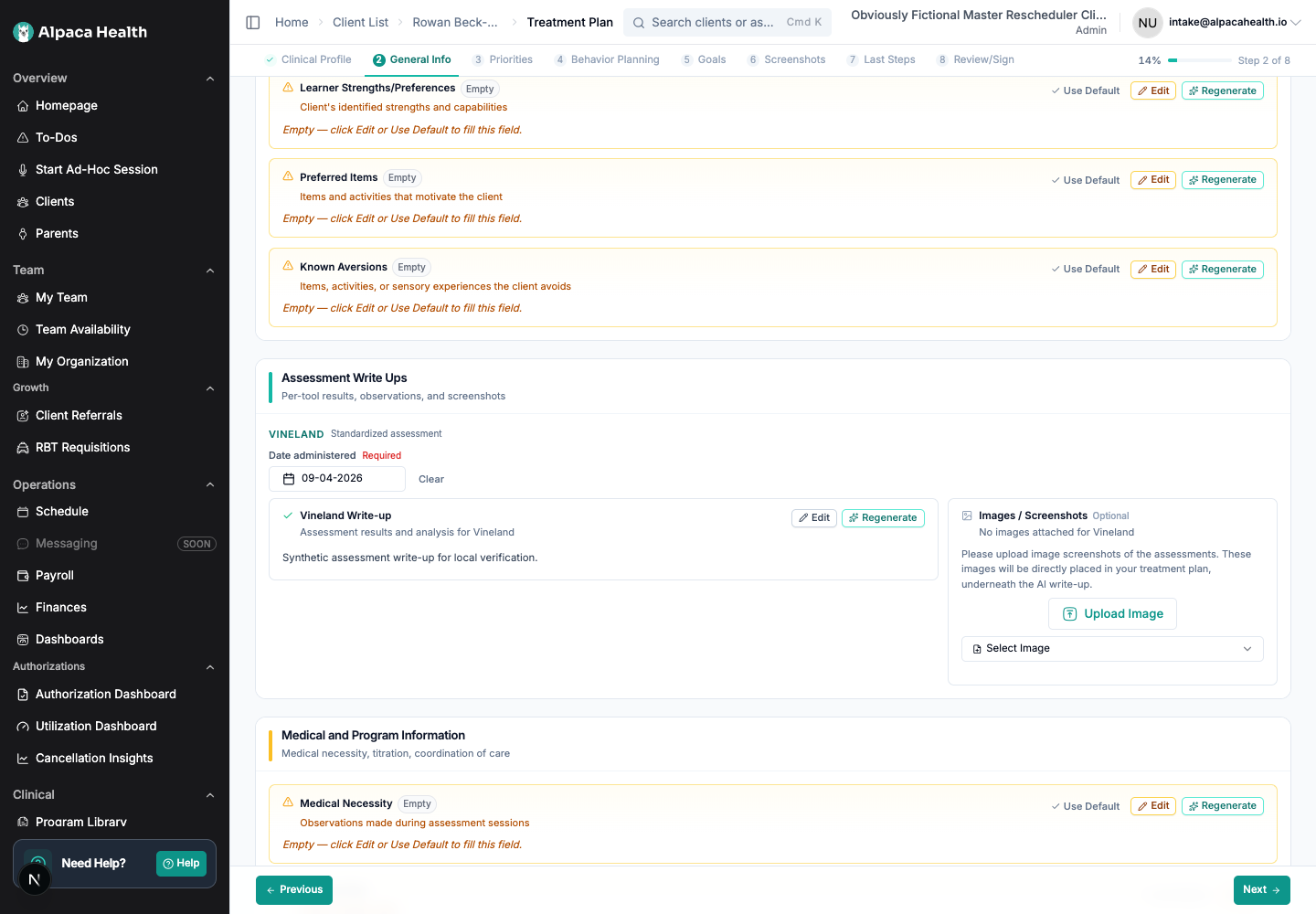
Every assessment included in the plan needs a Date administered.
Alpaca reads the date out of the uploaded assessment report when the report states it
plainly, and prefills the field for you to confirm. When the date is missing, ambiguous, or
spread across several sessions, the field stays blank on purpose — Alpaca will not
infer it. Fill it in yourself.

Once the date is set, the assessment clears and the plan continues normally. A date you
typed yourself survives a later regeneration of the plan.
Referring provider
Referral requirements differ by payer, and they can differ between an initial
authorization and a continued one. Alpaca now follows the rule that applies to the plan
in front of you.
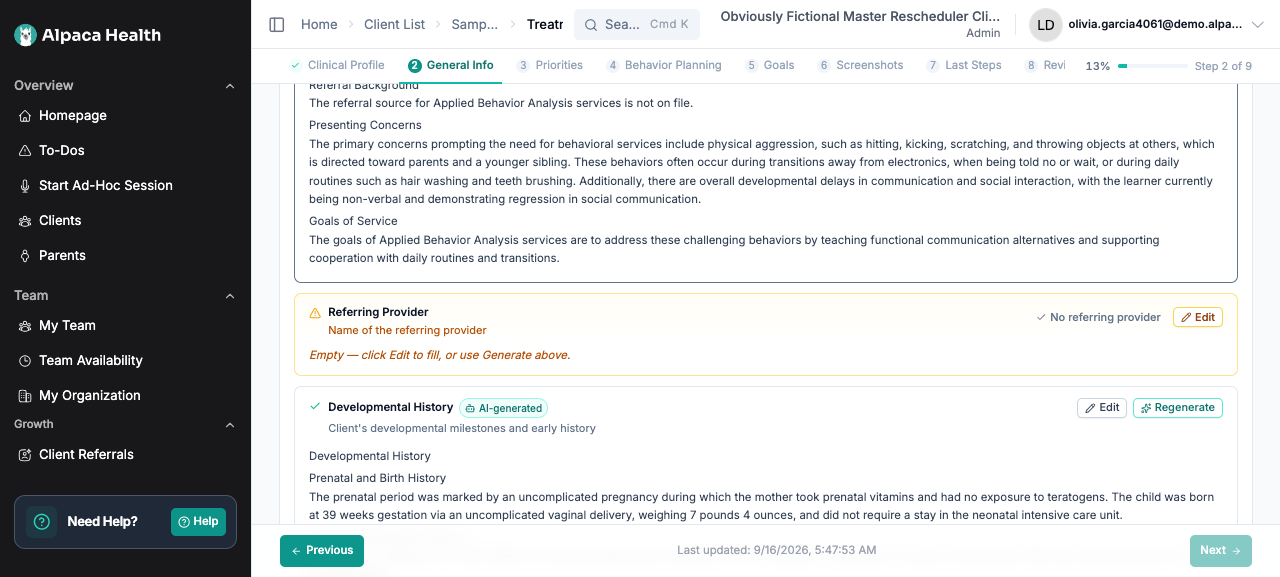
When the applicable rule allows a plan without a referral, the No referring provider
action appears beside the field.
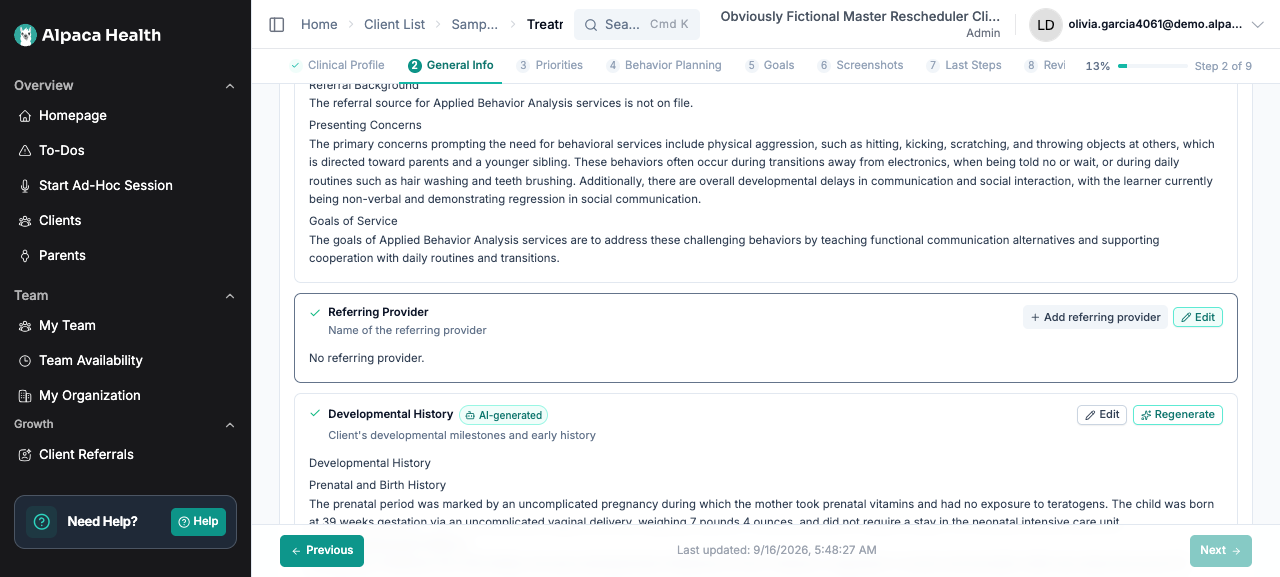
Selecting it records the absence as a deliberate clinical statement, and the action changes
to Add referring provider so you can reverse it at any time.
When the payer requires a referral, the opt-out is not offered at all. The field is marked
Required, and navigation, signing, and export stay blocked until a provider is entered.

If you see “Payer requirements are not available yet. Please try again.”, wait for the
client information to finish loading and try again. Alpaca deliberately treats an unknown
rule as “not yet answered” rather than as permission to skip the referral.
Other therapies
Add the other insurance-funded therapy schedule, or select the attestation that the client
is not receiving other insurance-funded therapies. One of the two is now required.
Vineland scores
For HCSC and BCBS Texas clients, an extracted Vineland Adaptive Behavior Composite of
70 or higher prompts a recommendation to add a skills assessment, with a link to do it.
This is payer-specific guidance, not a general rule about every Vineland result.
Step 5 — Goals, and how they relate to a BIP
Behavior Reduction Goals now appear above Skill Acquisition Goals, because they are the
goals payers look for first when a behavior plan is in the document.
Creating a BIP does not create a behavior reduction goal. Some clinicians tie several
behaviors to one BIP; others write one BIP per behavior. Alpaca cannot tell which you
intend, so it asks you.
If the plan contains a BIP and no assigned Behavior Reduction Goal, the Goals page shows
”You have a BIP, please add at least 1 behavior reduction goal.” The banner clears as
soon as you assign one.

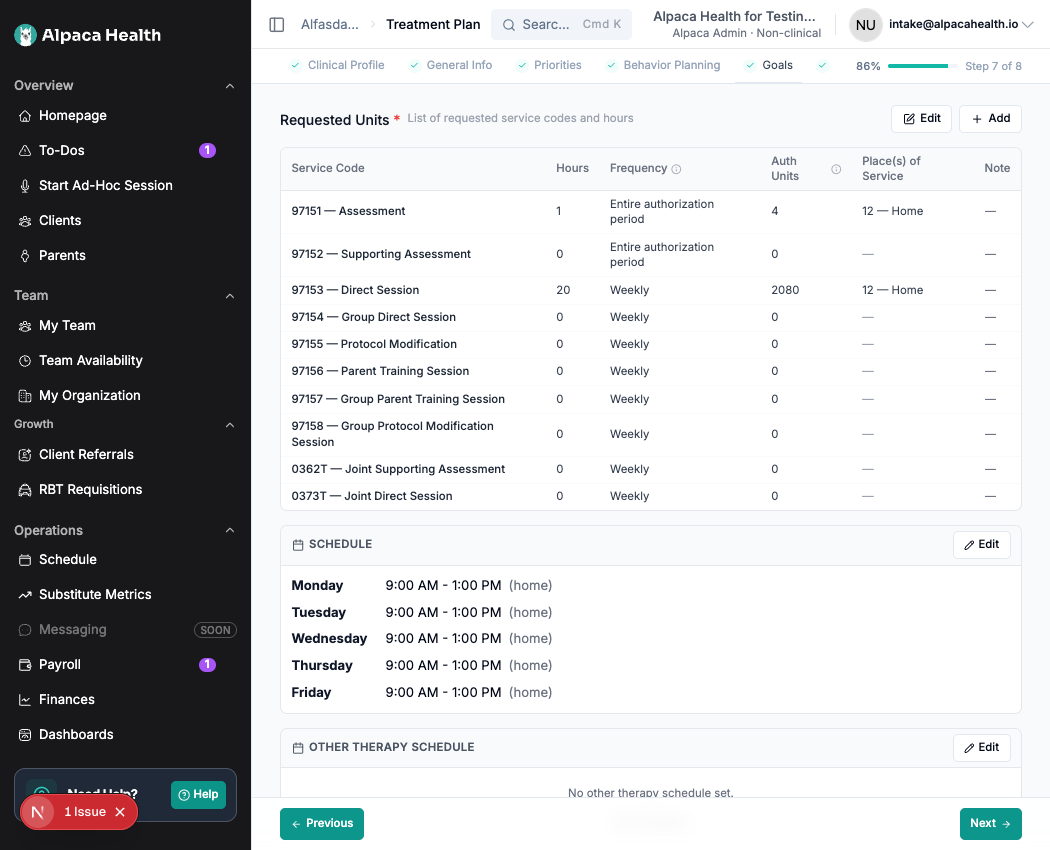
Step 7 — Last Steps
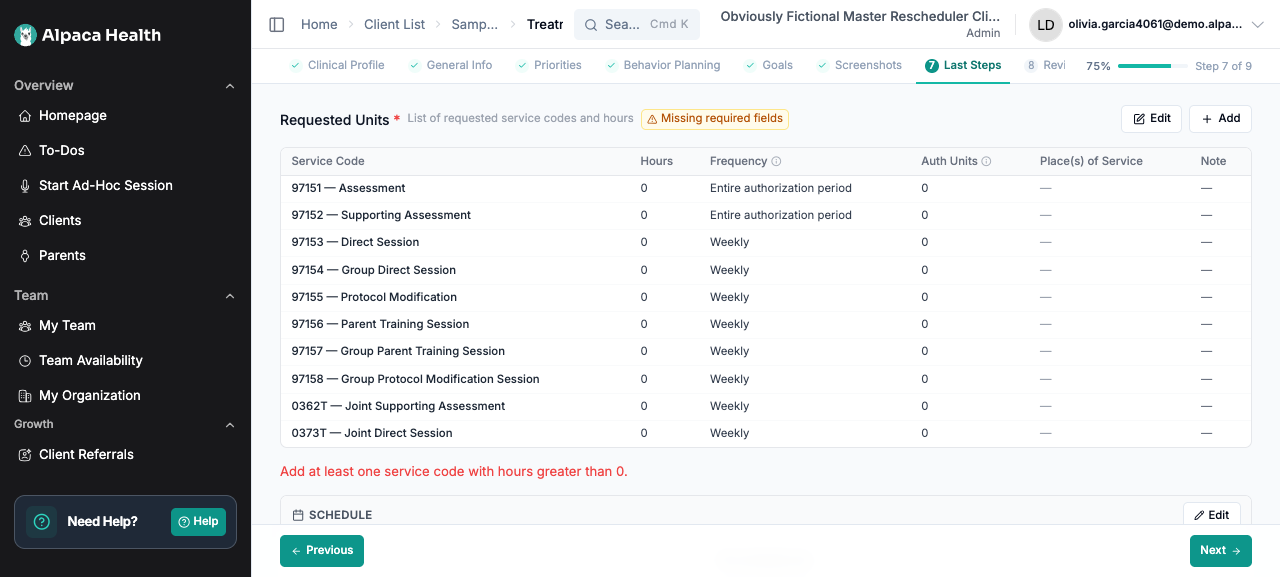
Assessment codes are always the authorization period
97151 and 97152 are requested for the entire authorization period, never weekly
or monthly. The frequency is now fixed and shown read-only, and an older plan carrying a
weekly or monthly value is normalized when the row is saved.
School and Community are described separately
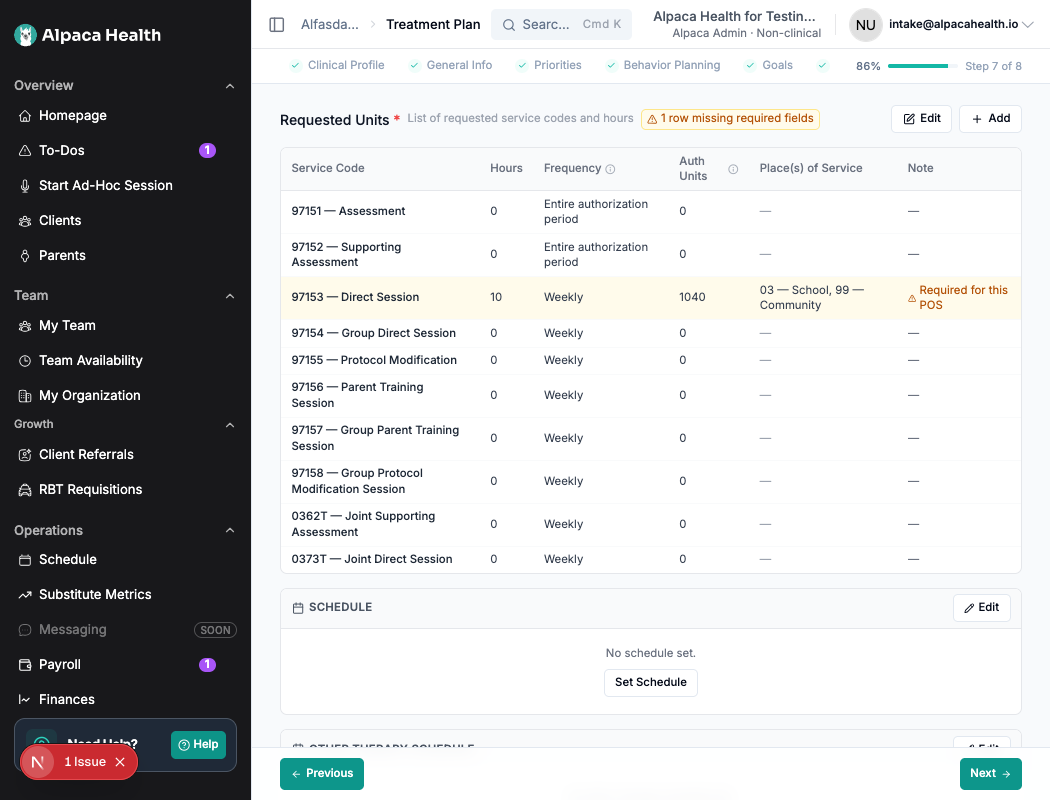
03 — School — enter the School name and setting and the Medical necessity
reason for school-based services.99 — Community — enter the Locations in the community and the Medical necessity
reason for community-based services.When one row uses both, complete both groups. A single description no longer
stands in for the other setting; payers ask about the two separately, and the auditor
checks for named community locations.99 — Other can no longer be added to a new row. An older row that already contains it
stays readable so you can review it.

An incomplete row is flagged in the summary table before it blocks anything else.
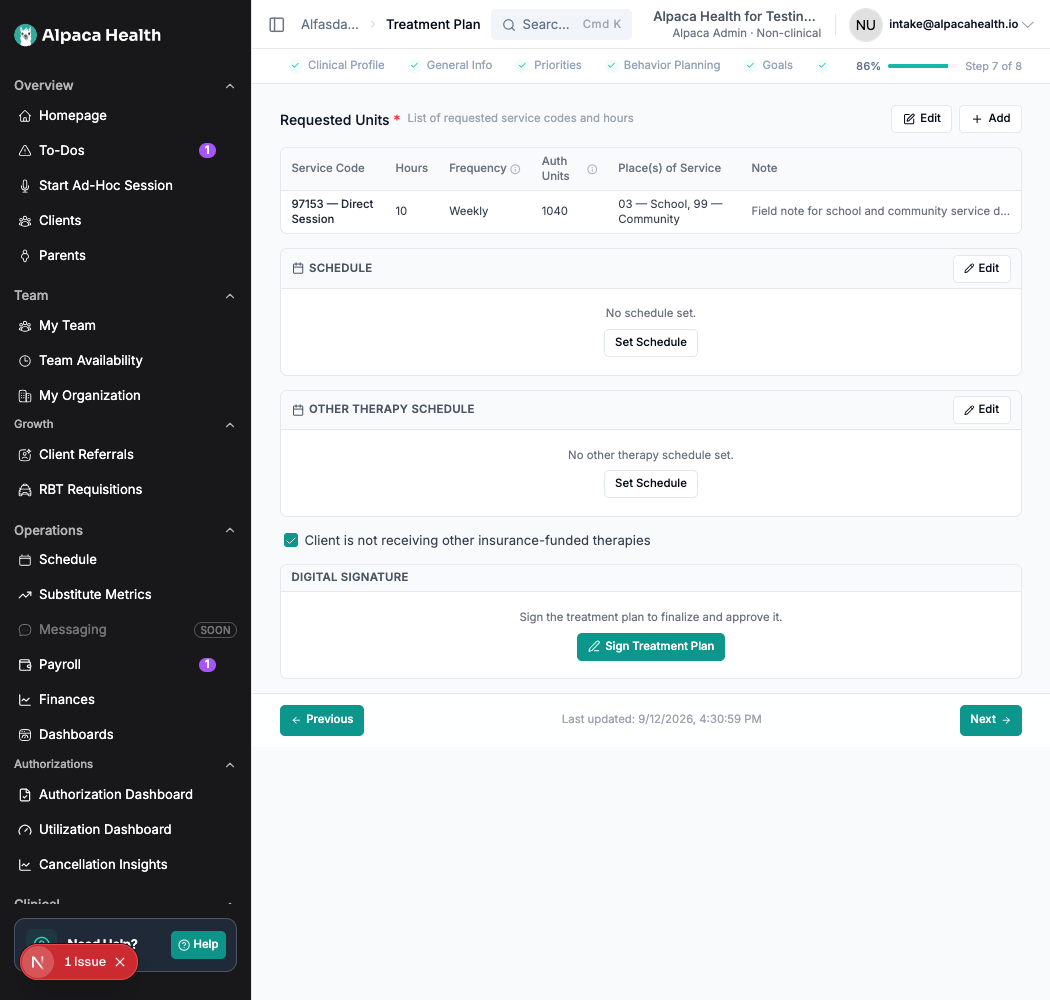
Once both groups are complete, the row saves clean.
The session schedule has to cover the hours you asked for
Fill in the weekly client session schedule with enough availability to cover the requested
97153 hours. An incomplete schedule blocks the next step, blocks going straight to
Review/Sign, and blocks signing — and says so.
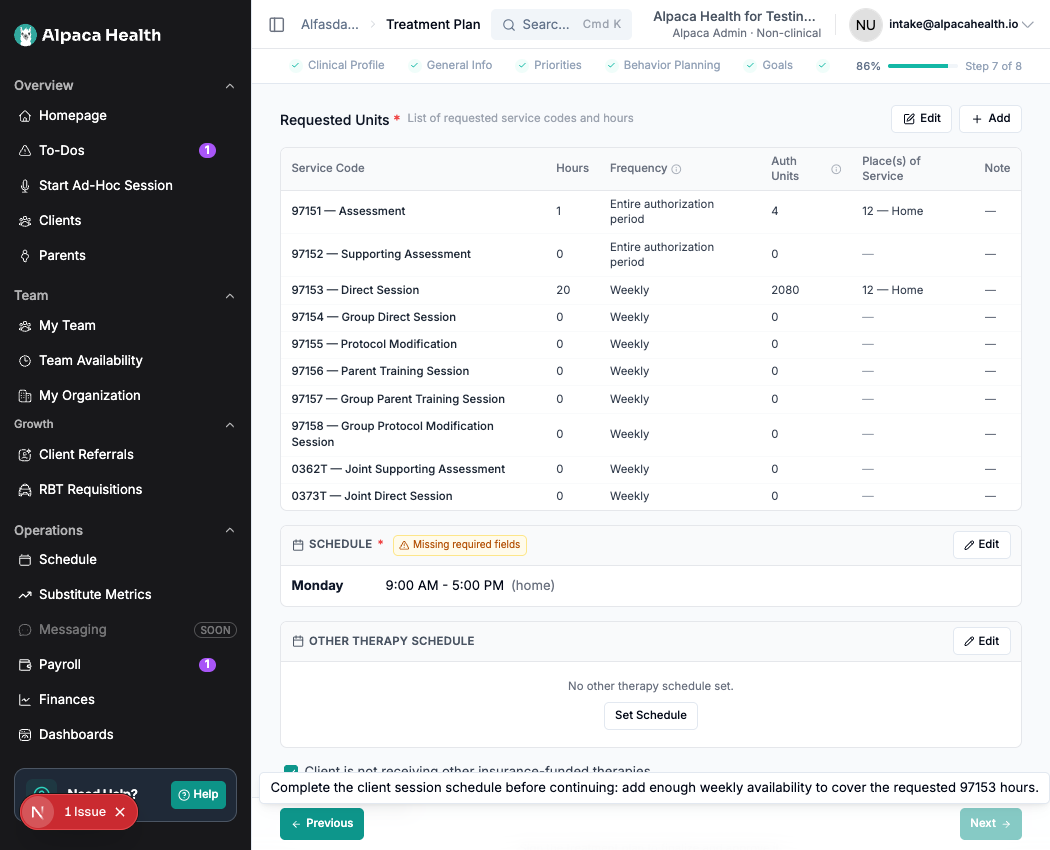
Add the availability and the workflow opens back up immediately.
Step 8 — Review/Sign
Nothing about signing has changed except what it checks. If a required item from the steps
above is still outstanding, signing is blocked and the message names it. Signing is also
verified on the server, so the rules hold even if a stale browser tab shows an older state.
Step 9 — Audit & Submit
This step is new. Instead of ending at Return to client, a signed plan continues into
the audit and submission pipeline without leaving the generator.
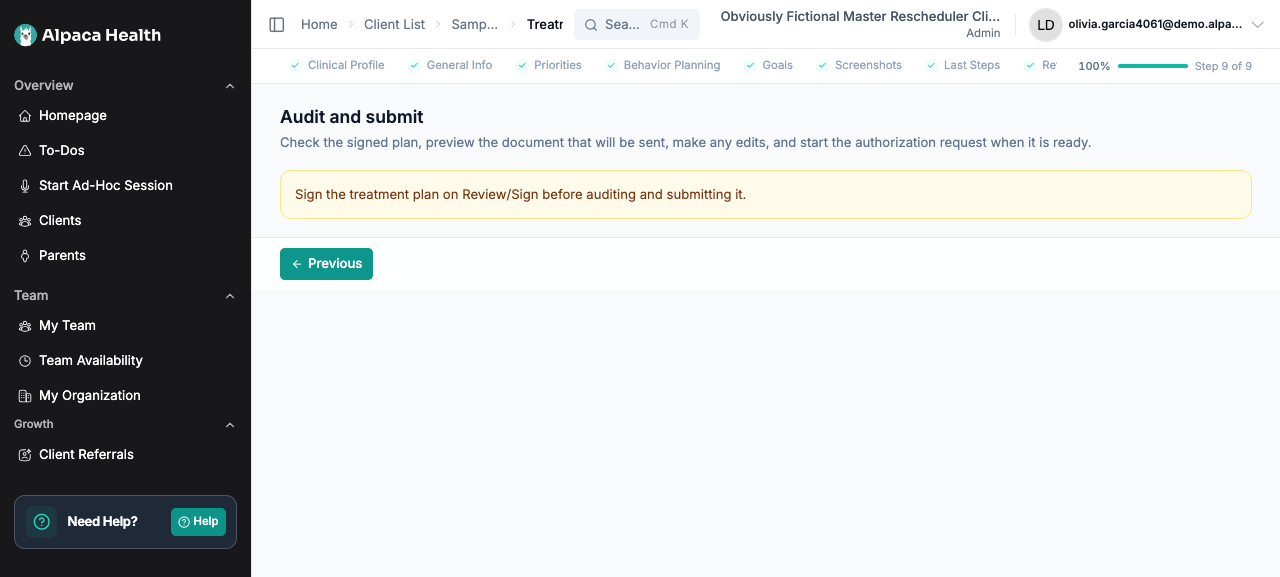
Sign the plan first. Until then, step 9 tells you to go back to Review/Sign.
Run the audit. It has to finish before the plan can be finalized; there is no way
to skip it.Open the results and select “I reviewed these results.” Findings are a clinical
review aid — the audit never edits your plan for you, and passing it is not a promise of
payer approval.Preview the document that will actually be sent.
Choose how to finish:
Ready as is — acknowledge the preview and select Confirm and finalize.
Edit in Alpaca — use the finding’s link or Open in generator, make the change,
and run the audit again.Edit outside Alpaca — download the Word document, finish your edits, then upload the
completed Word file or PDF. Every uploaded or replacement plan starts unfinalized and
gets its own audit, so review the new file’s findings before finalizing it as the
plan of record.
Create the request. Once the plan is care ready, Create request opens the
client’s Care Readiness request form with the finalized plan already attached and the
authorization type filled in: a treatment plan starts as an initial authorization, a
reassessment as a concurrent one. Review every prefilled value and attachment before
you submit.
The same pipeline is still available from the client’s Treatment Plans tab, so you can
pick the work up from either surface.
What the audit looks for
Alongside the payer-specific checks that already existed, the audit now raises a warning
when:
a BIP has no Behavior Reduction Goal;
97151 or 97152 is not requested for the entire authorization period;
the plan targets self-harm threats or suicidal statements without a plan or
recommendation to get the client into mental health services;a parent or caregiver training goal measures the client’s behavior instead of the
caregiver’s; orcommunity-based services are described without naming the community settings.
If Alpaca blocks you
What you see | What to do |
|---|---|
A General Info field marked Required | Complete it, or select the explicit not-applicable choice when one is offered. |
Next is disabled | Hover or focus it — the tooltip names the exact item that is missing. |
Payer requirements are not available yet. Please try again. | Wait for the client information to load, then retry. Do not assume the referral is optional. |
A missing School or Community detail warning | Open Requested Units → Edit and complete every visible detail group on that row. |
A message about the client session schedule | Add enough weekly availability to cover the requested 97153 hours. |
You have a BIP, please add at least 1 behavior reduction goal | Add and assign at least one Behavior Reduction Goal. |
An audit warning | Read the clinical or payer concern, edit the referenced section, and rerun the audit. |
Review audit results | Open the results and select I reviewed these results before finalizing. |
Signing is blocked with no obvious cause | Reload the plan. The server enforces the same rules, so a stale tab can look complete when it is not. |
What this does not do
It does not fix older plans. The generator avoids writing new filler, but existing
prose, legacy places of service, and legacy frequencies still need your review.It does not infer an assessment date. If the source is unclear, the field stays blank
for you.The audit does not rewrite clinical content and does not guarantee authorization.
Caregiver signature requirements still depend on the payer and are handled after you
finalize, in the Treatment Plans pipeline.
Questions
Ask your clinical lead first for anything about clinical content or payer policy. For a
field that will not clear, or a rule that looks wrong for your payer, contact Alpaca
support with the client, the plan, and the step you are on.