Retroactive and Manual Data Entry
Last updated: August 26, 2026
Learn how to add, edit or delete data collected during your RBT's sessions. This can be done within "session notes", or by reviewing data collected via client "programs".
Open Alpaca Health and Navigate to the Client
If you would like to edit data within a session that has already been completed:
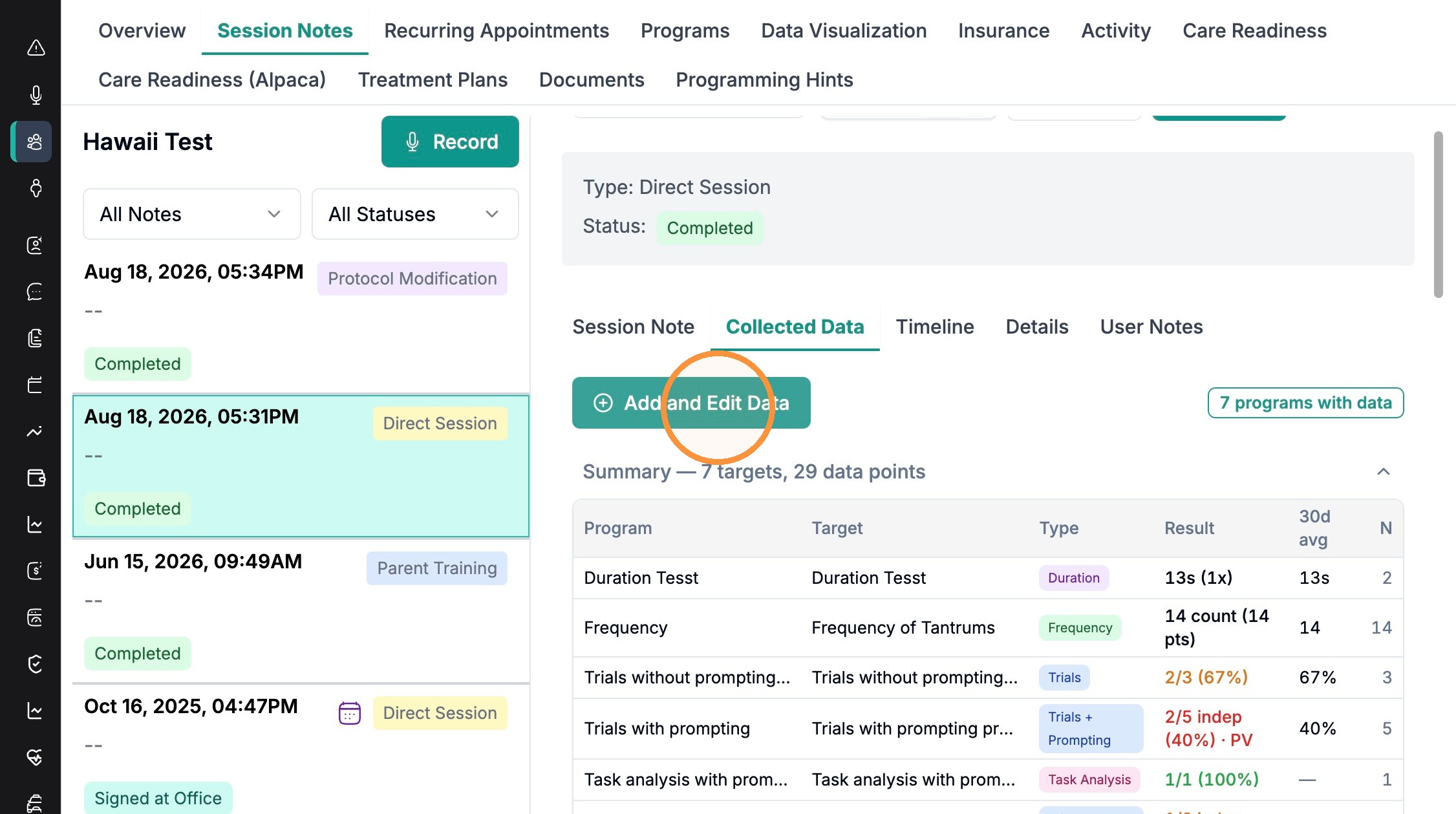
Select the note and toggle to "collected data"
Review data collected during the session, then:
Click "Add and Edit Data"
Select your program and click "edit"
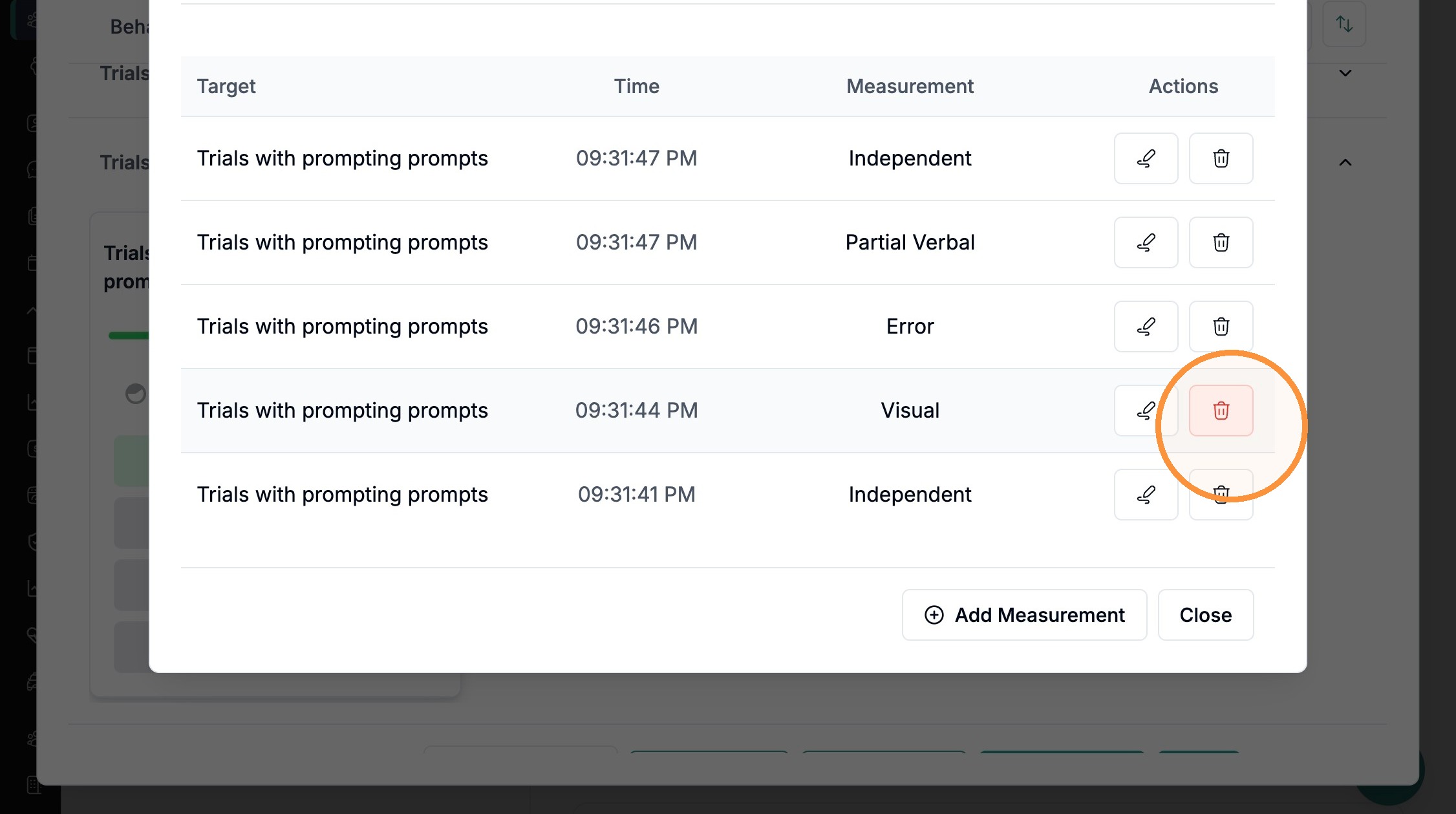
To delete data, click on the trash icon. To add a measurement to this target, you can click "add measurement"
You can also Add or Edit Data within "Programs"
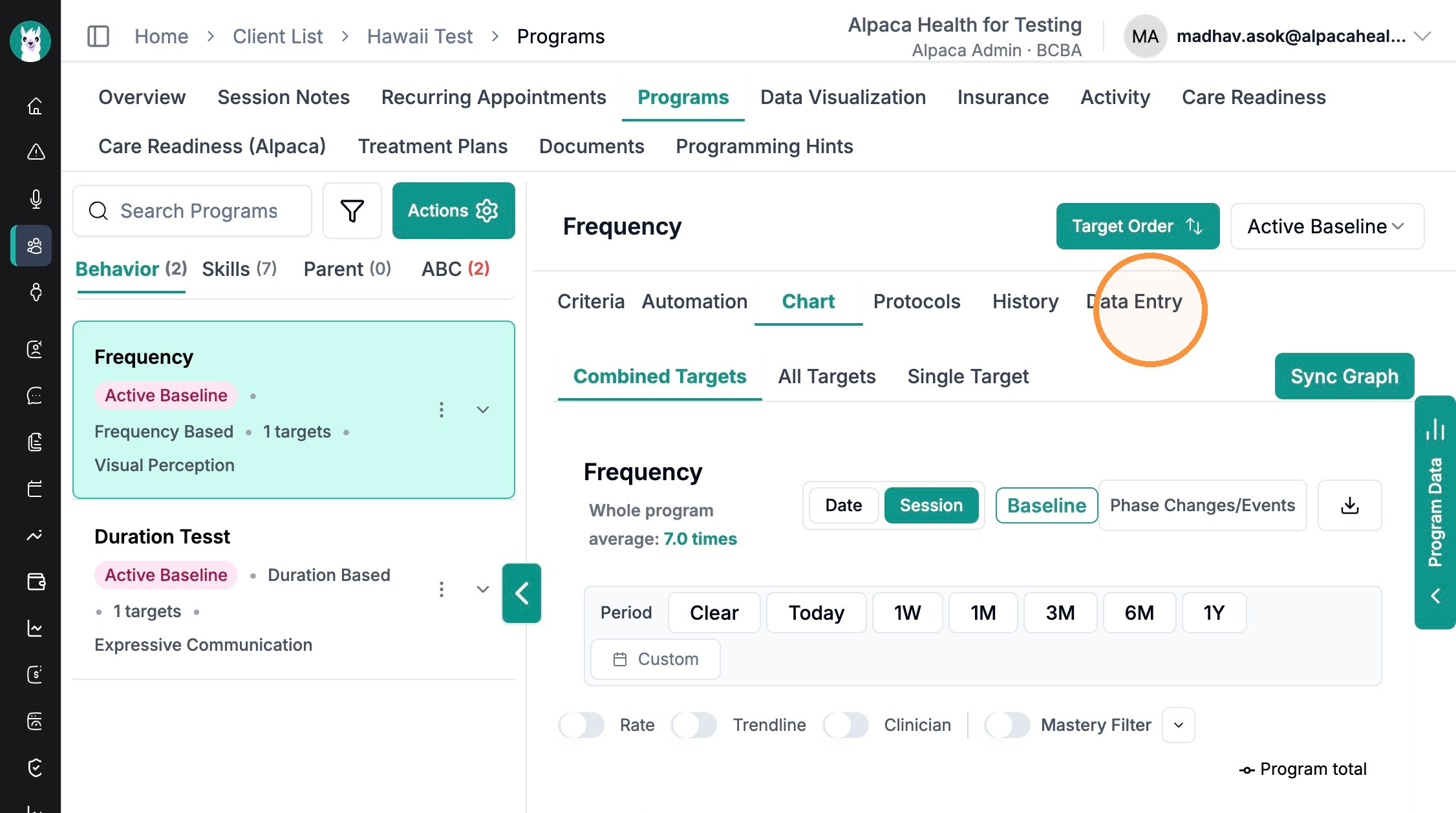
Navigate to Client-> Programs
Select the program you want to edit, navigate to "Data Entry"
Select the target you will edit
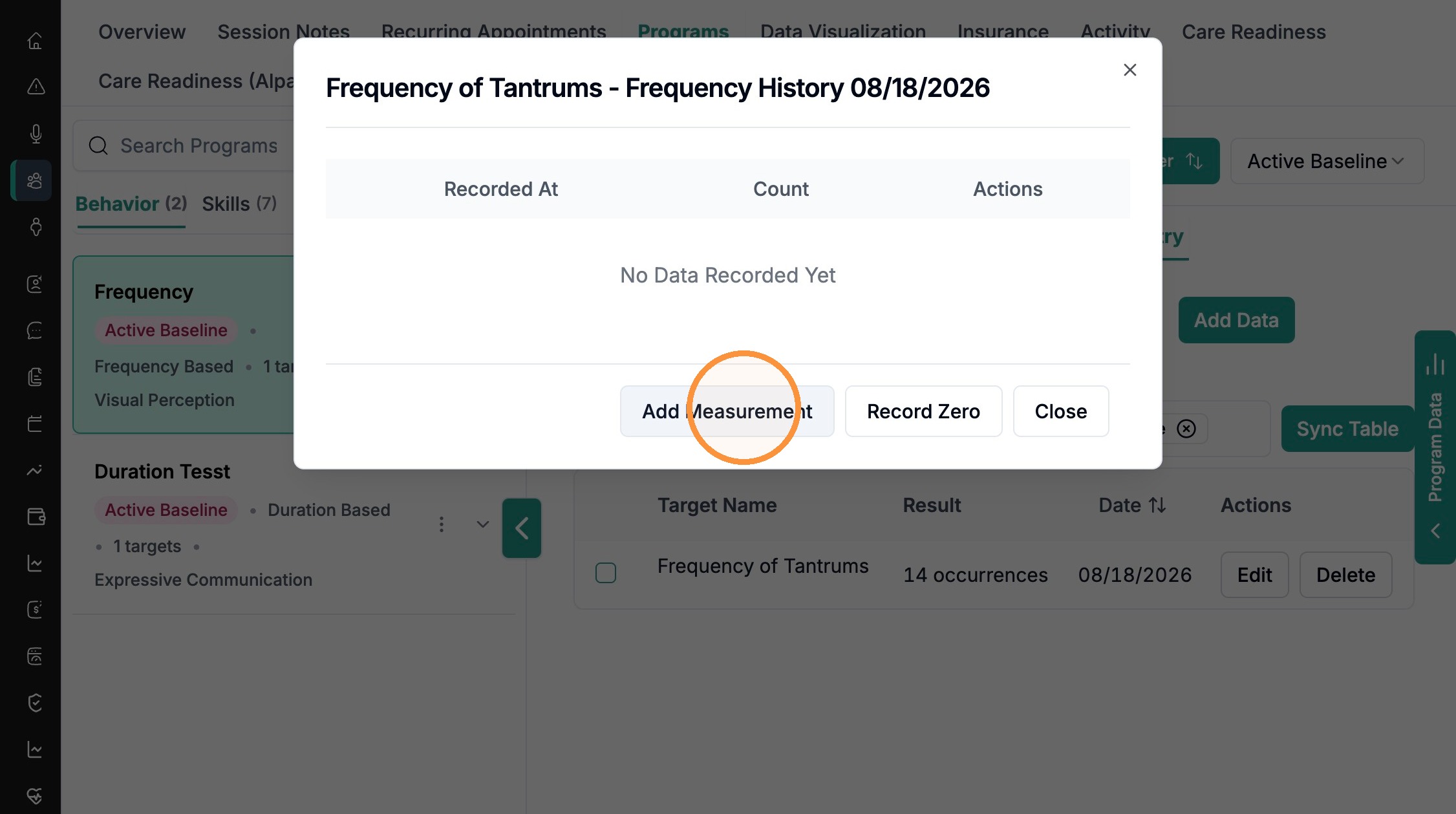
You can Add Data, Edit, or Delete Data from this screen
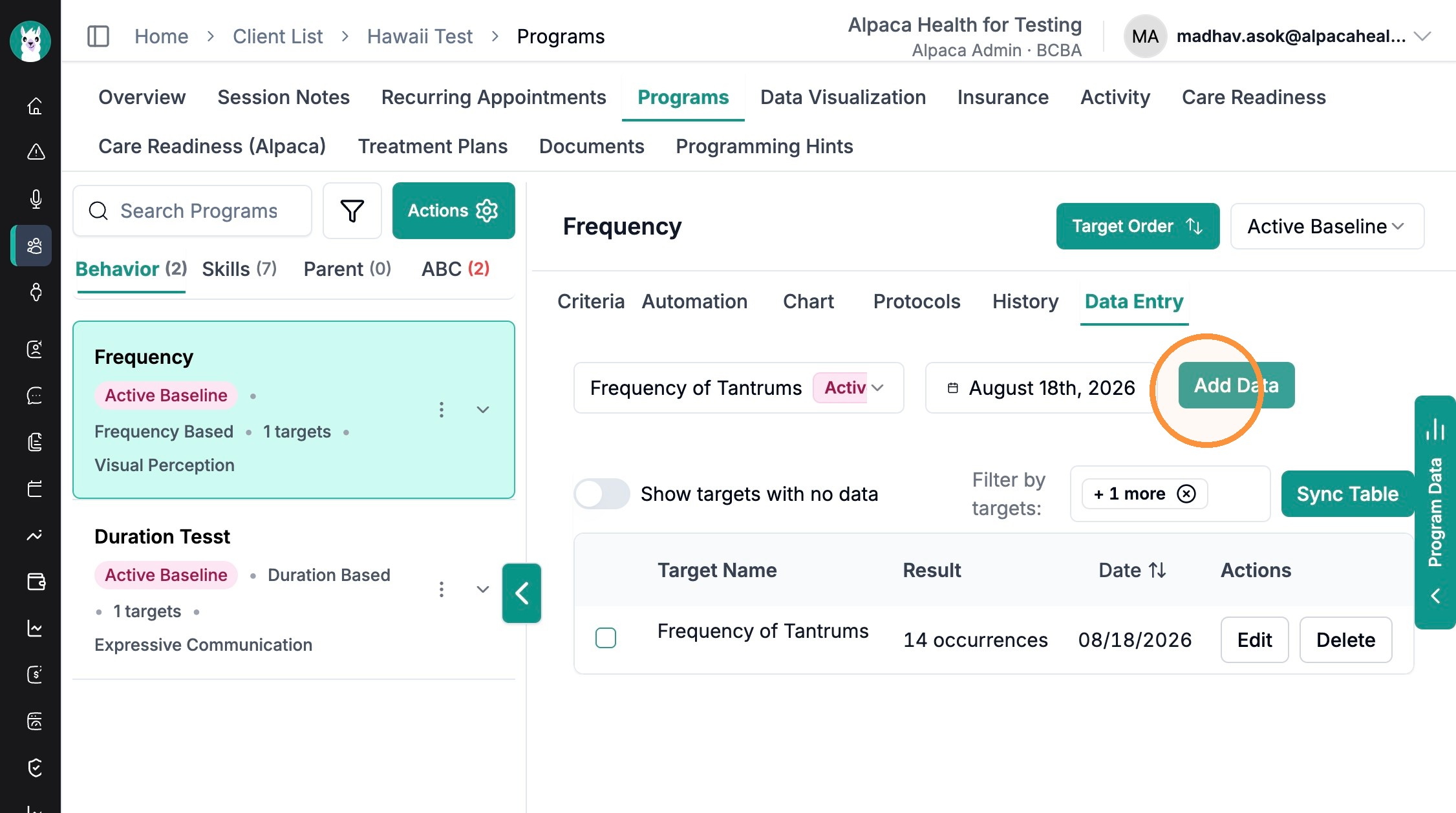
To add data, click "add measurement"
FAQs
Q1. When should I add/edit data from the session note vs. from the Programs tab?
Use Session Notes → Collected Data when you're reviewing or correcting the data tied to a specific completed session. Use Programs → Data Entry for retroactive or manual entry on a target directly — it isn't tied to one session note. Both reach the same underlying data.
Q2. I edited or added data after the session note was already generated — do I need to do anything else?
Yes. If the session note was already generated, you'll see a "Notes changed since this session note was generated" banner. Click Regenerate Session Note so the note reflects your latest data.
Q3. How do I delete a data point?
Two ways: (1) From the session note — open Collected Data → select the program → Edit, then click the trash icon next to the measurement. (2) From Programs → Data Entry, open the target's history and use the Delete button in the Actions column.