5.2 Set up automatic re-staffing
Last updated: July 23, 2026
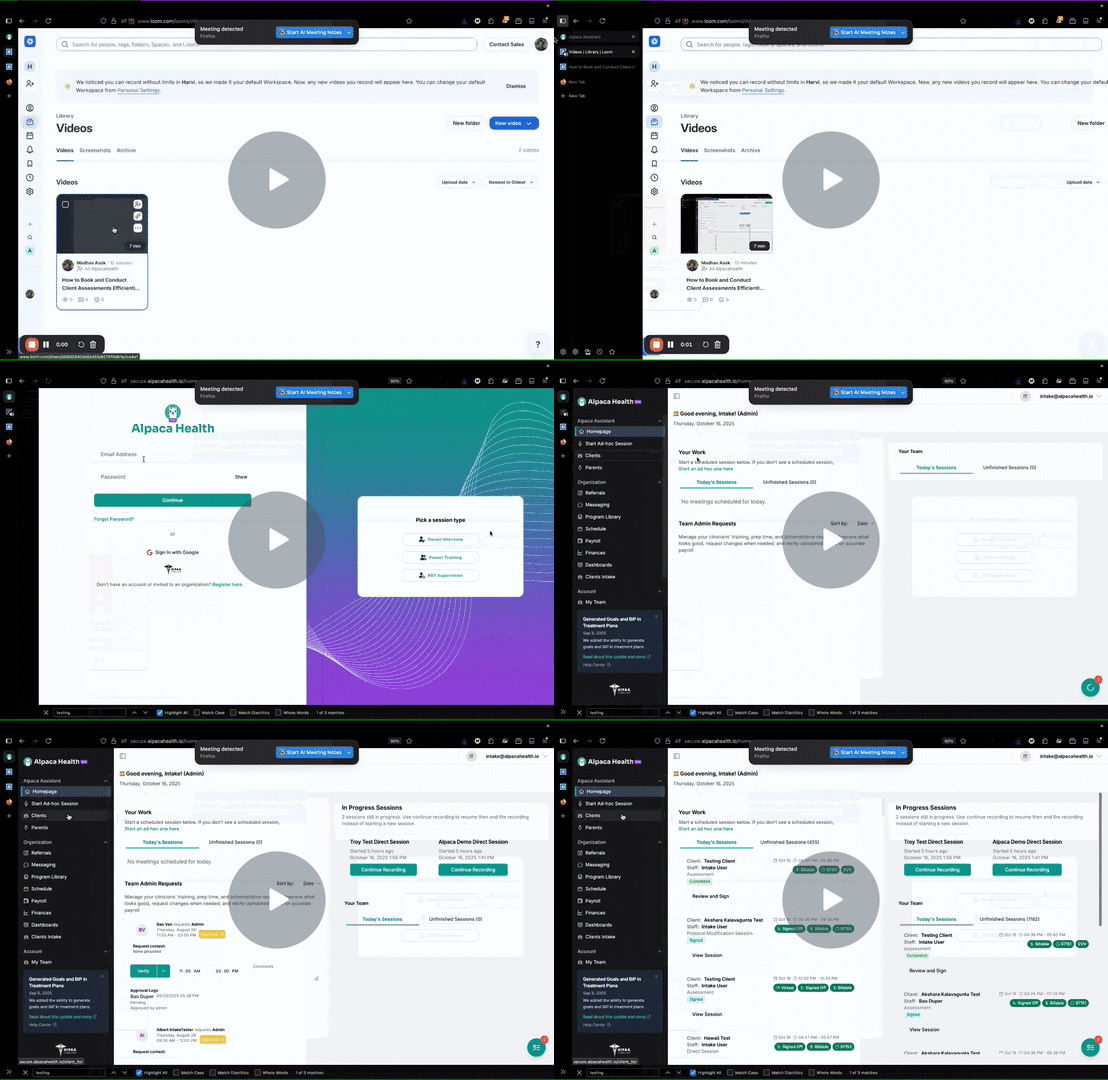
How to Re-Staff a Cancelled Appointment Using Alpaca 🦙 — Watch Video
What This Does
When an RBT or BT cancels a session, Alpaca starts looking for someone to cover it. We text and email clinicians who can take the session. We text the care team first, followed by approved substitutions. Whoever taps Accept first gets it. The family gets a heads-up that a different clinician is coming. You do not have to do anything, though you have one hour to step in if you want to handle it yourself.
To turn this on, email support@alpacahealth.io and ask us to enable substitute matching for your org.
The single biggest lever is a deep care team. Re-staffing can only fill a session from clinicians who are eligible to see that client. The more RBTs you staff onto each client's care team, the larger your built-in substitute pool, which means more cancellations get covered automatically, faster, without an admin lifting a finger. Aim to have multiple RBTs on every client's care team, then layer approved subs on top. A thin, one-RBT-per-client roster is the main reason searches come back empty.
Your Role
You only have three things to do:
Email support@alpacahealth.io and ask us to turn this on for your org.
Build deep care teams and add approved subs for each client so there is a real backup pool.
Watch the dashboard to see how it is going.
Setup
Step 1: Turn It On
Email support@alpacahealth.io and ask us to turn on substitute matching for your org. Please also flag whether you'd like the feature to run automatically or with admin approval. Without this, cancellation requests sit in the admin's queue until you can get to them. We highly recommend running it automatically.
Step 2: Build the Care Team, Then Add Approved Subs
Start by staffing as many RBTs as your schedule allows onto each client's care team. The care team is tried first and given a head start (see Step 5), so a deep care team is your highest-fill, lowest-friction source of substitutes.
Approved subs are clinicians who can cover a client when their care team cannot. Without them, Alpaca can only try the care team. To add them:
Open the client's page.
Click the Clinicians card.
Find the "Approved substitution" section.
Use the dropdown to add clinicians who can cover that client.
Click Update.
The larger the combined care team + approved-sub list, the more sessions get filled.
What Happens When a Sub Is Needed
Step 3: An RBT/BT Cancels
When one of your RBTs/BTs cancels a future session, Alpaca builds a list of people who could cover it. It looks at:
The client's care team first
Then your approved subs
It skips anyone who is on PTO, already booked at that time, or unavailable based on their schedule.
Step 4: You Get an Hour to Step In
You and your other admins get a text and an email letting you know a search has started. The text uses the client's initials for HIPAA purposes. You have one hour before Alpaca starts texting subs.
Use this time if you would rather handle it yourself (manually): reschedule, take it yourself, or cancel it. You can also open the Substitute Pipeline Metrics page in Alpaca (sidebar → "Substitute Metrics"), find the search under Active searches, and click Abort to stop it. Notified clinicians will see a message that the admin canceled the request.
Step 5: Care Team Gets Texted First
If you do not step in, Alpaca texts and emails up to 10 people from the care team. Each one gets a link they can tap to accept (they do not need to log in to the Alpaca portal). When they tap the link, they see a Substitute Request page with:
Client initials
The session date and time
The CPT code
The location
It has two buttons: Accept and Decline. The care team is texted an hour before the approved substitutions, so they are more likely to win.
Step 6: First to Accept Wins
Whoever taps Accept first gets the session. Anyone who taps later sees a message that the session is already taken. The appointment automatically switches to the new clinician. The family gets a text and email letting them know who is coming. You do not have to confirm anything.
Step 7: Approved Subs Get Tried Next
If nobody on the care team accepts within an hour, Alpaca moves on to your approved subs and texts them the same way. Most clients' approved substitution lists are not yet populated. Filling them out really helps families find alternate arrangements.
Watching It Run
Open Substitute Metrics from the Organization tab. You'll see:
Total Attempts: how many searches happened
Fill Rate: how many got covered
p50 Time to Fill: average minutes from cancellation to acceptance
Empty Pool Rate: how often no one was eligible
Cancellation Rate: share of scheduled sessions that got cancelled
Reschedule Rate: share of those that got refilled by a sub
You can pick Last day, Last week, Last month, or a custom range. Below the cards:
Per-clinician response: who has been getting texted, who accepts, who declines
Fill source: how many sessions got filled by care team vs approved subs
Failure reasons: why searches did not fill (empty pool, everyone unavailable, multi-client session, everyone declined)
Recent substitute searches: click any row to see who was texted, who responded, and who was skipped and why
Things to Know
This only kicks in when an RBT or BT cancels. Admin cancellations do not start a search.
Group sessions with more than one client are not supported yet.
We do not yet support pulling one BT off a 2-to-1 to cover another client's appointment while the remaining BT goes 1-on-1.
Tips to Get More Sessions Filled
Staff deep care teams. The more RBTs on each client's care team, the bigger your automatic substitute pool. This is the single biggest lever.
Keep approved subs up to date for every client. This is the next biggest thing you can do.
Make sure every clinician's availability is set correctly. If it's empty, they get texted even when they aren't available; if it's wrong they may get skipped.
Use the Per-clinician response table to find subs who never accept.
Watch the Empty Pool Rate. If it's high for certain clients, you need more RBTs and approved subs for them.