Manual leave entries and corrections
Last updated: October 13, 2026
Sometimes a leave balance needs a person. A worker joined mid-year with hours already banked, a policy was set up late, or time off was recorded against the wrong person. Add or remove leave time lets an admin grant or take away hours directly, and shows exactly what the balance will be before anything is saved.
Three things are always true of a manual entry:
You see the result before you save. The sheet shows the current balance and the balance after saving, side by side.
Nothing is ever deleted. A correction is a new entry. The worker's leave history keeps both the original and the correction.
Only an admin can do it. The permission is checked on the server, not just by hiding a button. A worker cannot add hours to their own balance.
Who can use it
Clinic Admins and Assistant Admins can add or remove leave time. Other roles do not see the button, and a request sent without the permission is refused.
You can only adjust workers in the organization you are currently working in, using that organization's leave types. Switching organizations switches who you can adjust.
Open the sheet
There are two ways in. Both open the same sheet.
From the Leave Time Policies tab — use this when you are correcting several people.
Go to Payroll and open the Leave Time Policies tab.
Choose Add or remove leave time.
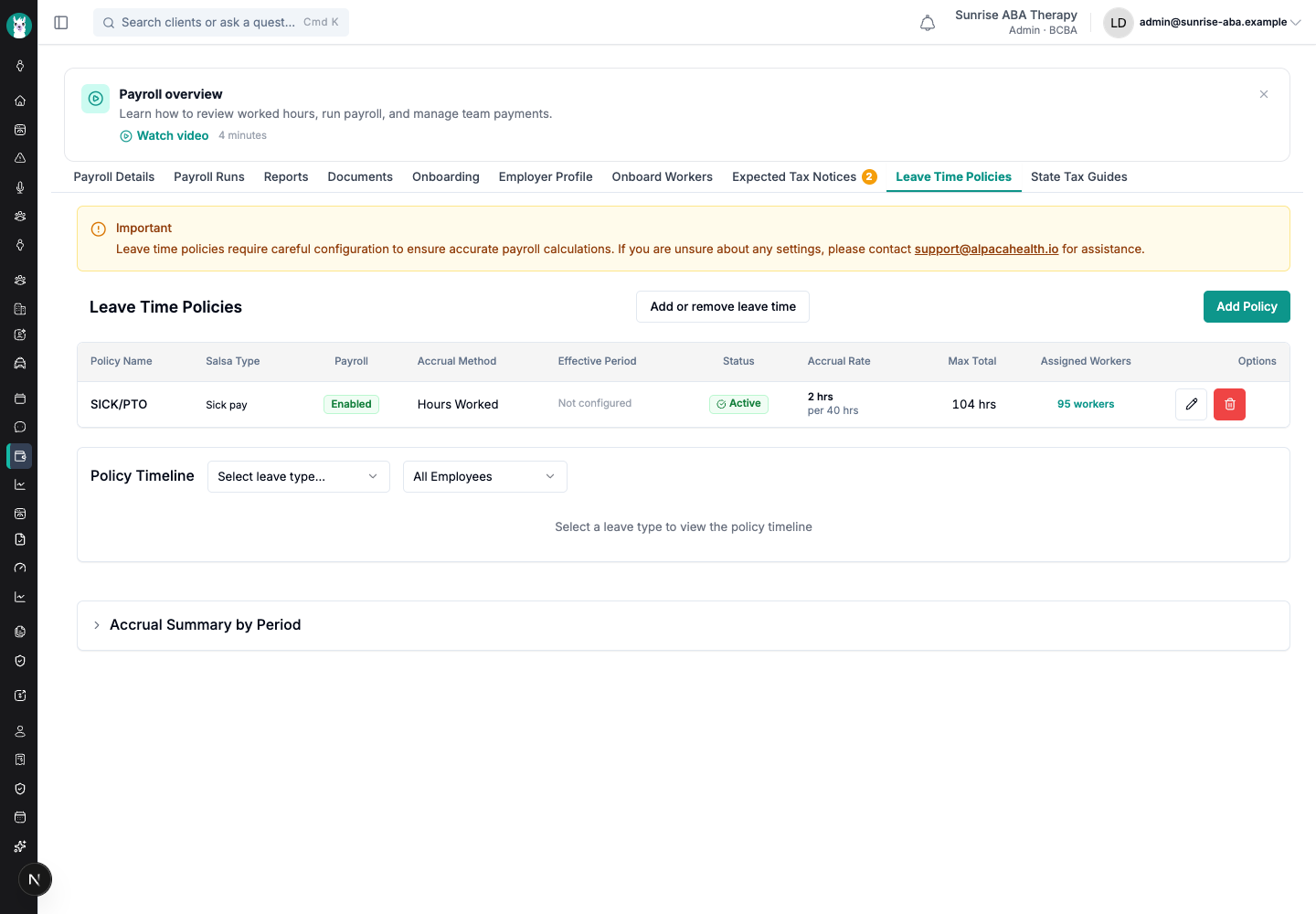
From a worker's profile — use this when you are already looking at one person's history.
Open the worker from My Team.
Open the Leave Time tab.
Choose Add or remove leave time, next to Export CSV.
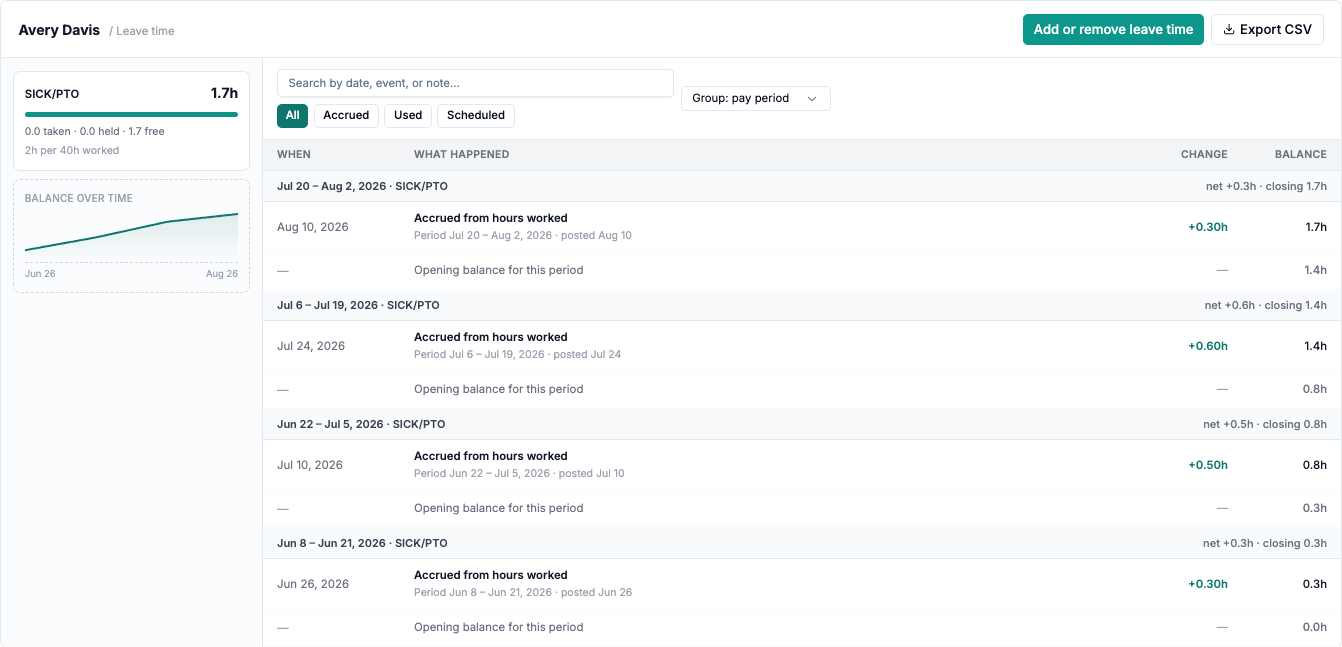
From a profile, the worker is already chosen — the sheet shows their name instead of a worker picker. The Leave Time tab appears only if your organization has at least one leave type.
Pick the worker and leave type
Choose the Worker and the Leave type. If your organization has only one leave type, it is picked for you.
The Current balance panel then shows four numbers for that leave type:
What it is | |
|---|---|
Accrued | Hours the worker has earned or been granted. |
Used | Hours already taken. |
Reserved | Hours held for time off that is scheduled but has not happened yet. |
Available | What they can still book: Accrued − Reserved − Used. |
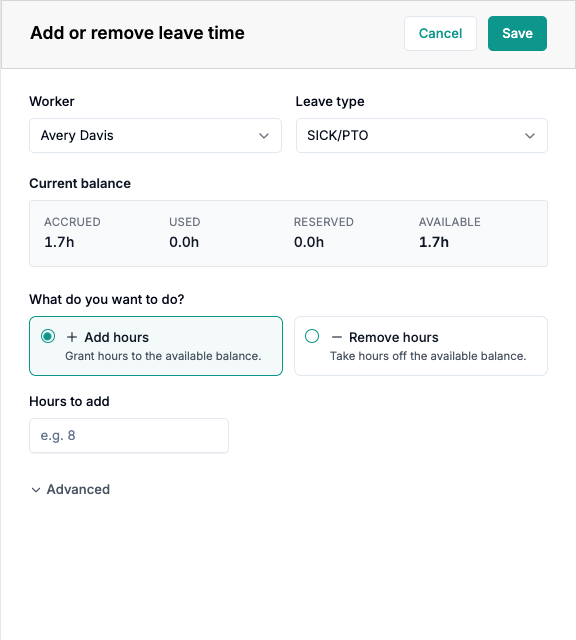
When you choose a worker, Alpaca reloads the team's balances, so the numbers include any change another admin made since you opened the sheet.
Add or remove hours
Under What do you want to do?, choose Add hours or Remove hours.
Type the number of hours in Hours to add (or Hours to remove) — for example
8or2.5. You do not need a minus sign; the choice above sets the direction.Check Available balance after saving. It shows the balance now and the balance after this entry, for example 1.7h → 9.7h.
Choose Save.
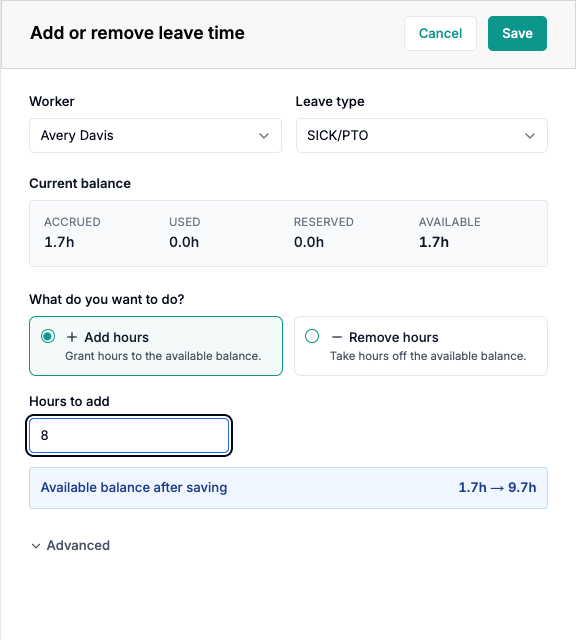
You will see Leave time updated and the sheet closes. On a worker's profile, the balance and the leave history refresh straight away.
Setting a starting balance
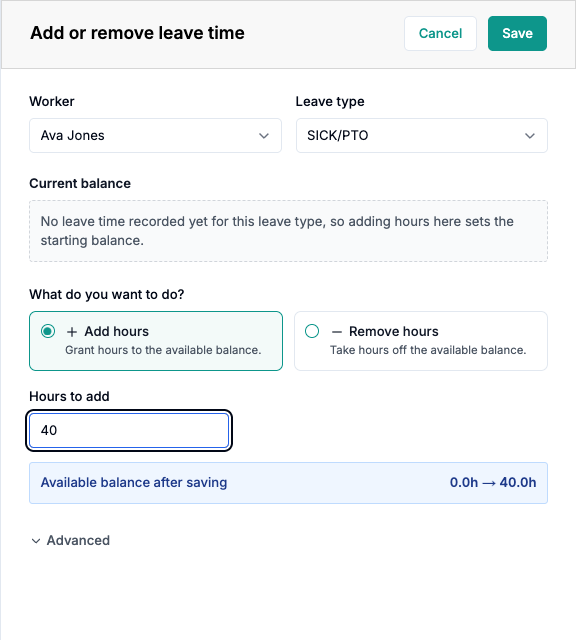
If the worker has never had leave recorded for that type, the panel says No leave time recorded yet for this leave type, so adding hours here sets the starting balance. Add the hours as normal. Alpaca records the entry as an Initial balance rather than a correction, which is how it appears in the worker's history.
Read the negative-balance warning
If an entry would take the available balance below zero, the sheet says This leaves [worker] with a negative balance. Check the hours before saving. and the preview shows the negative number.
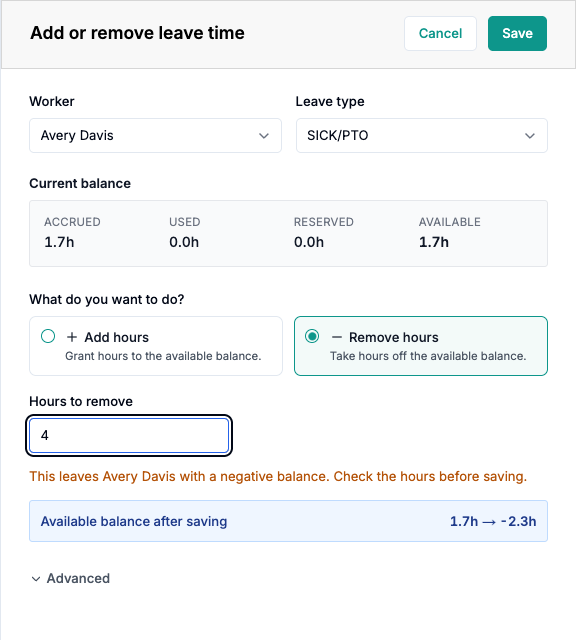
This is a warning, not a block. Sometimes a negative balance is correct — for example, when you are recording leave that was already taken. Read the preview, and save only if the result is what you meant.
Advanced: used and reserved hours
Most corrections only need Add hours or Remove hours. Choose Advanced for the rare cases that need more:
Used hours change — record past time off that was never scheduled in Alpaca, or undo one. Type
4to record 4 hours used, or-4to remove 4 used hours.Reserved hours change — hours held for upcoming time off. The schedule normally manages these. Change them only if a scheduled leave appointment did not sync.
Entry type — Automatic records Initial balance for a worker's first entry on a leave type and Manual adjustment after that. You can choose either one yourself if the automatic choice is wrong.
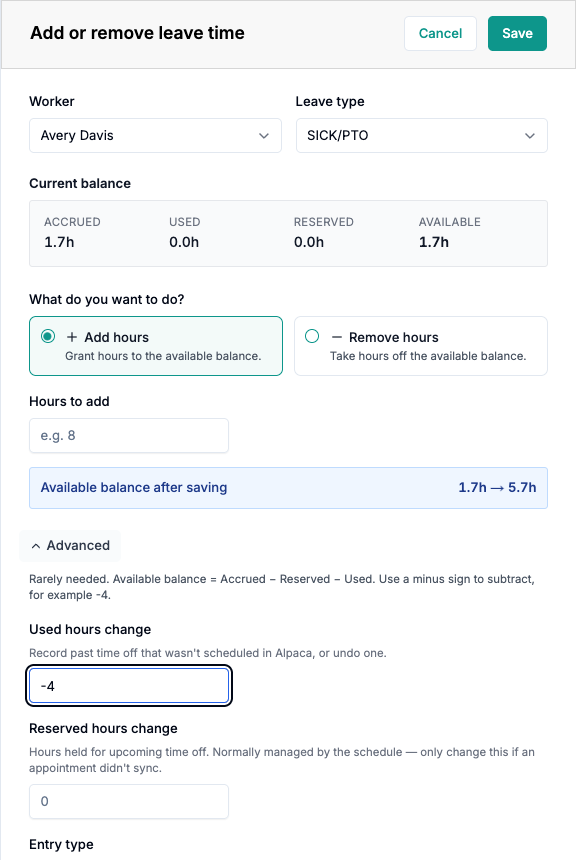
The preview includes these fields too. Removing 4 used hours from a 1.7 hour balance shows 1.7h → 5.7h, because time that was never taken goes back into the balance.
Reverse an entry
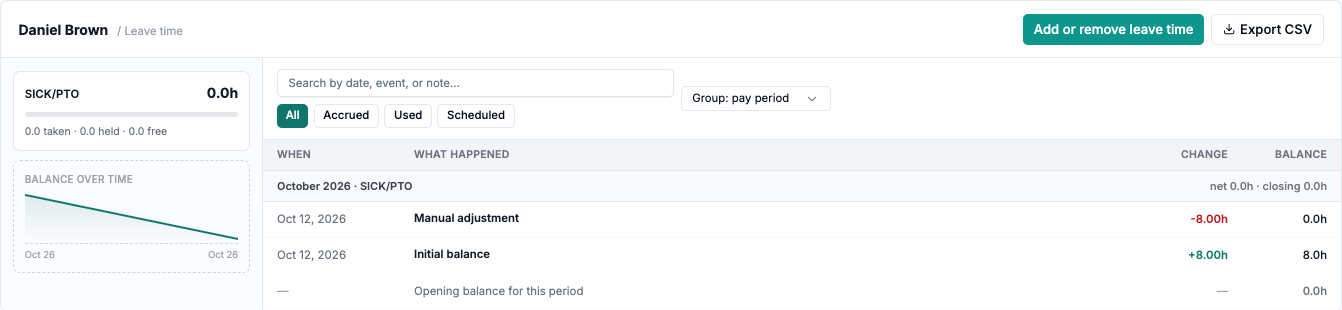
There is no undo button and no way to delete an entry. To reverse one, make an equal and opposite entry: if you added 8 hours by mistake, remove 8 hours. If you also changed used or reserved hours, reverse those in Advanced as well.
Both entries stay in the worker's leave history, and the balance nets back to where it was. That is deliberate. The leave history is the record behind every paycheck, so a mistake and its correction both stay visible.
When to fix the source instead
A manual entry patches a balance. It does not fix whatever produced the wrong balance. Fix the source instead when:
Leave was approved for the wrong day. Correct the appointment on the schedule. The reserved and used hours follow it.
Everyone on a policy has the wrong balance. The policy is set up wrong. Fix the policy rather than patching each worker — see Configuring leave time accruals.
Balances are missing for past pay periods. Policies do not backfill. A bulk correction is better handled by support than by dozens of manual entries.
Make corrections before the payroll deadline
Leave accruals are processed as part of closing out a pay period, and payroll cannot be finalized while leave time is unprocessed. Make corrections before the period's deadline, not during the processing window afterwards.
Recover from common problems
What you see | What it means | What to do |
|---|---|---|
Choose a worker | No worker is selected. | Pick one from Worker. |
Choose a leave type | No leave type is selected. | Pick one from Leave type. |
Enter how many hours to add or remove. | Every hours field is blank or zero, so there is nothing to save. | Type a number of hours. |
Enter a number of hours, like 8 or 2.5 | The hours field has something that is not a number, or has a minus sign. | Type a plain number. Use Remove hours to subtract. |
Enter a number, like 4 or -4 | An Advanced field has something that is not a number. | Type a number. A leading minus sign is allowed here. |
This leaves [worker] with a negative balance. Check the hours before saving. | The entry would take the available balance below zero. | Check the preview. Save only if a negative balance is intended. |
Couldn't update leave time. Please try again. | The entry was not saved. | Try again. If it keeps failing, email support. |
No leave time recorded yet for this leave type, so adding hours here sets the starting balance. | This worker has no history for this leave type yet. | Add hours to set their starting balance. |
Add or remove leave time is greyed out on a profile | Your organization has no leave types yet. | Set up a leave policy first — see Set Up Leave Time. |
No Add or remove leave time button | Your role does not have the permission. | Ask a clinic admin. |
Current limitations
One worker and one leave type per entry. There is no bulk upload.
An entry cannot be edited or deleted after saving. Reverse it with an opposite entry.
The sheet does not ask for a reason or note. The history records the entry type, the date and the change.
The negative-balance warning does not stop the save.
A note on leave type names
Some leave types are created in Alpaca and some are synced from the payroll provider. Alpaca matches an entry to the right balance either way, so you do not need to know which is which. It is also why the same leave type can be named slightly differently on different screens.
Still stuck? Email support@alpacahealth.io and we will take a look.