Paying your staff: how do staff get paid?
Last updated: August 25, 2026
This article is the overview of how a worker's pay is actually calculated in Alpaca — where the hours come from, how they are priced, and what gets added on top. The linked articles go deeper on each decision. For when the money moves, see Payroll Schedule: when do staff get paid?
Hours in, pay out
Alpaca does not ask you to enter timesheets. A worker's paid hours are assembled from the work they complete in the platform:
Category | Where the hours come from |
|---|---|
Clinical (billable) | Session notes the clinician has signed. |
Training | Non-billable appointments, once verified and approved. |
Admin | Non-billable appointments, once verified and approved. |
Drive time | Non-billable appointments, once verified and approved. |
Weekend | Non-billable appointments, once verified and approved. |
Paid time off | Approved leave. Always paid at the worker's clinical rate. |
Each category can carry its own hourly rate, which is what lets you pay drive time differently from direct therapy. Your workers see the same breakdown from their side — see View your hours and differentials.
Two ways to be paid
Each worker is set to one compensation structure:
Hourly — the five category rates above are multiplied by the hours in each category.
Salary — a fixed annual amount, spread across the pay periods in the year.
See Salary vs hourly workers for how each behaves on the Payroll page.
What gets added and subtracted
On top of hours × rates, a period's pay can include:
Overtime premium, for workers marked overtime-eligible in an organization with overtime enabled. See Overtime eligibility.
Reimbursements, bonuses and taxable stipends you add for the period.
Recurring payroll entries that repeat automatically each period.
Scheduled deductions, and savings or retirement contributions.
All of these live on the Payroll Details page — see Payroll adjustments and extras.
Reading the Payroll Details page
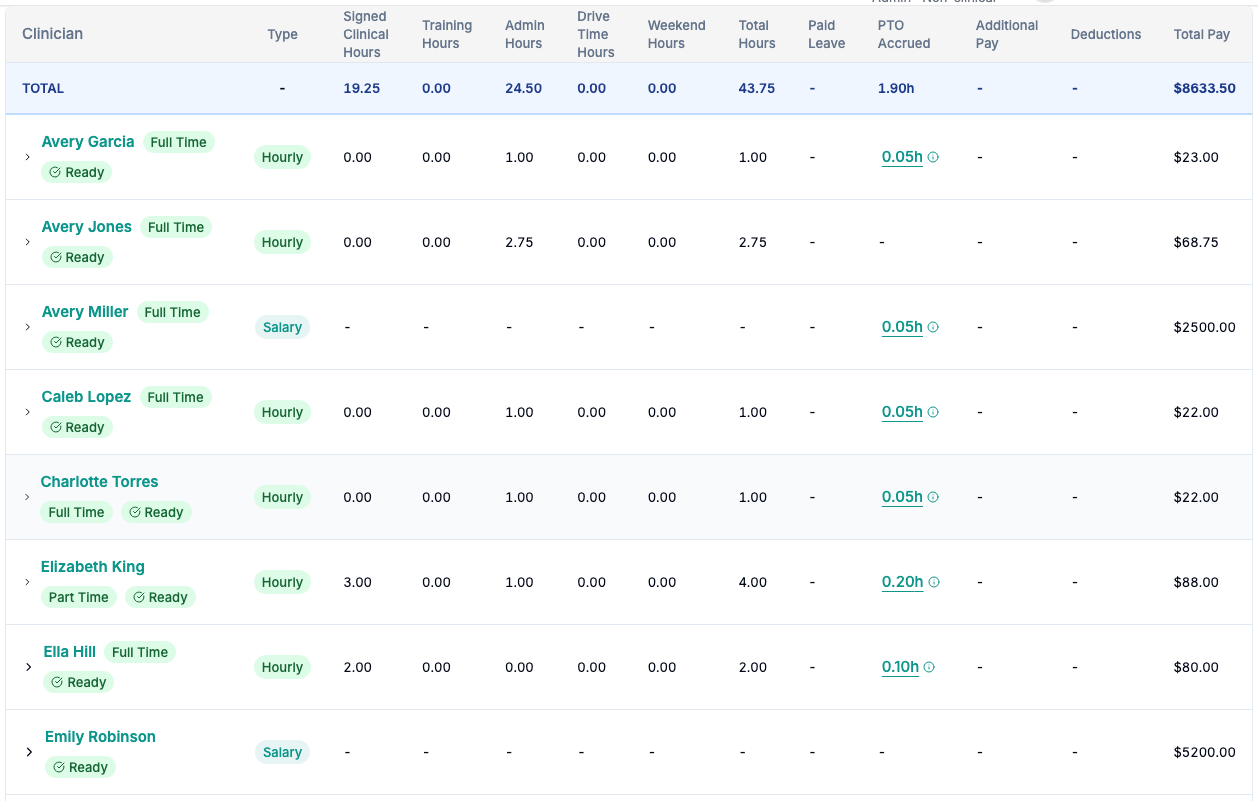
The Payroll Details table: hours by category per worker, with the TOTAL row on top.
Open Payroll → Payroll Details and pick a period. Each worker is a row; expanding a row shows their hours by category, their rate for each, and the appointments behind them. The TOTAL row is what you should end up paying.
Above the table you will see two figures worth understanding:
Table — what Alpaca calculates from your hours and rates.
Gross — what the payroll run actually carries.
These should match. When they do not, the Worker Payroll Comparison dialog breaks the difference down per worker so you can see which one is off. The most common causes are a worker excluded from payroll who still carries pay on the payroll side, and an off-cycle run paid on the same check date.
Related articles
Salary vs hourly workers
Overtime eligibility
Worker rates and when to edit them
Payroll adjustments and extras
Who gets payroll?
Still stuck? Email support@alpacahealth.io and we will take a look.