BCBS Texas Commercial authorization form
Last updated: October 1, 2026
For eligible BCBS Texas Commercial clients, Alpaca prepares the payer’s authorization form from the finalized treatment plan, client chart, insurance card, organization, and assigned provider information. You review the form beside the generated PDF, complete anything that is missing, and approve the exact version that Alpaca saves to Documents. When you later create a matching authorization request, Alpaca attaches that approved PDF automatically. Approval does not submit the request to the payer.
Who can use it
The BCBS form approved step appears when all of these are true:
the treatment plan or supported reassessment is finalized;
any required caregiver signature is complete;
the client’s selected insurance card covers ABA; and
the card’s configured payer requires the BCBS Texas Commercial authorization form.
The step does not appear just because a payer name contains “BCBS.” Other BCBS products, Medicaid, ERS, FEP, and cards that do not cover ABA are not included unless their payer is explicitly configured for this workflow.
Anyone who can access this client workflow can finish, approve, or replace the form once all required information is complete. There is no separate clinical-role check at approval.

Open the form review
Open the client’s Treatment Plans tab.
Find the finalized plan or reassessment.
At BCBS form approved, select Review BCBS form.
If the client has more than one eligible card, select the exact card for this request.
Choose Initial or Concurrent/Further, enter the requested start date, and review the
requested CPT units before starting the form review.
Opening the review does not approve the form, add a document, or send anything to the payer.
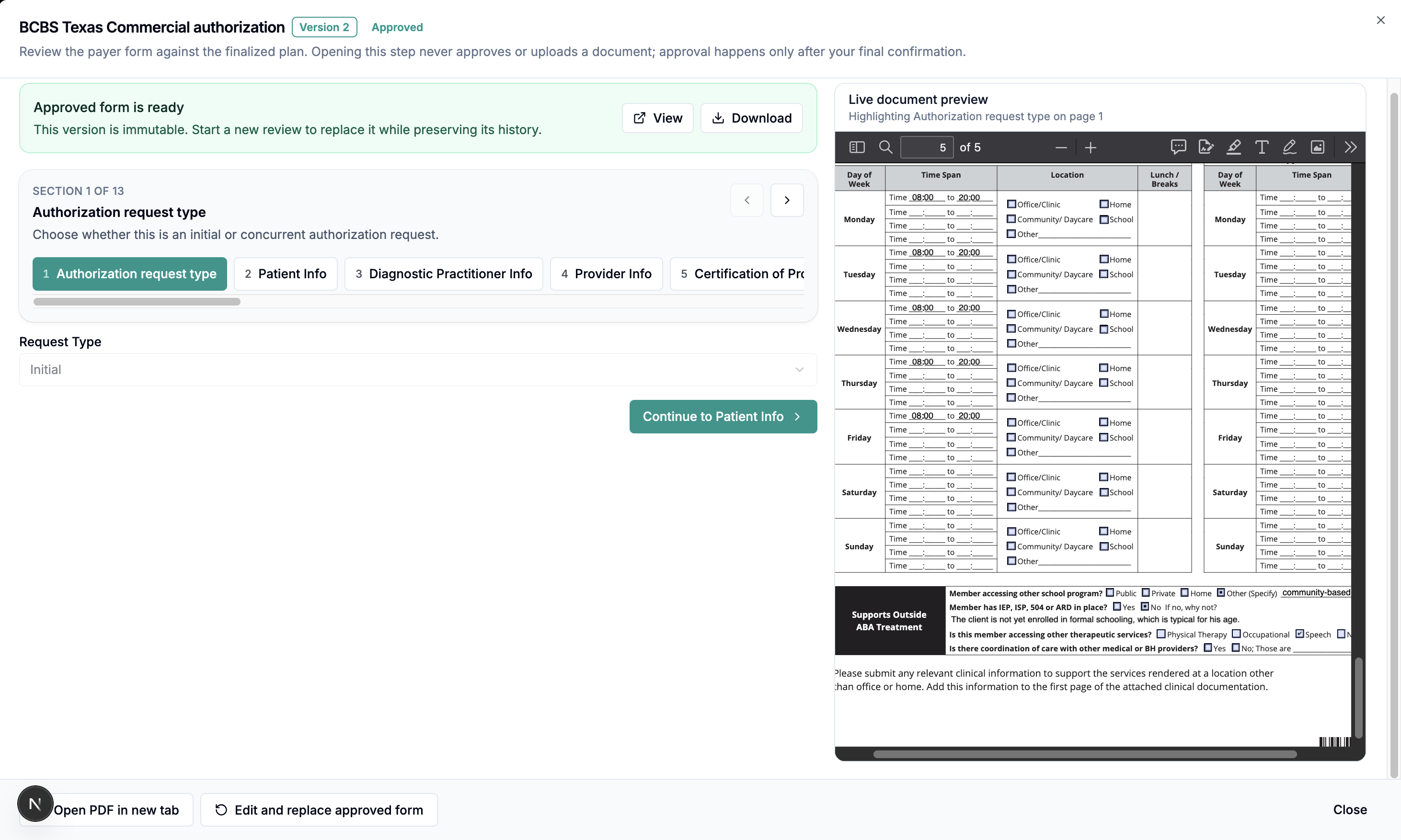
Review and complete the form
Work through the 13 sections in the left pane while comparing your entries with the official
PDF in the right pane. The preview follows the section you are reviewing and updates from your
current entries.
From chart identifies information populated from Alpaca’s structured records.
AI from uploaded plan identifies a suggestion extracted from an uploaded treatment
plan. Check every suggestion against the source document.Clinician corrected identifies a value that differs from its original prefill.
Needs information lists required or invalid values. Select an item to go directly to its
section.
Before approval, complete every required item shown in Needs information. At minimum, the form needs the patient and subscriber details, rendering provider and practice information, requested start date, at least one requested ABA procedure code, at least one assessment instrument, one maladaptive behavior, and one skill-acquisition goal. The rendering provider and practice NPIs must be exactly 10 digits; email addresses and U.S. phone numbers must also be valid.
The diagnostic practitioner’s NPI may be left blank. In Practice Information, practice name, NPI, contact name, and telephone are required; address and fax fields are optional. For an uploaded treatment plan, use Re-extract from treatment plan only when you want to replace the current draft suggestions with a fresh extraction. Review the confirmation before selecting Re-extract and save.
Save a draft or approve the form
Select Save draft whenever you want to keep your work. A draft does not create a file in
the client’s Documents.
To approve:
Save any changes still shown in the live preview.
Review the complete generated PDF.
Select the confirmation beginning I reviewed the generated PDF.
Select Approve and save to Documents.
Alpaca saves an immutable, Alpaca-verified PDF in the client’s Documents. Its filename follows BCBS_TX_Authorization_v1.pdf, with the version number increasing for later replacements.
Attach it to an authorization request
When you select Create request from the same treatment-plan workflow, Alpaca checks the selected insurance card, source plan, authorization type, requested start date, and CPT-unit snapshot. If they exactly match the approved version, the sheet automatically attaches the approved PDF and shows Clinician-approved BCBSTX authorization form attached.
You cannot substitute a different unapproved authorization form in the request sheet. Review the remaining request details and attachments before submitting.
If only the request start date is wrong, change Request start date in the warning. Alpaca
applies the same payer date limits used elsewhere in Create Request and checks for the matching approved form again. If the new date does not match an approved form, return to Treatment Plans and replace the form.
Correct an approved form
Return to the client’s Treatment Plans tab.
Open the approved BCBS form approved step.
Select Edit and replace approved form.
Make the corrections, save the draft, review the new PDF, confirm, and approve again.
The replacement receives the next version number. Alpaca removes the superseded PDF from the active Documents list only after the replacement is saved successfully, while preserving the older artifact and approval history for audit purposes.
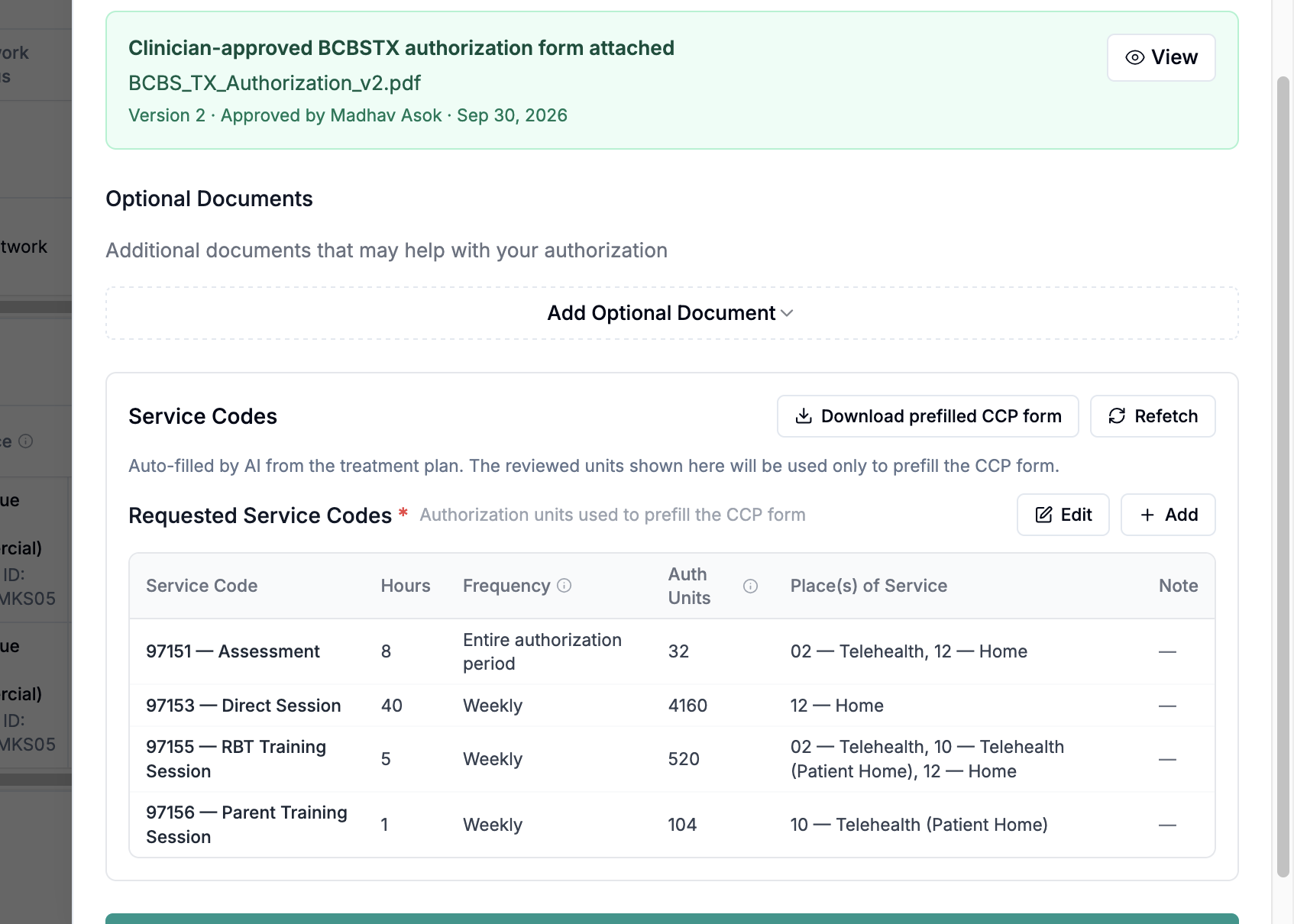
Before you approve or submit
Treat the generated form as a clinical and administrative draft until you have checked it
against the chart and finalized plan. Confirm the insurance card, request type, requested start date, CPT units, rendering provider details, clinical details, and attestations before approval. Approval records the user, time, form version, and exact stored PDF. If the source plan or other material request information changes, Alpaca invalidates or rejects the old match instead of silently reusing it. Create Request remains a separate step, where you should review every attachment before payer submission.
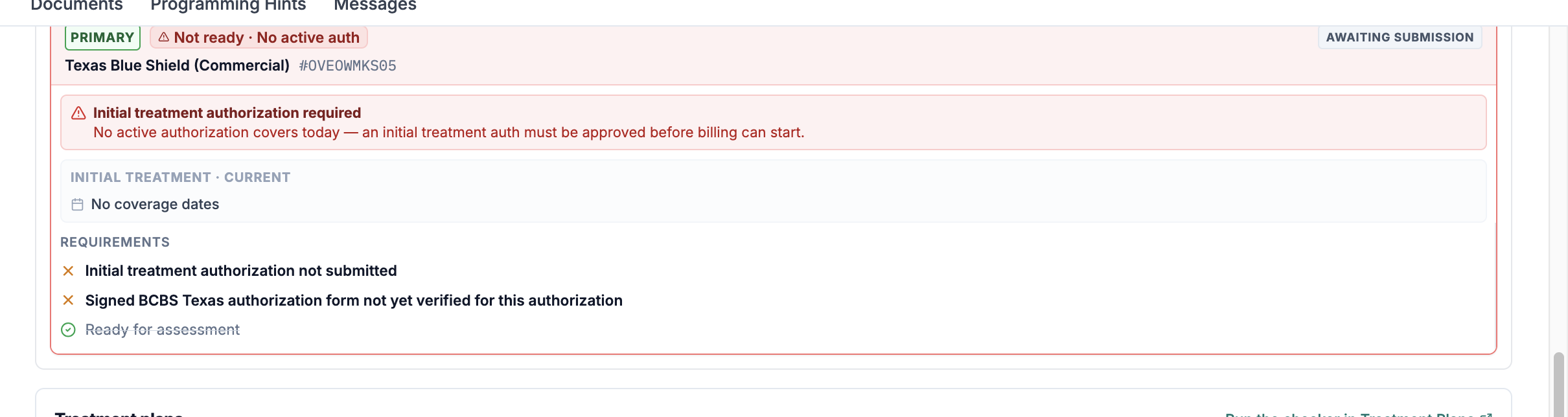
What Alpaca will not do
It will not approve, save to Documents, or submit a payer request merely because you opened
the review.It will not treat AI suggestions from an uploaded plan as clinician-confirmed information.
It will not guess which insurance card to use when more than one eligible card is available.
It will not attach a form approved for a different plan, card, authorization type, start
date, or CPT-unit snapshot.It will not silently regenerate a different PDF at submission; the request uses the exact
stored PDF that was approved.It will not overwrite an approved version. Corrections create a new version and preserve
approval history.
Where the form information comes from
Alpaca can prefill information from the client chart, the exact selected insurance card, the organization and assigned provider records, the finalized treatment plan or reassessment, requested services, assigned goals, and client availability. The authorization type, requested start date, and reviewed CPT units come from this authorization workflow.For uploaded treatment plans, Alpaca may also suggest clinical values found in the document. Those suggestions fill gaps only; they do not replace authoritative chart values, confirm CPT units, or approve the form. The source badges in the editor show what came from the chart or AI extraction and what was corrected during review.
Recover from common problems
What you see | What it means | What to do |
|---|---|---|
Needs information | One or more required values are missing or invalid. | Select each listed item, complete or correct the field, then save the draft. |
The preview includes these changes. Save them before approving the final PDF. | The PDF reflects edits that are not saved yet. | Select Save draft, review the refreshed PDF, and confirm it before approving. |
Approve and save to Documents is unavailable | Required information, saved changes, or final confirmation is still missing. | Resolve every item under Needs information, save, then select I reviewed the generated PDF. |
Invalidated | The finalized source plan or selected eligible insurance changed after approval. | Start a new review and approve the current version. |
BCBSTX authorization form required | Create Request cannot find an exact approved form for the current request. | Check the selected card, source plan, authorization type, start date, and CPT units. Select Edit or replace BCBS form if the form needs a new version. |
The authorization type or requested start date changed. Review the BCBSTX form again. | The request no longer matches the type or date on the approved form. | Correct Request start date in the warning, or approve a replacement form for the new request details. |
The requested CPT units differ from the clinician-approved BCBSTX form. | The units in Create Request differ from the reviewed snapshot. | Reconcile the requested units, then edit and approve a replacement form if the request is correct. |
The approved BCBSTX PDF is unavailable. Review the form again. | The stored approved document cannot be used. | Return to Treatment Plans and approve a replacement version before submitting. |
Current limitations
This workflow is available only for payer records explicitly configured to require the BCBS Texas Commercial authorization form.
Initial requests support generated and uploaded treatment plans. Concurrent/Further requests support generated reassessments; uploaded reassessments are not currently supported.
An uploaded plan’s AI extraction is a starting point, not a completeness or clinical-accuracy guarantee.
Approval saves the form and its audit evidence in Alpaca. It does not submit the authorization request or guarantee payer approval.
If a material request value changes after approval, the form must be reviewed and approved as a new version.