Letting go of an employee: Suspension, payouts
Last updated: July 27, 2026
When someone leaves your practice, Alpaca handles the offboarding for you: we prepare their final paycheck first, pay out any unused PTO, end their employment on the day you choose, and turn off their account access. This guide walks through the whole flow, from starting a termination to rehiring someone later if you need to.
Terminate vs. suspend. Suspending a worker just locks their account — use it when you need to cut off access quickly but haven't sorted out their pay. Terminating is the full offboard: final paycheck, PTO payout, and end of employment in payroll. If you've already suspended someone, you can still run a full termination on them afterward.
Before you start
The worker needs to be set up in payroll for a final paycheck to be calculated. Workers who were never enrolled in payroll won't show the Terminate option.
Nothing is sent to the worker until their final paycheck is actually paid. You can set everything up quietly, including scheduling it for a future date, and have the conversation on your own timeline.
Step 1 — Start a termination
You can start from two places.
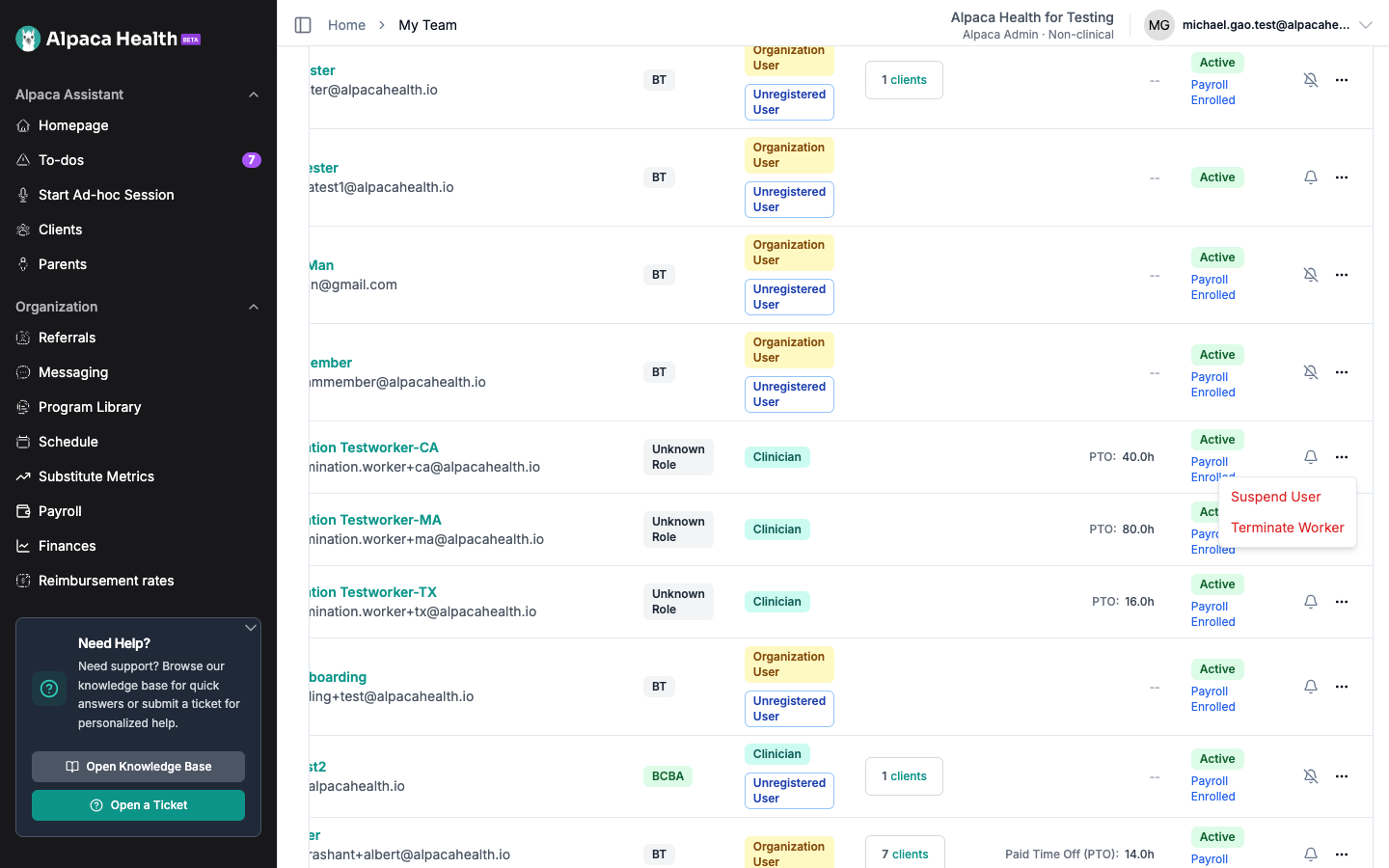
From the Team page: find the person in your team list, open the actions menu (the ••• button on their row), and choose Terminate Worker.
From their profile: open the worker's profile, click Actions in the top right, and choose Terminate worker.
Step 2 — Enter the details
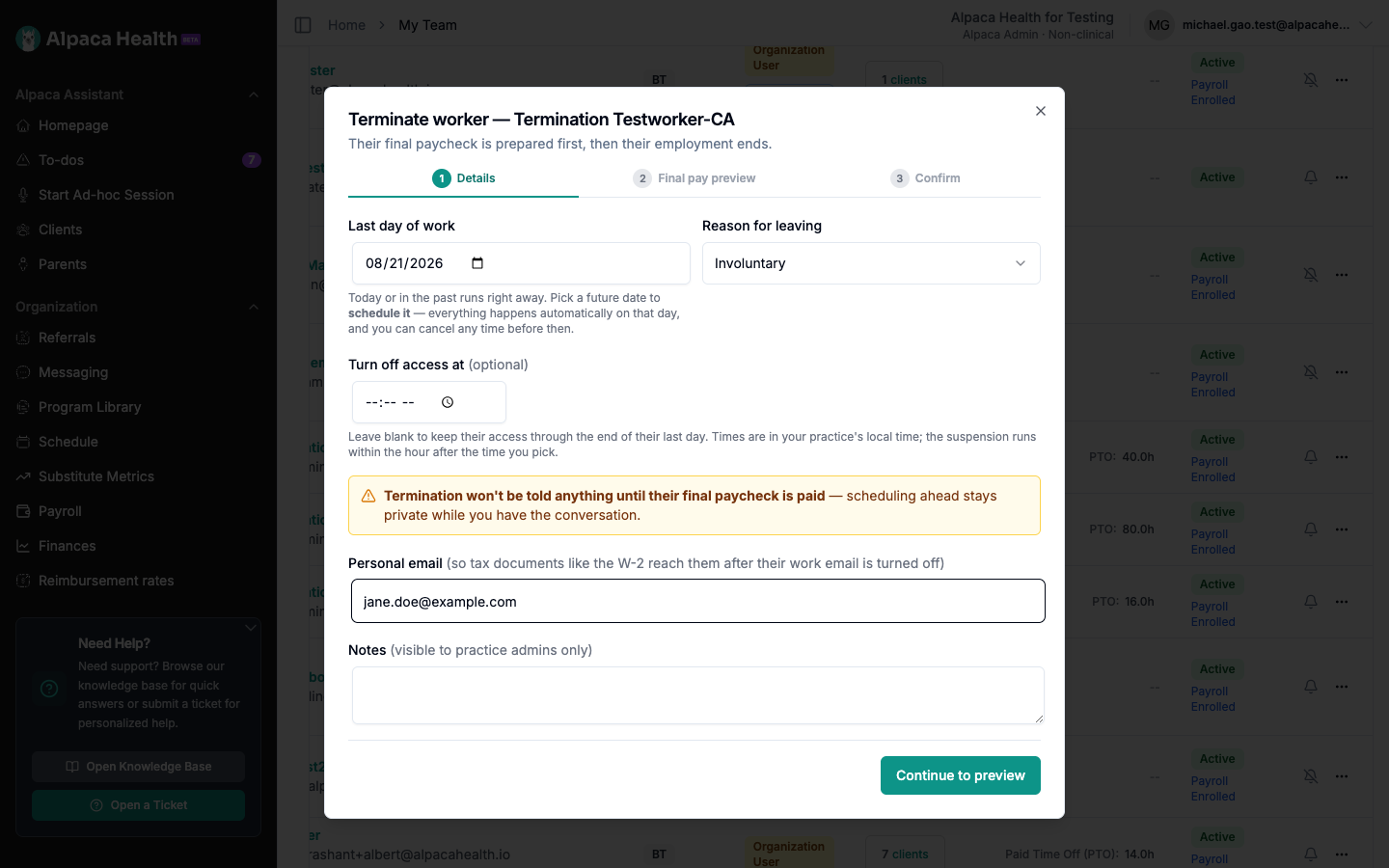
The wizard opens on the Details step. Fill in:
Last day of work — the worker's final day. Today or a past date runs the termination right away. Pick a future date to schedule it (more on that below).
Reason for leaving — Involuntary, Voluntary, or Historical (already left). This matches the reason recorded in payroll.
Turn off access at (optional) — a specific time on the last day to cut off their login. Leave it blank to keep their access through the end of the day.
Personal email (recommended) — where their tax documents, like their W-2, should go after their work email is turned off.
Notes (optional) — internal notes visible only to your practice admins.
When you're ready, click Continue to preview.
Step 3 — Review the final pay preview
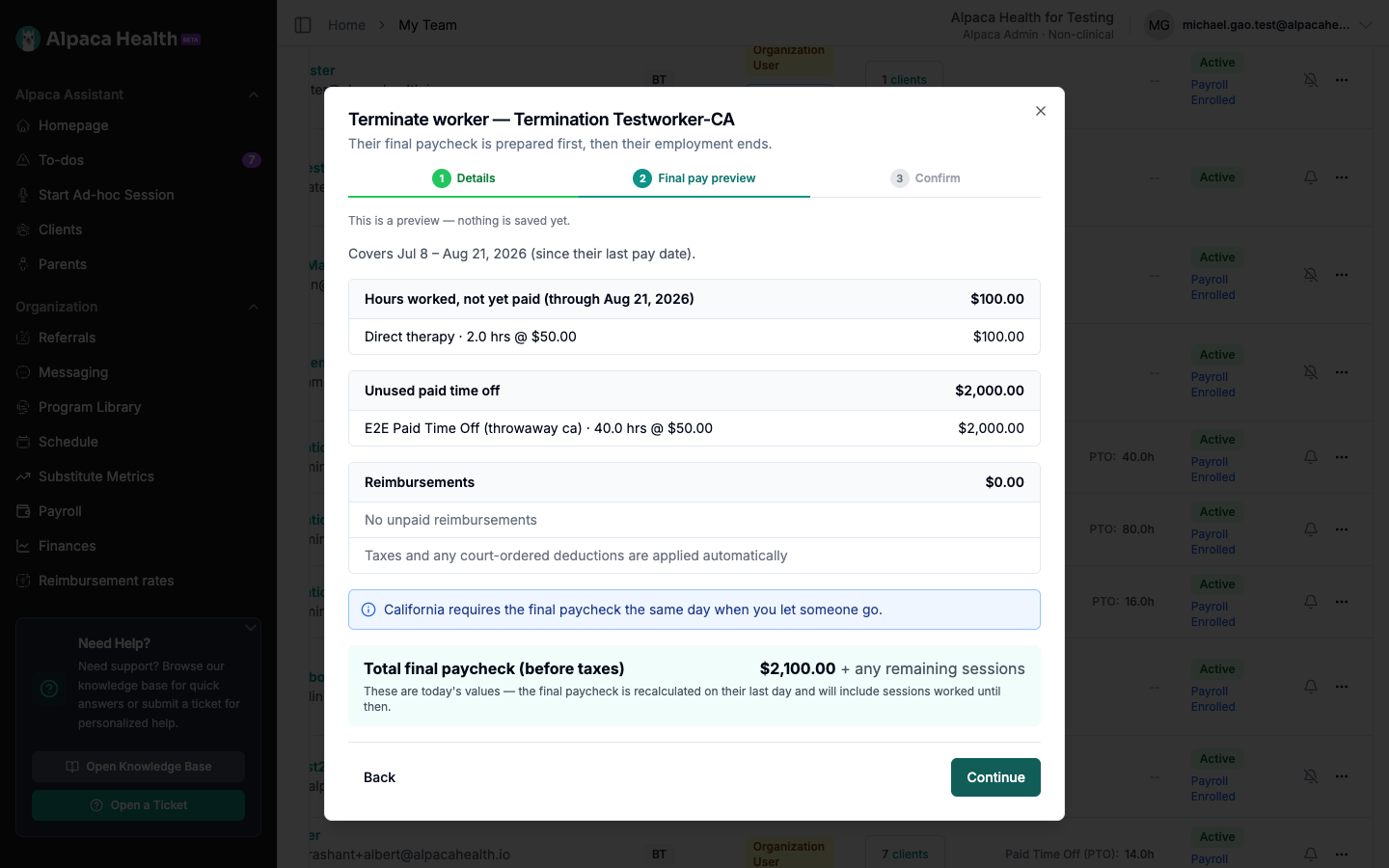
This step shows exactly what the final paycheck will include — nothing is saved yet. You'll see:
Hours worked, not yet paid — everything since their last pay date, broken out by pay type and rate.
Unused paid time off — PTO that gets paid out, with balances and rates.
Reimbursements — any unpaid reimbursements owed.
Total final paycheck (before taxes) — taxes and any court-ordered deductions are applied automatically when the check is run.
If anything needs your attention before the check goes out — unsigned session notes, a salaried worker's base pay, a state that requires paying out vacation, or a pay rate that looks off — a note will appear here explaining it. Read those carefully; they're there to stop someone from being underpaid.
Click Continue when the numbers look right.
Step 4 — Confirm
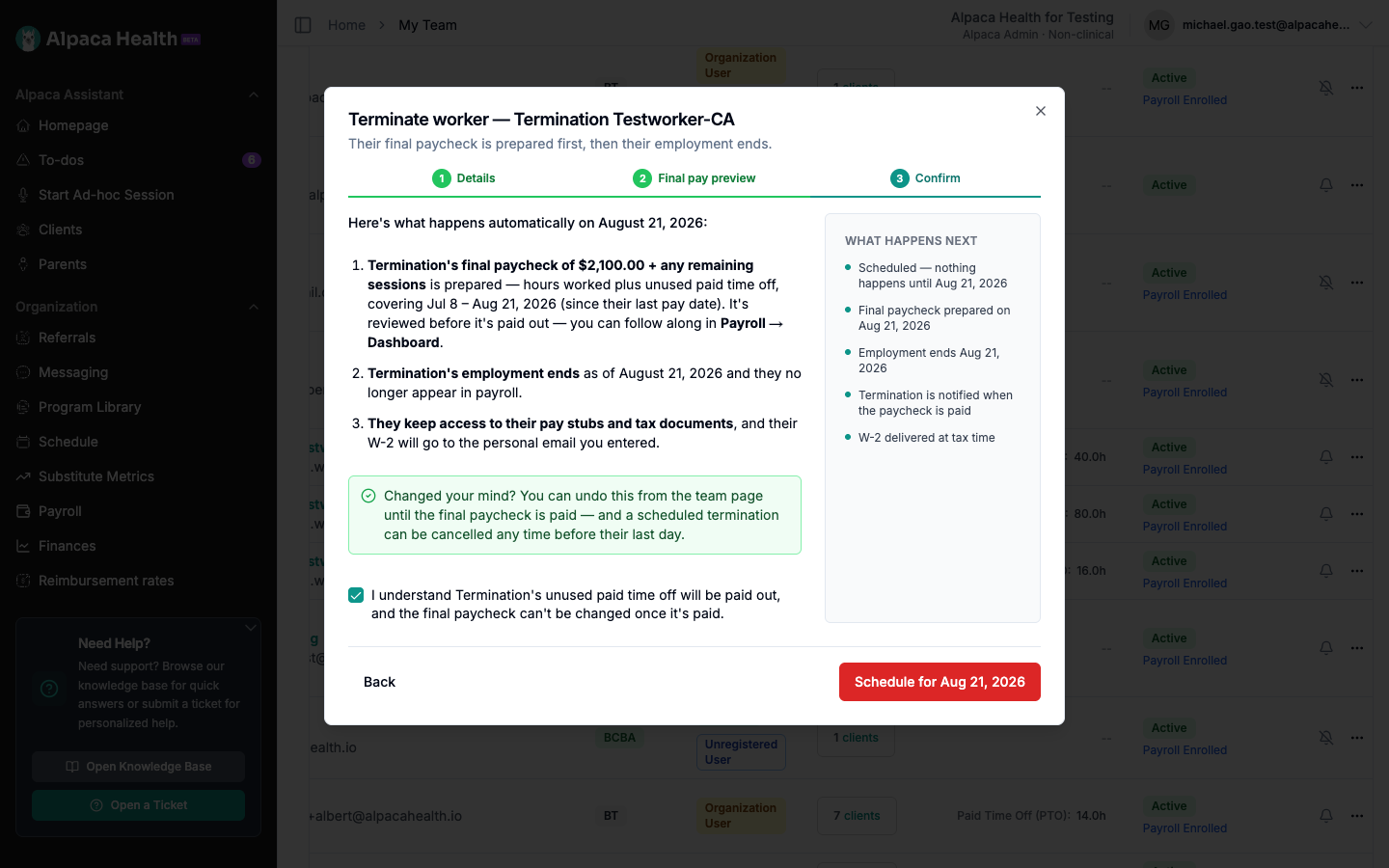
The final step lays out exactly what will happen, in order:
1. Their final paycheck is prepared as an off-cycle payroll run. Our team reviews it before it's paid out, and you can follow along in Payroll → Dashboard.
2. The worker's employment ends on the last day you chose, and they drop out of payroll.
3. They keep access to their pay stubs and tax documents, and their W-2 goes to the personal email you entered.
The What happens next panel on the right shows the same timeline at a glance. Check the box to confirm you understand that unused PTO will be paid out and the final paycheck can't be changed once it's paid, then click Terminate & create final paycheck.
The worker is only notified when the final paycheck is actually paid. Only run a termination for today's date on or after their real last day of work.
What happens after you confirm
You'll see a confirmation that the termination is underway. This is the part people ask about most, so here's exactly what's true the moment you hit confirm:
The worker has not been notified, and no money has moved. Their account is turned off quietly. They aren't told anything until their final paycheck is actually paid.
Alpaca handles the payroll side for you — calculating the final paycheck, filing the termination, and taking the worker out of payroll. It's created as an off-cycle payroll run.
Our team reviews it before it's paid out. The run appears in Payroll → Dashboard so you can follow along, but you don't need to do anything with it — please leave it to us rather than running it yourself, so nothing goes out before it's been checked. The worker is notified and paid on the pay date. If anything looks off, reach out to us before that date.
You can still undo the whole thing from the worker's profile right up until the final paycheck is paid.
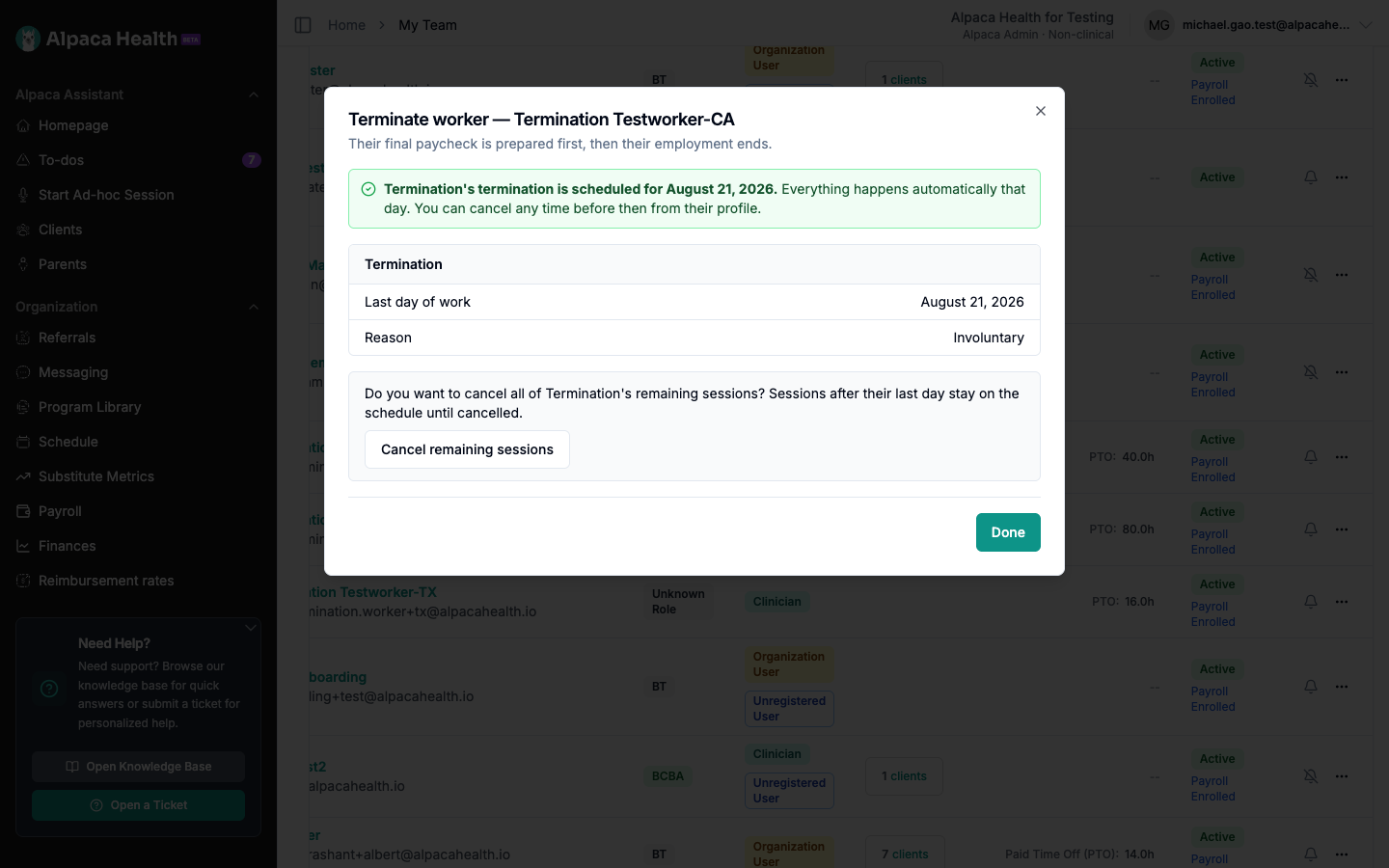
From here you can also cancel the worker's remaining sessions. Any appointments after their last day stay on the schedule until you cancel them, so this is a quick way to clear their calendar. If those clients still need coverage, reassign them in Scheduling.
Scheduling a termination for a future date
If you pick a future last day of work, the termination is scheduled instead of run immediately. Nothing happens until that day — then everything runs automatically: the final paycheck is prepared and employment ends, all on the date you set.
Scheduled terminations stay completely private to your admins until the check is paid, so this is the safe way to line everything up before you've had the conversation.
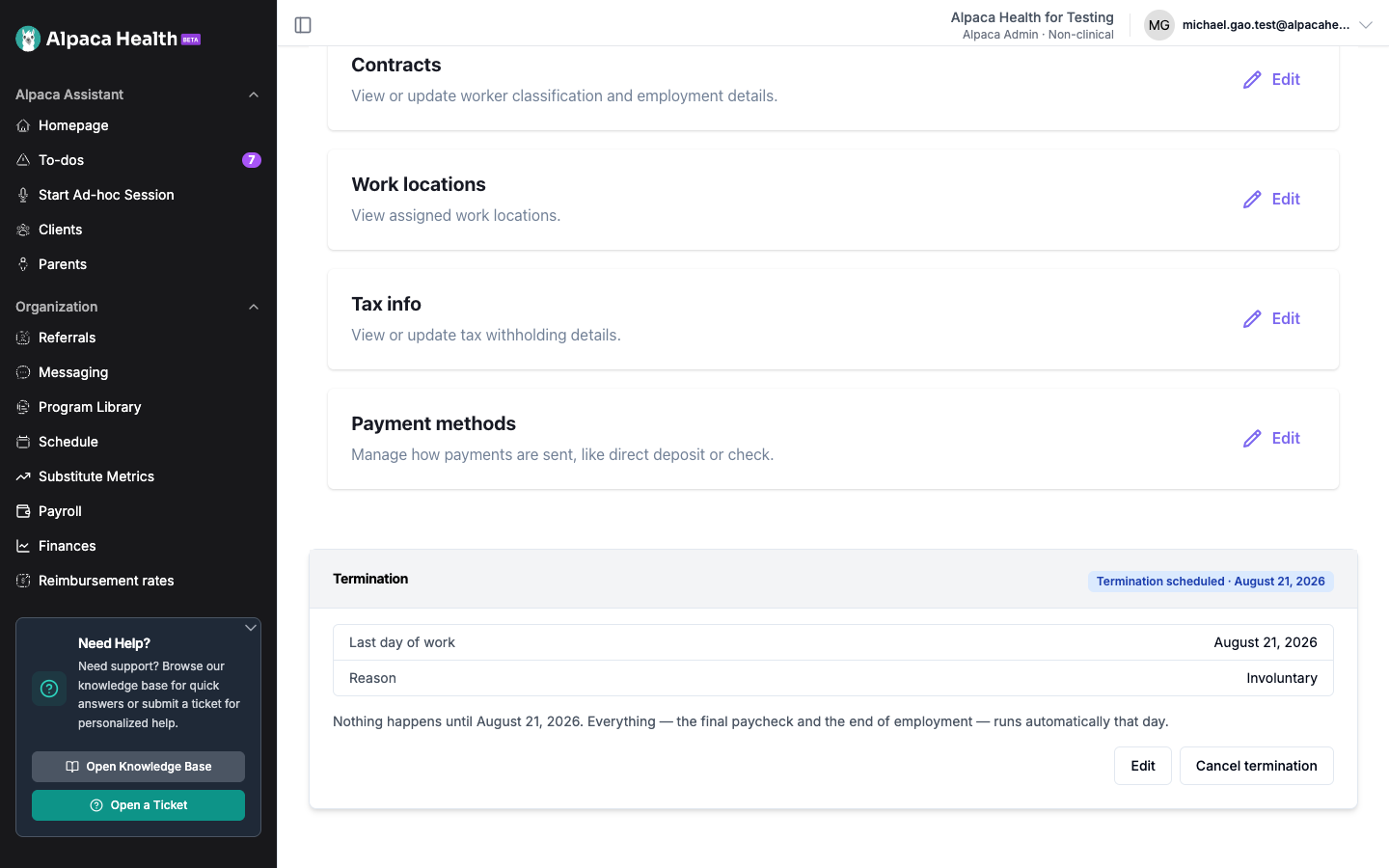
A scheduled termination shows up on the worker's profile, under the Worker Profile tab, as a Termination card. From there you can edit the details or cancel it entirely, any time before the last day — nothing has run yet, so cancelling just removes it and the worker stays employed.
Cancelling or undoing a termination
Before the final paycheck is paid, a termination is fully reversible. Go to the worker's profile → Worker Profile tab → the Termination card, and choose Cancel termination. This deletes the draft final paycheck before it's paid and restores their employment and account access. A scheduled termination can be cancelled the same way, any time before its date.
Rehiring a worker
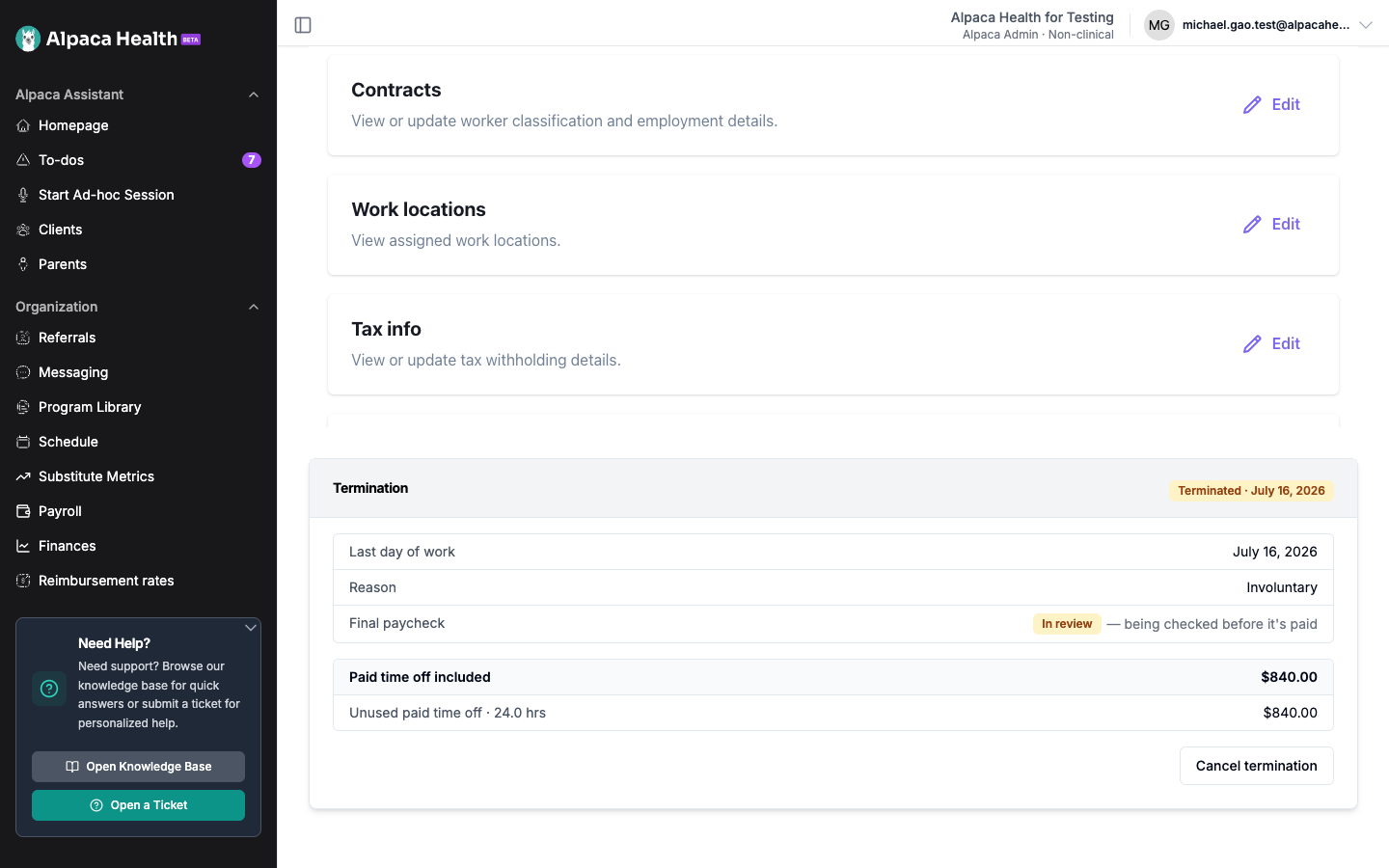
After the final paycheck has been paid, the action becomes Rehire. Rehiring restores the worker's employment, account access, and payroll all together. A couple of things to know:
Their paid-time-off balance starts fresh from the rehire date.
The final paycheck that was already paid is not undone.
You can rehire from either the Termination card on their profile or the actions menu next to their name on the Team page.
Unsigned notes and follow-up paychecks
If a worker has unsigned session notes or unapproved appointments when you terminate them, those hours aren't included in the first final paycheck — you'll see a note about it in the preview. The worker is paid for everything that's ready right away. Once the outstanding notes are signed and the appointments approved, we'll prompt you to pay the remainder in a follow-up paycheck, so nobody is left short.
Common questions
Will the worker know before I've talked to them?
No. Nothing is sent until the final paycheck is actually paid. Scheduling a termination ahead of time keeps it private to your admins.
Does terminating them turn off their login everywhere?
Termination ends their employment and access at your practice. You can also set a specific time on the last day to cut off access, or leave it to end with the day.
What if something goes wrong partway through?
If a termination hits a problem, it's flagged on the worker's profile with a Retry option that picks up where it left off — nothing already done is repeated. Our team is notified automatically too.
Can I terminate several people at once?
Not in bulk yet — run the wizard once per worker. It only takes a minute each.
A worker was suspended before all this existed. Can I still terminate them properly?
Yes. Open their actions menu on the Team page and choose Terminate Worker to run the full final-paycheck flow, even though they're already suspended.
Need a hand with a specific termination, a salaried worker's base pay, or a state payout rule? Reach out to us and we'll help you get it right before anything is paid.