Collect and verify a new hire’s Form I-9
Last updated: October 13, 2026
Form I-9 is the federal form every United States employer completes for each new
employee. The employee fills in Section 1. The clinic then examines the employee’s
original documents and completes Section 2. Alpaca collects both halves, produces the
official form as a PDF with an audit certificate, and tracks the deadlines, the
reverification date, and the retention date.
Alpaca does not verify anything with the government. There is no E-Verify submission and
no automated document check. The clinic reviewer is the verification. The law asks a
person to look at the original documents and attest that they reasonably appear to be
genuine and to relate to the person presenting them. Alpaca’s job is to make that
judgment easy to make and easy to evidence.
Three promises hold the rest of the article together:
The clinic never chooses the documents. Employees pick which acceptable documents
to present. Steering that choice is document abuse under federal law, so the picker has
no default, no recommendation, and no preferred path.Alpaca refuses to produce a form that would fail an inspection. An expired document,
a missing confirmation, or a remote examination the clinic is not eligible for stops the
signature rather than producing a form with a defect in it.Every look at a document is recorded, and a look that cannot be recorded does not
happen. The audit write is not best-effort; if it fails, the file is not served.
Who can use it
Form I-9 appears only when all of these are true:
your organization has Form I-9 turned on;
Form I-9 is enabled for your organization specifically, not just platform-wide; and
you are working in that same active organization.
For the clinic half you also need the permission to review Form I-9. By default that is
the Admin, Director, HR and office-manager roles. Revealing a Social Security
number or a document number needs a second, narrower permission, held by default only by
Admin and HR — so a Director can complete a verification without ever seeing a
full number.
Alpaca staff do not get access. Cross-organization recruiting roles are excluded by
design: only the employer, or an authorized representative the employer designates, may
sign Section 2. That exclusion is enforced on the server, not just hidden in the
interface.
Form I-9 applies to employees. A hire recorded as a 1099 contractor is excluded. A hire
whose classification is not recorded is included — the form is collected rather than
skipped, because collecting one unnecessarily is a small cost and skipping a required one
is not.
— The employee’s pre-start checklist, with Complete Form I-9 beside Background check
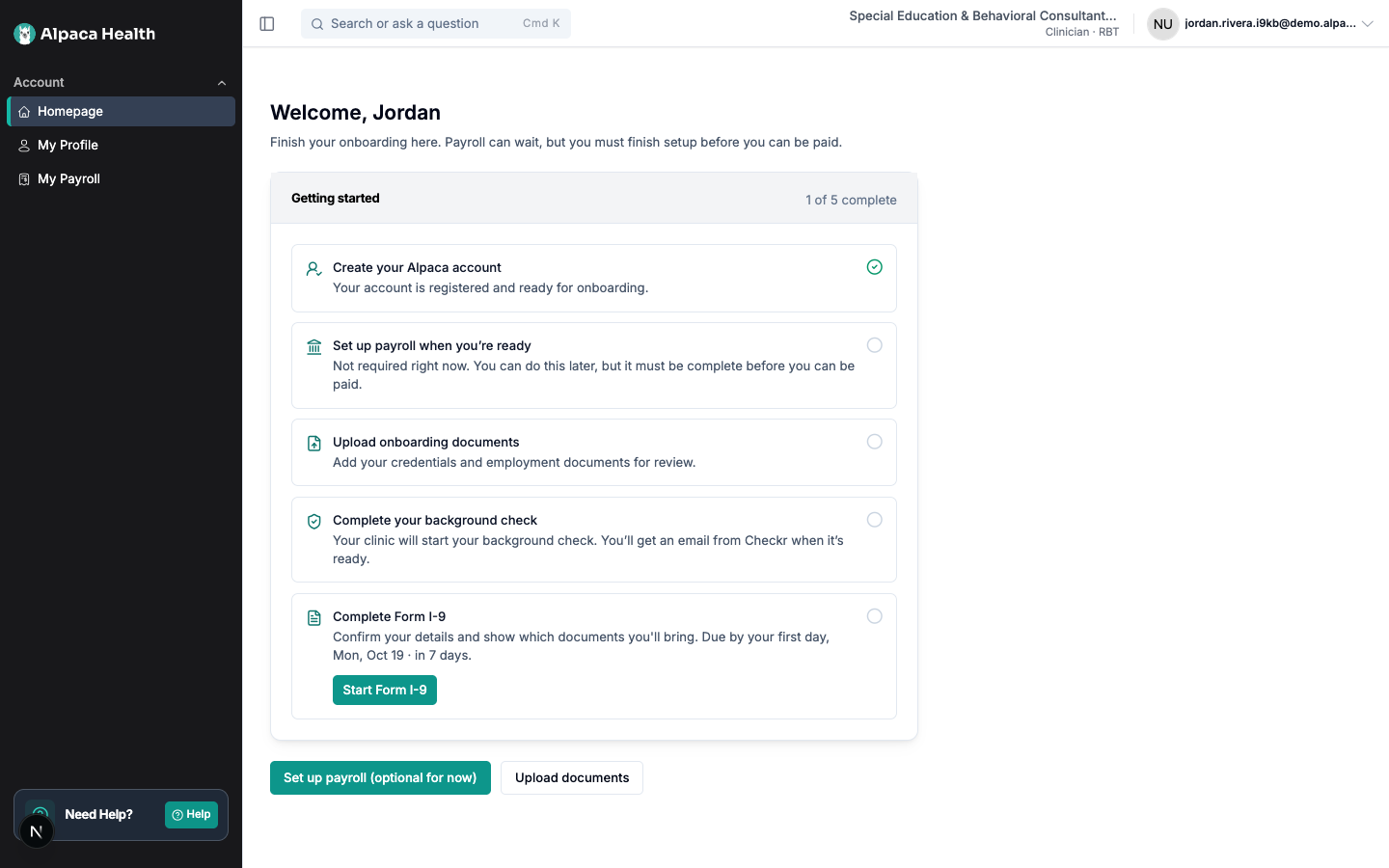
The employee fills in Section 1
The new hire sees a Complete Form I-9 step on their pre-start checklist, beside
Background check, showing a status and Due by your first day. The button reads
Start Form I-9, then Continue Form I-9, then View Form I-9 once it is done.
Section 1 is legally due by the end of the employee’s first day of work, and cannot be
signed before they accept the offer.
The flow has four steps, and drafts save as they go.
1. Your information
— Step 1, Your information, with fields pre-filled from the profile
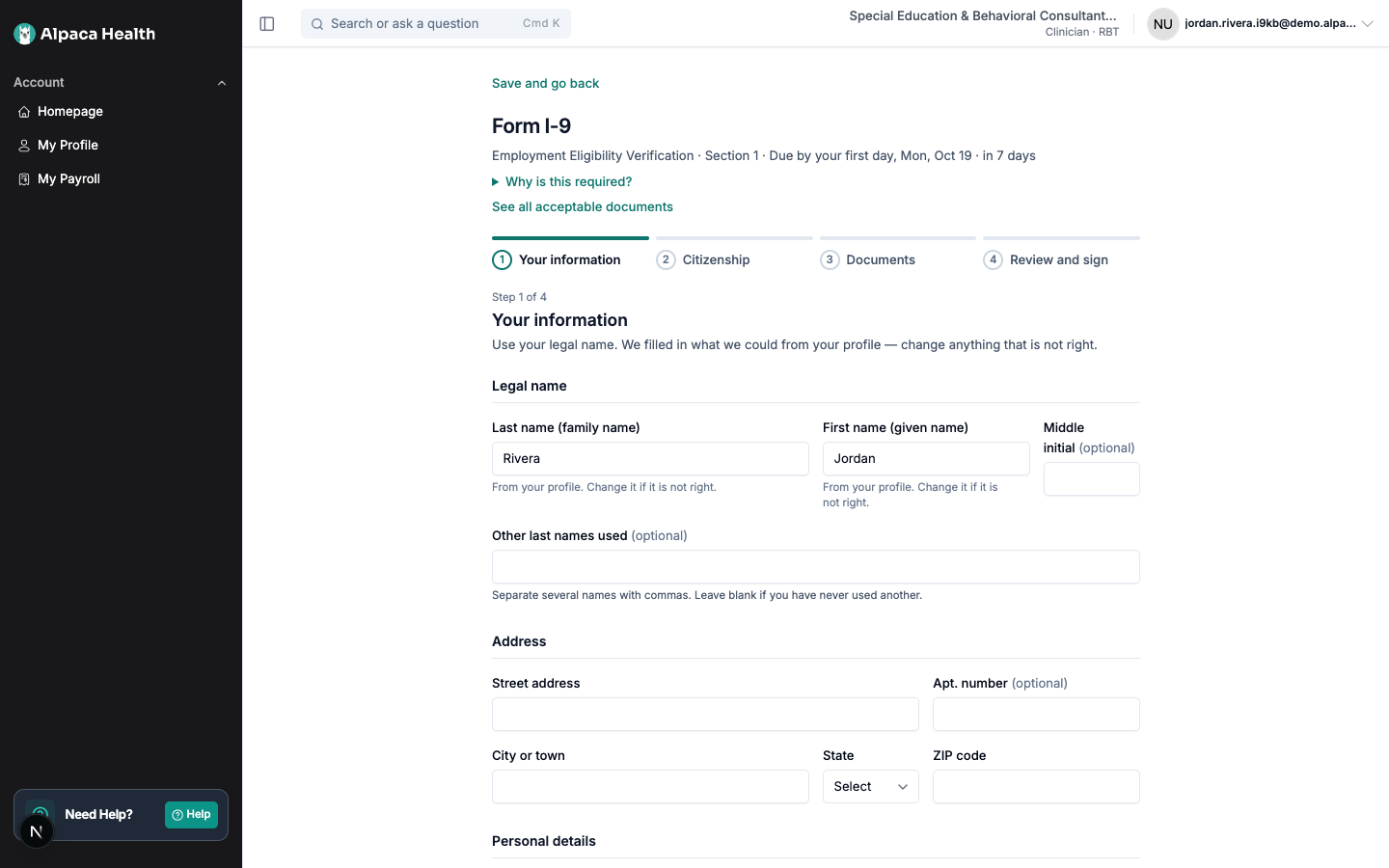
Name, other last names used, address, date of birth, email and telephone. Fields already
known are pre-filled from the employee’s profile and remain editable.
The U.S. Social Security number field appears only for clinics enrolled in E-Verify,
where the form requires it. Every other clinic never sees the field, and Alpaca never
asks for the number.
2. Citizenship status
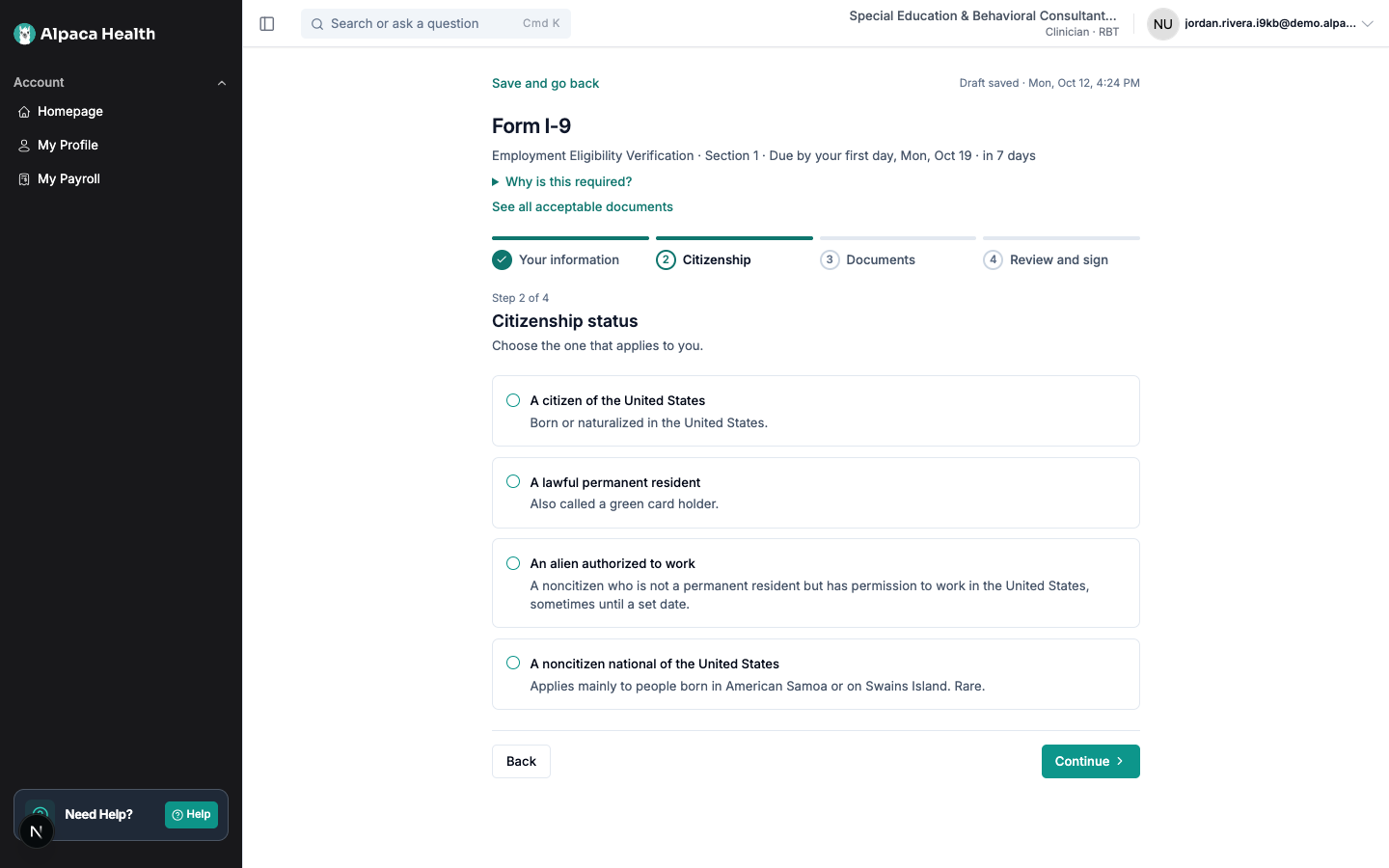
— Step 2, the four citizenship options with nothing selected
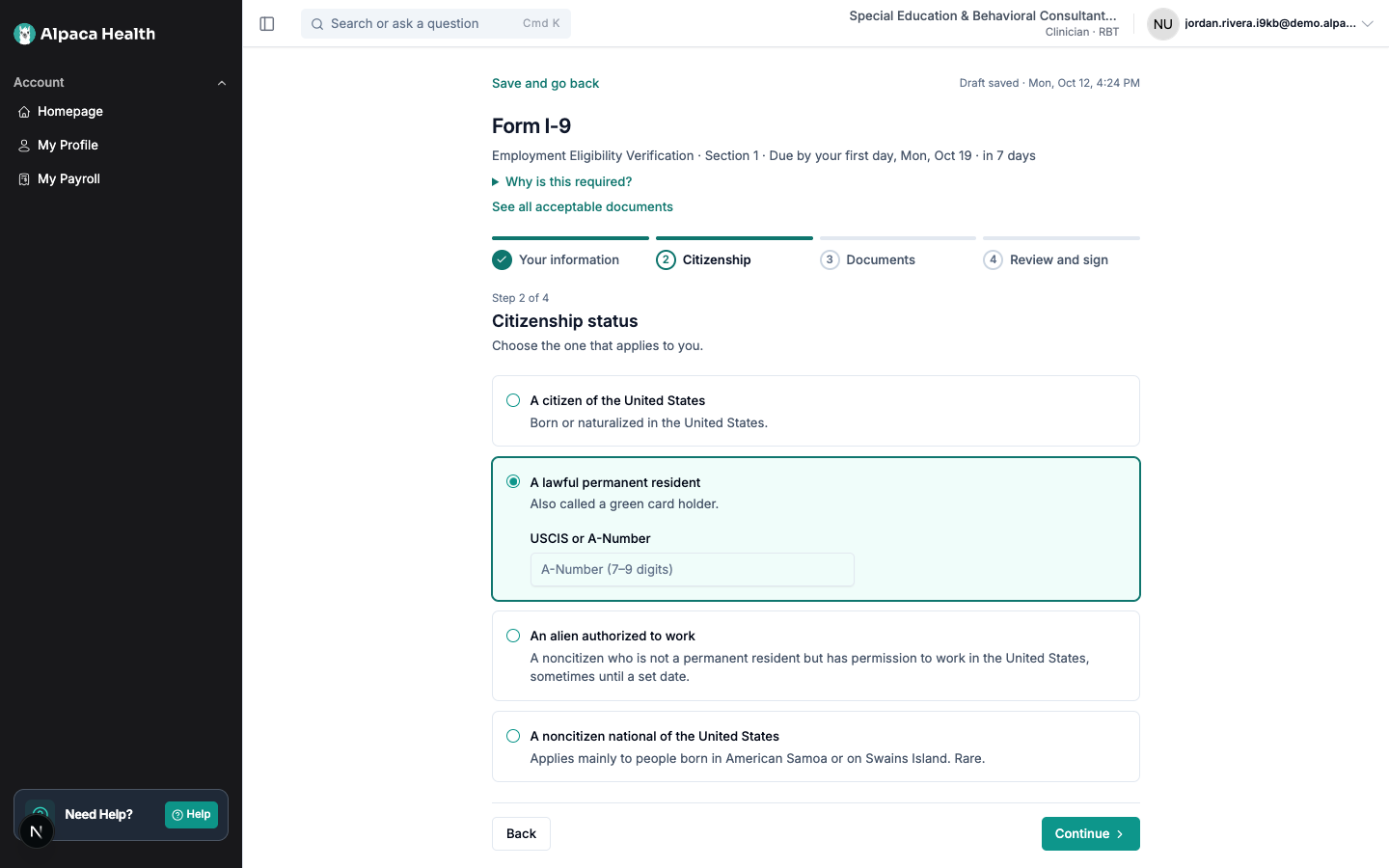
— Step 2 with lawful permanent resident chosen, revealing USCIS or A-Number
Four options, in order of how common they are, with nothing selected by default:
Option | Helper text shown |
|---|---|
A citizen of the United States | Born or naturalized in the United States. |
A lawful permanent resident | Also called a green card holder. |
An alien authorized to work | A noncitizen who is not a permanent resident but has permission to work in the United States, sometimes until a set date. |
A noncitizen national of the United States | Applies mainly to people born in American Samoa or on Swains Island. Rare. |
The wording of the first column is the official form’s, kept exactly. The order differs
from the paper form, which is fine — the employee still picks exactly one, and the PDF
ticks the official box for the value chosen rather than for its position on screen.
Choosing lawful permanent resident reveals USCIS or A-Number. Choosing alien
authorized to work reveals Work authorization expiration date and asks for exactly one
of USCIS or A-Number, Form I-94 admission number, or Foreign passport number
with Country of issuance.
3. Your documents
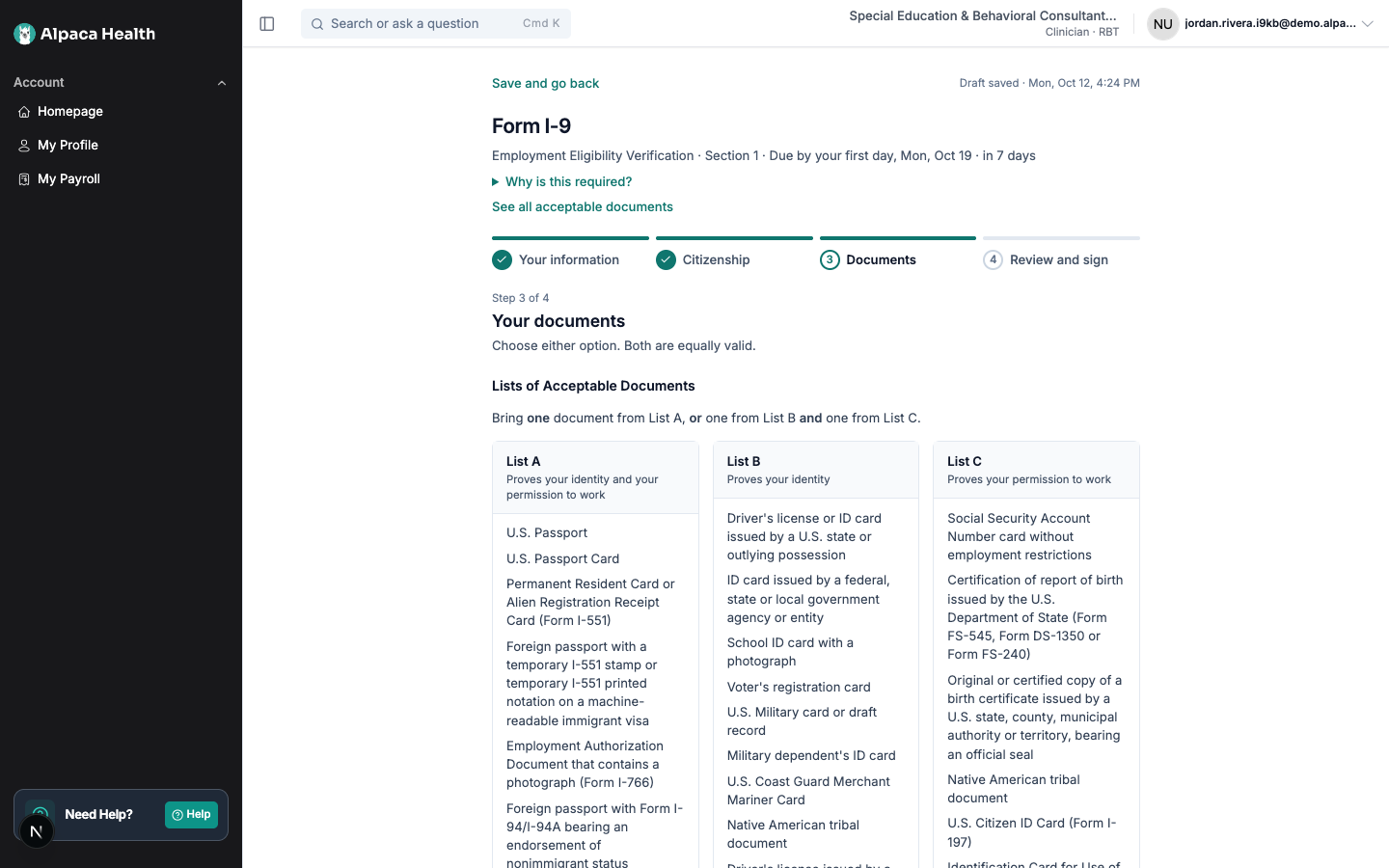
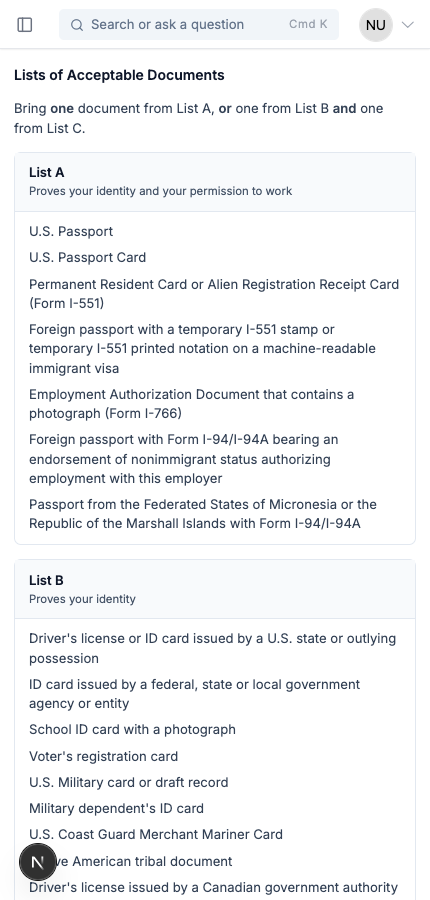
— Step 3 opening with the full Lists of Acceptable Documents in three columns
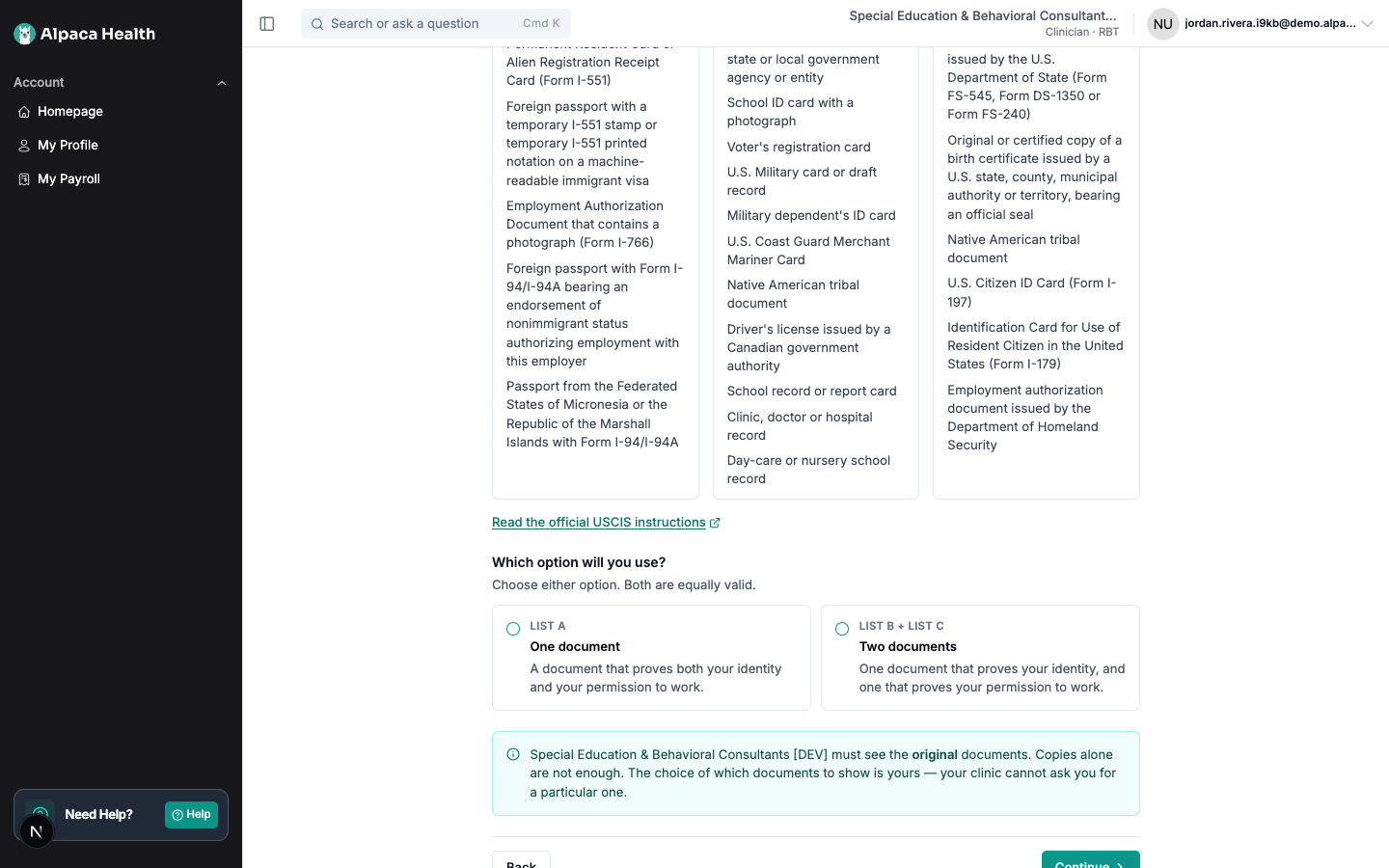
— List A and List B + C presented as equal choices, with no default
The step opens with the complete Lists of Acceptable Documents in three columns. The
employer is legally required to make these available, so they are on the page rather than
behind a link, and a link to them stays available from every step alongside a link to the
official USCIS page.
The employee presents either one document from List A, or one from List B and one from
List C:
List A — Proves your identity and your permission to work
List B — Proves your identity
List C — Proves your permission to work
Both routes are presented identically, with the note Choose either option. Both are
equally valid. There is no default and no recommendation.
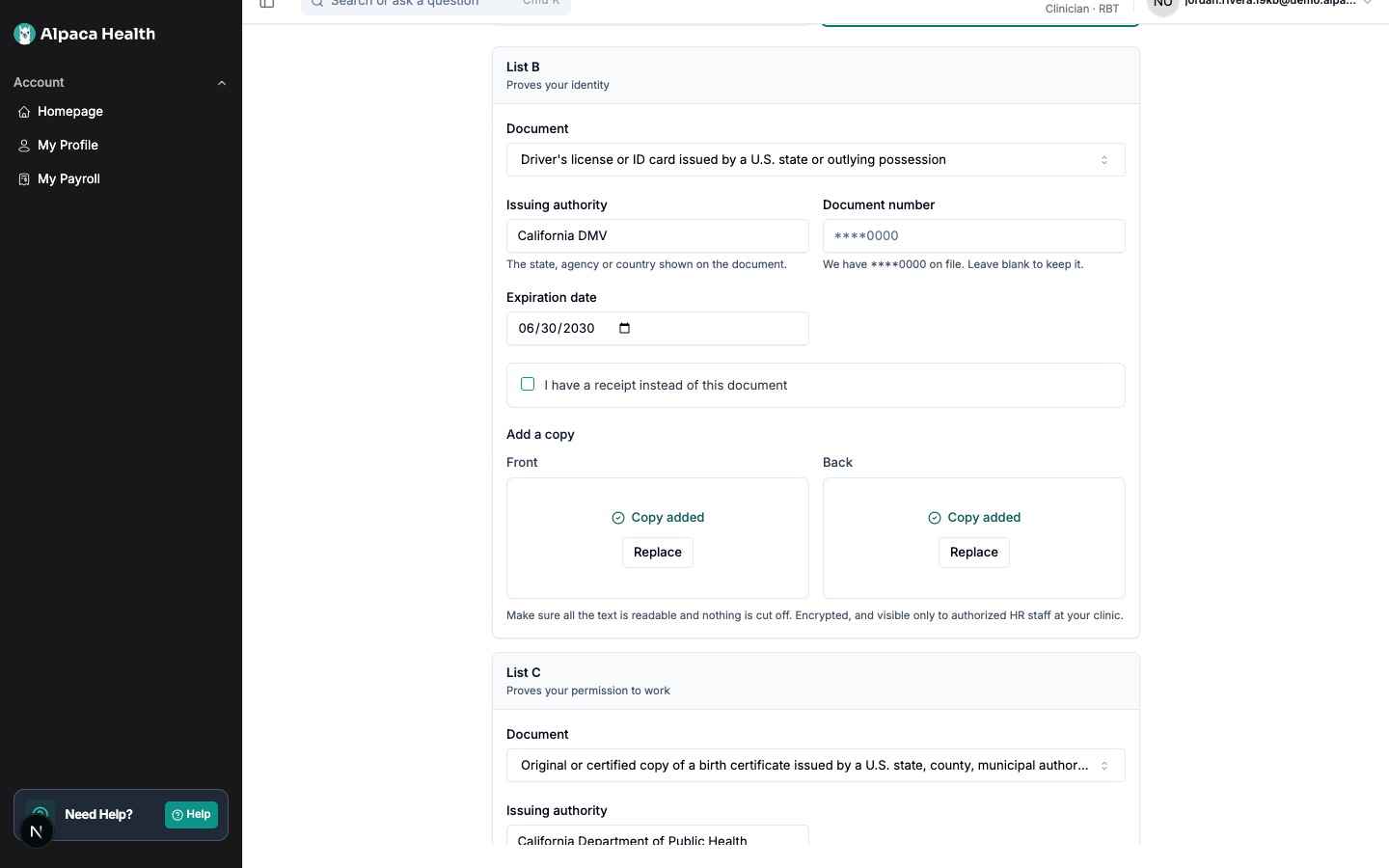
Where the clinic keeps copies, each document gets front and back upload slots —
Drag a file here, or Add a copy — accepting A photo (JPG or PNG) or a PDF, up to
10 MB. Where the clinic does not keep copies, the step records the choice only and the
employee brings the originals on their first day. Copies never substitute for the
originals.
Select Save documents before adding photos. The upload slots stay inactive until the
chosen documents are saved, and the slot says so. Continue sits next to Save
documents and pressing it first returns a list of missing uploads — the very uploads the
slot has not released yet. Save first, then add the photos, then continue.
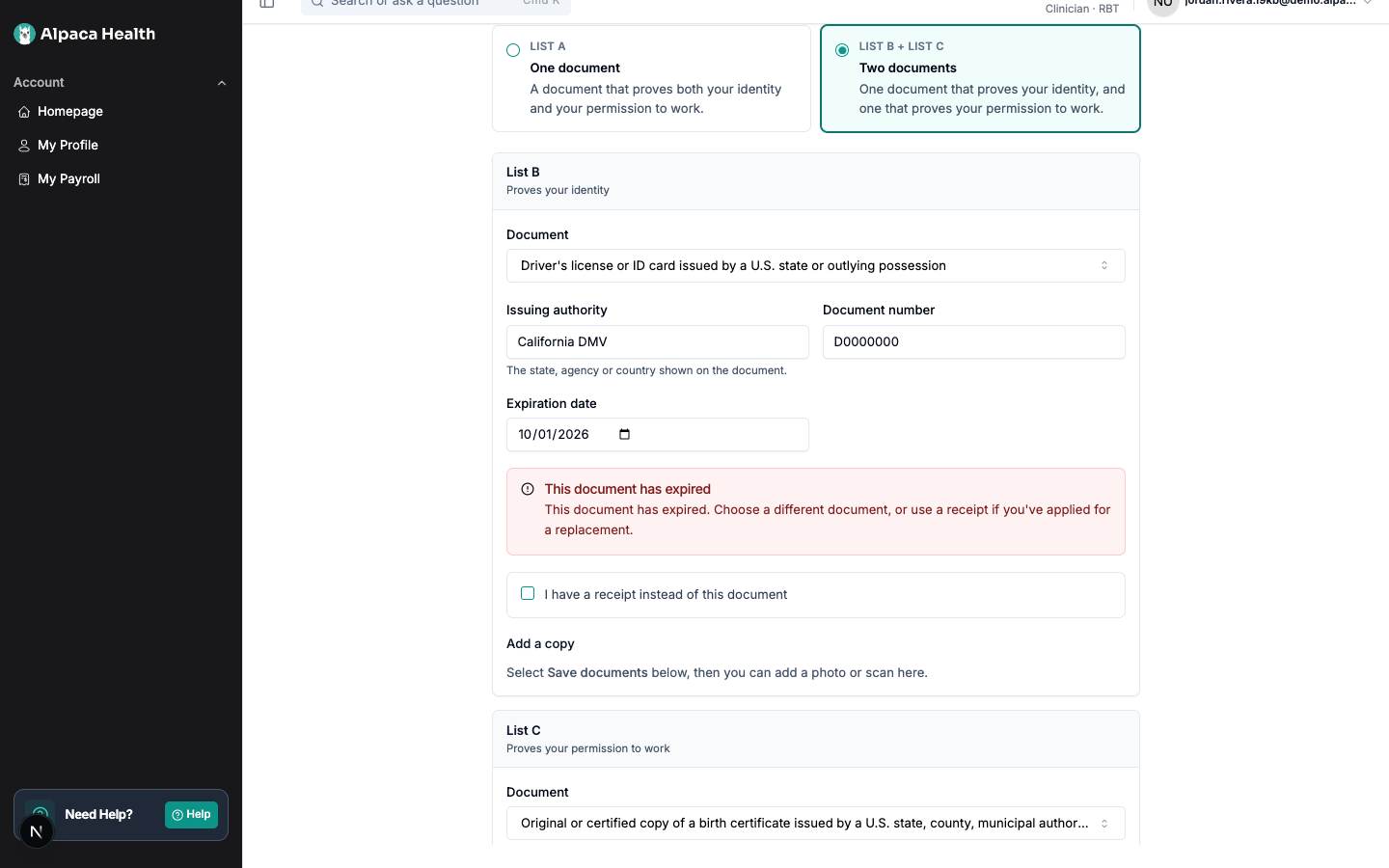
— The blocking expired-document message on the Documents step
— Front and back upload slots filled with specimen images
4. Review and sign
— Step 4, the federal attestation and the signature capture
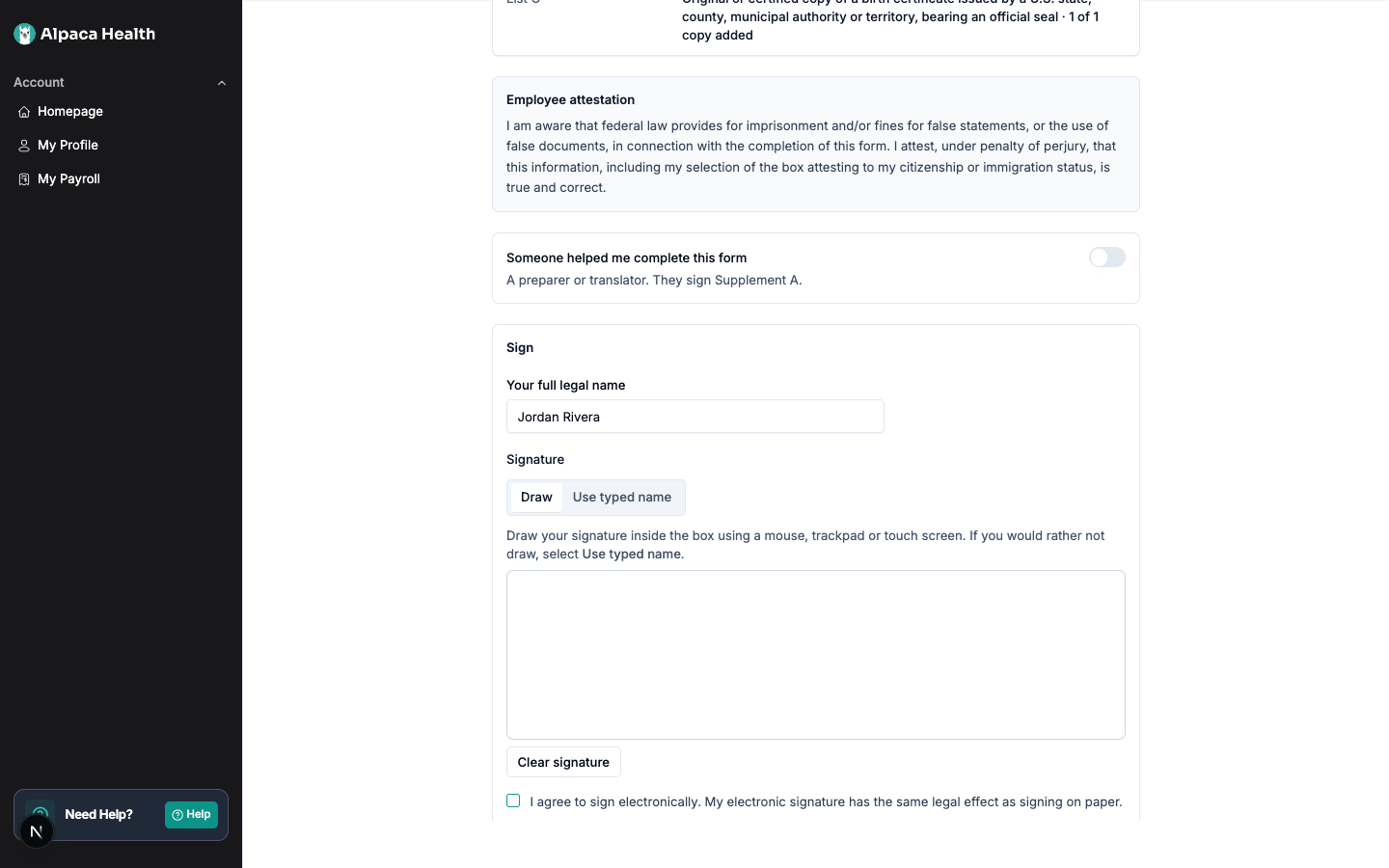
A read-only summary with edit links, the full federal attestation and perjury warning, an
optional preparer or translator section, and the signature. The employee types their legal
name and either draws a signature or selects Use typed name.
— The Submitted confirmation the employee sees after signing
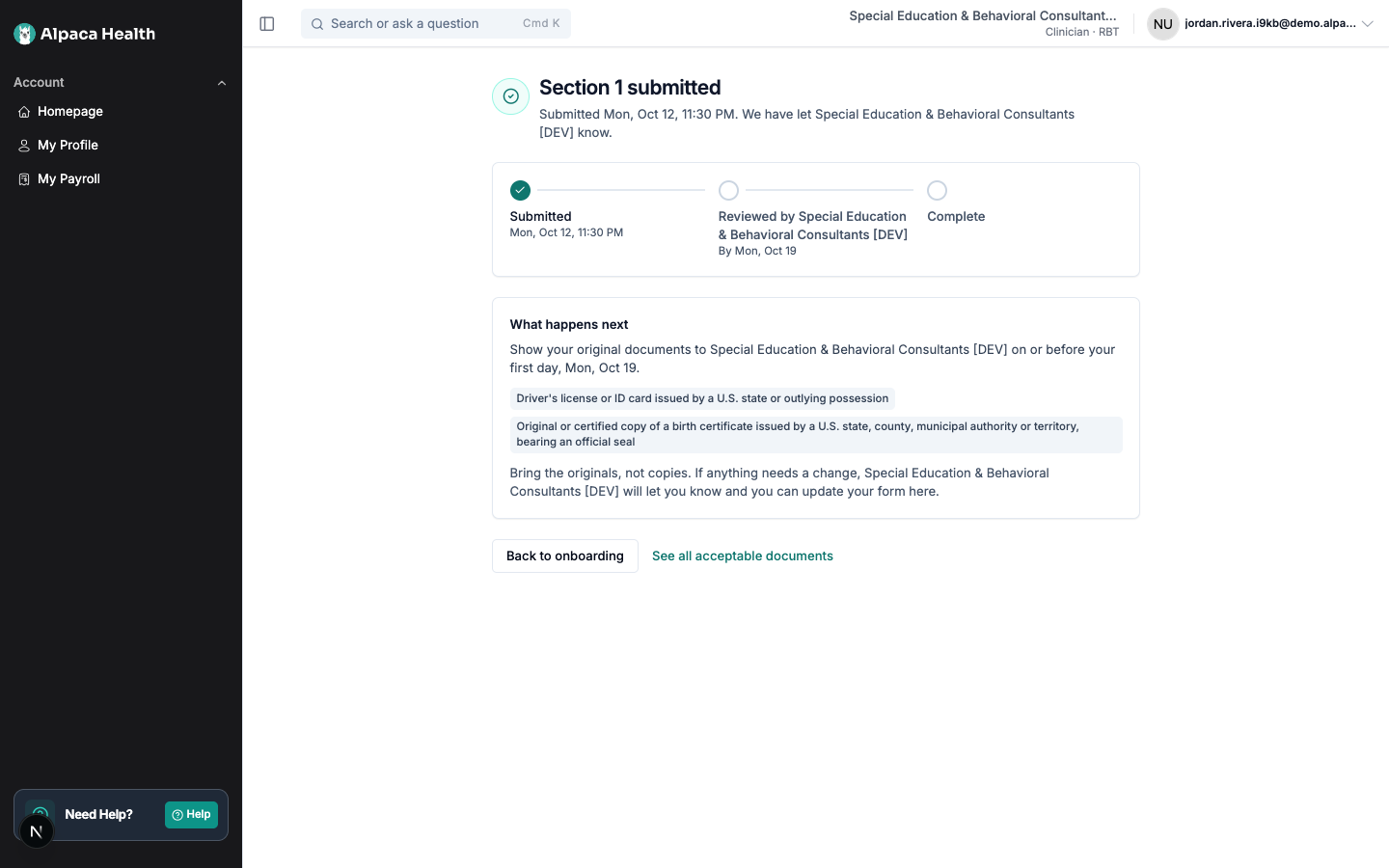
— The Documents step in a narrow browser window
After signing, the step reads Submitted and tells the employee to show their original
documents to the clinic on or before their first day.
The clinic completes Section 2
— The Form I-9 card in the hire’s onboarding panel, with both due dates

A Form I-9 card appears in the hire’s onboarding panel, in the hiring pipeline and on
the Team page. It shows the status — Waiting on the hire, Ready for your review,
Correction requested, Complete, or Reverification due — along with Section 1 due and
Section 2 due. The Section 2 date turns amber with one business day left and red once
it is overdue.
Section 2 is legally due within three business days of the employee’s first day of
work. Business days exclude weekends and federal holidays.
Select Verify documents to open the full verification page. It has three parts, in
order.
Part 1 — verify each document
— Part 1, the document viewer beside the entered details and the three confirmations
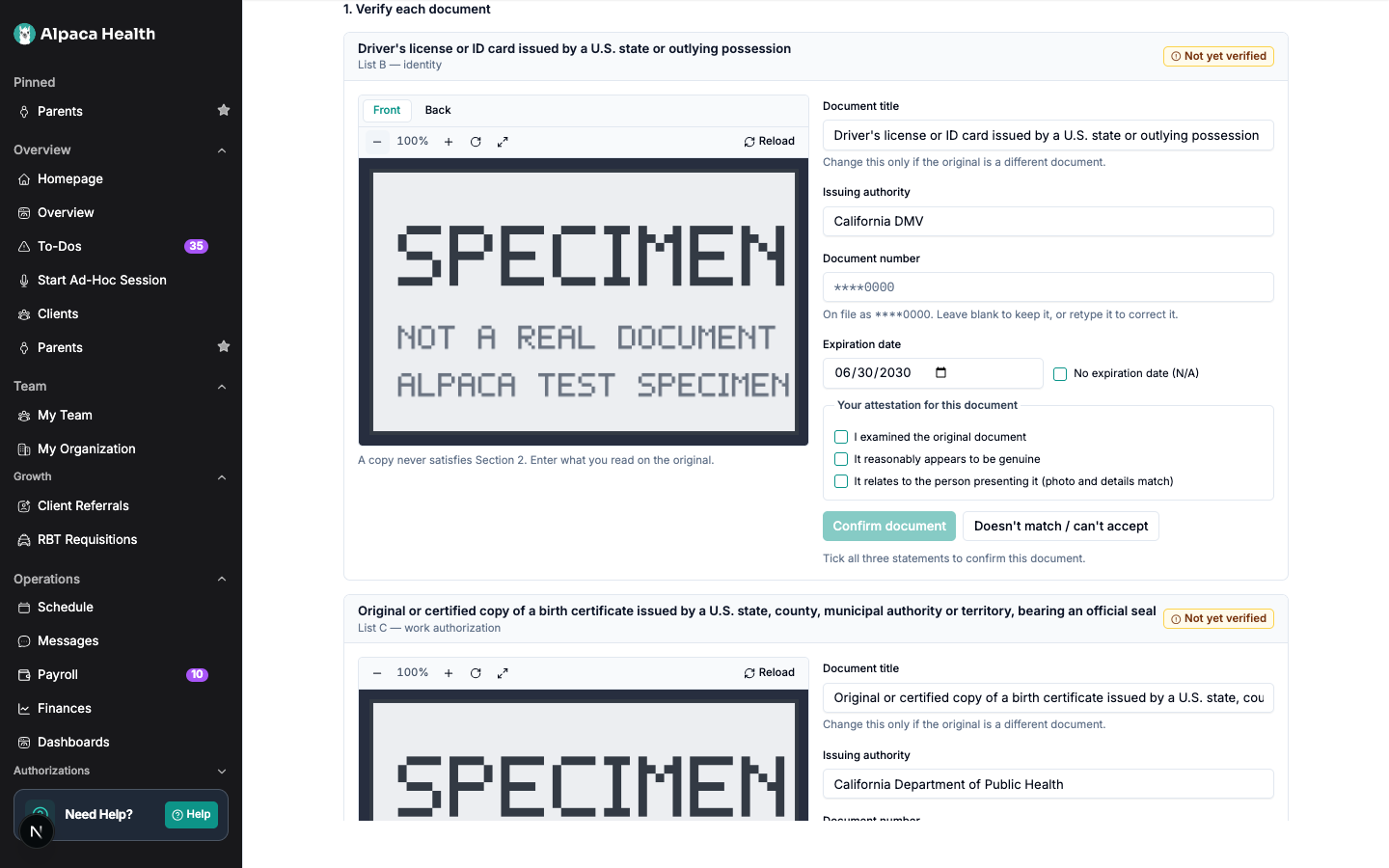
The uploaded copy is on the left with front and back tabs, zoom, rotate and fullscreen.
Above it is a read-only Section 1 summary. Numbers are masked; a reveal control shows a
full number, says that the reveal is logged, and hides it again automatically.
On the right is what the employee entered. Correct it against the original document in
your hand, not against the upload — the upload is the record, the original is the
evidence. Then tick three confirmations for that document:
you examined the original document;
it reasonably appears to be genuine; and
it relates to the person presenting it.
Each document is either confirmed or sent back with Request a correction, which
returns the employee to their Documents step with your note.
Part 2 — Section 2 details
— Part 2, with remote examination disabled and its explanation
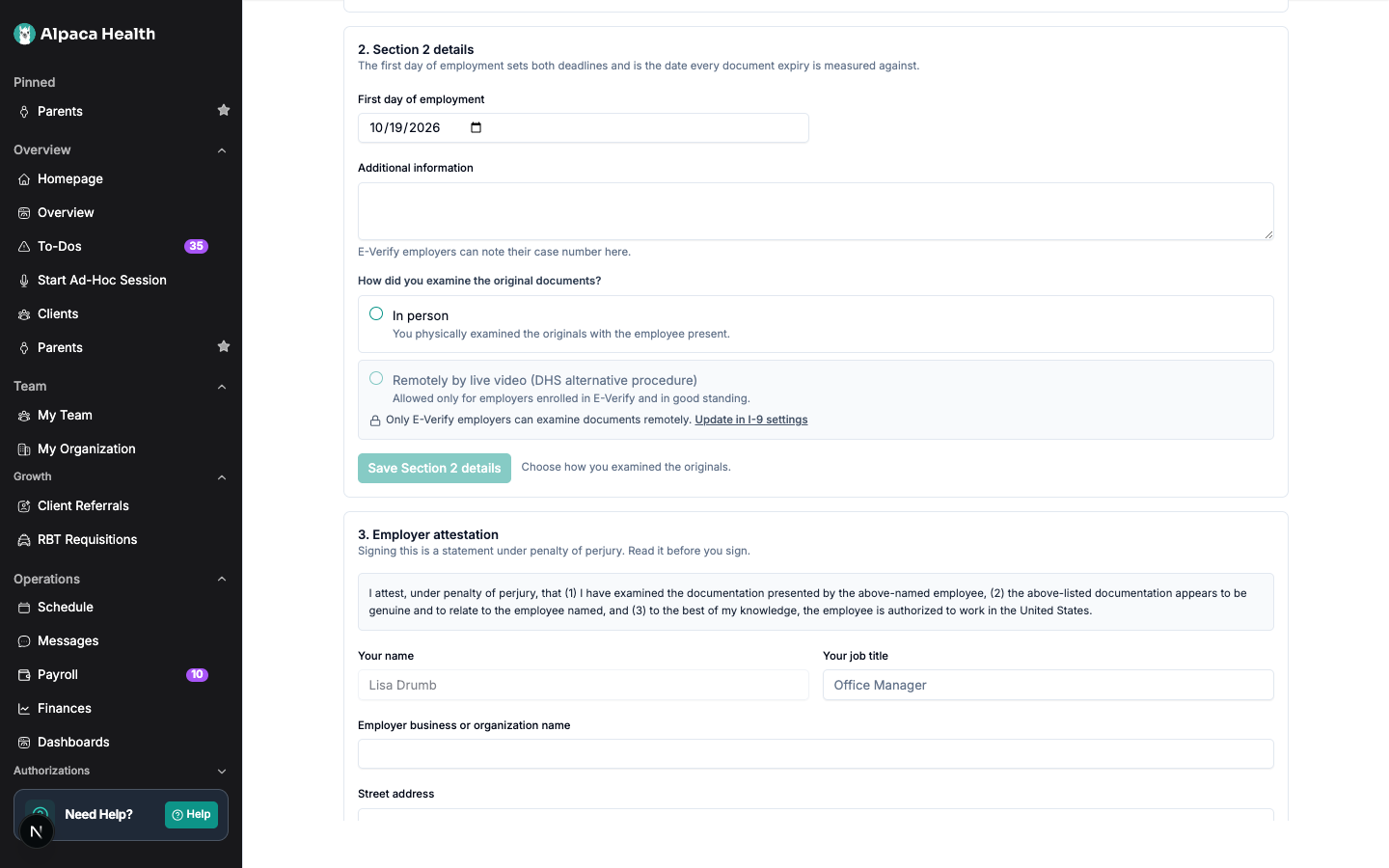
The employee’s first day of employment, an additional-information box, and how the
documents were examined. There is no default.
Remote examination by live video is available only to clinics enrolled in E-Verify. For
everyone else the option is visible but disabled with an explanation, because using it
without being enrolled is a substantive, immediately finable violation. When it is
available and chosen, a Live video confirmation checklist appears and the alternative
procedure box is ticked on the form automatically.
Part 3 — employer attestation
— Approve and sign disabled, naming the documents still outstanding
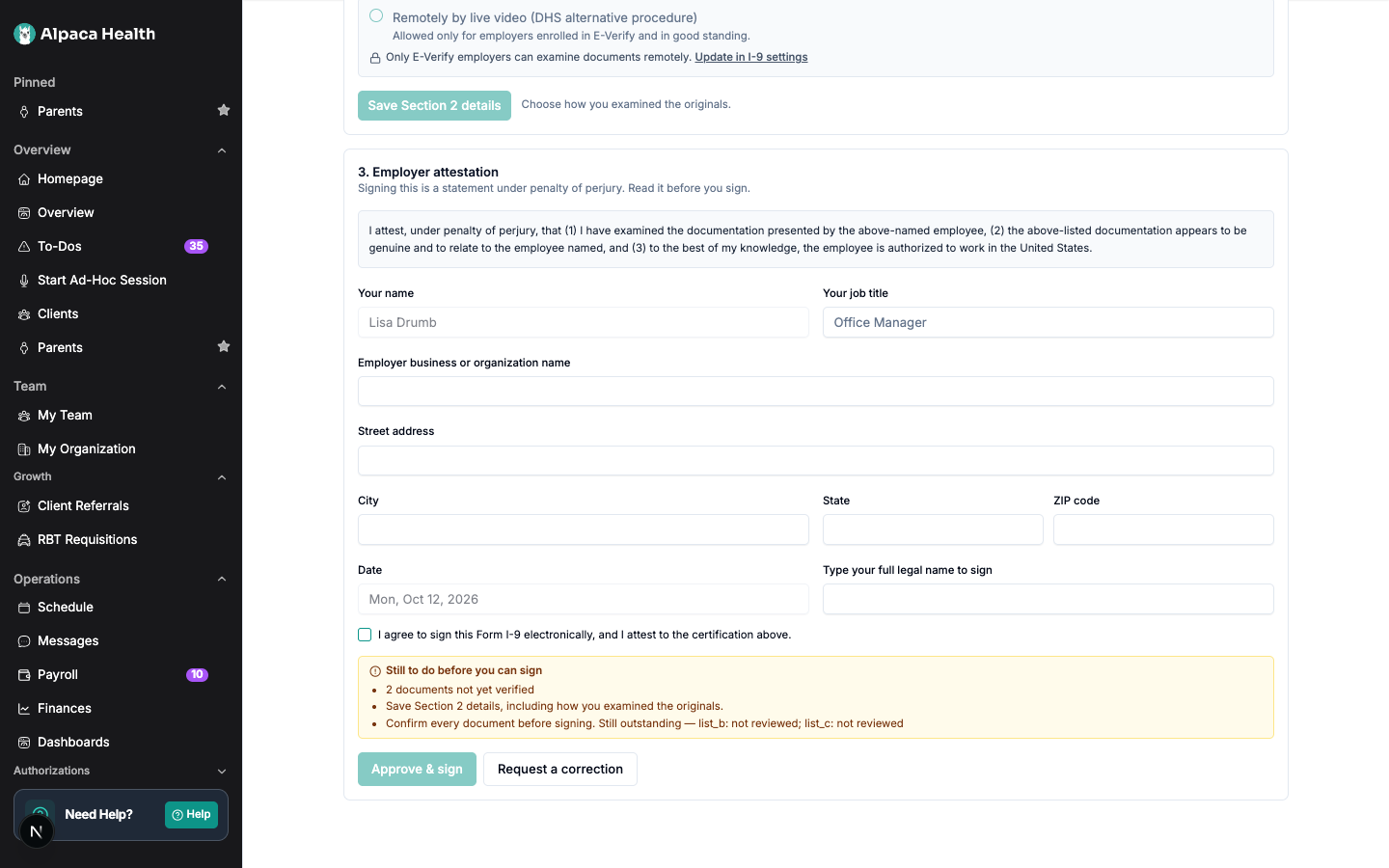
— Part 3, the employer attestation with Approve and sign now enabled
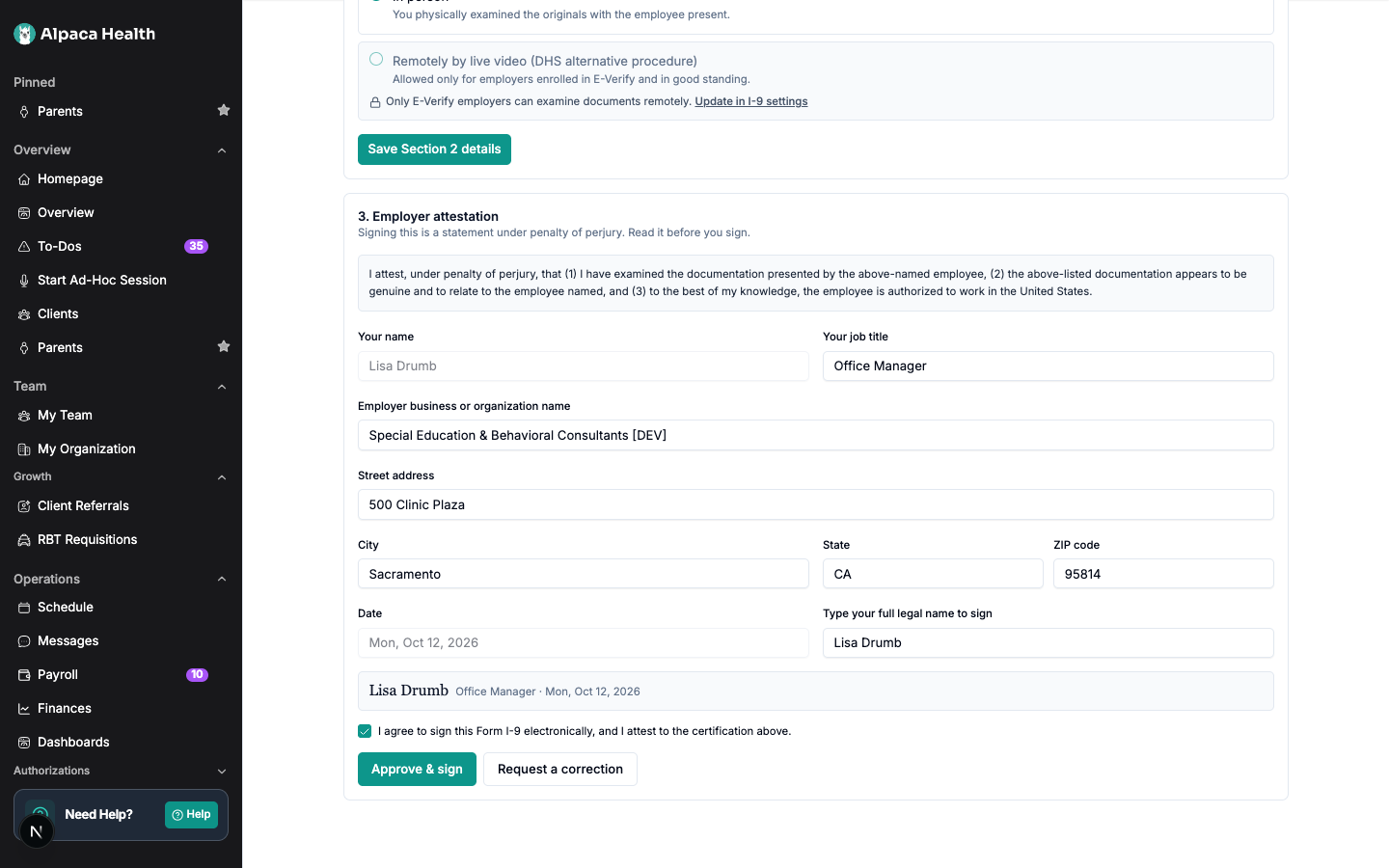
The full employer certification, your name and job title, the business name and address
from your I-9 settings, and the date. Type your full legal name to sign.
Approve and sign stays disabled until every document has all three confirmations, and
names what is still outstanding. Signing marks the form complete and generates the PDF.
— The completed form: status timeline, PDF download, and audit log
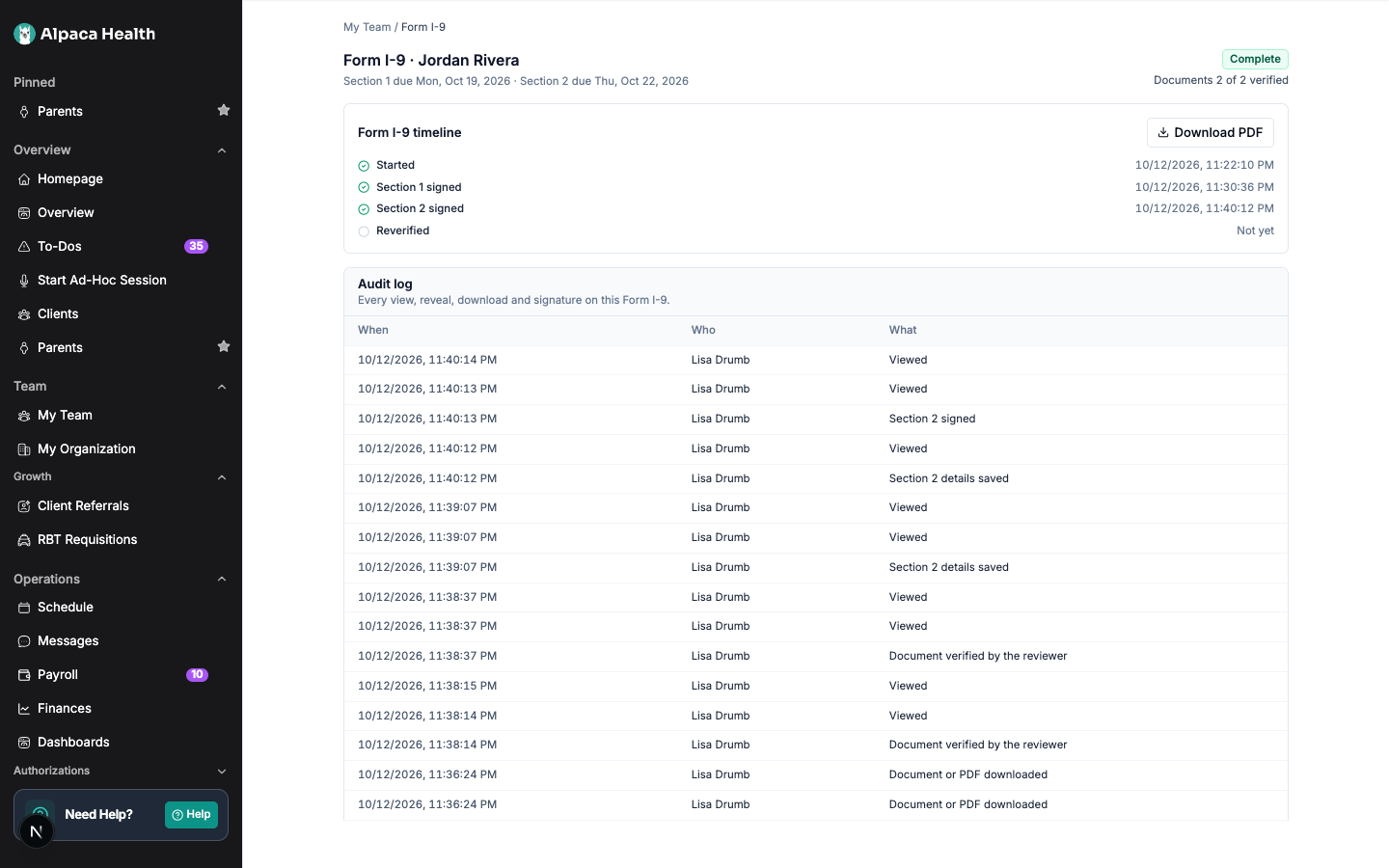
The completed page shows a status timeline, the PDF download, and an audit log of who
viewed, revealed, or downloaded anything.
How Form I-9 affects Mark ready and Mark started
This is the part most worth reading twice.
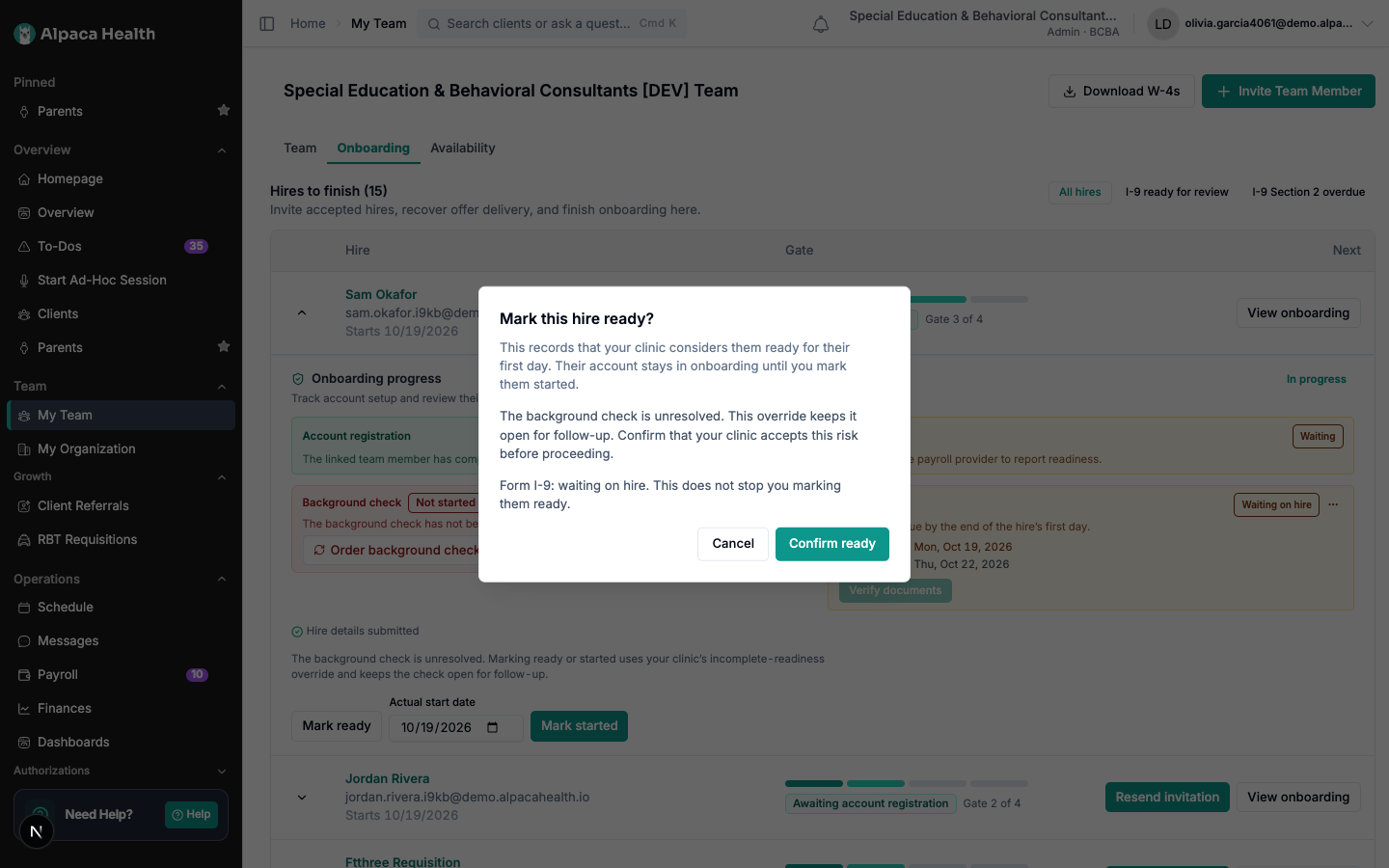
Mark ready is never blocked by Form I-9. The card and the confirm dialog may mention
the status as a neutral heads-up, but an unsigned form never prevents marking a hire
ready. Mark ready is how a clinic keeps a hire moving when a step is stuck, and taking
that away would be worse than the problem it solves.Mark started requires Section 1 to be signed — the employee’s half only. Section 2 is
not required, because the law allows three business days after the start date and
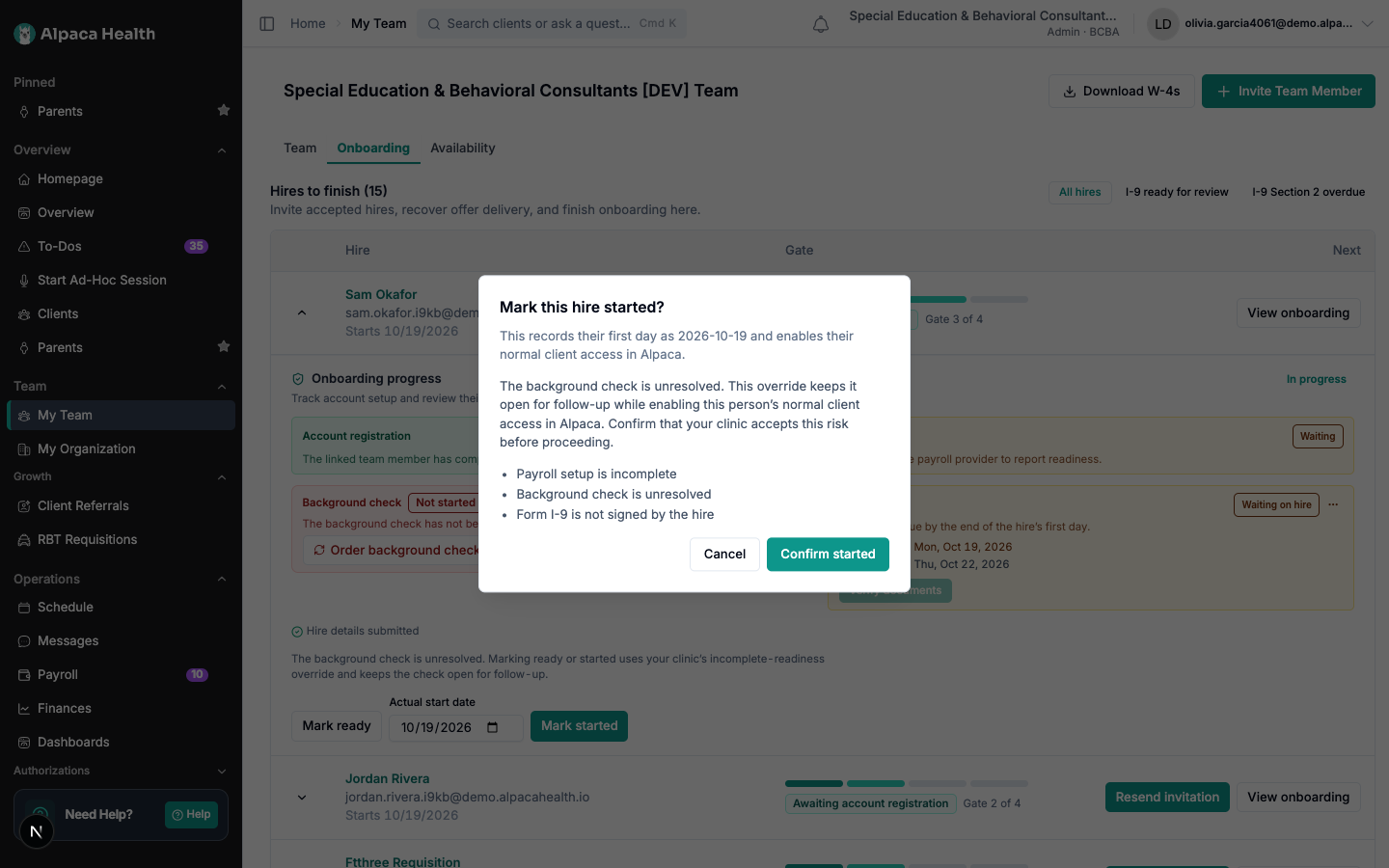
blocking on it would be stricter than the law and would stall same-day starts.If Section 1 is unsigned, the existing confirm dialog lists the Form I-9 among the
incomplete items and you can still proceed. Doing so is recorded against that hire as a
start without a signed Section 1.
— Mark started listing the unsigned Form I-9 as an overridable item
— Mark ready stating that the Form I-9 does not stop you
Settings and finding forms across hires
— The I-9 settings card in organization settings
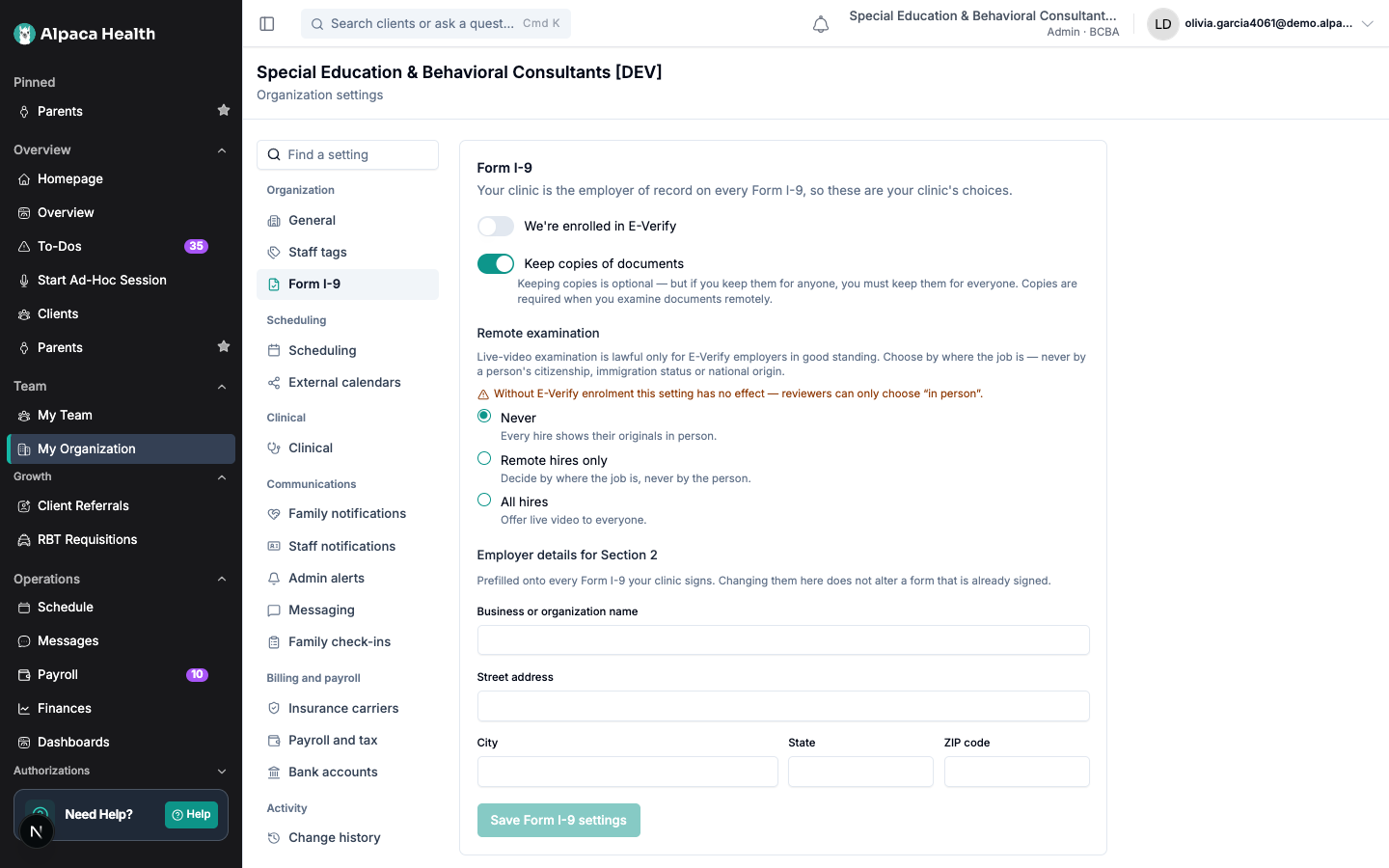
An I-9 settings card in organization settings holds the four choices the rest of the
feature reads: whether the clinic is enrolled in E-Verify and its company ID, whether the
clinic keeps copies of documents, whether remote examination is permitted and for whom,
and the business name and address that pre-fill Section 2.
A clinic that has never opened this card reads as: not enrolled in E-Verify, keeps copies,
never examines remotely. Each of those defaults is the cautious one, which is why leaving
the card untouched is safe.
Fill in the business name and address before your first verification. The card
describes them as prefilled onto every Form I-9 the clinic signs, and they are — but only
once they exist. Left blank, the reviewer has to type them by hand into the attestation on
every form.
Keeping copies is all-or-nothing. If the clinic keeps copies, it must keep them for
every employee — retaining them for some people and not others is itself a discrimination
risk.
— The Form I-9 filters on the onboarding list
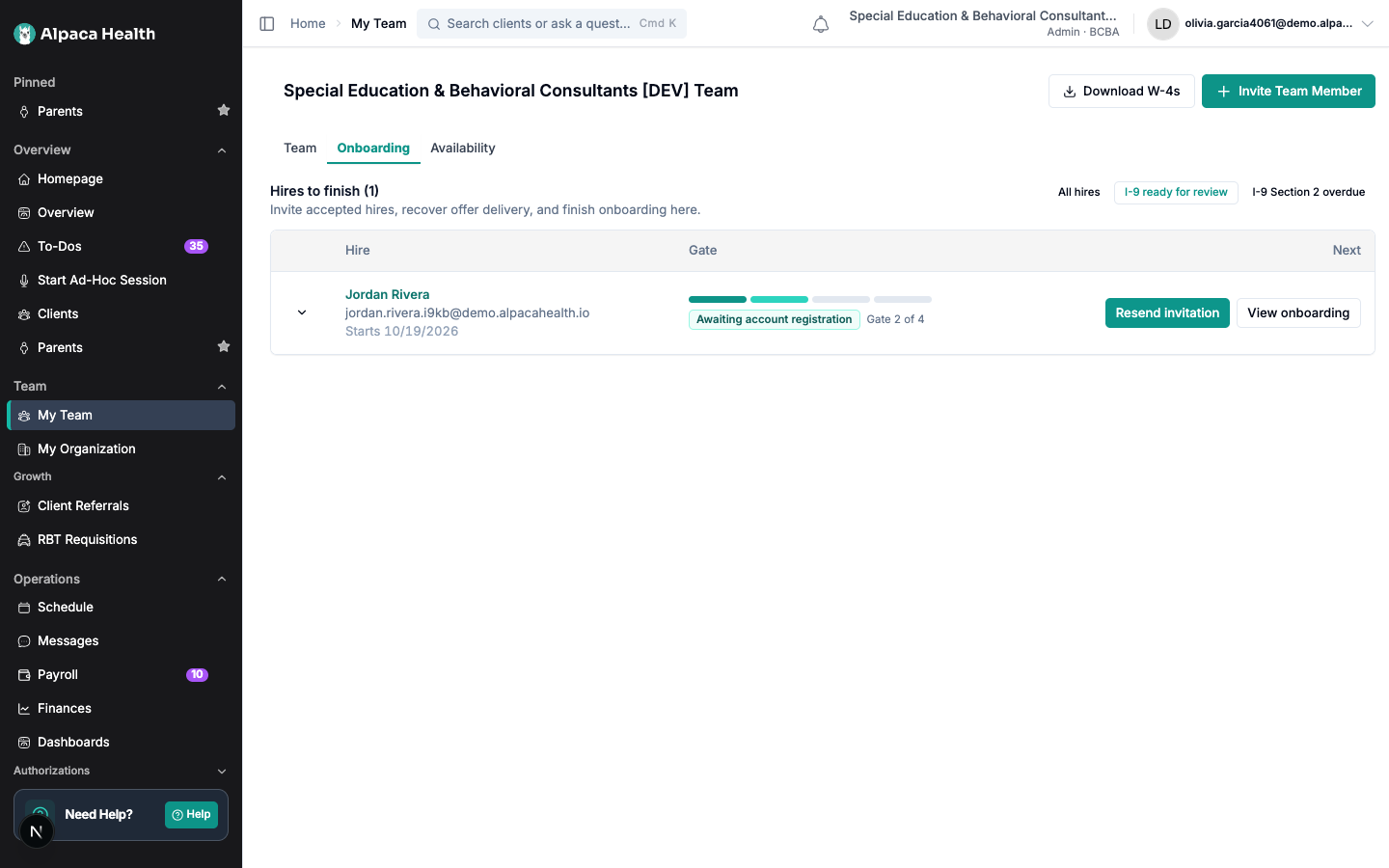
The onboarding list has Form I-9 filters, so you can find every hire waiting on review or
every Section 2 that is overdue without opening them one at a time.
What makes this safe
An expired document blocks the signature on both sides. The employee cannot present
one and the reviewer cannot accept one. Expiry is measured against the first day of
employment, and if that date moves, every deadline and every expiry check moves with it.An expired Employment Authorization Document or green card is acceptable only with its
extension notice, and the reviewer confirms the extension’s own end date. That date
then drives reverification.Receipts are time-limited and type-specific. A receipt replacing a lost, stolen or
damaged document, and a refugee I-94, are good for 90 days. An I-94 with a temporary
I-551 stamp runs instead to the date on the stamp, or one year from issuance if it shows
none. A receipt for a first application for a document is never acceptable.Some documents are never reverified: a U.S. passport, a green card, any List B
identity document, and a foreign passport carrying a temporary I-551 stamp. Reverifying
a lawful permanent resident is itself a discrimination risk, so Alpaca refuses it rather
than reminding you to do it.Nobody completes their own Section 2. A reviewer opening their own form gets a
read-only page.Correction notes are screened. They are stored unreadable-to-nobody and shown to the
employee, so a note that looks like it contains an identity or document number is
refused with an explanation rather than saved.Unusual combinations warn rather than block. A U.S. citizen presenting a green card
produces a warning for the reviewer to resolve against the originals. The reviewer
decides; Alpaca does not.
What it will not do
It does not check anything with the government. There is no E-Verify submission and
no automated authenticity check. E-Verify clinics run their own cases on the E-Verify
website using the completed form, and can record the case number in the Section 2
additional-information box.It does not tell an employee which documents to bring. Both routes are presented
equally. Questions like “which is fastest” have no answer in the product on purpose.It does not accept copies in place of originals. Uploads are the retained record.
The reviewer must examine the original, in person or by an eligible live-video
examination.It does not let Alpaca sign on a clinic’s behalf. Only the employer or its
designated authorized representative may complete Section 2.It does not collect a Social Security number unless E-Verify requires it.
It does not produce the Spanish-language form, which is valid only in Puerto Rico.
It does not create forms for staff who started before the feature was turned on.
Your data
The Social Security number, A-Number, USCIS number, I-94 number, foreign passport number
and every document number are encrypted where they are stored and masked everywhere they
are displayed. Exactly one route decrypts them, it requires the narrower permission, and
it writes an access record before it answers.
These numbers exist only on the Form I-9 record. They are not copied to the employee’s
profile, their membership, payroll, or any analytics or event.
Uploaded copies and the completed PDF are stored apart from the general staff-documents
area and are not reachable from it. Links to them expire after five minutes and each
access is recorded.
Every view, download, reveal, correction, signature, and void is written to an audit trail
that records who, when, from where, and which fields changed — the field names, never the
values. That trail is rendered into the completed PDF as an audit certificate.
Records are purged at the end of the retention period: the later of three years after hire
or one year after termination. A hire who was never employed is purged sooner. What
remains afterwards contains no personal information.
Recover from common problems
What you see | What it means | What to do |
|---|---|---|
This document has expired. Choose a different document, or use a receipt if you’ve applied for a replacement. | The expiry entered is before the first day of work. | Present a different document, or a receipt if one applies. |
A receipt for an initial application for a document isn’t acceptable for Form I-9. Present a document you already hold, or a receipt for a lost, stolen or damaged one. | Receipts cover replacements, not first applications. | Present a document already held. |
Expired … with no extension evidence. An automatic extension has to be documented before Section 2 can be signed. | An expired card was presented without its extension notice. | Add the extension notice and its end date, or present another document. |
This is not a document on the Lists of Acceptable Documents. | The selection is not an acceptable document. | Choose from the three lists shown on the Documents step. |
Choose either one document from List A, or one from List B and one from List C… | The set presented is incomplete or mixes routes. | Complete one route. One document cannot satisfy both List B and List C. |
Confirm every document before signing. Still outstanding — … | At least one document is missing at least one of its three confirmations. | Return to Part 1 and finish the named documents. |
Section 2 must be completed by someone other than the employee. Ask another authorized reviewer to examine the documents. | You opened your own Form I-9. | Ask a colleague who can review Form I-9 to complete it. |
Live-video examination is available only to organizations enrolled in E-Verify. Examine the original documents in person. | Remote examination was chosen by a clinic that is not enrolled. | Examine the originals in person, or update your I-9 settings if you are enrolled. |
That note looks like it contains an identity or document number… | A correction note contains something that looks like a number. | Describe the problem without the number. The employee sees this note. |
Form I-9 Section 1 must be signed before Started. Confirm the incomplete-readiness override to start this hire without it. | Mark started was attempted before the employee signed. | Ask the employee to finish Section 1, or confirm the override to proceed. |
Waiting on the hire to correct this form | A correction was requested and the employee has not resubmitted. | Follow up with the employee. |
The Form I-9 PDF is generated when Section 2 is signed. | The PDF was requested before the form was complete. | Complete and sign Section 2. |
Form I-9 is not enabled. / Form I-9 is not part of your onboarding | The feature is not on for this organization. | Ask your Alpaca contact to confirm the rollout. |
This Form I-9 was cancelled | The form was voided. | Start a new one if the person is still being hired. |
To void a form, use Void Form I-9 and choose a reason: Data-entry error,
Duplicate record, Superseded by a newer form, The hire withdrew, or This
person was never employed.
Current limitations
Engagements shorter than three days. The law makes Section 2 due by the end of the
first day when a job lasts under three days. Alpaca does not record an employment end
date, so it always shows the three-business-day deadline. For a sub-three-day
engagement, complete Section 2 on day one regardless of the date shown.Times are displayed in UTC, not your clinic’s local time. Signature timestamps, the
status timeline, and the audit log all render in UTC, so a form signed on a California
evening can show the following day’s date. Dates on the form itself and the deadlines
are correct; it is the displayed clock times that are shifted. Read them as UTC until
this is corrected.The two halves describe the Section 2 deadline differently. The employee’s timeline
frames it around their first day of work, while the clinic card shows the actual
three-business-day deadline. The clinic card is the one to work to.The onboarding list row does not show Form I-9 state. The Form I-9 filters work, but
the row’s gate column still reports the general onboarding gate. Expand the row to see
where the form stands.Adding a clinic to the rollout takes effect only after the next restart.
Reverification reminders run daily rather than in real time.
The inspection export requires both Form I-9 permissions, not just the review one.
Staff hired before the feature was turned on have no record, and one is not created
retroactively.Form I-9 is a pilot. Availability differs by organization.