See which clients are covered, and who needs an authorization, on the Authorization Dashboard
Last updated: October 28, 2026
The Authorization Dashboard is one list of every client in treatment and every payer they are on. Each row answers two questions: does an authorization cover the care you are delivering today, and where does the latest request with that payer stand? It is the page to work from when you need to file, answer or renew an authorization before care goes uncovered.
It makes three promises:
"Covered" means covered today. A renewal that starts next month does not make a lapsed authorization look active.
The status names who has to act next. Documentation needed appears only when the request is waiting on your team.
Counts and rows agree. The number beside each status filter is the number of rows you get when you select it, and the export contains the whole filtered list, not just the page on screen.
The page shows information only. Nothing on it submits, edits or withdraws a request. Requests are created and answered from the client's profile.
Who can use it
Open Authorizations → Authorization Dashboard in the sidebar. It is available to Admin, Assistant Admin and Director roles.
The page belongs to one organization: the one active in your sidebar's organization switcher. Holding the permission in one organization does not show you clients from another. If you work across several organizations, switch the active organization to see its dashboard.
The same page has a second tab, Utilization, also listed in the sidebar as Utilization Dashboard. Each tab has its own permission, so you may see only one of them. Utilization is covered at the end of this article.
What is on the list
One row per client and payer. A client on two payers has two rows, one under the other. Their name is repeated in grey on the second row.
Only the client's current primary and secondary insurance cards. A secondary card is tagged Secondary. If two cards are for the same payer, they share one row, because the authorization belongs to the payer and not to the card.
Clients in treatment always appear, whether they are covered or not. A client who has not started treatment appears only if a request or authorization is already on file for them. A waitlisted client with nothing filed is left off so the list stays focused on work.
Assessments do not count as treatment. A client seen only for assessment codes (97151, 97152, 0362T) is not flagged as needing a treatment request.
Discharged and private-pay clients are hidden by default. Private pay is billed outside insurance, so there is no payer to request from. Use Add filter → Client status → Discharged to see discharged clients, or Add filter → Include private pay to add private-pay clients. Private-pay clients are tagged Private pay.
Treatment requests only. Assessment authorization requests are not shown here.
The list is sorted by client name, A to Z. Select any column header to sort by that column, and select it again to reverse the order. Sorting covers the whole list, not only the page you are on. A client's rows are always kept together on one page.
Read a row
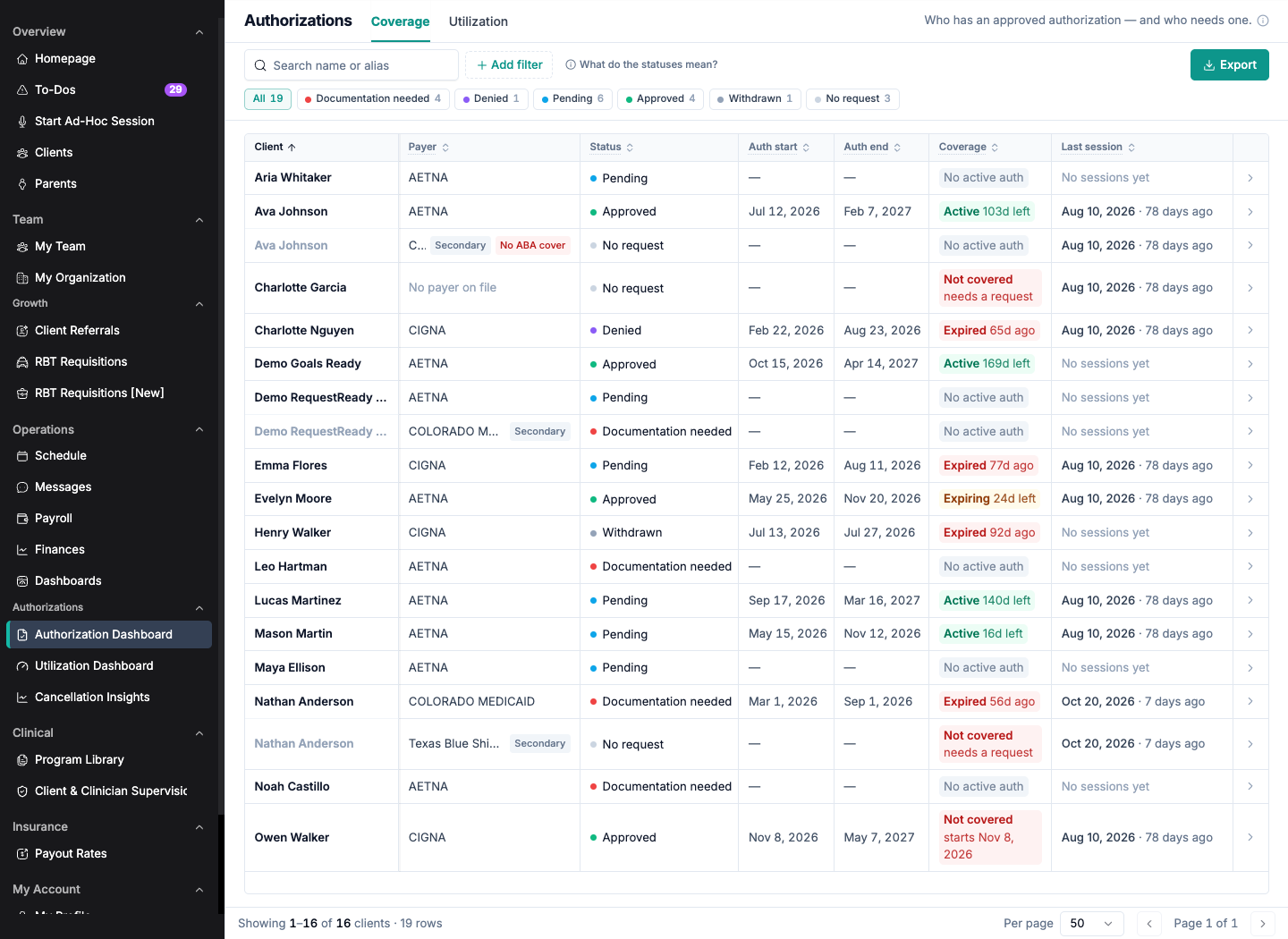
The Coverage tab: status quick filters above the table, and one row per client and payer.
Column | What it shows |
|---|---|
Client | The client's name. |
Payer | The insurance company on this card, the one you request authorization from. Tagged Secondary for a secondary card and No ABA cover when the card does not cover ABA. |
Status | Where the latest treatment authorization request with this payer stands. See below. |
Auth start / Auth end | The first and last day of the most recent authorization on this card. |
Coverage | Whether an authorization covers treatment today. See below. |
Last session | The client's most recent session on any card, as a date and how long ago, for example Oct 20, 2026 · 7 days ago. No sessions yet if there are none. |
Hover over a column header for a one-line explanation of that column.
Status
Status follows the newest treatment request filed with this payer. Select What do the statuses mean? above the table to see these definitions on the page.
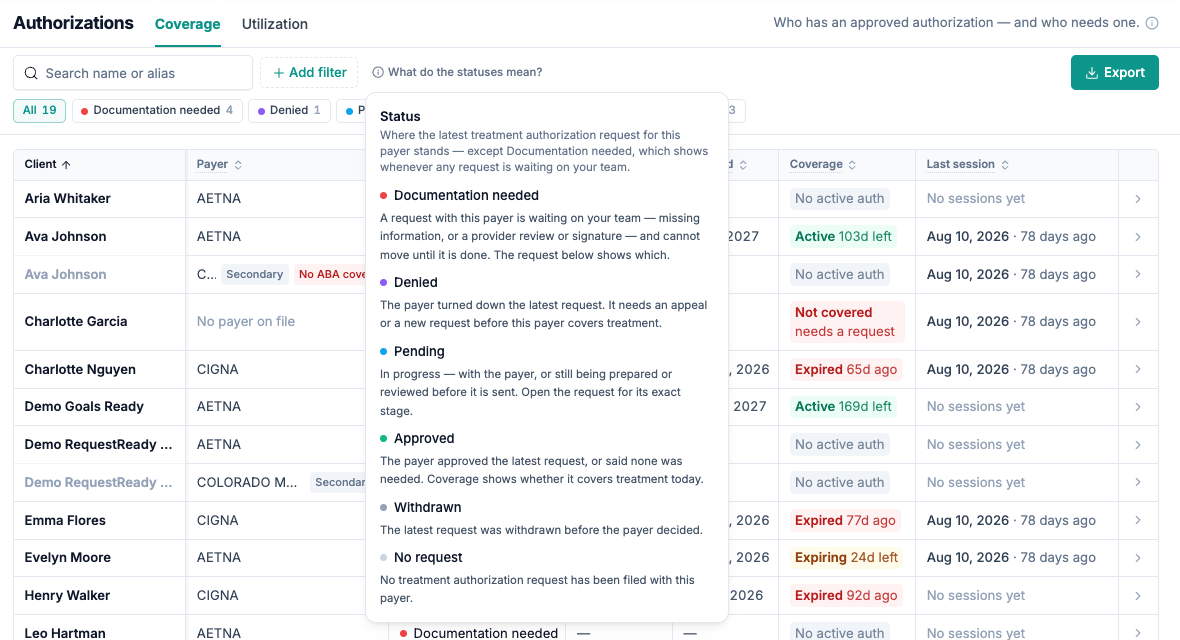
What do the statuses mean? lists every status in the order the quick filters use.
Status | Meaning |
|---|---|
Documentation needed | A request with this payer is waiting on your team, either for missing information or for a provider review or signature. It cannot move until that is done. |
Denied | The payer turned down the latest request. It needs an appeal or a new request before this payer covers treatment. |
Pending | In progress: with the payer, or still being prepared or reviewed before it is sent. Open the request for its exact stage. |
Approved | The payer approved the latest request or said none was needed. Check Coverage to see whether it covers treatment today. |
Withdrawn | The latest request was withdrawn before the payer decided. |
No request | No treatment authorization request has been filed with this payer. |
Two rules decide which request a status comes from:
Documentation needed wins. If any request on the card is waiting on your team, including an older request or an amendment, the row reads Documentation needed, even when a newer request is further along. Work that is waiting on you is never hidden behind a request that is moving.
Amendments and drafts do not set the status. An amendment changes an existing authorization rather than replacing it, and a draft has not been filed with anyone. Both still appear in the row's request history.
An appeal in progress reads Pending, not Denied, because the request is still moving. An authorization entered by hand or received from outside Alpaca's request process reads Approved rather than No request.
Coverage
Coverage | Meaning |
|---|---|
Active · 120d left | An authorization covers today and runs for more than six weeks. |
Expiring · 30d left | Cover ends within six weeks and no renewal is in progress. Shown in amber. |
Active · ends today / Expiring · ends today | Today is the last covered day. |
Not covered · starts Nov 1, 2026 | Nothing covers today. The next authorization is on file but has not started yet. |
Not covered · needs a request | The client is in treatment, nothing covers today, and no request is open. Shown in red. |
Expired · 12d ago | The last authorization ended 12 days ago. This also counts an authorization that was deactivated before its end date. |
Expired · ended today | Cover lapsed today. |
No active auth | No authorization is on file for this card. Check Status to see whether a request is open. |
The six-week window gives you time to act. An authorization request can take weeks to come back from a payer, so a renewal filed 30 days out is filed with the clock already running down.
A renewal that is already approved and starts the day after the current authorization ends keeps the row Active. A renewal that starts later than that does not: if the current authorization lapsed last week and the next starts next month, the row reads Not covered, because care delivered today has nothing behind it.
Narrow the list
Status quick filters. The buttons above the table (All, Documentation needed, Denied, Pending and so on) show the number of rows in each status under your current filters. Select one to show only those rows. Statuses with no rows are hidden, and What do the statuses mean? still lists all of them.
Search. Type a name, or a client's initials alias, in Search name or alias.
Add filter. Select Add filter to narrow by:
Work queue: Need to submit, Need to review, Expiring soon, Requested, Active, Inactive
Client status: Waitlist, New, Pending match, Assessment, Active, Discharged
Primary payer and Secondary payer
Auth type: First Treatment, Further Treatment, Amendment
Request status: the request's detailed stage, such as Data Needed, Provider review or signature, Request Submitted or Payor Approved
Member ID: matches any member ID containing what you type
Dates: Authorization starts, Authorization ends, Request period starts, Request period ends, Request updated
Include private pay
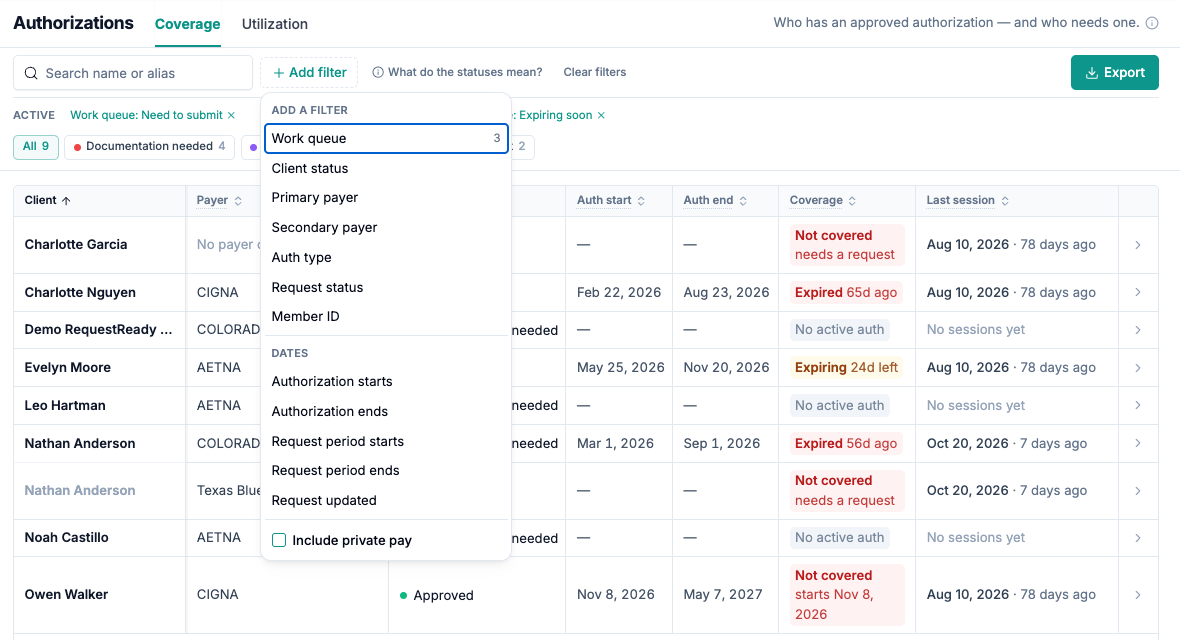
The Add filter menu, with three Work queue filters active as chips under the filter bar.
Each active filter appears as a chip under the filter bar. Remove a chip to drop that filter, or select Clear filters to remove them all. Clear filters does not change the status quick filter.
The footer counts clients and rows separately, for example 120 clients · 134 rows. Pages hold whole clients, so a client with two payers counts once as a client and twice as a row.
See a row's details
Select a row, or the arrow at its right edge, to open its details panel. It shows:
the client's name, which opens their profile in a new tab, and the payer and card;
the status and what it means. When the payer does not cover ABA, the panel says This payer does not cover ABA, so no authorization is expected from it.;
Last auth, Coverage, Member ID, Client status and Last session;
Prior authorization requests: each treatment request and amendment with its type, its stage and its dates. Select a request to open its full details.
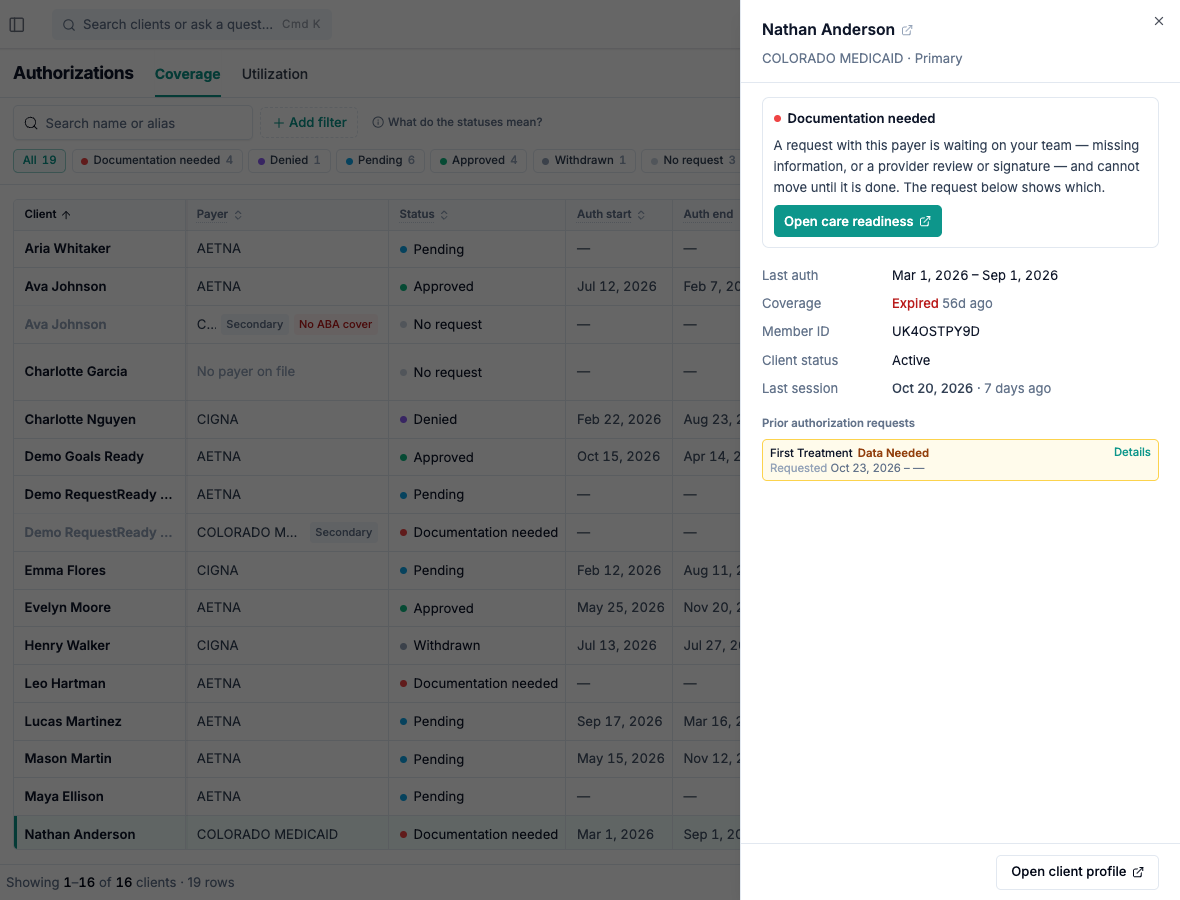
A row's details panel. This request is waiting on the clinic, so Open care readiness appears.
When a request needs to be filed, or the payer is asking for information, Open care readiness takes you to the client's Care Readiness tab in a new tab. Open client profile opens the client's profile.
Both links open in a new tab so your filtered list stays where you left it.
Export the list
Select Export to download treatment-authorizations.csv. It contains every row that matches your current filters, across all pages, with one line per client and payer. Each line includes the client's status, private pay, payer, card, member ID, covers-ABA flag, status, authorization dates, coverage, work-queue status, last session and request history.
Very large exports stop after the first 5,000 clients. If that happens, Alpaca tells you how many were exported. Narrow the filters and export again for the rest.
What the dashboard will not do
It will not submit or change a request. Submitting, answering a data request and uploading documents happen on the client's profile. The dashboard links you there.
It will not ask you to request from a payer that does not cover ABA. Those rows stay on the list, tagged No ABA cover, so you can see why nothing is expected.
It will not flag a client who is still in assessment. Assessment sessions do not count as treatment having started.
It will not show assessment authorizations. This dashboard is for treatment cover. Check assessment authorizations on the client's Insurance tab.
It will not show another organization's clients, even if you hold the same role there.
Your data
The dashboard reads your organization's clients, their current insurance cards, authorizations, treatment authorization requests and session dates. It is calculated fresh each time you load or filter it.
The CSV export is built in your browser and saved to your computer. It contains client names and member IDs, so store and share it the way you handle any file with client information.
Recover from common problems
What you see | What it means | What to do |
|---|---|---|
You do not have access to Authorizations. | Your role holds neither the Coverage nor the Utilization permission. | Ask your organization administrator to check your role. |
No organization is active for your account. | No organization is selected. | Choose an organization in the sidebar's organization switcher. |
No treatment authorizations to show. | Nothing matches your filters. | Select Clear filters, or select All in the status quick filters. |
A client you expect is missing | They may be discharged, private pay, or not yet in treatment with nothing filed. | Add Client status → Discharged or Include private pay. A client with no sessions and no requests is not listed. |
Documentation needed on a row whose newest request looks fine | An older request or an amendment on the same card is waiting on your team. | Open the row and look under Prior authorization requests for Data Needed, Pending Provider Review or Pending Provider Signature. |
Not covered · starts with a date in the future | The next authorization is on file, but nothing covers the days until it starts. | Check whether sessions are scheduled in the gap, and contact the payer about backdating if needed. |
Exported the first N clients. Narrow the filters to export the rest. | The export reached its size limit. | Narrow the filters, for example by payer, and export each part. |
Could not export. Please try again. | The export request failed. | Try again. If it keeps failing, contact support. |
Count unavailable on the homepage's Authorizations card | The homepage could not load its count. It does not mean nothing needs attention. | Select Open authorizations to check the dashboard directly. |
Current limitations
Two cards per client. Only the current primary and secondary cards are listed.
A gap between two future authorizations is not detected. If one authorization covers today and the next starts after a gap, the row still reads as continuous cover.
Treatment only. Assessment authorizations and assessment requests are not on this page.
No editing. Every action happens on the client's profile.
The Utilization tab
Utilization shows how much of each approved authorization has been used, broken down by CPT code. Use it to catch under-use before units expire and over-use before you deliver care you cannot bill.
Choose a period: Full authorization, Authorization to date, Today → end of auth, Last 7 days, Last 30 days or Last 90 days.
Switch between Group by client and Table, and between units and hours.
Columns include Authorized, Scheduled, Completed, Cancelled and Unstarted. Percentages do not all use the same base, so hover over a column header to see what that column is a share of.
Utilization is rebuilt nightly. Refresh snapshot recalculates it now.
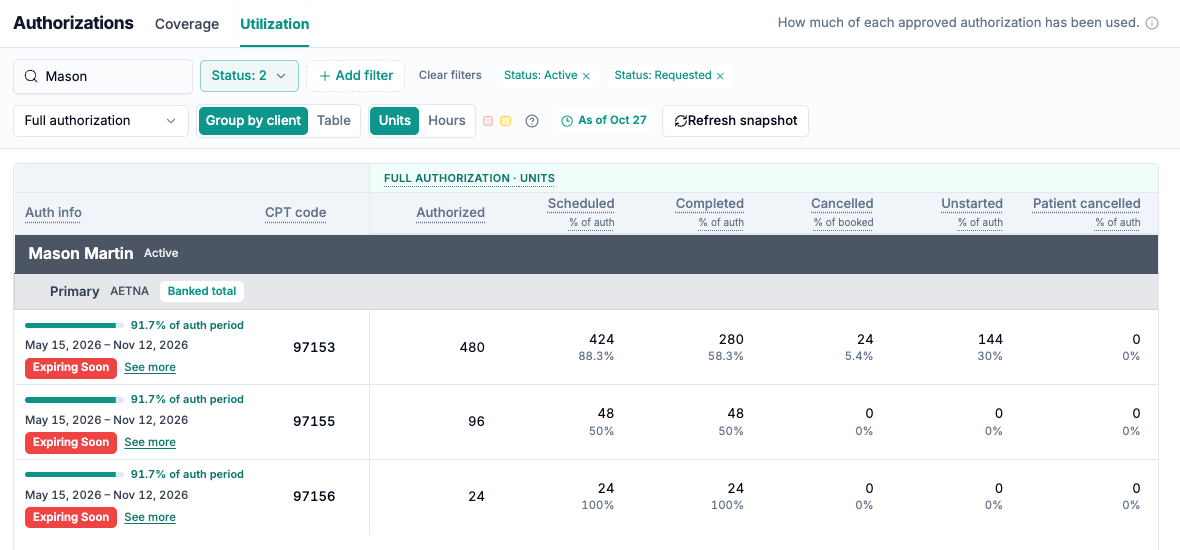
The Utilization tab for one client, broken down by CPT code.
Notes on utilization cells are explained in Authorization Notes.