Overview: your new homepage
Last updated: October 21, 2026
Meet Overview, your new homepage in Alpaca. Instead of checking several pages to figure out what needs you, Overview gathers it all in one place: the notes waiting for your signature, the clients who need a follow-up, requests to approve, and your sessions for the day. You can see what to do, do it right there, and move on to the next thing.
How to get there: Overview opens as soon as you log in. You can come back to it any time by clicking Homepage in the menu on the left.
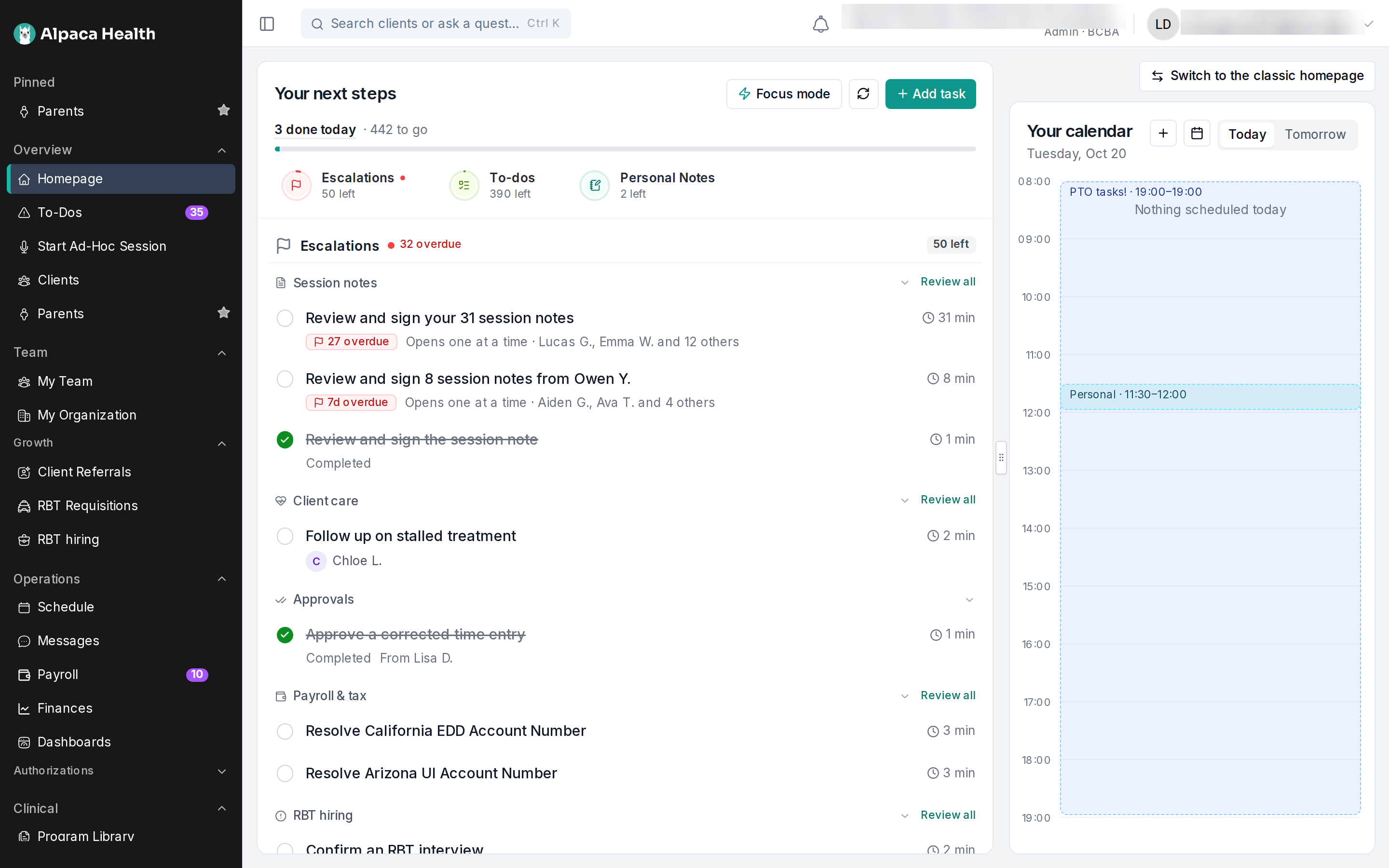
What you'll see
Overview has two parts:
Your next steps on the left: everything that needs you, sorted so the most urgent things come first.
Your calendar on the right: your sessions for today and tomorrow.
Overview only shows what is yours to do, so it may look a little different from a coworker's. For example, you only see notes to sign if you sign notes, and requests to approve if you approve them.
Your next steps
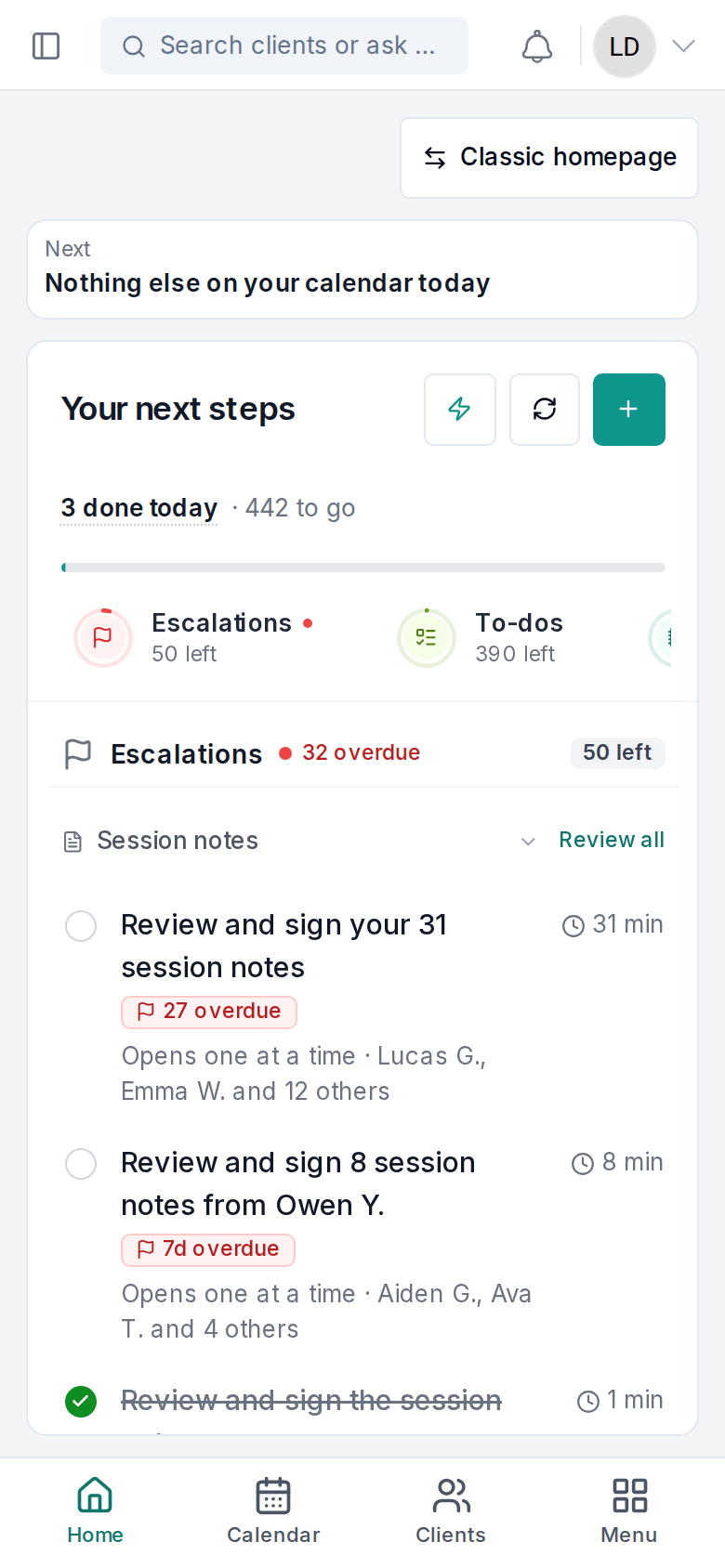
At the top, Overview tells you how you are doing today, for example "3 done today · 12 to go". Your tasks are sorted into three groups:
Escalations: the things that are late or most important, such as overdue session notes. A red dot means something is overdue.
To-dos: everything else that needs you. If a to-do becomes overdue, it moves up to Escalations on its own.
Personal Notes: reminders you wrote for yourself. Nobody else can see them.
Click one of the three names to see only that group, and click it again to see everything.
Inside each group, similar tasks are kept together under a heading, such as Session notes, Client care or Approvals, with new referrals listed at the end. Each task tells you what to do, for example Review and sign the session note or Follow up on stalled treatment, and which client it is about.
Want to hide a heading for now? Click it to fold it away. It still shows how many tasks are left under it.
If you have several of the same task, like eight notes from the same RBT, they show up as one line that opens them one at a time.
Working on a task
Click any task to open it. Most of the time you can finish it right there: sign a session note, approve a request, answer a few questions about a client, or mark a to-do as done. If a task needs another page, Overview gives you a button that takes you there.
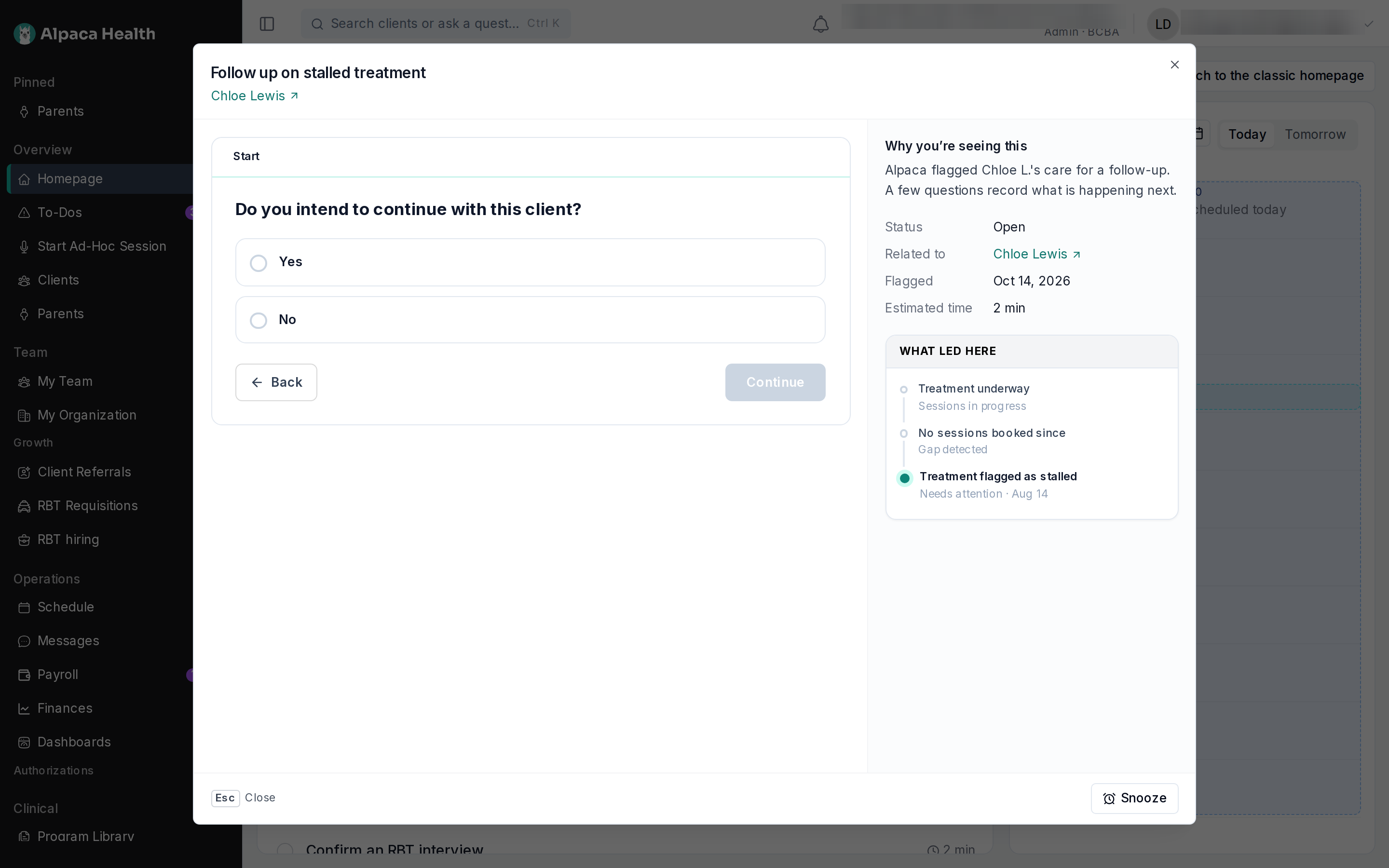
The client's full name is shown under the task, with their preferred name if they have one. Click the name to open the client's page in a new tab, so you don't lose your place.
Why you're seeing this explains why the task is on your list and when it came up.
Not the right moment? Click Snooze to bring the task back later today, tomorrow morning, or on a day you choose.
Press Esc, or the X in the corner, to go back to your list.
Do them all in one go
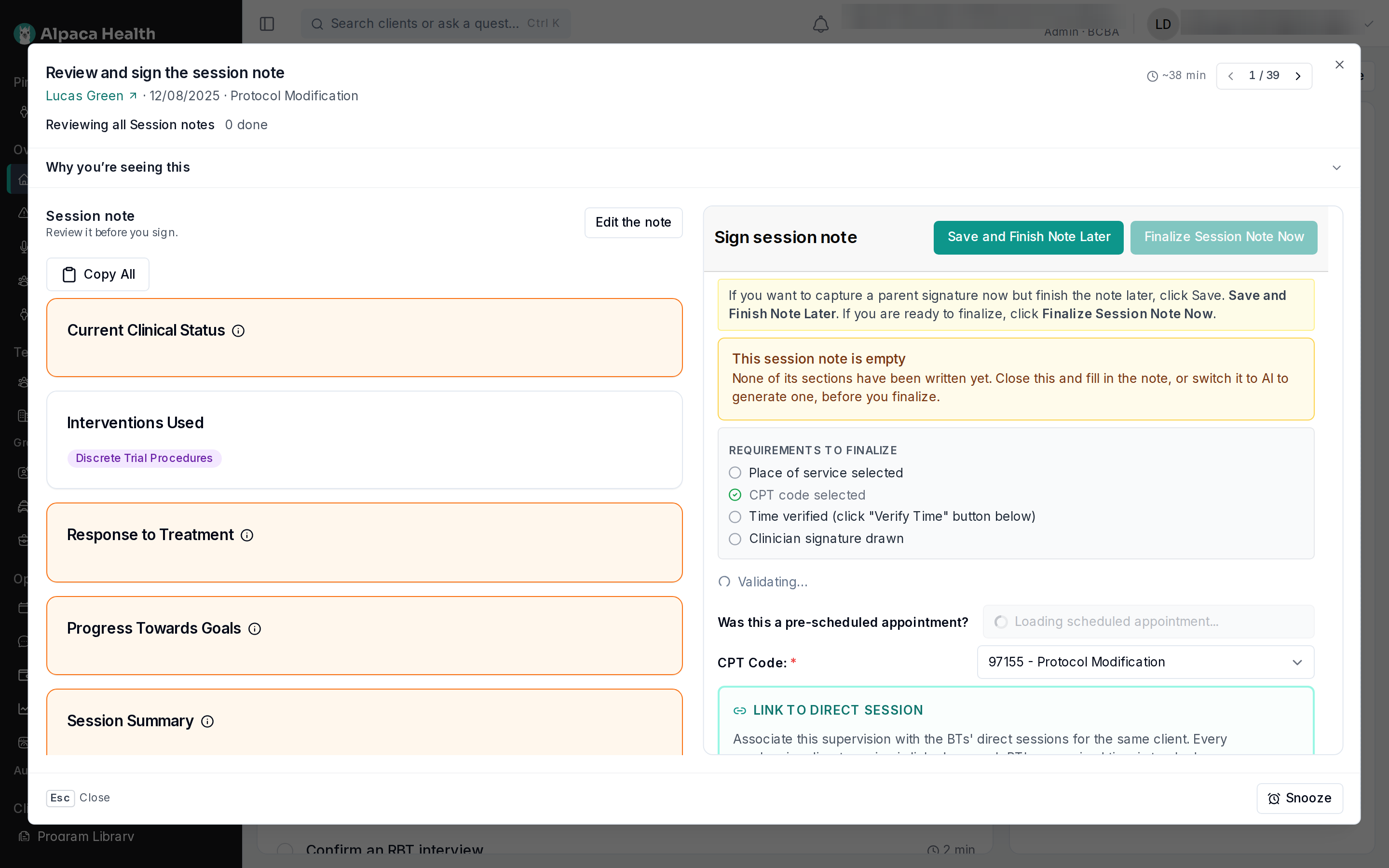
When you want to clear a whole group, for example all the notes you still need to sign, click Review all next to its heading. Your tasks open one after another: finish one and the next one appears. Use the arrows at the top to skip ahead or go back.
Got a few minutes? Try Focus mode
Have a short gap between sessions? Click Focus mode and pick how much time you have: 5 min, 10 min, the time until your next session, or Full focus. Overview picks quick tasks that fit in that time and opens them one after another.
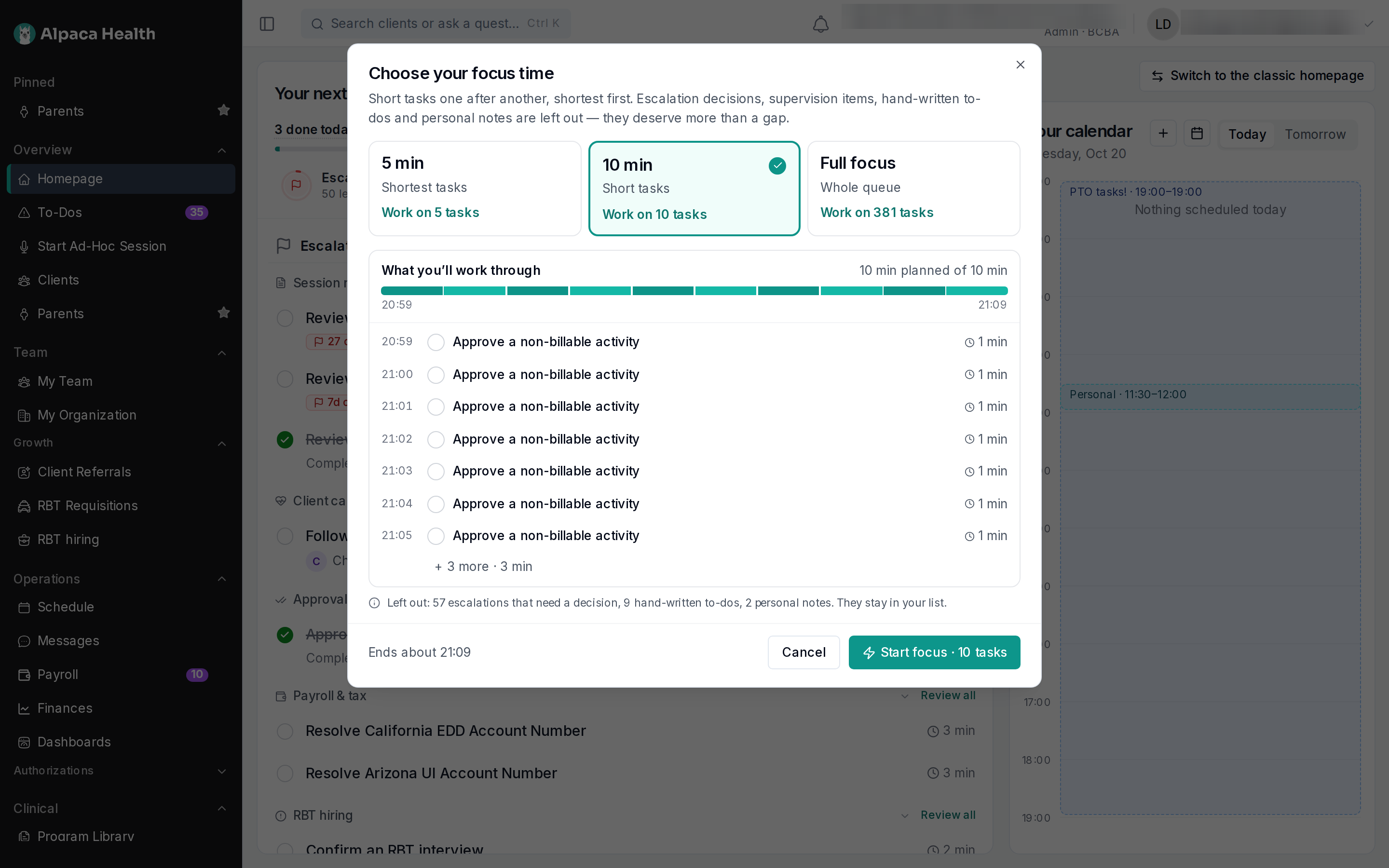
Bigger decisions, like client escalations, are kept out of Focus mode on purpose so you can give them the time they need. They stay on your list. When you have a free gap today, your calendar may also show a striped block, Let's finish some quick tasks. Click it to start Focus mode for that gap.
Add your own tasks
Click Add task to jot something down.
Keep it to yourself: leave it as Just me with No client, and it is saved to your Personal Notes.
Share it: pick a colleague or a client, and it is saved as a to-do the people involved can see.
Your calendar
The calendar on the right shows your sessions for today and tomorrow. Click a session to see its details. If you can schedule, click + or an empty time to book a new appointment. You can drag the line between your tasks and your calendar to make either side bigger.
On your phone
Overview works on your phone too. At the top you'll see what's Next on your calendar today, with your tasks below. Use the bar at the bottom of the screen to jump to Home, your Calendar, your Clients, or the Menu.
Keyboard shortcuts
If you like using the keyboard:
J and K move down and up your list.
Enter opens a task.
Space marks a to-do or personal note as done.
S snoozes a task.
Esc closes a task.
News from Alpaca
When Alpaca has a new feature or important news to share, it appears as a small card at the bottom of the menu on the left. Click the X on a card once you've read it, and the next one will show.
Prefer the previous homepage?
The previous homepage is still there. Click Switch to the classic homepage above your calendar (on a phone, Classic homepage) to open it, and Switch to the new homepage to come back. Clicking Homepage in the menu always brings you back to Overview. If you're looking for Your work today, Your team today, or consultation requests to approve, you'll find them on the classic homepage. Learn more in Using Your Homepage.
Common questions
Why don't I see Overview? Overview is for clinic team members, such as BCBAs, RBTs, directors and admins. If you've just joined, you'll see it once your clinic marks you as started. If you think you should have it, ask your clinic admin.
I finished a task somewhere else, but it's still on my list. Click the refresh button next to Add task. Your list also catches up on its own within the hour.
I see "We couldn't check … just now". Alpaca couldn't load one kind of task for a moment, so a few tasks might be missing. Everything else is up to date. Try refreshing in a few minutes.
Focus mode didn't pick some of my tasks. That's expected: Focus mode is for quick tasks only. To get through a whole group, use Review all instead.
I can't snooze a task. Some tasks, like approval requests, stay on your list until they're handled. For a line that holds several tasks, open it and snooze them one at a time.