Add and review supervision notes beside client programs
Last updated: October 8, 2026
Supervision notes keep clinical guidance beside the client, program, or target it applies to.
They are available from the Programs page and during live data collection, alongside a readable
history of relevant program changes.
Guidance stays attached to the right level. Choose client, program, or target scope so the
team can tell where a note applies.
Unread indicators belong to each person. Opening a note marks it read only for you; it does
not clear another team member’s indicator.
The record shows who changed what. Notes show their author and edit history, and program
changes use readable before-and-after descriptions instead of raw data.
Who can use it
You can read supervision notes when all of these are true:
your active organization has Supervision Notes turned on;
your role has View Supervision Notes; and
you already have access to that client’s record.
Reading or writing a supervision note does not widen which clients you can access. Parents and
caregivers do not see this feature because it contains staff clinical guidance.
Writing requires Edit Supervision Notes and clinical authority. Outside a session, the author
must have a supervisor credential: BCBA, BCaBA, QBA, QASP-S, or Student Analyst. During a 97155 or
97158 supervision session, the clinician running that session can write notes linked to it when
they hold the edit permission. An administrator without one of those clinical paths can read when
permitted, but cannot author clinical guidance.
Choose where the note belongs
Use the narrowest level that fits the guidance:
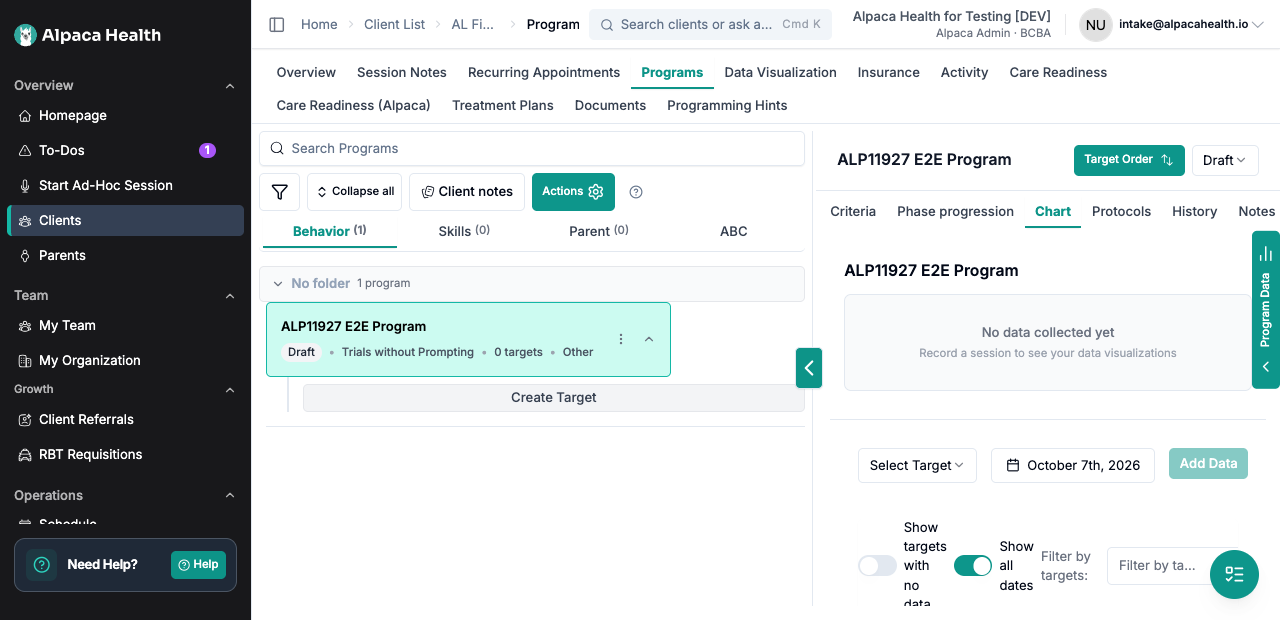
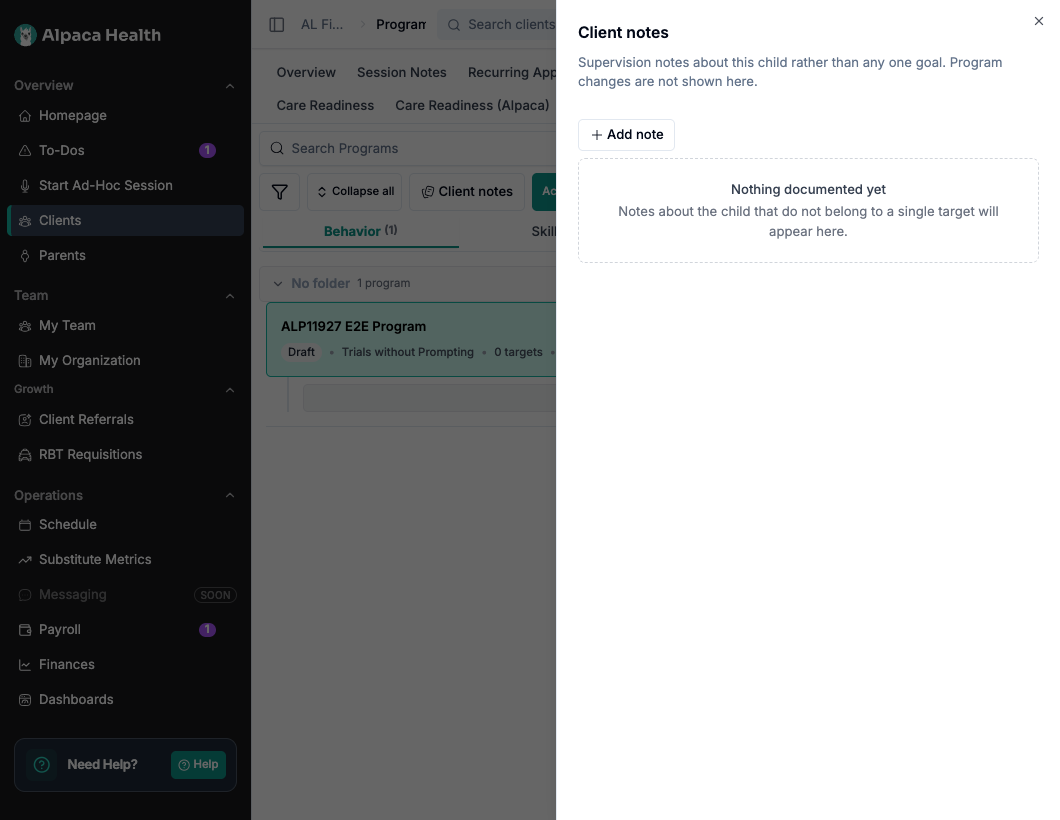
Client notes are about the client as a whole and are not attached to one goal. Open
Client notes from the Programs toolbar. Program changes are not shown in this view.Program notes apply across a program. Select a program, then open its Notes tab.
This view combines program-level notes, notes from its targets, and relevant program changes.Target notes apply to one target. Open the target and find Notes below Target Details.
During a session, use the notes action on the target card.
Program-level notes work well for teaching-procedure changes, prompting or reinforcement
strategies, generalization or maintenance guidance, barriers, and next steps for the team.
Add a note
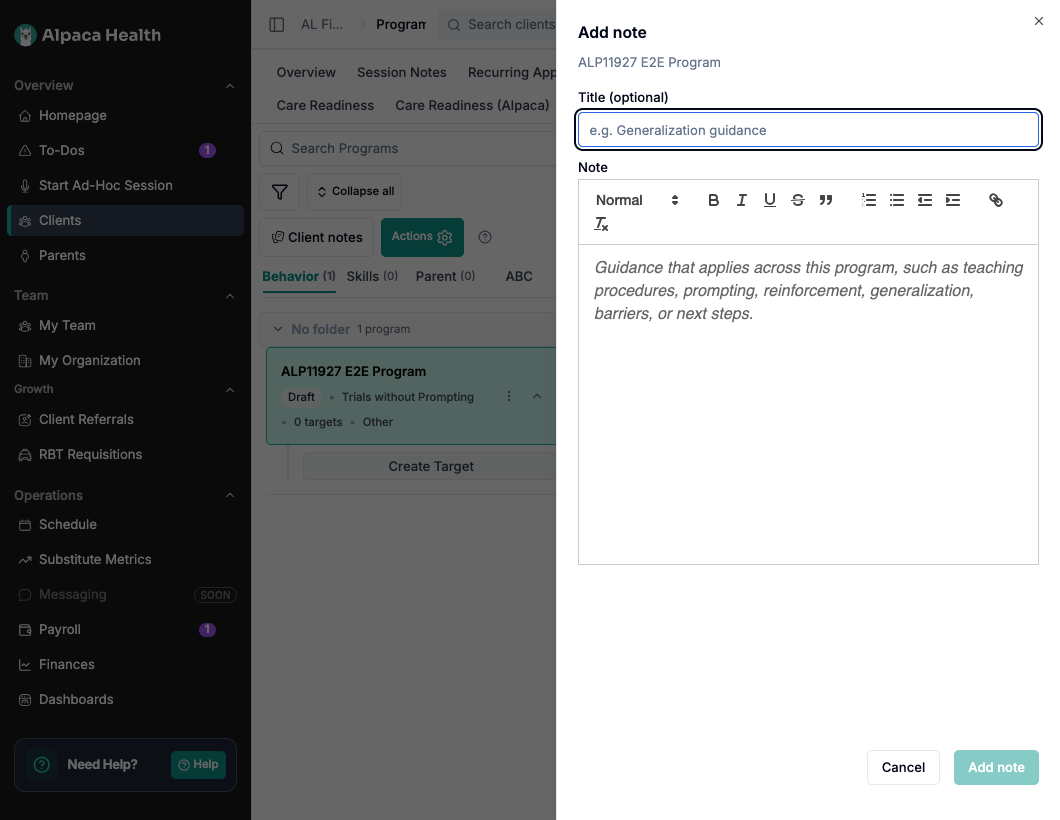
Open Client notes, a program’s Notes tab, or a target’s Notes section.
Select Add note.
Add an optional title.
Enter the guidance in Note. The program-level composer reminds you to describe guidance
that applies across the program.Select Add note again to save it.
The note appears immediately in the feed. A note created during a supervision session carries a
Supervision session label and the session date.
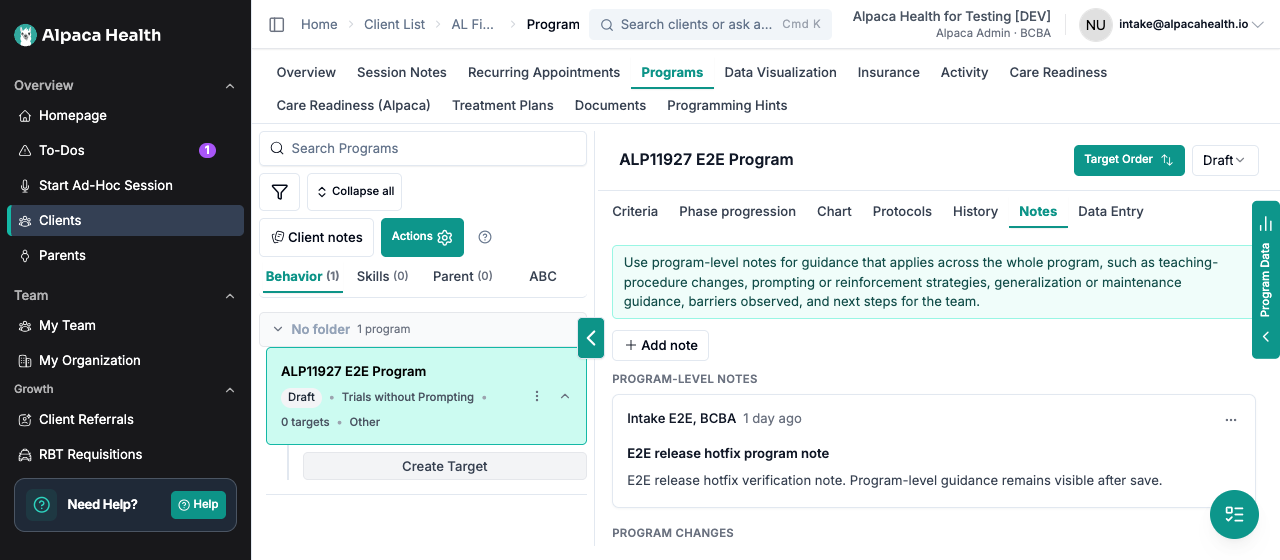
Screenshot 3 goes here — Program Notes tab. Use01b-program-notes-tab-guidance-clean-1280.png. Place it after the steps above so readers can
see the guidance banner, Add note, and the program-level feed.
Screenshot 4 goes here — Add note composer. Use02-add-note-composer-program-placeholder-1060.png. The image shows Title (optional),
Note, the program-specific example text, and Add note.
Read new guidance during a session
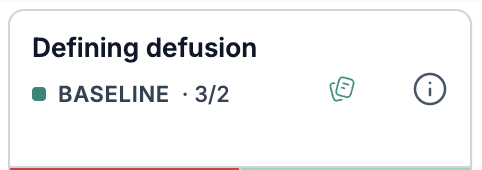
Unread badges appear on the place where a note belongs: Client notes, the program’s
Program info button and Notes tab, or the target’s notes action. Counts are personal. If
one clinician opens the note, another clinician still sees their own unread count.
You will now see a new notes icon
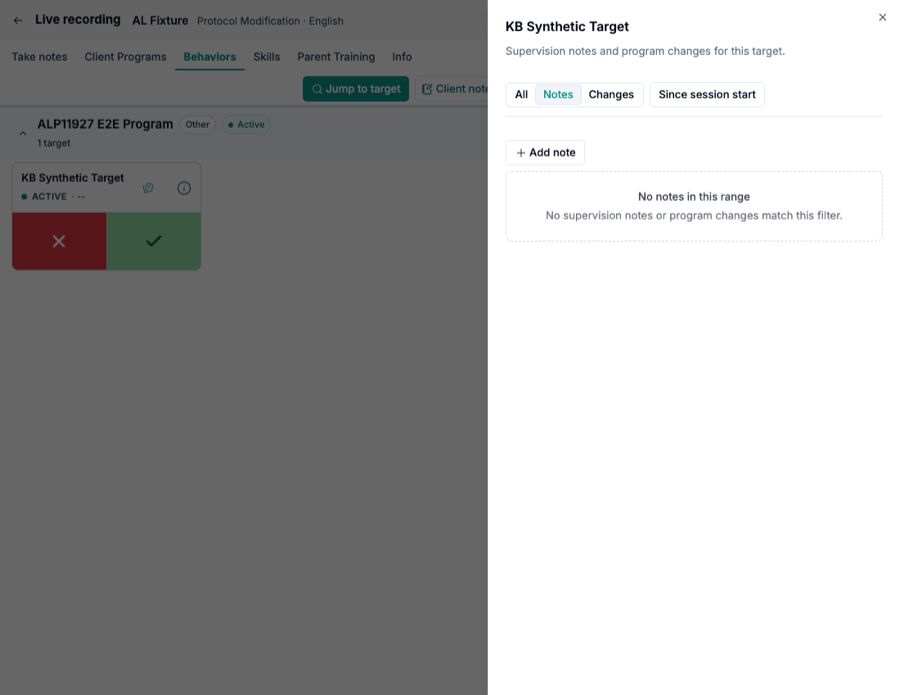
For a target, the session panel provides these filters:
All shows notes and program changes.
Notes shows only supervision notes.
Changes shows only program changes.
Since session start limits the feed to entries added after the current session began.
If a supervisor adds guidance after the session starts, open the board’s more-actions menu and
select Refresh programs. This reloads program changes and unread note counts without clearing
open programs, running timers, or collected data. A successful refresh shows Programs updated.
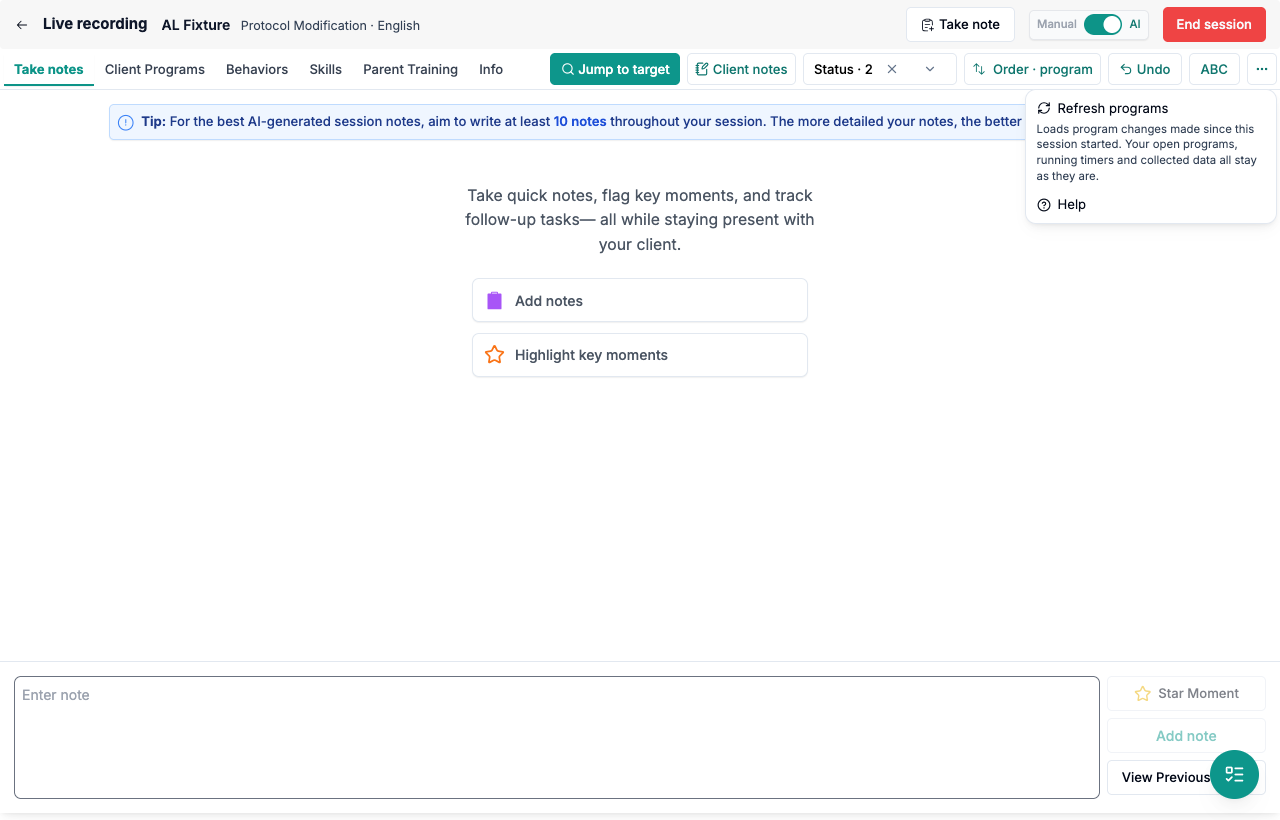
Screenshot 6 goes here — Refresh programs. Capture 05-refresh-programs.png before
publication. Show the more-actions menu and the explanation beneath Refresh programs.
Understand the change history
The same feed can show relevant program and target updates. Each row names the program, who made
the change, and when. Changes read as Set to, Changed from … to …, or
Removed (previously …). Target criteria name the target and field, such as an accuracy
threshold, rather than showing a serialized criteria record.
Several program changes made in the same minute can appear as one expandable summary. Expand the
row to review each change. Bookkeeping-only fields are omitted from the customer-facing feed.
Manage a note you wrote
Open Note actions on your own note:
Edit corrects the title or content. The card records that it was edited.
Archive removes the note from the default feed and unread badges. Open Archived to read
or restore it with Unarchive.Delete permanently removes the note. The confirmation explains that it cannot be recovered.
Only the original author can edit, archive, restore, or delete a note. Holding an administrator or
edit permission does not let someone change another clinician’s note.
What makes this safe
Access stays organization- and client-scoped. A note cannot be used to discover or open a
client record from another clinic.Authorship comes from the signed-in user. A request cannot choose another author or clinic.
Read state is per user and per note. Opening one page marks only the notes returned on that
page as read for that person. Notes added afterward remain unread.Clinical content reads are audited. Opening a feed that returns note text records the access.
Badge checks return counts only and do not retrieve note bodies.Destructive actions leave an audit record. A permanent deletion records who attempted and
completed it without copying the deleted clinical text into the audit row.Offline writing is refused clearly. Alpaca does not queue a clinical note that could appear
saved and then disappear.
What it will not do
It will not show staff supervision guidance in the parent portal. This is a staff clinical
record, not a caregiver-facing message.It will not let a non-supervisor add a note from the Programs page. Viewing guidance is not the
same authority as authoring it.It will not let an administrator rewrite another clinician’s note. Corrections remain the
author’s responsibility.It will not save a note with no visible text or silently queue a note while offline. Both cases
could create a false belief that guidance was recorded.It will not make program changes editable from the note feed. Those rows describe changes made
through the program workflow.It will not poll continuously for notes added after a session starts. Use Refresh programs
to check for new guidance without reloading the session.
Your data
A supervision note stores its scope, optional title, formatted note text, author, timestamps, and
the client, program, or target it belongs to. A note written during a supervision session also
stores a link to that session. Archive details and personal read receipts are stored separately.
The program-change feed reads the relevant program activity history and presents selected fields
in plain language. Note text remains inside Alpaca. This feature does not email, text, or otherwise
send the note to an external recipient.
Recover from common problems
What you see | What it means | What to do |
|---|---|---|
Could not load supervision notes. | The feed request failed. | Check your connection, close and reopen the panel, then try again. |
You are offline. Reconnect before adding a supervision note; notes are not queued. | Alpaca cannot safely save the clinical record while offline. | Reconnect before entering the note, then try again. |
This note is too long to save. Shorten it, or split it into two notes. | The formatted note is over the supported length. | Shorten the note or save it as two focused notes. |
Could not add this note. | The new note was not saved. | Keep the composer open, check your connection and access, then try again. |
Could not update this note. | Your edit was not saved. | Confirm that it is your note and that you still have edit access, then try again. |
Could not update this note. Please try again. | An archive, restore, or delete action failed. | Refresh the feed and retry only after confirming the note’s current state. |
Could not refresh programs. Check your connection and try again. | The session kept its current programs, timers, and collected data because refresh failed. | Restore the connection and select Refresh programs again. |
Nothing documented yet | No visible notes or changes exist at this scope. | Confirm that you opened the correct client, program, or target, then add a note if appropriate. |
No notes in this range or No changes in this range | The current session filters exclude the available entries. | Select All or turn off Since session start. |
Current limitations
The feature must be enabled on both the page and the API for your environment.
The visible unread badge is capped at 9+, although the underlying personal count is kept.
The feed loads 50 entries at a time. Select Load more to retrieve older entries.
New notes do not stream into an already-open session. Use Refresh programs.
Program-change rows cover the changes captured by the program activity log; bookkeeping-only
fields are intentionally hidden.Deleted notes cannot be restored. Use Archive when the note may need to be recovered.