How to Mark a Session as Non-Billable
Last updated: September 11, 2026
Sometimes a session should not be billed to insurance in the usual way. From a session note's Actions menu you can change its billing status to Non-Billable (removed from billing) or Manually Billed (handled outside the normal flow). This guide covers marking a session non-billable, including the one prerequisite people miss.
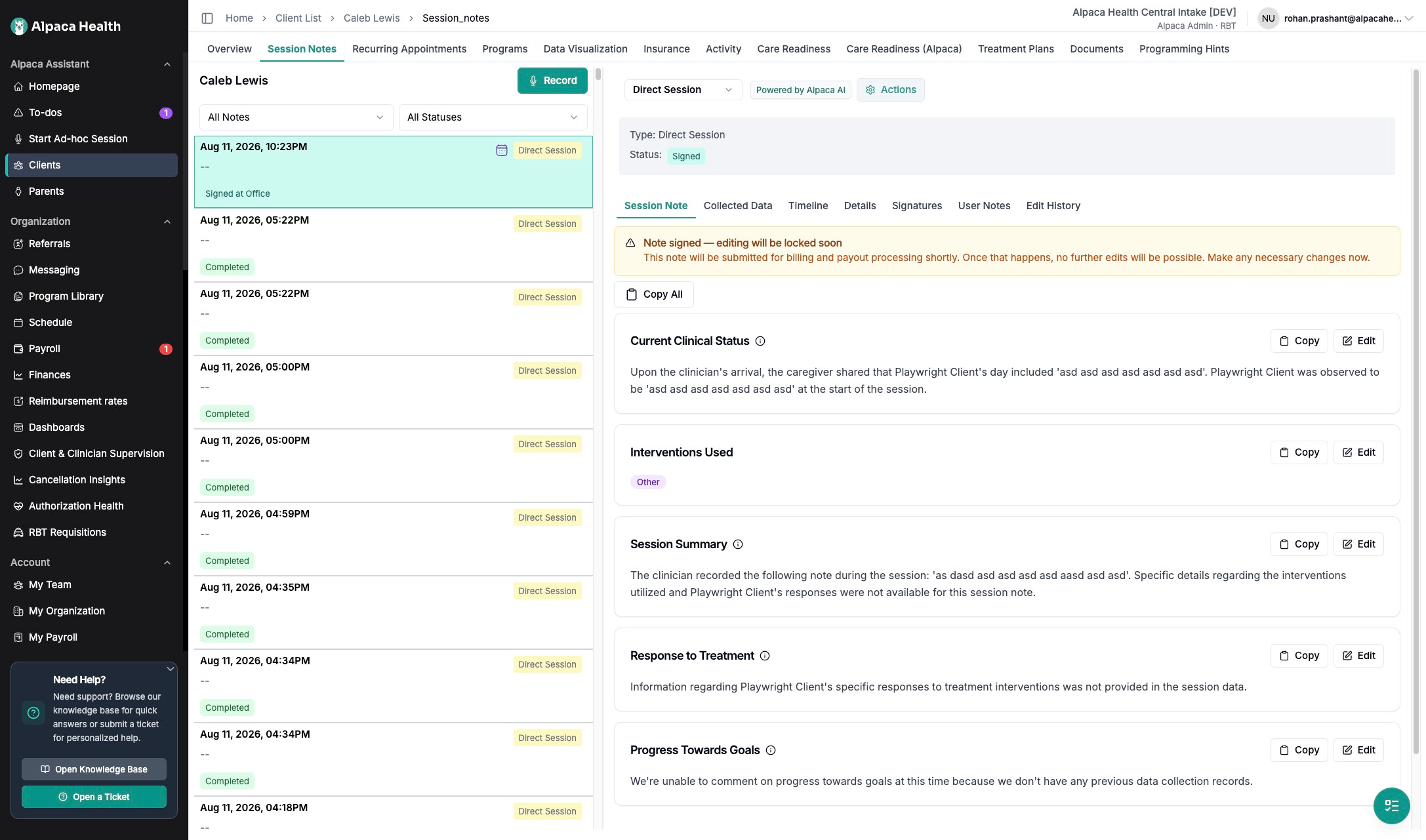
Prerequisite - the note must be signed: The billing options only appear once a note is signed. A signed note shows Status: Signed and the banner "Note signed - editing will be locked soon." If the note is still Completed (not yet signed), do Step 2 first. Act before it locks: once the note is submitted for billing and payout, no further changes are possible.
Step 1 - Open the client's session note
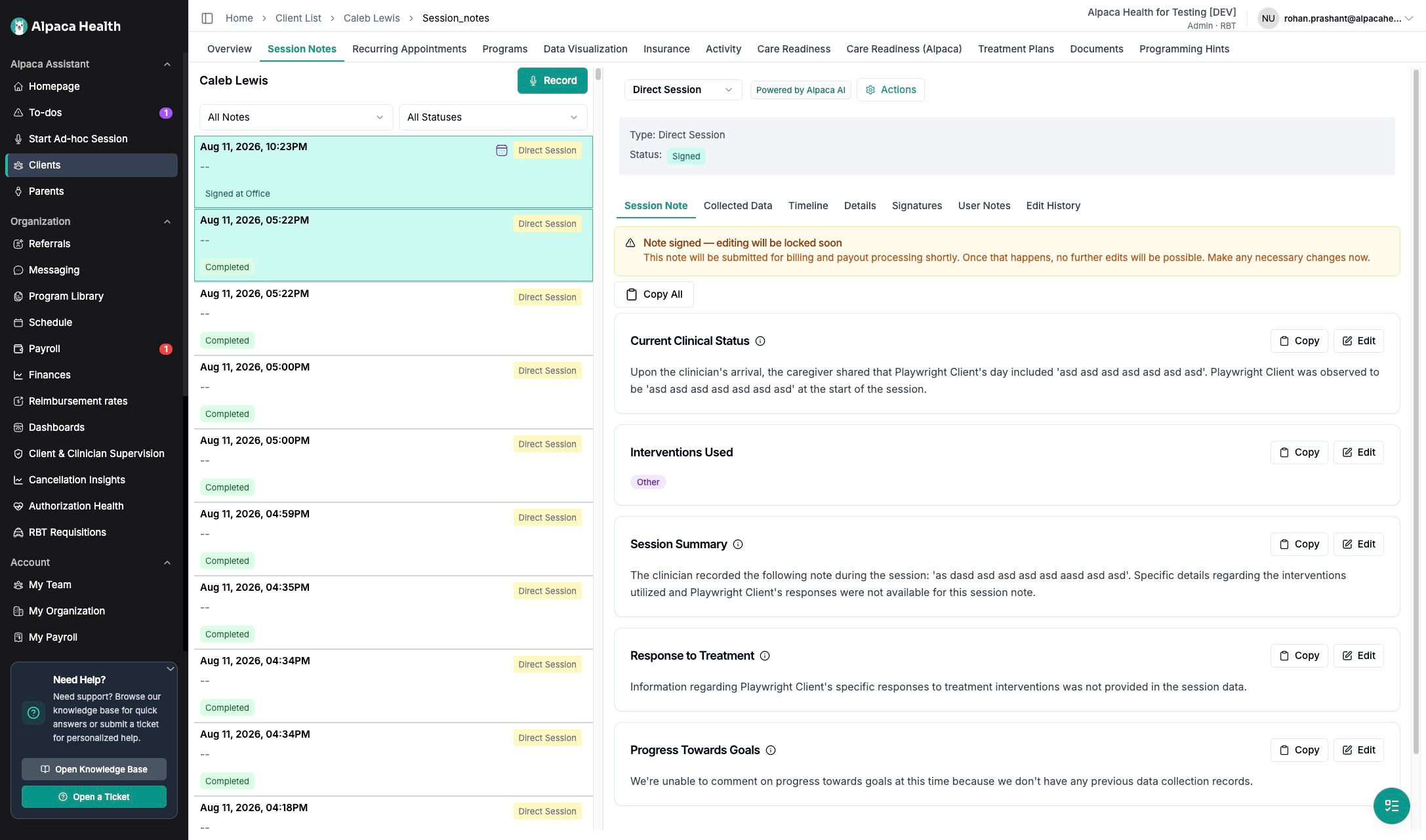
In the left sidebar click Clients, open the client, and click the Session Notes tab. Each note in the list shows its date and time, its type (for example Direct Session), and its status - Completed or Signed. Click the note you want to mark non-billable.
Step 2 - If the note is only "Completed," sign it first
Check the Status at the top of the note. If it says Signed, skip to Step 3. If it says Completed, the note is not signed yet and the billing options will not be available. To sign it, open the note and click Sign off at the top right (next to Clock Out and Actions).
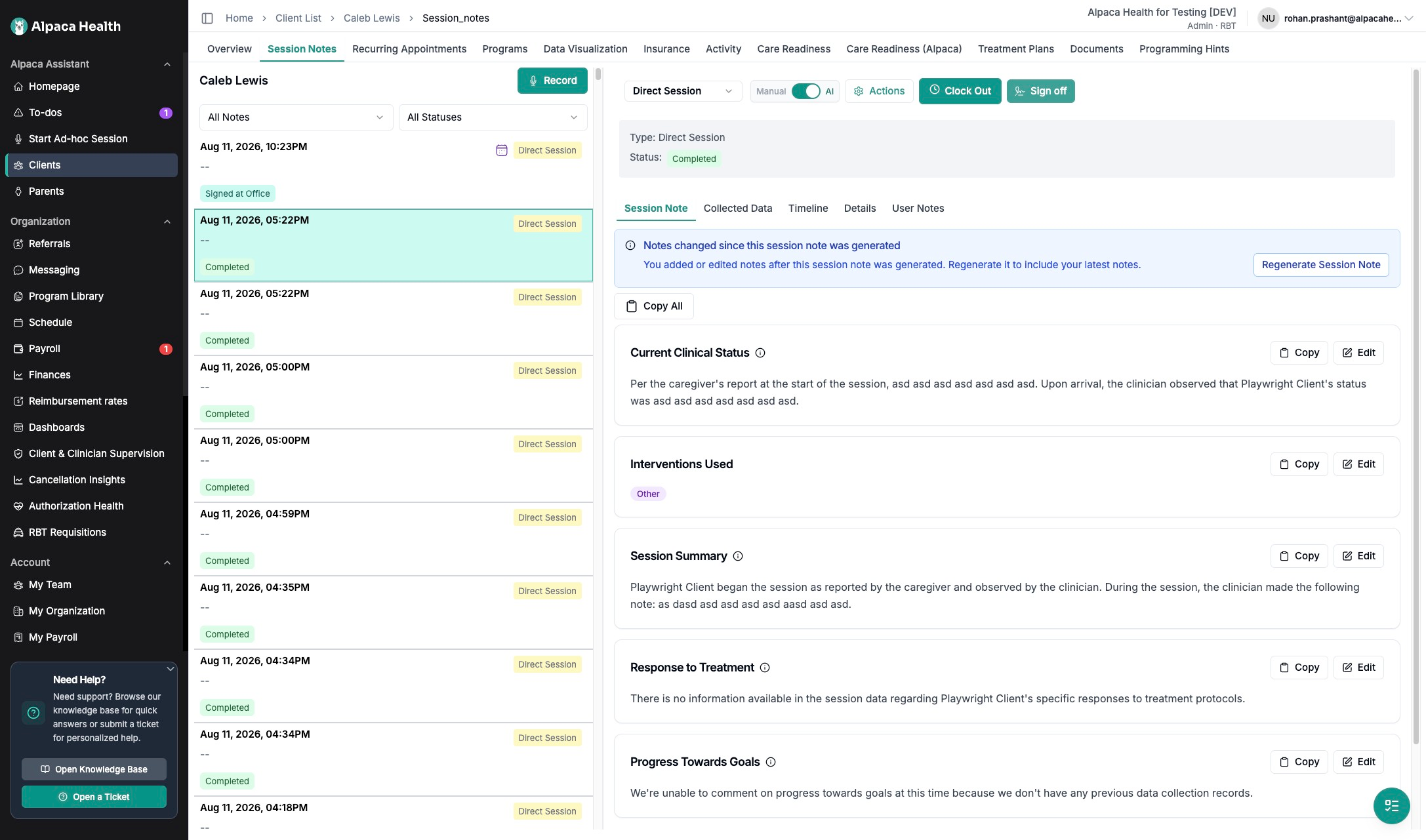
Complete every requirement in the finalize dialog: choose the Place of service and CPT code, click Verify Time to confirm the start and end times, and draw the clinician signature. When all four requirements are met, finalize the note. Its status changes to Signed.
Step 3 - Open the Actions menu
On the signed note (Status: Signed), click Actions - the gear-icon button near the top right of the note panel.
Step 4 - Choose "Mark as Non-Billable"
In the dropdown, click Mark as Non-Billable.
Two similar options - pick the right one: Mark as Non-Billable takes the session out of billing entirely. Mark as Manually Billed, just below it, instead flags the session to be billed by hand outside the normal flow. The same menu also holds Modify Session, Amend Billing Details, Redo Analysis, the two Reassign options, and Delete - none of those change billing status the way you want here.

Step 5 - Enter a reason
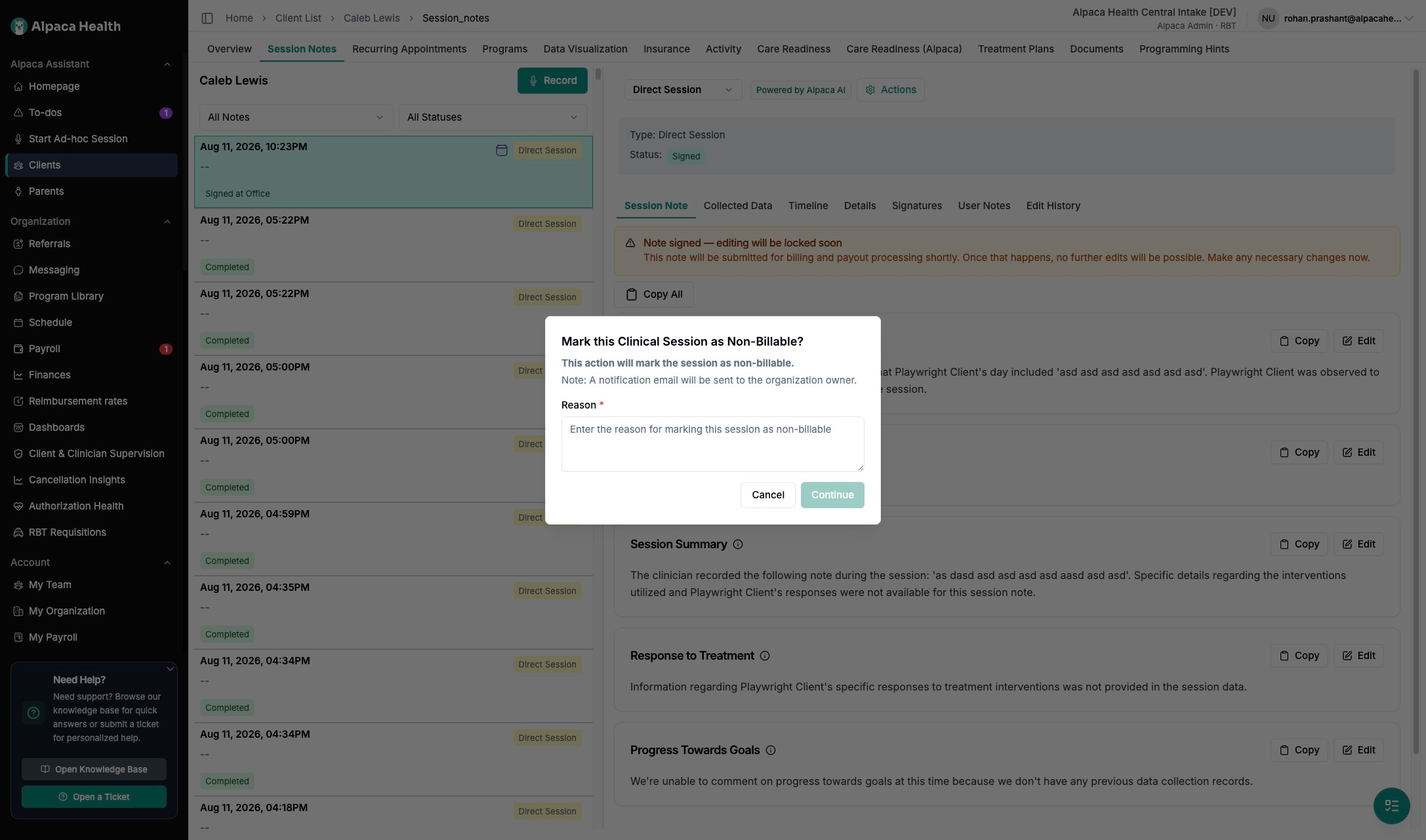
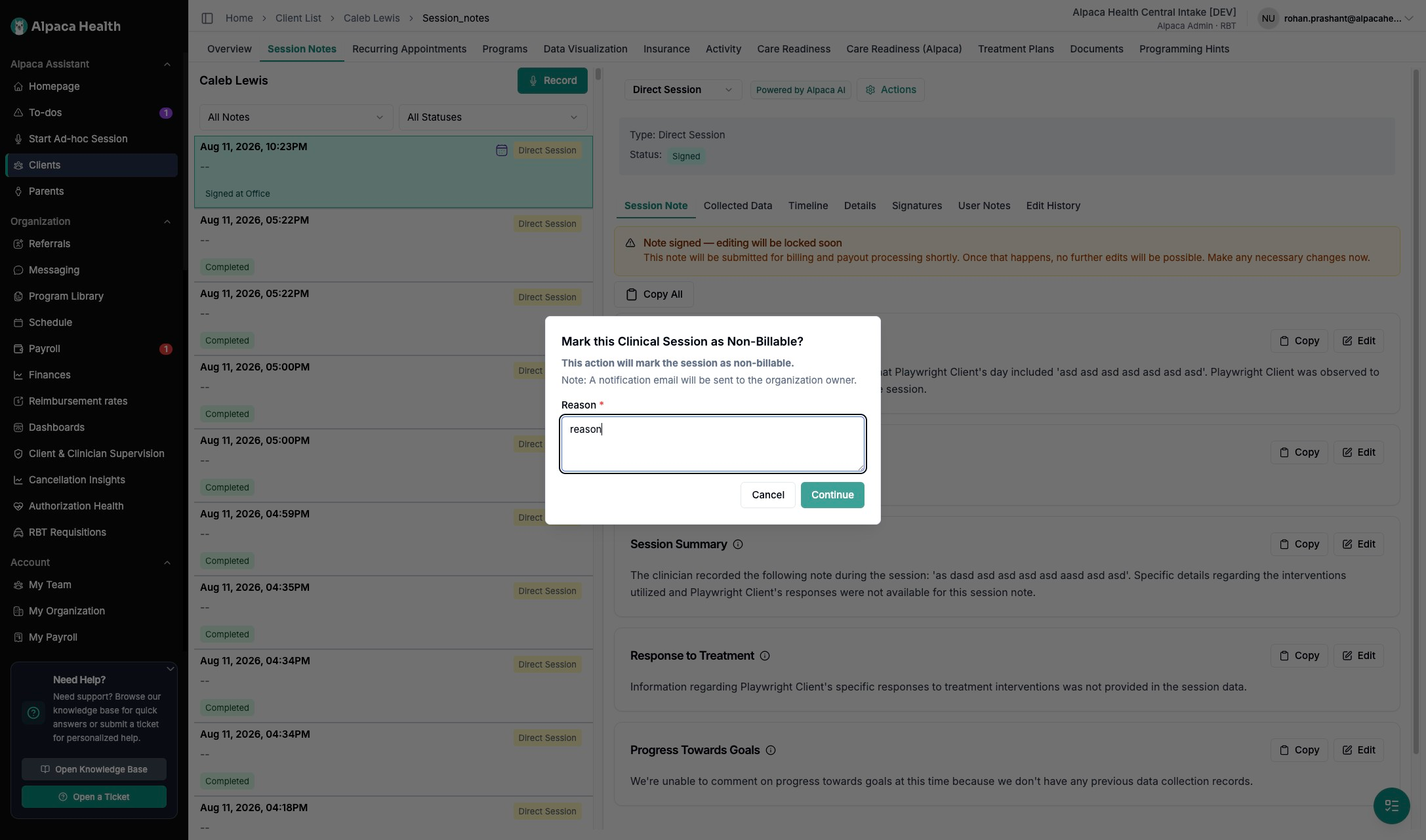
A confirmation dialog titled Mark this Clinical Session as Non-Billable? opens. It notes that a notification email will be sent to the organization owner. Type why you are marking the session non-billable in the Reason field - this is required and becomes part of the record.
Step 6 - Confirm
Once the Reason field has text, the Continue button becomes active. Click Continue to apply the change. Click Cancel instead to back out with no change. The session is now marked non-billable, and the organization owner is notified.
The note's billing status is updated and the reason is saved. To adjust it later, reopen the same Actions menu - for example, Mark as Manually Billed or Amend Billing Details.