How to edit an appointment, and correct a session note after it is signed or billed
Last updated: September 16, 2026
Appointments and session notes are two halves of the same record, and which one you
correct depends on how far the session has travelled. An appointment that has not been
documented yet is a calendar entry you can freely change. Once a note is signed it drives
the insurance claim, the clinician’s hours and the clinic’s payout, so corrections go
through a purpose-built amendment flow that shows you what each change moves before it is
written.
Which tool to use
Where the session is | What to use |
|---|---|
No session note yet, or the note is unsigned | Edit Appointment on the schedule |
Note signed, nothing billed or paid yet | Amend billing details on the session note |
Note signed, and you only need to fix wording | Edit the note content (recorded in Edit History) |
Note already billed to insurance, paid out, or in a finalized payroll period | Contact Alpaca — the note is locked |
Edit an appointment
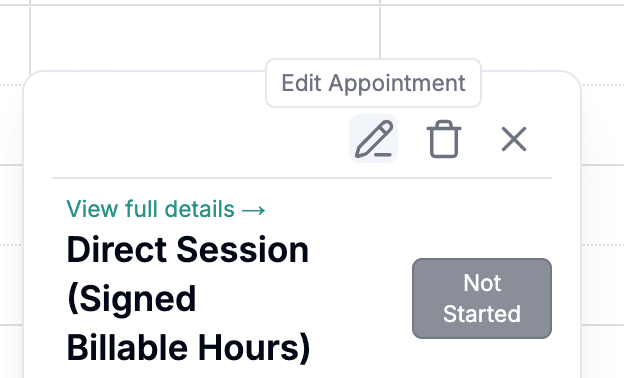
Open Schedule and select the appointment. The details popover opens.
Select the pencil icon (Edit Appointment). The scheduling panel opens with the
appointment’s current values.Change what you need — date and time, clinician, client, service (CPT) code, place of
service, location, or billable/non-billable status.Select Update. Before the change is saved you are asked whether to notify the
client and the clinician; each is a separate choice. If the appointment moved,
the notification is sent as a reschedule rather than a new booking.
You can also drag an appointment to a new time or a different clinician’s column, or drag
its bottom edge to change its length by 15 minute increments. Both go through the same confirmation as the panel,
and both can be cancelled — if you close the confirmation, the appointment snaps back to
where it was.
Recurring appointments
If the appointment belongs to a series, Alpaca asks how far the change should reach:
This event — only the occurrence you opened.
This and following events — this one and everything after it.
All events — the whole series. Unless the series is fully in the past, this
excludes occurrences before today, and the dialog says so.
Deleting a recurring appointment offers the same three scopes.
When an appointment cannot be edited
Cancelled appointments are read-only. Restore the session first (see
Show or hide cancelled sessions), then edit it.The note is signed. The ordinary pencil disappears. Organization admins may still
see an orange pencil, which warns that the session is already finalized and that
editing it notifies the Alpaca team for billing adjustments.The note is billed or paid out. A red lock icon replaces the actions. Nothing on
this appointment can be edited from the schedule.Delete is unavailable once a note is signed, even for users who can delete
appointments. If you cannot delete appointments at all, the trash icon opens the
cancellation dialog instead — cancel the session coded Clinic or admin →
Scheduling error / duplicate appointment.
What an appointment edit does to the session note
Editing an appointment is not a silent calendar change. Alpaca pushes the new values down
to any session note linked to it:
Times — the note’s billing start and end times, and therefore its units, follow the
appointment.Service code, modifiers, and billable/non-billable — copied to the note.
Clinician — reassigning a signed note’s clinician clears the signature. The note
returns to an unsigned state and the newly assigned clinician has to sign it. This is
deliberate: payroll pays whoever signed, so the old signature cannot survive a
reassignment.If the note has already been sent to insurance, the change is reported to the Alpaca
billing team automatically.
Amend a signed session note

Amendments are the only supported way to change a signed note’s billing start,
billing end, CPT code, modifiers, place of service or billable/
non-billable flag. The written note, its signature and its signing date are never
touched.
Open the session note and go to the Details tab, or use the ⋯ menu at the top
of the note.Select Amend billing details.
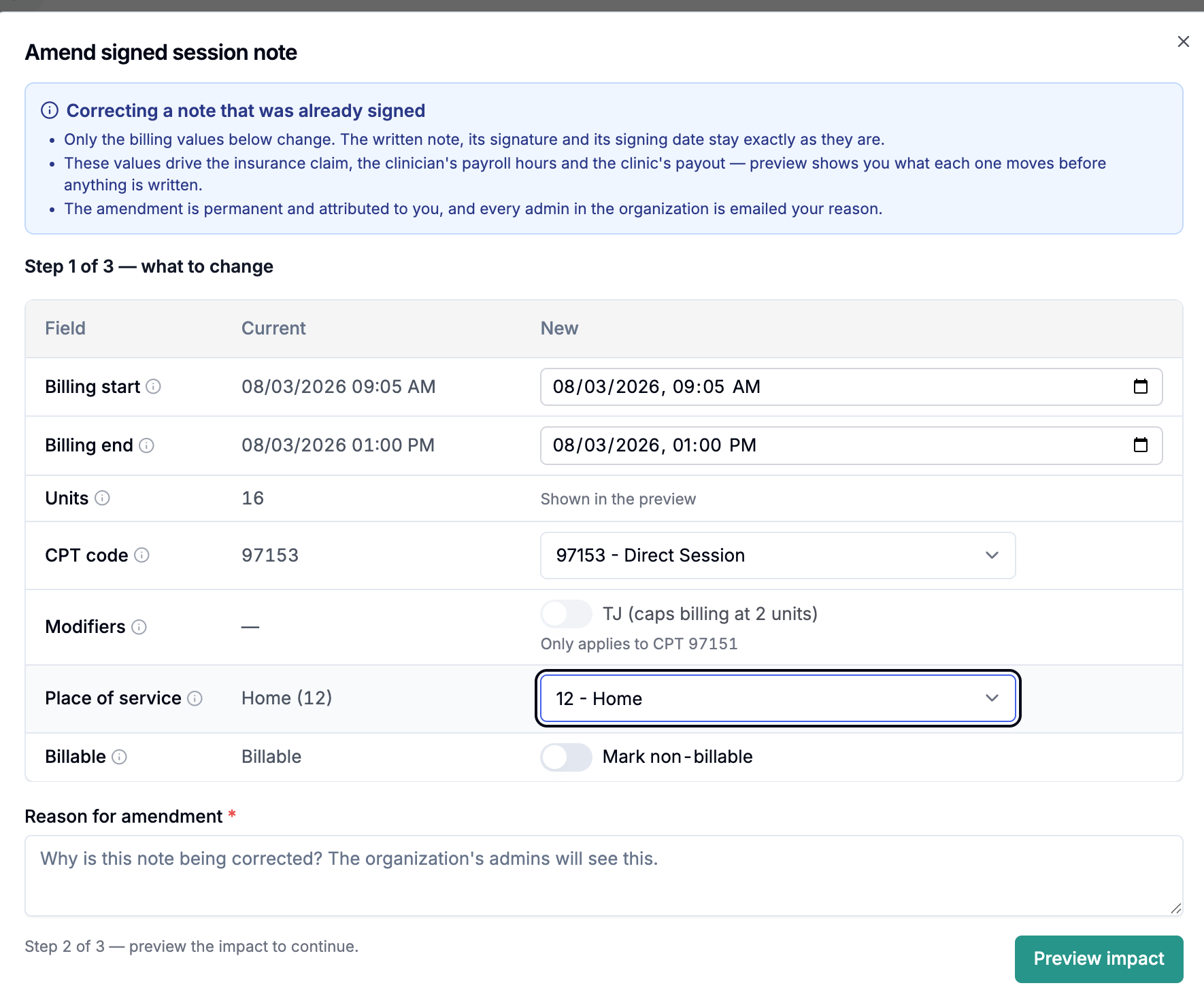
Step 1 — what to change. The table shows each field’s current value beside a field
for the new one. Units are not editable; they are recalculated from the times and the
CPT code. The info icon on each row explains what that field moves downstream.Enter a reason (at least 10 characters). Every admin in your organization receives
it by email.Step 2 — preview the impact. Select Preview impact. Alpaca computes the new
units and what the change does to billing, payroll and payout. Editing any field after
this clears the preview; run it again.Step 3 — confirm. Review the impact, then select Confirm amendment and confirm
once more.
Reading the preview
Billing — what needs to happen with the insurance claim, and the claim’s current
status.Payroll — whether the clinician’s hours recompute on their own, or whether someone
has to enter a correction. A payroll section highlighted in amber means action
required: it names the clinician, the old and new hours, and the amount to correct.Payout — the difference between what was paid for this note and what the amended
values are worth, with a View details breakdown.
Two other things can appear:
Billing rule findings. Rules the amended values break are shown in red and prevent
you from confirming. Rules the note was already failing are listed separately for
context and never block — they are often the reason for the amendment.Hidden figures. Payroll figures need payroll access and payout figures need finance
access. If your role does not have them, the amendment still corrects them; you simply
are not shown the numbers, and the organization’s admins get the full breakdown by
email.
Marking a signed session non-billable
Turning on Mark non-billable takes the session out of billing and payout entirely and
claws back anything already paid for it. The other fields stop applying. It does not
retract a claim that has already been filed with the payer.
Amending a note that has already been billed
An amendment never rewrites history, and Alpaca does not write to your billing system. So
what happens depends on how far the money has travelled:
Not billed yet. Nothing to do. The claim is built from the amended values when it is
submitted.Submitted, not yet paid. The amended values will not reach the payer on their own.
Wait until the claim is paid, then correct it.Already paid. A corrected claim has to be submitted for the payer to see the change.
Claim status not synced yet. Claim statuses refresh nightly, so a very recent
encounter may have no status. Check the claim before correcting it.Payroll already paid. Past payslips are never rewritten. The preview works out the
exact difference in hours and dollars and tells you to add it as a one-off payment or
deduction in the next payroll run. The Go to Payroll link takes you there.Payout already finalized. Alpaca creates a correcting adjustment in the current open
period rather than editing the closed one.
Locked notes
A note that has been billed to insurance, paid out, or included in a finalized payroll
period cannot be amended by clinic roles. The action reads Billed or paid — ask Alpaca.
Correcting one of these has to be reconciled against money that has already moved, so
Alpaca support does it — contact support with the client, the date of service and what
needs to change.
Amendment history
Every amendment is permanent and attributed. The session note carries an amendment
history showing who changed what, when, and why, with the original values preserved and
the downstream consequences recorded alongside them. Content edits to the note itself are
tracked separately in the Edit History tab.
Who can do what
Organization admins, assistant admins and clinical directors can amend signed notes
that are not locked. Directors do not see the payroll and payout figures; assistant
admins see payroll but not payout.No clinic role can amend a locked note — that is Alpaca’s job.
Deleting appointments needs the delete-appointments permission. Without it, cancel
the appointment instead.Restoring a cancelled appointment needs permission to approve cancellation requests.
If an action described here is missing for you, ask your organization administrator to
check your role’s permissions.