Mixed data collection and per-target prompt levels
Last updated: September 22, 2026
Two things used to be decided once, for a whole program, and are now decidable per target:
Used to be | Now | |
|---|---|---|
Prompt levels on a prompting program | One list for every target | One list for the program, or a separate list per target |
Data collection type | One type for every target | One type for the program, or a different type per target (Mixed) |
Nothing changes on your existing programs until you turn one of these on. Every program
keeps behaving exactly as it does today.
Who can do this
Anyone who can already edit a program. Neither change adds a new permission — if you can
open a program’s Criteria tab and save it today, you can use both of these.
Parents and read-only viewers never see either editor — no prompt-level list, no per-target
type selector. See
User roles in Alpaca.
Part 1 — Prompt levels for each target
Only on the two prompting types: Trials with Prompting and Task Analysis with
Prompting. Frequency, duration, interval and Likert programs have no prompt levels and
show none of this.
Turn it on
Client → Programs → your program → Criteria → Prompt Hierarchy
By default a program has one prompt hierarchy that every target uses. Drag the handles to order it from highest independence at the top to lowest at the bottom.
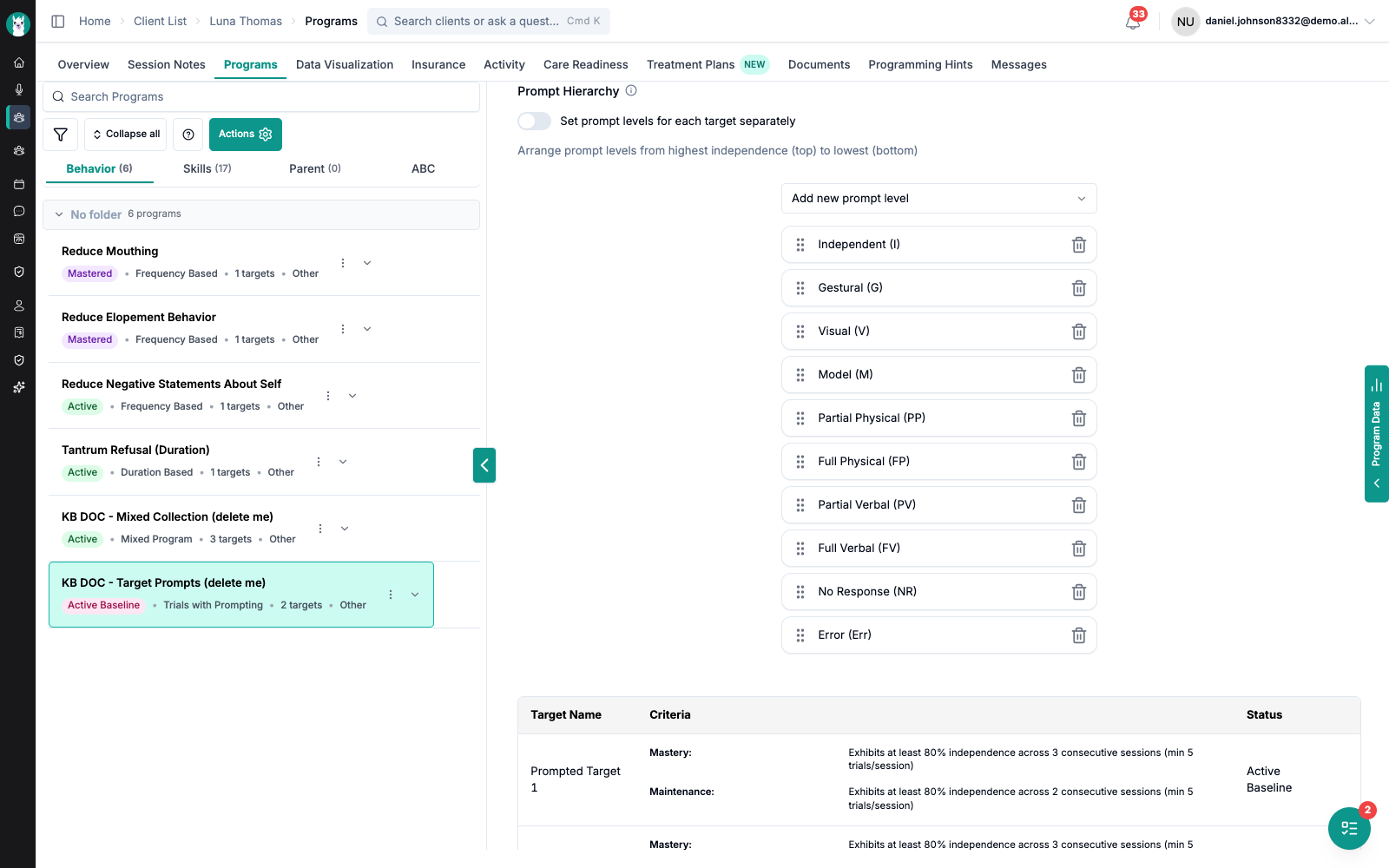
Switch on Set prompt levels for each target separately.
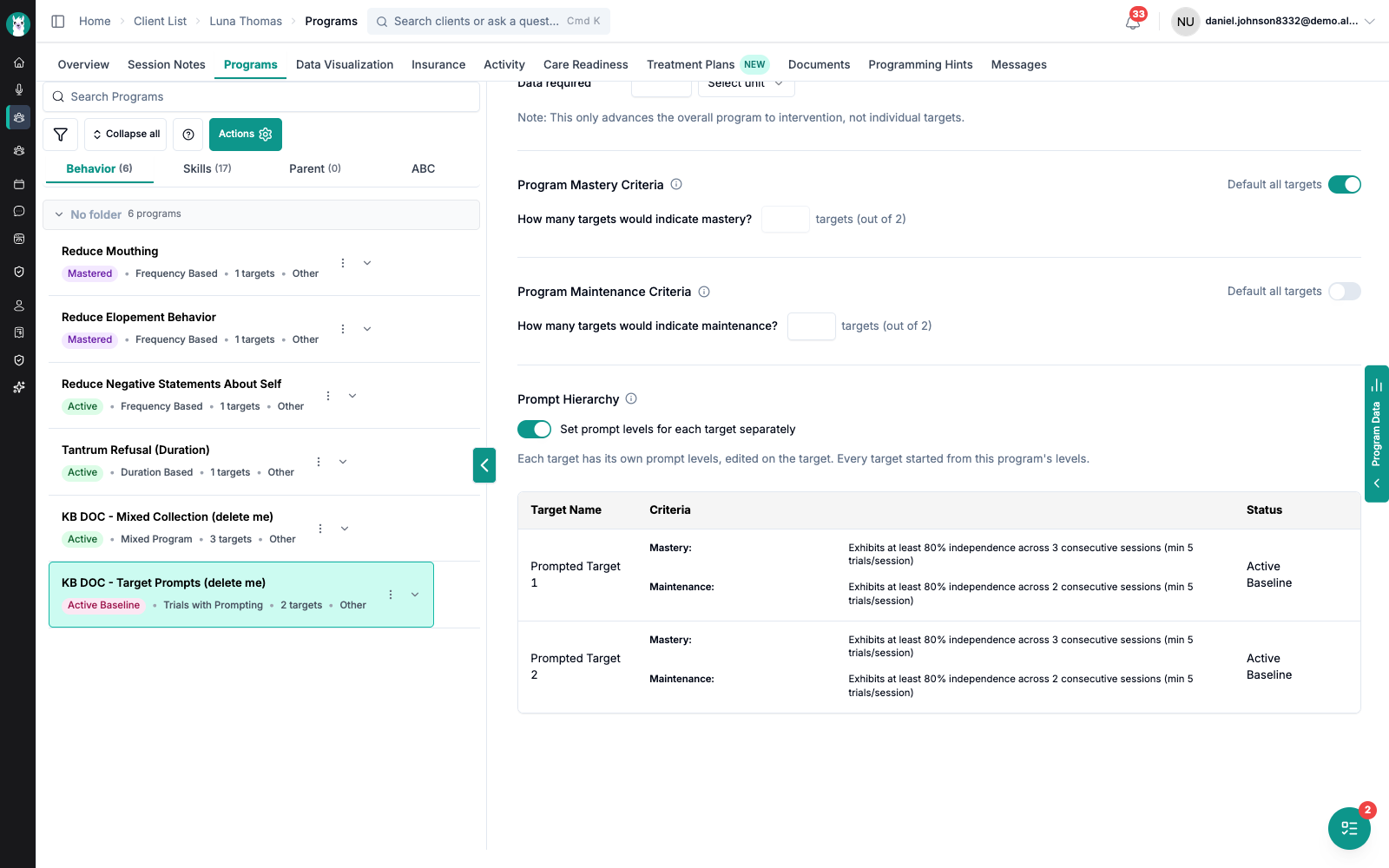
The program’s single list disappears and is replaced by a note: “Each target has its own
prompt levels, edited on the target. Every target started from this program’s levels.”
⚠ Then press Save changes at the top of the Criteria page
The switch on its own only stages the change. Navigate away without saving and the program
is still on a single shared hierarchy — and the Prompt Levels section will not appear on
its targets, which is the usual reason people can’t find it.
How to tell it worked: refresh the page; the switch is still on, and opening any target
shows a Prompt Levels section.
Every target is seeded from what the program already had — so the moment you flip the
switch, nothing has changed for anyone collecting data. You then edit only the targets that
need to differ.
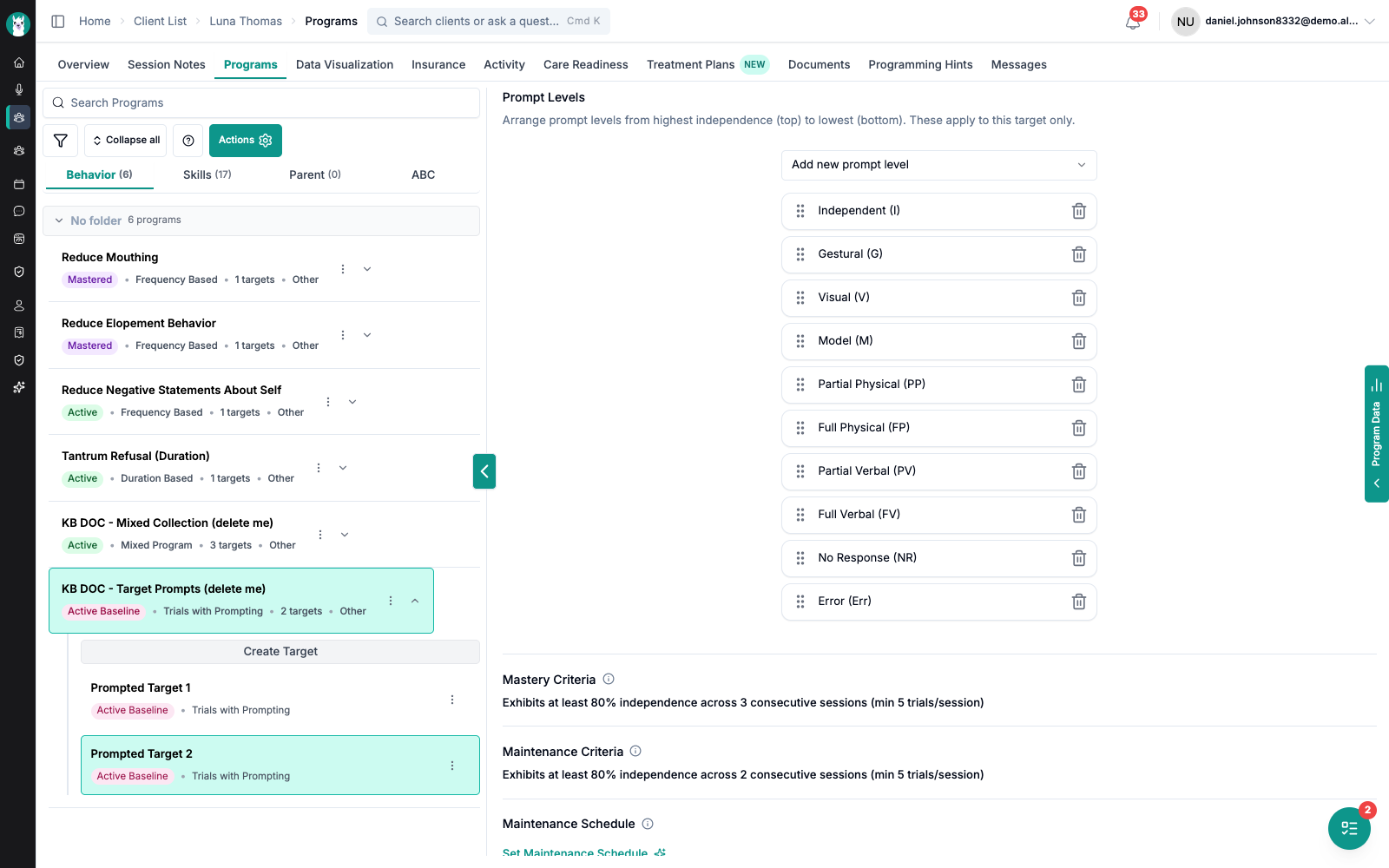
Edit one target’s levels
Client → Programs → your program → click the target → Prompt Levels
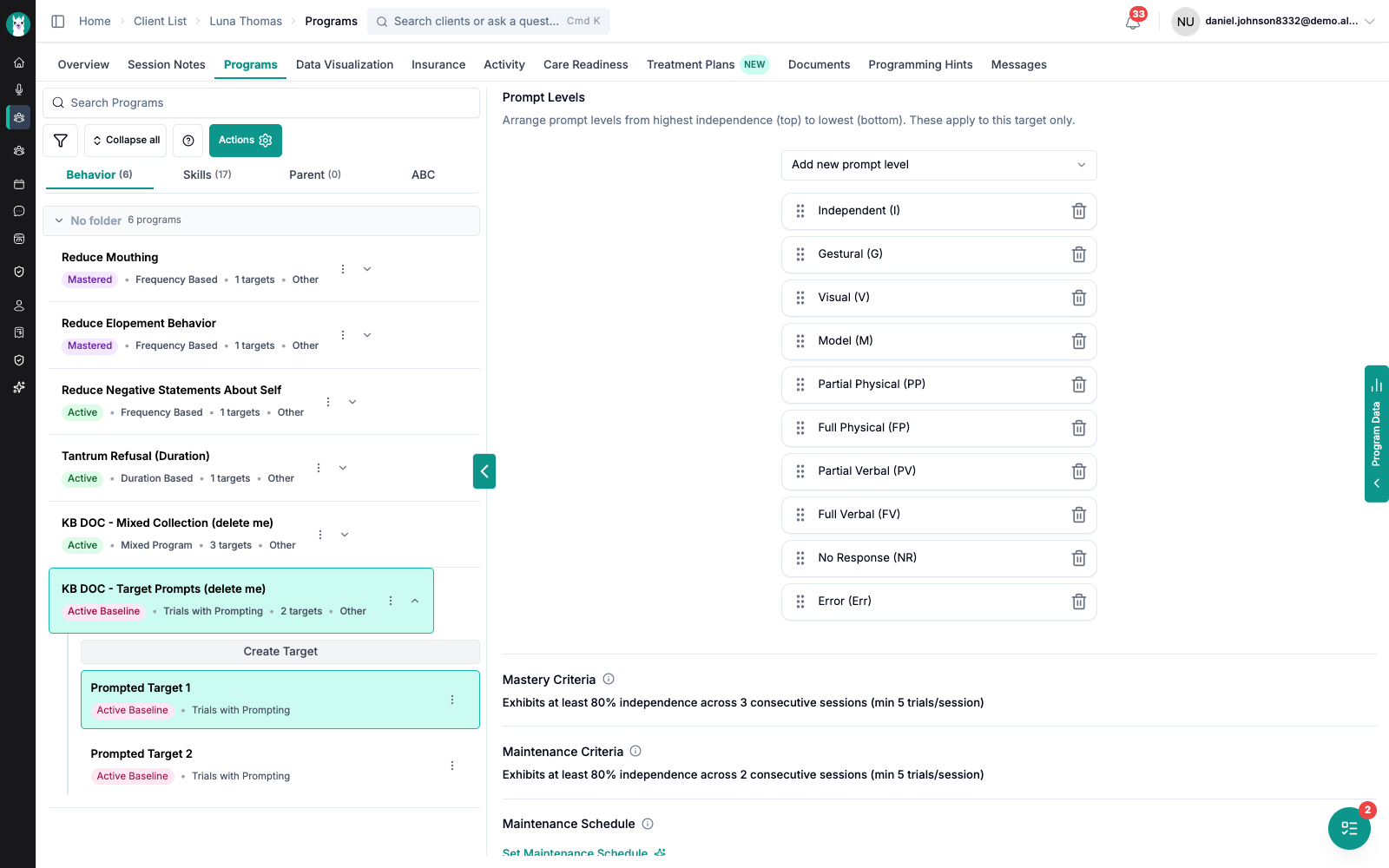
Drag a level by its handle to reorder it
Trash icon removes a level
Add new prompt level puts one back
Changes save as you make them — there’s no separate Save button on the target page.
Below, the same program with two targets configured differently. The first has had Partial
Verbal, Full Verbal and Error removed; the second was left alone and still carries the full
list.
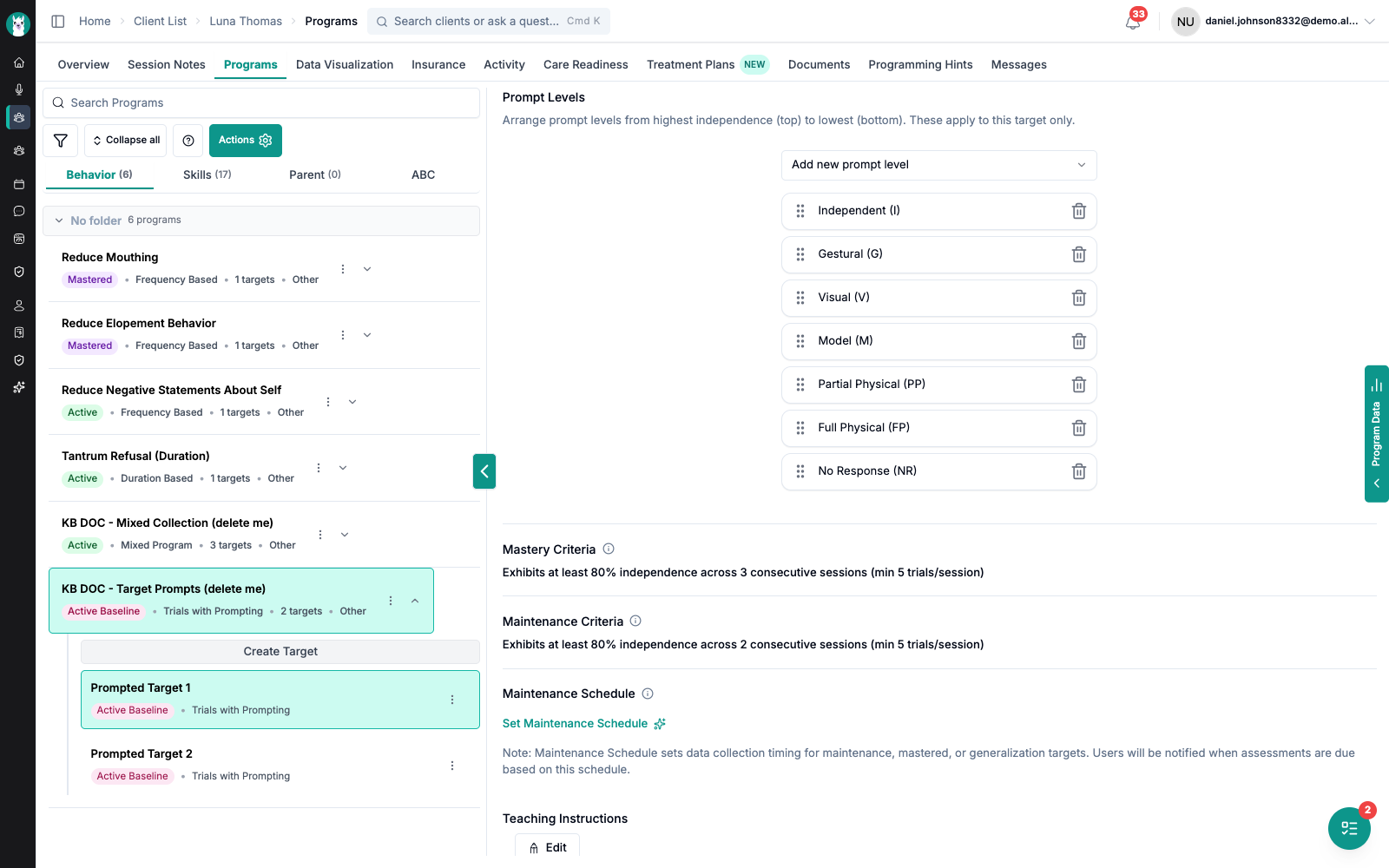
A target you add later inherits the program’s list, not an empty one — so a new target
looks like its siblings until you change it.
Two things worth knowing
Switching back and forth doesn’t lose your work. Turn the setting off and the program
goes back to one shared list; turn it on again and each target’s own list comes back. Turning
it on a second time will not overwrite a list you edited.
Data already recorded is never affected. The prompt level is stored on each trial as it’s
recorded, so removing a level from a hierarchy only changes what an RBT can tap next. It
never rewrites or hides a trial that has already happened.
What the RBT sees
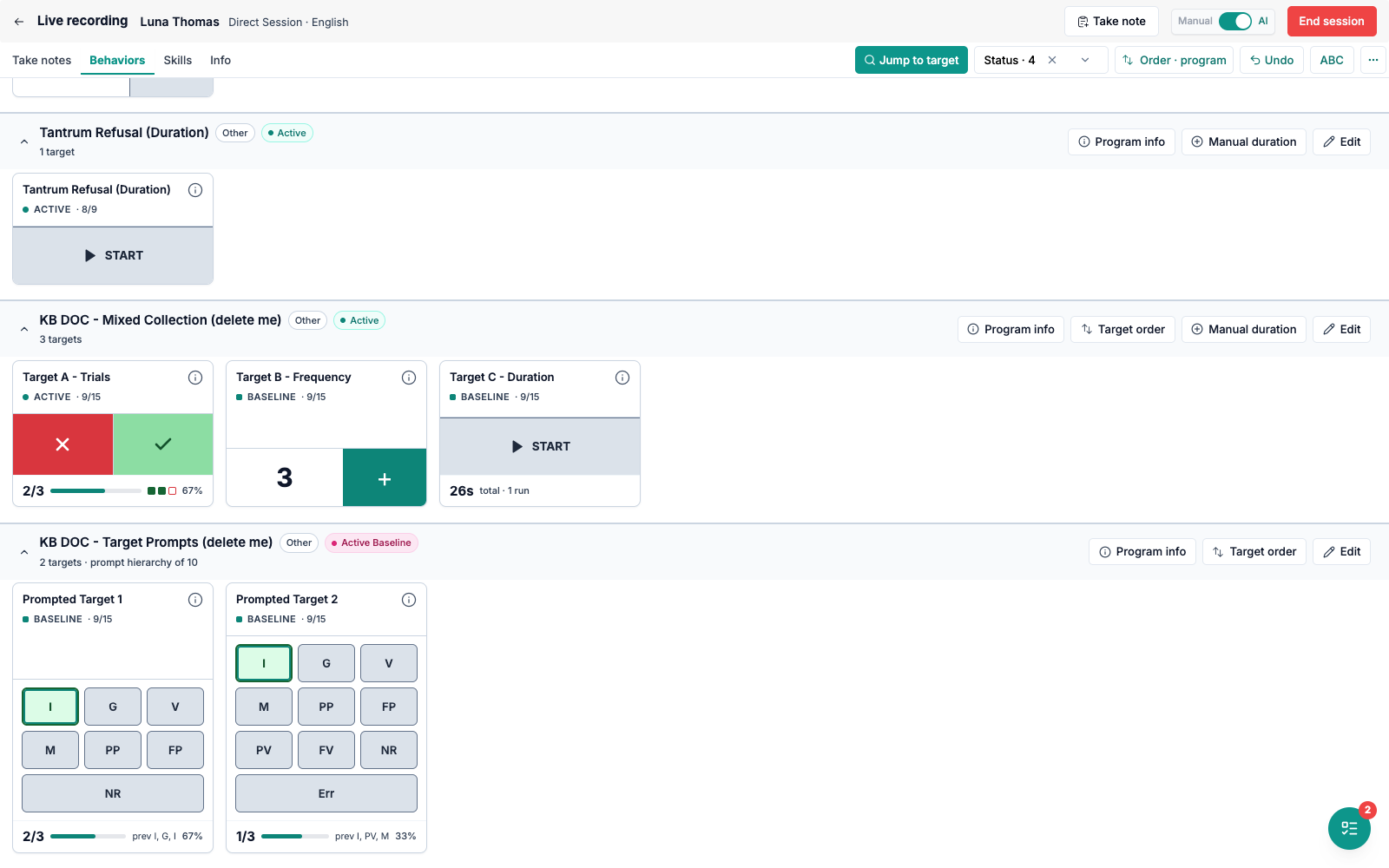
In session, each target’s card offers only that target’s own levels. Below, the first target
shows seven buttons and the second shows ten, in the same program.
What the charts show
A prompted chart shows a line for every level the target actually has data for — including
a level you have since removed from its list. A chart reports what was recorded, so history
never disappears because you changed the configuration.
In a single-target view the legend is that target’s levels only; a level that belongs to a
sibling target doesn’t appear.

Part 2 — Mixed data collection
A mixed program measures its targets in different ways: one target as trials, another as
a frequency count, another as duration. Use it when a skill or behaviour genuinely needs two
kinds of measurement and you’d otherwise have to split it into two programs.
The whole sequence, in order
There are two places you have to press save, and skipping either is the most common
reason people think the feature is broken. Work down this list:
Step | Where | Saves how | |
|---|---|---|---|
1 | Create the program with whichever type most targets will use | Programs → Actions → Create new program | Create Program |
2 | Add your targets | Criteria → Add New Target | Create target |
3 | Convert it: Use a different type per target→ Set per target | Criteria → Program Details | — (nothing saved yet) |
4 | ⚠ Press Save changes | top of the Criteria page | Save changes — without this the program is not mixed |
5 | Give each target that differs its own type | target page → Data Collection Type | saves immediately |
6 | ⚠ Re-save that target’s criteria in its new units | target page → Edit Target | Update target — without this the old units stay |
Steps 4 and 6 are the two that catch people. Both are spelled out below.
Steps 1 and 2 — create the program and its targets (“Mixed” isn’t in the dropdown)
“Mixed” is not an option when you create a program. The Data Collection Type dropdown on
Create New Program lists the real measurement types only — this is expected, not a
missing option.
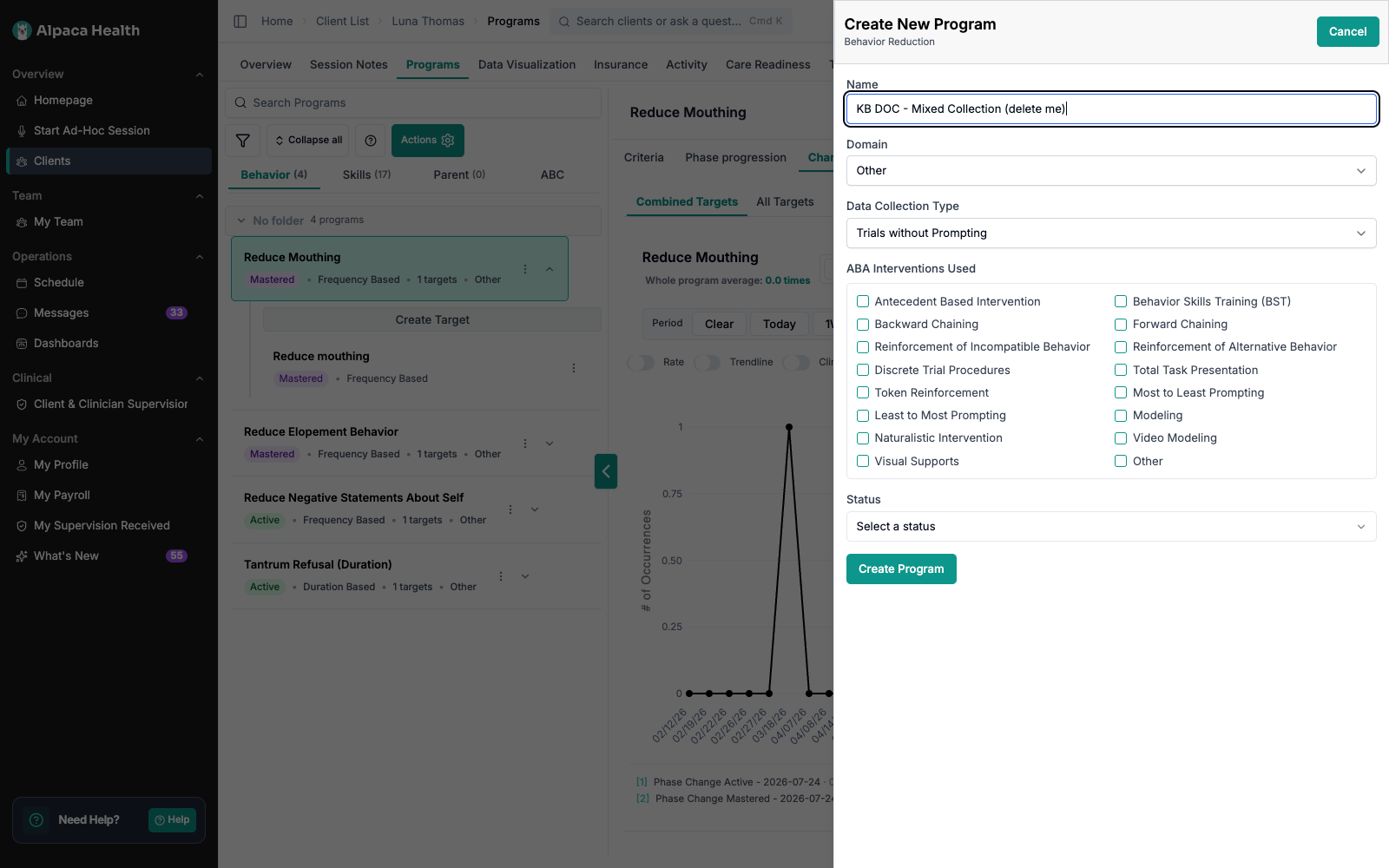
Pick whichever type most of the targets will use, add your targets, and convert afterwards.
Steps 3 and 4 — convert the program, then save it
Client → Programs → your program → Criteria → Program Details
Under Data Collection Type there’s a Use a different type per target link.
Clicking it explains exactly what you’re agreeing to:
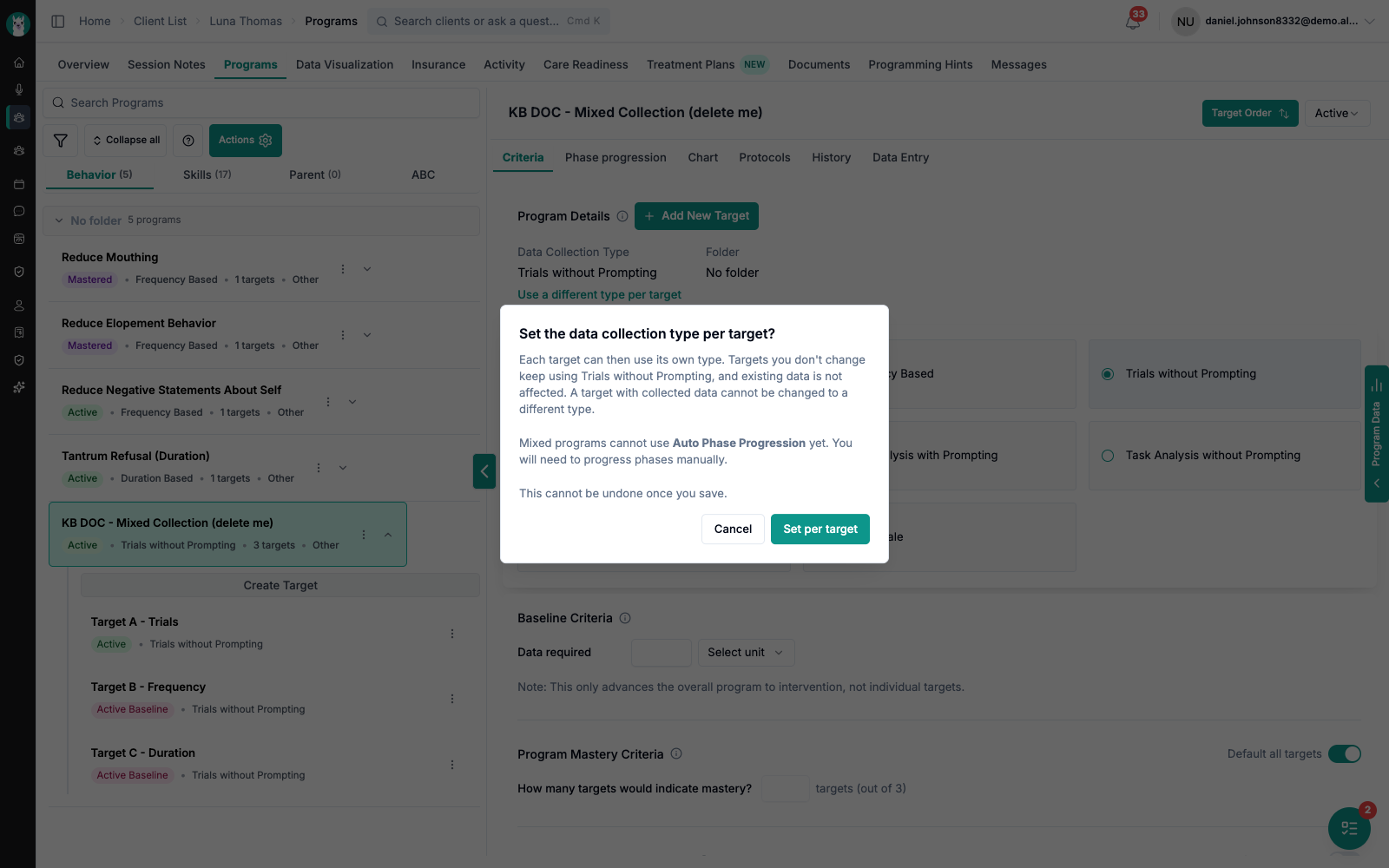
Each target can then use its own type. Targets you don’t change keep using
[the program’s type], and existing data is not affected. A target with collected data
cannot be changed to a different type.
Mixed programs cannot use Auto Phase Progression yet. You will need to progress phases
manually.
This cannot be undone once you save.
Choose Set per target. The page now shows Mixed — but nothing has been saved yet.
A Save changes bar appears at the top of the Criteria page:
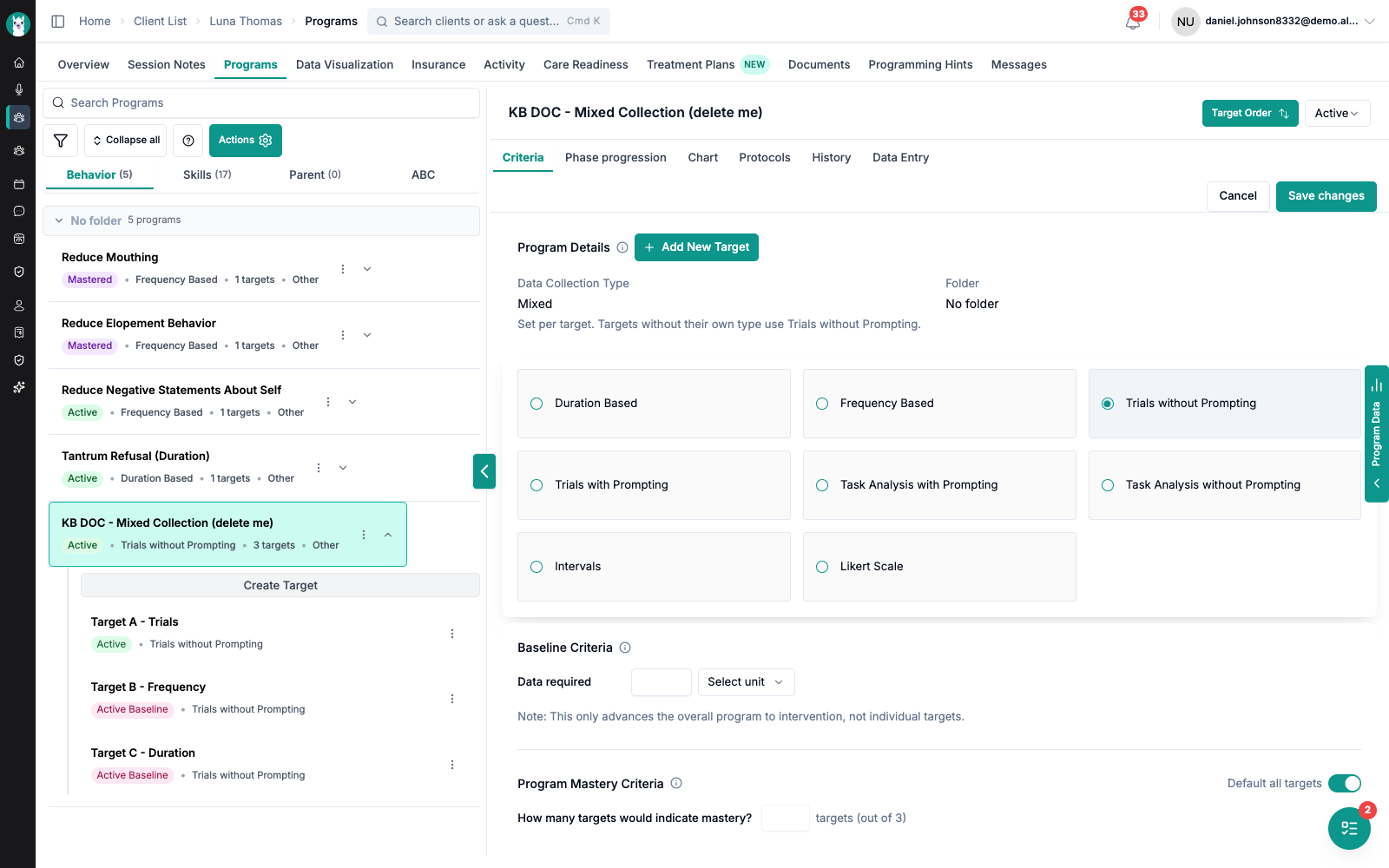
⚠ Press Save changes — this is step 4 and it is not optional
Confirming the dialog only stages the change. If you navigate away, switch programs, or
close the tab without pressing Save changes, the program is still a single-type
program and the per-target type selectors will not appear on its targets.
How to tell it worked: the program card in the left-hand list reads Mixed Program,
and the Data Collection Type on the Criteria tab reads Mixed after a page refresh.
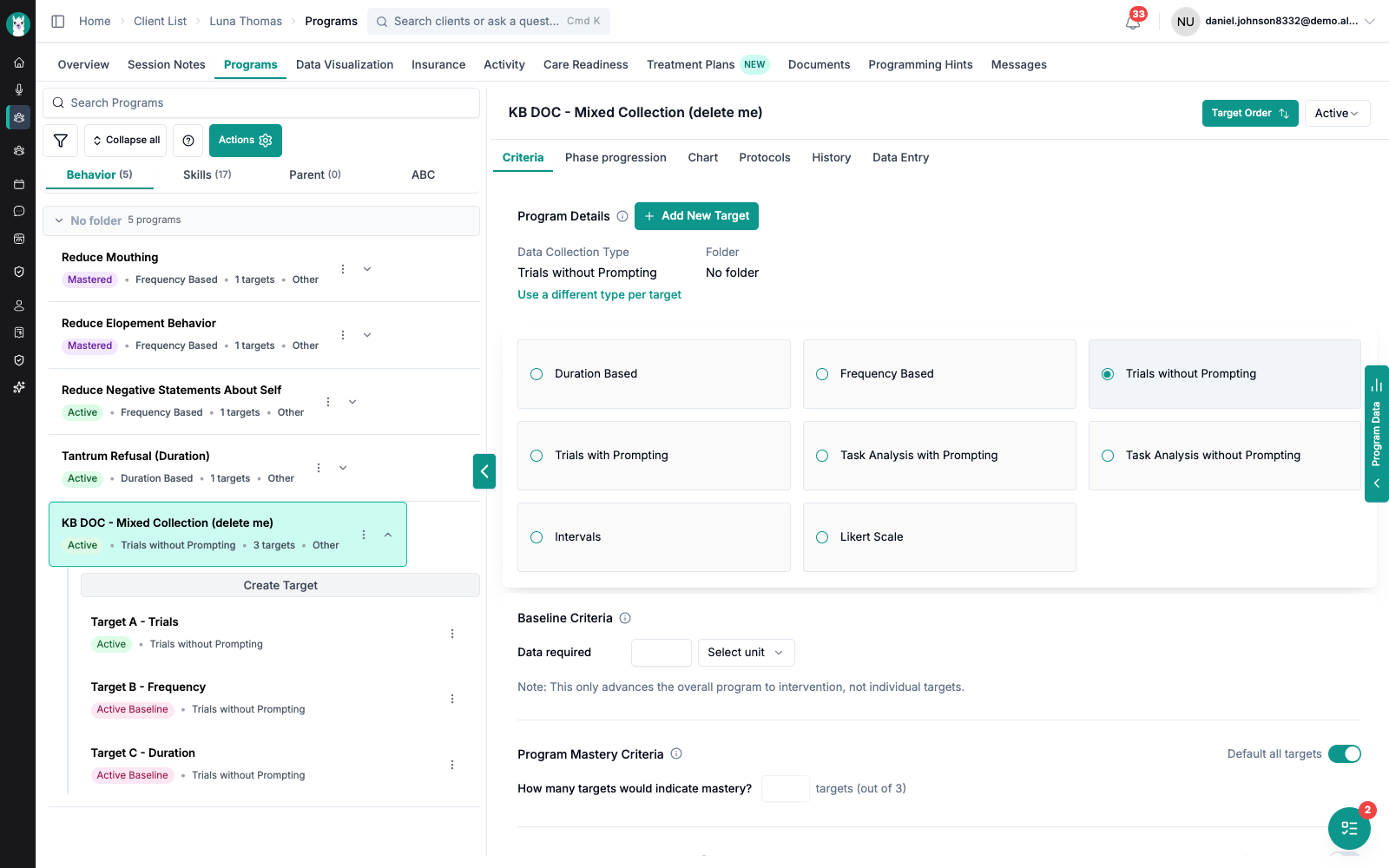
Once saved, the Data Collection Type reads Mixed, with a line telling you what the
un-changed targets still use — “Targets without their own type use Trials without
Prompting” — and the program card in the list reads Mixed Program:

Step 5 — set each target’s type
Client → Programs → your program → click the target → Data Collection Type

Every measurement type is available per target except ABC.
Targets you don’t touch keep using the program’s type. You only set the ones that differ,
which is why converting a program mid-treatment changes nothing on its own.This saves immediately.
Step 6 — re-save that target’s criteria in its new units
Changing a target’s type changes what its mastery and maintenance criteria can say — “80%
accuracy” means nothing for a duration target. Changing the type does not rewrite the
criteria for you.
So straight after step 5, open Edit Target on that same target. The criteria fields have
already switched to the right units for its new type — frequency asks for occurrences per
session, duration asks for minutes:
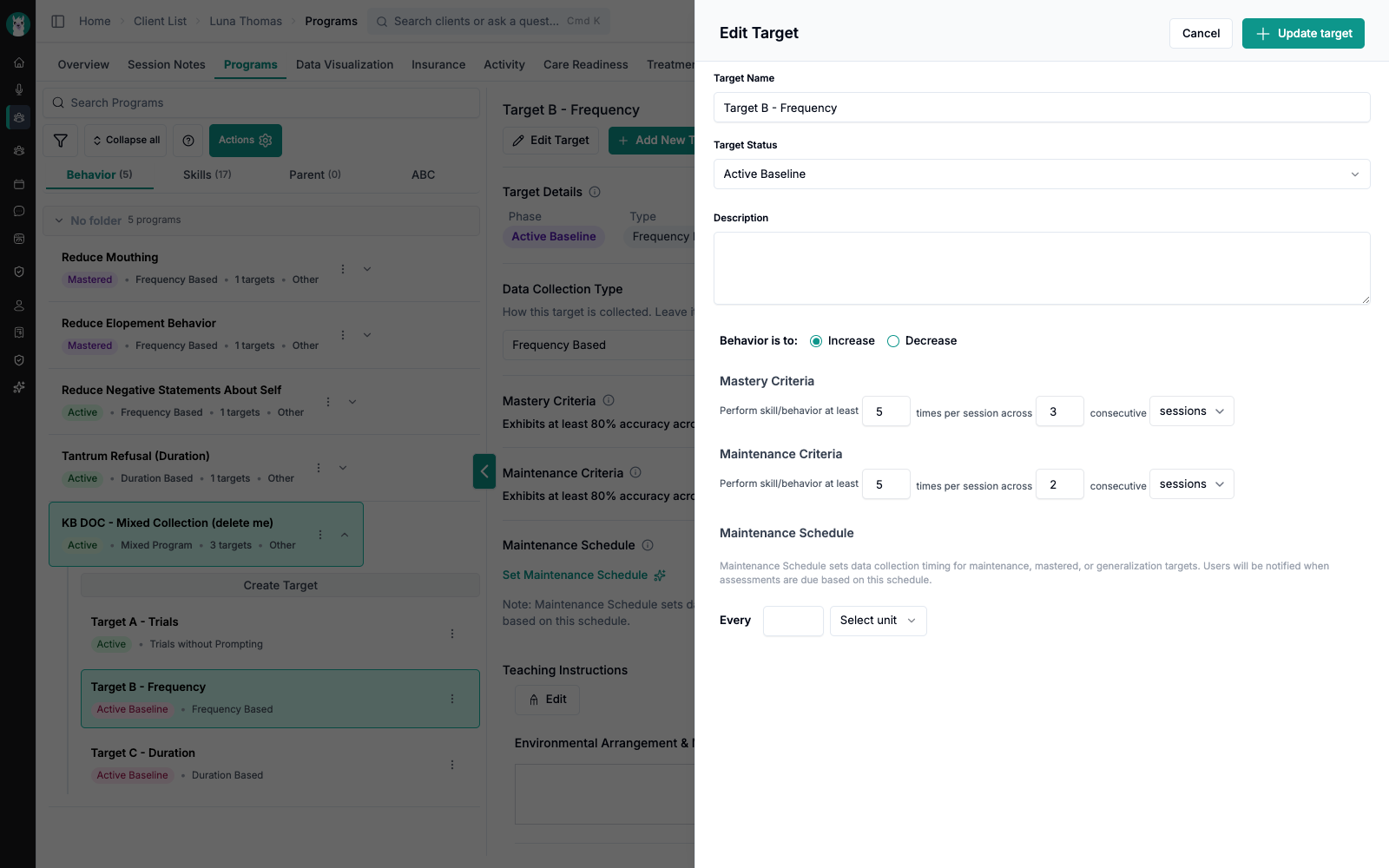
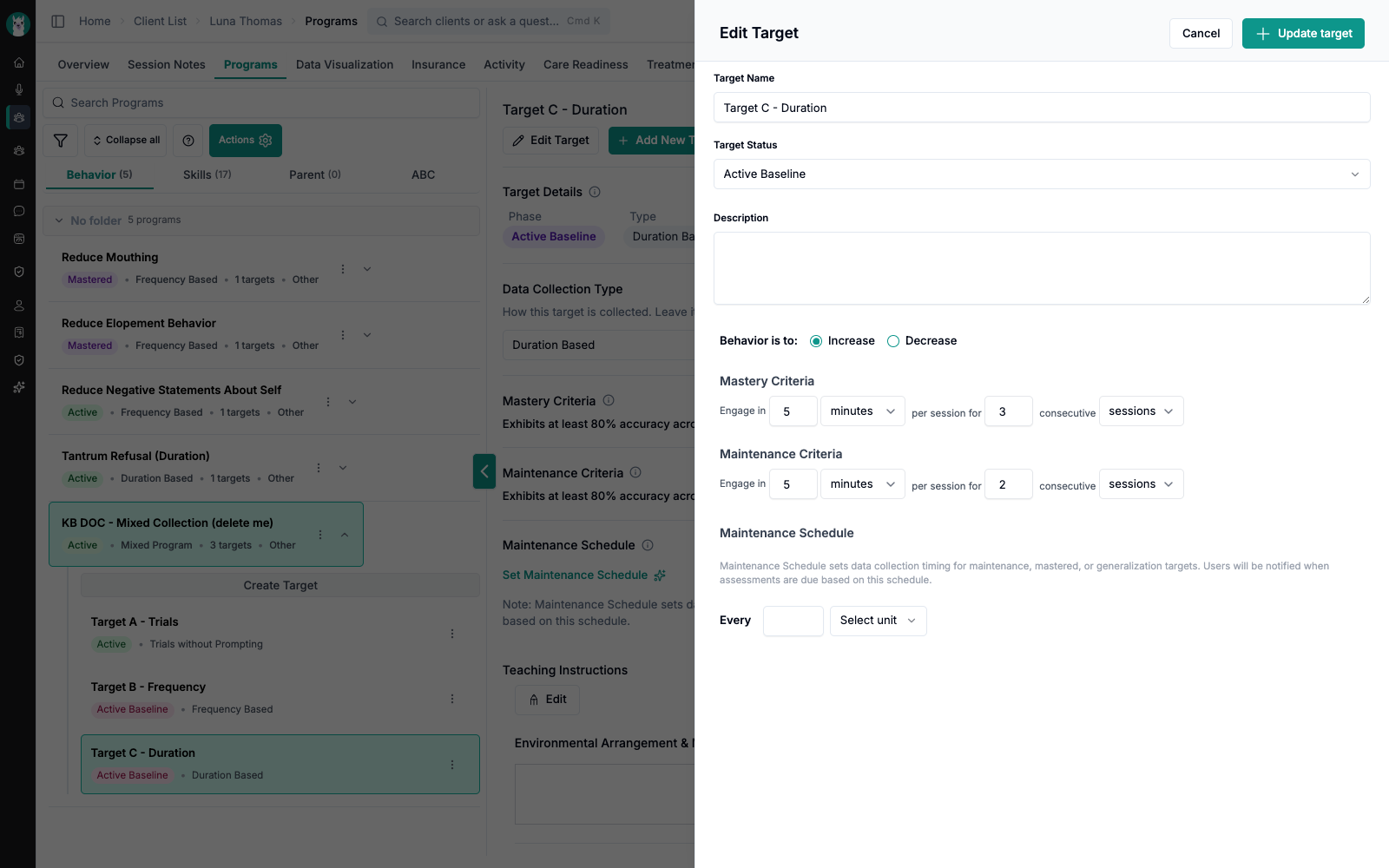
⚠ Press Update target — this is step 6 and it is not optional
Until you do, the target page keeps displaying the criteria from its old type. A
frequency target still reading “Exhibits at least 80% accuracy across 3 consecutive
sessions” has not had its criteria converted, and will not master the way you expect.
How to tell it worked: the Mastery Criteria line on the target page reads in the new
units — e.g. “Performs at least 5x per session across 3 consecutive sessions” for
frequency, or “Engages in at least 5 minutes per session across 3 consecutive sessions”
for duration.

Do this for every target you gave a new type in step 5 — it’s part of converting, not
something to come back to later.
Once data exists, the type is locked
Collect against a target and its type can no longer be changed:
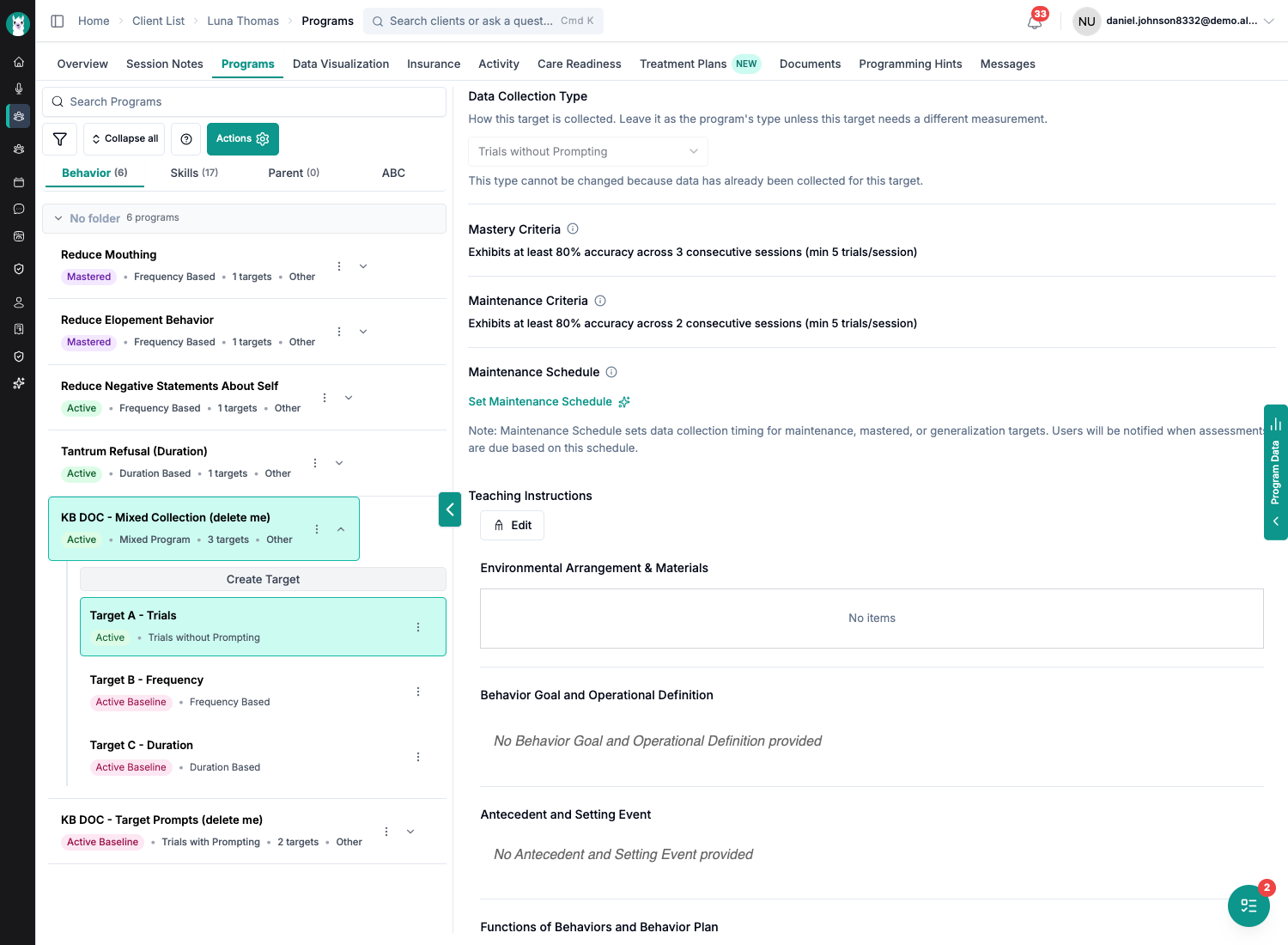
This type cannot be changed because data has already been collected for this target.
This is deliberate — a trial recorded as trials data cannot be honestly re-read as a
duration. It’s per target, not per program, so collecting on one target doesn’t freeze
the others. Set the types you want before the first session on each target.
Collecting in a session
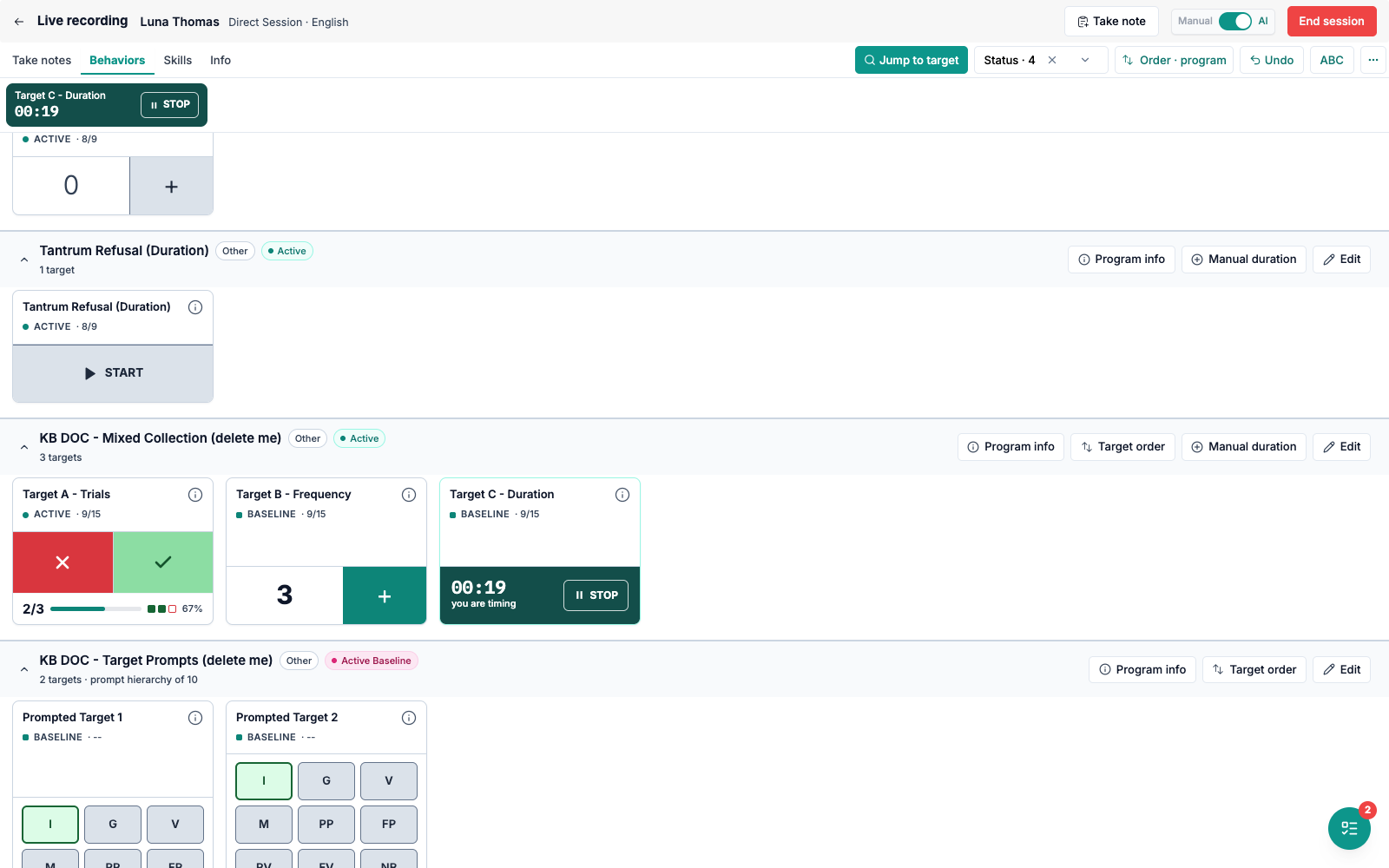
Every target on a mixed program gets the widget its own type calls for. Below, one program
with three: trial buttons, a frequency counter, and a duration timer.

Everything that follows from a measurement type follows the target’s type, not the
program’s:
Duration targets get the running timer in the top bar, and the program gets a
Manual duration button for entering a duration you didn’t time live.Interval targets appear in both the Behaviors and Skills tabs, as timer-based targets
always do.Edit and Add Data open the editor for the target you picked, and record against that
target’s type.
Charts for a mixed program
Client → Programs → your program → Chart
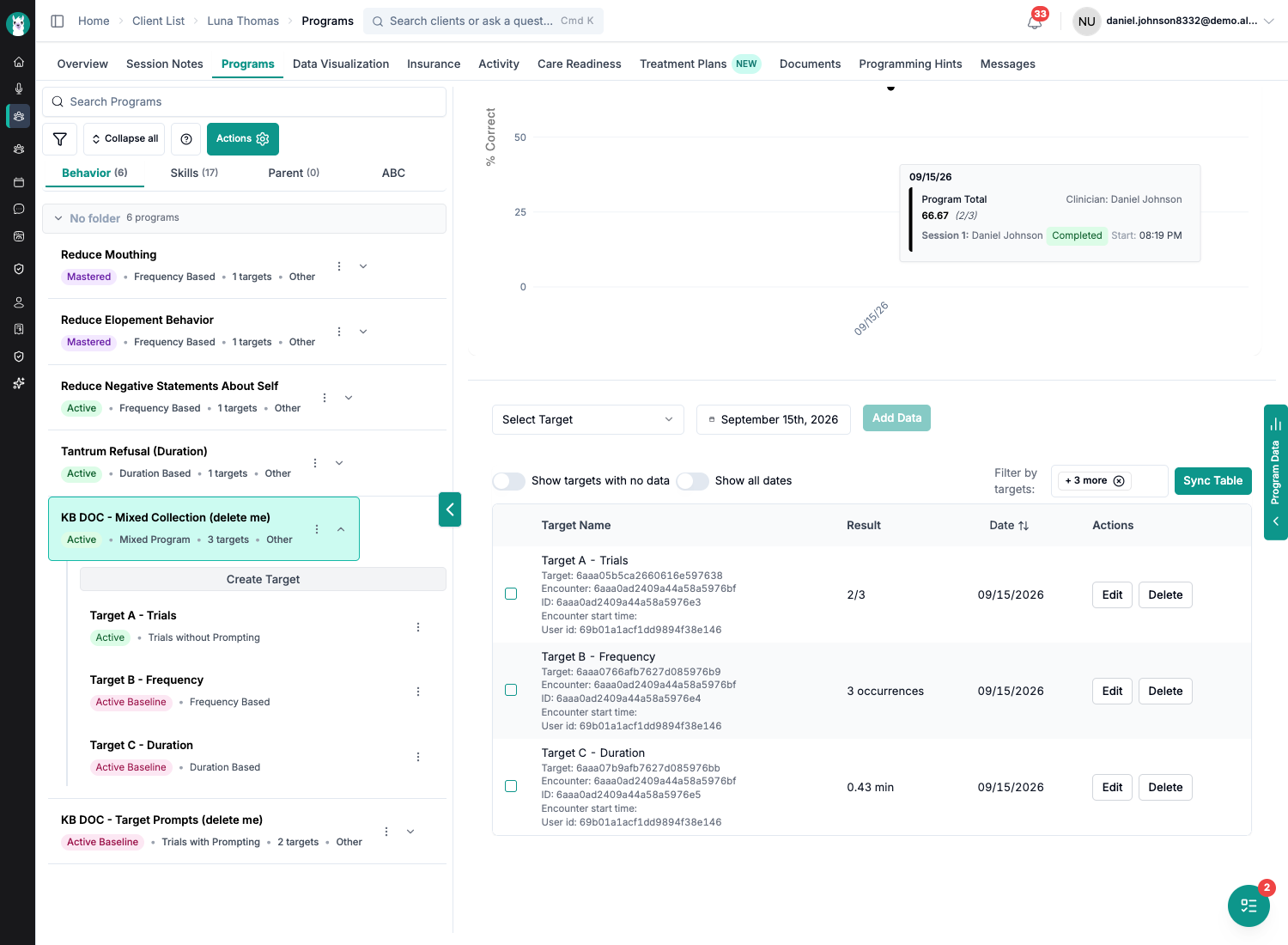
You get one panel per measurement type, stacked, each with its own y-axis, its own
toggles and its own scale — Total Duration in minutes, # of Occurrences, % Correct. Types
that can’t share an axis aren’t forced onto one.

The whole-program average line is deliberately not shown for a mixed program: averaging
minutes, counts and percentages together wouldn’t mean anything. Per-target and per-type
numbers are all still there.
The Data Entry table below the chart shows each row in its own target’s units:
Charts are built after a session is processed, so give it a moment before treating a missing
point as a problem — or press Sync Graph.
Limits to plan around
Converting to mixed is one-way. There is no “make this a single-type program again”. If
you’re experimenting, do it on a program you’re willing to keep or delete.
Auto Phase Progression. A mixed program can carry phase progression for one of its
measurement types — the one its assigned progression can describe. Targets measured
differently get no automatic phase proposals, so progress those phases manually. The
Phase progression tab still lets you assign a progression; just don’t expect it to cover
every target.

If you need automatic progression on two differently-measured targets, use two programs.
ABC is not available as a per-target type. ABC data is collected on its own tab and isn’t
one of the per-target choices.
“Mixed” isn’t offered when creating a program — create, add targets, then convert.
Common questions
Will this change any of my existing programs?
No. Both settings are off on every program until someone turns them on, and turning them on
seeds every target from what the program already had.
I turned on per-target prompt levels and can’t find the editor.
It’s on the target, not the program. Click the target in the program list; Prompt Levels
sits between Target Details and Mastery Criteria. If the section isn’t there, the program’s
Criteria → Prompt Hierarchy toggle isn’t on yet — or you haven’t pressed Save changes
after switching it.
I don’t see “Use a different type per target”.
Two reasons it’s absent. The program is already mixed — in which case the Data Collection
Type reads Mixed instead of a single type. Or the feature isn’t switched on for your
organization yet; contact support
to ask.
I converted the program but nothing changed.
Two possibilities, in this order. First, check you pressed Save changes — confirming the
dialog alone doesn’t save, and the program card should read Mixed Program if it did.
Second, remember conversion alone is meant to change nothing: every target keeps using the
program’s type until you give it one of its own on the target page.
A target’s mastery criteria still show the old units.
You changed its type but didn’t re-save its criteria. Open Edit Target on that target —
the fields are already in the right units — and press Update target. Changing a type never
rewrites criteria on its own.
Can I change a target’s type back?
Yes, as long as nothing has been collected on that target. After the first data point, no.
Will an RBT notice anything different?
Only what you configured: each card shows its own prompt buttons or its own widget. There is
no new step, no new screen and no new setting for them.
Can a parent see or change any of this?
No. Parents and read-only viewers see neither the prompt-level editor nor the per-target type
selector.
I need something this doesn’t do.
Contact support — tell us
what you were trying to measure and how you’d expect it to chart.