Treatment Planning: Generating an FBA and BIP
Last updated: August 25, 2026
Alpaca can draft a Functional Behavior Assessment and a Behavior Intervention Plan from the behavior targets you define, and you edit them from there. This article walks through the Behavior Planning step of the treatment plan: what you have to provide, how generation works, and what ends up in the export.
The generated FBA and BIP are a first draft. You are the clinician — review and edit every section before the plan goes anywhere.
Before you generate
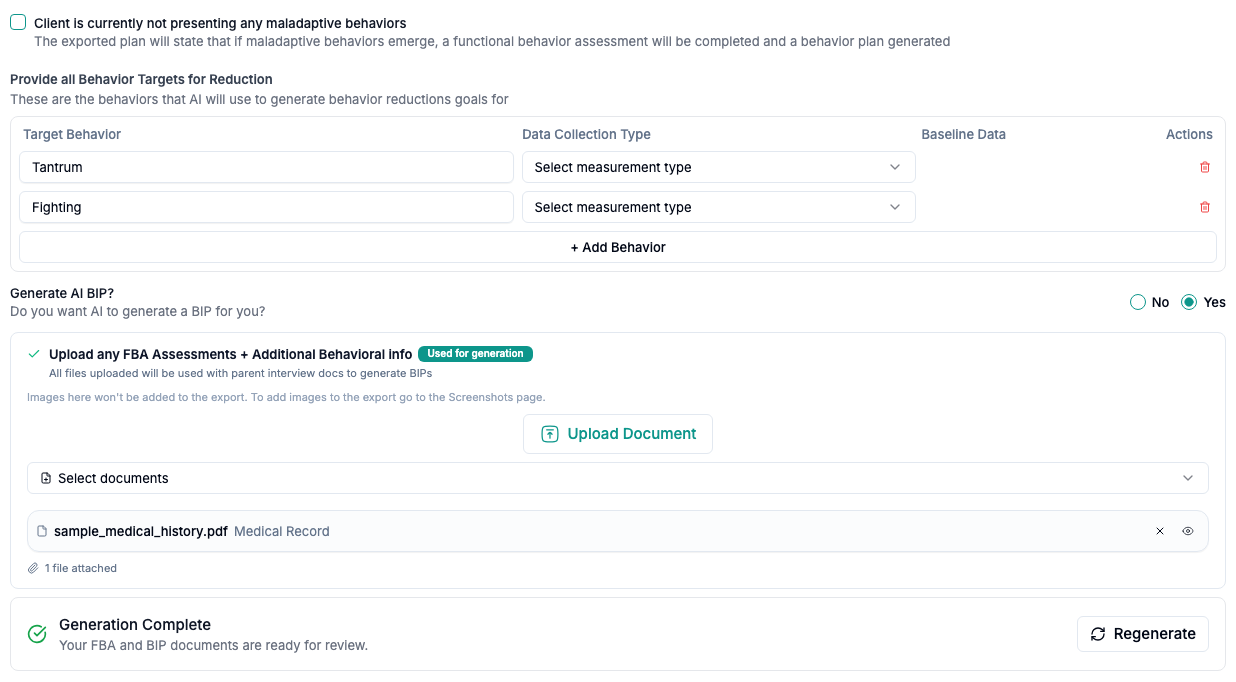
The Behavior Planning step of the treatment plan.
Open the treatment plan and go to Behavior Planning. Two things must be in place:
1. Behavior targets for reduction
Under Provide all Behavior Targets for Reduction, add a row per behavior. For each one:
Target Behavior — the behavior name
Data Collection Type — frequency, duration, partial interval, or Likert scale
Baseline Data — the fields change to match the measurement type: a count per session/day/week/month for frequency, a value plus time unit for duration, a percentage for partial interval, a scale value for Likert
These are the behaviors the AI will write behavior-reduction goals for. Generation is blocked until every row has a name — Alpaca will tell you if one is blank.
2. The Generate AI BIP toggle
Set Generate AI BIP? to Yes. The upload and generation controls only appear once you do.
Giving the AI more to work with
Under Upload any FBA Assessments + Additional Behavioral info you can attach existing documents. Everything uploaded here is used alongside parent interview documents to generate the BIP.
This is also where a score report belongs if you want an AI-generated assessment write-up later in the plan. Without one you can still write your own write-up and upload the relevant image on the next page.
Generating

The generation status card, here showing a completed generation.
Click Generate FBA & BIP.
The status card moves to Generating FBA and BIP. This takes a few minutes; the page refreshes itself while it works, so you do not need to reload.
When it finishes the card shows Generation Complete and the documents appear below for editing.
If it fails you will see Generation Failed with a Try Again button. If it fails repeatedly, contact support rather than retrying indefinitely.
Once complete, the button becomes Regenerate. Regenerating replaces the generated content — if you have already made edits you want to keep, copy them out first.
What is in the generated FBA
One FBA entry per behavior, with these fields, all editable:
Behavior Name
Description
Primary Function
Environmental Factors
Most Likely Settings
Family Perspective
Next Steps
What is in the generated BIP
Behavior Name
Summary
Antecedent Modifications
Preventative Strategies
Consequence Strategies
Replacement Behaviors
Generalization Across Settings
Risk Considerations
Progress Monitoring
You can also add an FBA or BIP by hand with Create New FBA / Create New BIP, and delete any you do not want.
Assessment methods used in the FBA
Above the editors, tick every method you actually used:
Direct observation
Clinical interview
Direct assessment
These appear as a sentence at the top of the exported FBA section, so tick them honestly — this is a claim about how the assessment was conducted.
Controlling what is exported
Two switches decide whether optional BIP sections reach the exported plan:
Include Least Restrictive Environment Considerations in the export
Include Risk Considerations in the export
They default to on when the generated BIP has content in that section and off when it does not, so an empty heading never reaches the export. Override either one at any time.
Clients with no maladaptive behaviors
If the client is not currently presenting maladaptive behaviors, tick Client is currently not presenting any maladaptive behaviors at the top of the section.
This greys out the whole behavior-planning surface without deleting anything — an accidental tick cannot wipe your work, and unticking restores full editing. The exported plan omits the FBA/BIP and instead states that if maladaptive behaviors emerge, a functional behavior assessment will be completed and a behavior plan generated.
Related articles
Still stuck? Email support@alpacahealth.io and we will take a look.