Show or hide cancelled sessions on the Schedule
Last updated: September 10, 2026
Cancelled sessions stay on the schedule rather than disappearing, so the day still shows
what was planned and what happened to it. Two settings control how much of that you see:
one for cancellations in general, and a narrower one for the cancellations that are really
just schedule housekeeping.
Find the controls
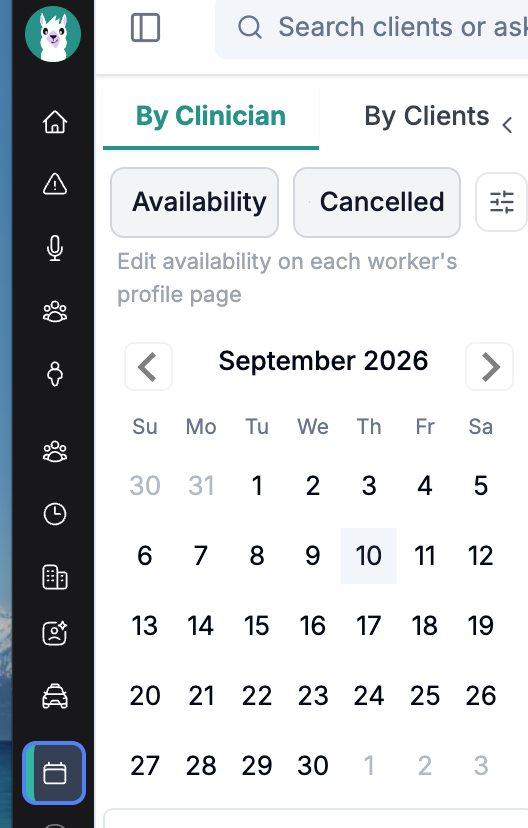
Open Schedule. In the left sidebar, just under the By Clinician / By Clients tabs,
there is a Cancelled toggle beside Availability, and a small sliders button
next to it.
Cancelled — show or hide cancelled sessions.
Sliders — the cancelled-session options. This button is unavailable while
Cancelled is off, because nothing inside it can have an effect.
A cancelled session that is shown appears greyed out with its title struck through.
Hide cancelled sessions
Select Cancelled to switch it off. Cancelled sessions disappear from the calendar; the
sessions that are still going ahead are unaffected.
Select it again to bring them back.
Show scheduling changes (“admin cancels”)
Not every cancellation is a lost session. When someone books an appointment twice, or
fixes a booking that was wrong from the start, they cancel it coded Clinic or admin →
Scheduling error / duplicate appointment. For staff who cannot delete appointments, this
is the delete — so a clinic that reshuffles its week can produce a lot of them.
Because they are schedule housekeeping rather than sessions anyone lost, Alpaca hides
these separately, and hides them by default.
Make sure Cancelled is on.
Select the sliders button.
Tick Include scheduling changes — sessions cancelled as a scheduling error or
duplicate.
This is a second, narrower filter rather than a replacement: a scheduling-error
cancellation appears only when both settings are on.
Cancelled | Include scheduling changes | What you see |
|---|---|---|
Off | (unavailable) | No cancellations at all |
On | Off | Cancellations, except scheduling errors and duplicates — the default |
On | On | Every cancellation, including scheduling errors and duplicates |
Note that this second option covers only the Scheduling error / duplicate
appointment reason. Other Clinic or admin cancellations — clinic closure, authorization
expired, insurance lapsed, intake incomplete, transfer or discharge — are ordinary
cancellations and follow the Cancelled toggle alone.
Where your choice applies
Both settings are saved to your account, not to the browser, so they follow you between
devices and they are yours alone — changing them does not affect a colleague’s calendar.
The Cancelled setting is shared across every schedule surface: the calendar, the
schedule Table view, your homepage, a client’s Schedule tab, and the parent calendar.
Set it once and it is honoured everywhere. Only the starting point differs if you have
never touched it: cancelled sessions are shown by default on the Schedule page, where a
cancellation is part of what happened that day, and hidden by default on the lighter
surfaces, where it is noise against the day’s plan.
Include scheduling changes applies to the Schedule page’s calendar and Table view.
Scheduling errors and duplicates are never listed on the homepage or on a client’s
Schedule tab.
Table view
The Table view has the same Cancelled toggle in its sidebar, and it respects the
scheduling-changes option — though the options popover itself lives on the calendar, so
set Include scheduling changes there and the table picks it up.
The table’s own Status filter takes precedence over the toggle. Pick Cancelled to
list only cancelled sessions, or Scheduled to list only those still going ahead; leave
Status unset and the table falls back to your Cancelled preference. Because the filter
runs on the server, the row count, the pages and what a bulk action would act on all agree
with what you are looking at.
Parent calendar
Families have their own Show cancelled sessions checkbox above their calendar. It uses
the same saved preference, and cancelled sessions are hidden there unless the family turns
them on.
Restoring a cancelled session
Once cancelled sessions are visible you can put one back:
Calendar — open the session and use the cancellation dialog to uncancel it.
Table view — tick one or more cancelled rows and select Uncancel sessions.
Restoring a session requires permission to approve cancellation requests. If you do not
have it, ask an organization administrator.
Troubleshooting
A session vanished from the calendar. Check whether it was cancelled: switch
Cancelled on, and if it is still missing, tick Include scheduling changes — it
may have been cancelled as a duplicate.The sliders button does nothing. It is disabled while Cancelled is off. Turn
cancelled sessions on first.“Could not save your cancelled-session preference.” The change did not stick.
Try the toggle again; if it keeps failing, reload the page.