Messaging your child's care team (Currently in Private Beta)
Last updated: September 14, 2026
Your parent portal has a Messages section where you can talk to the people who work with your children. Everything is in one place, and every message stays there so you can look back at it whenever you need to.
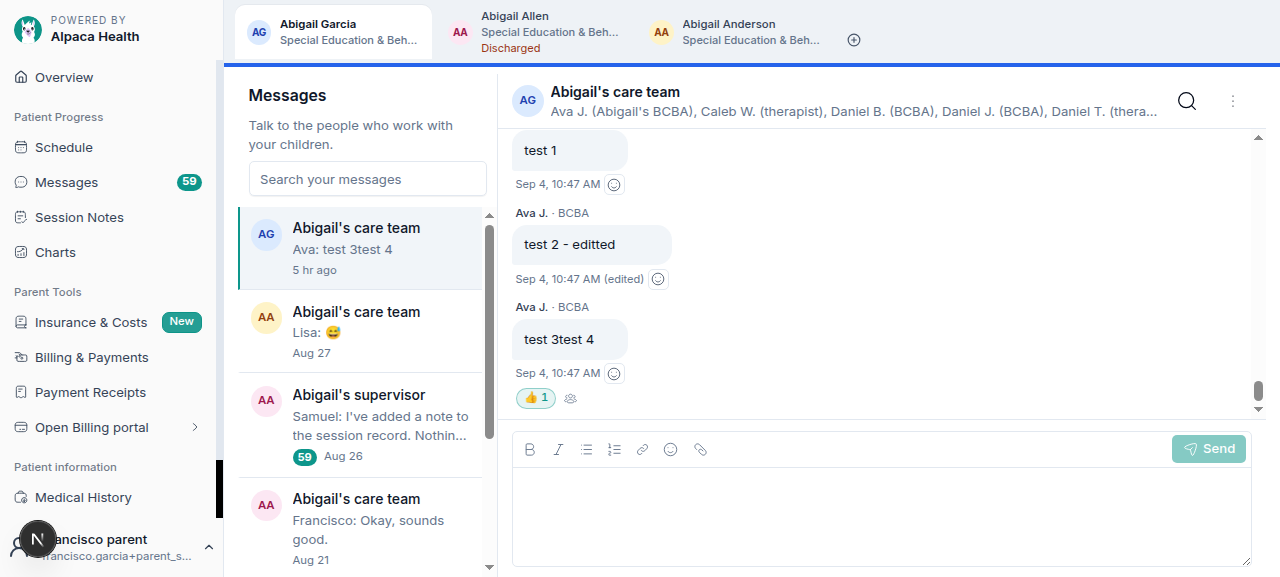
Where your messages live
Open Messages from the menu on the left.
The Messages inbox in the parent portal
Each row is one conversation. If you have more than one child, you'll see conversations for each of them, and the chips along the top let you switch between children — or see them all together.
You may have two conversations for a child:
Care team — the people who work with your child day to day.
Supervisor — your child's supervising clinician.
Both are yours to use. Pick whichever fits what you want to ask.
Search your messages at the top searches everything, across all of your children — so you don't have to remember which conversation something was in.
Reading and replying
Open a conversation to read it. Type in the box at the bottom and press Send.
A conversation with the care team
Above the conversation you'll see who's in it — your child's team, by name and role. That list keeps itself up to date as your child's team changes, so if someone new appears, it's because they're now working with your child.
Attachments. Use the paperclip to send a photo or a document — a form, a letter from school, a photo of a rash. Attachments stay in the portal and are never sent out by text or email.
Changed your mind? You can edit or unsend your own message shortly after sending it, in case of a typo.
Your team can see when you've read a message, which is how they know it landed.
Reacting with an emoji
Sometimes you don't need to write back — you just want the team to know you've seen it. Tap the small smiley next to the time under a message and pick an emoji.
👍 | ❤ | ✅ | 👀 | 🎉 | 😂 |
🙏 | 👏 | 🔥 | 💯 | 😮 | 😢 |
Your reaction appears as a small chip under the message. Tap the same chip again to remove it. A 👍 on "running ten minutes late" saves everyone a message.
Tap the people icon beside the chips to see who else reacted.
The Reactions panel
Reactions don't notify anyone. If you need an answer, send a message — that's what reaches your team.
Messages you didn't have to ask for
Some things appear in your conversation automatically — a copy of an email the clinic sent you, or a note that an appointment moved. These look different from a person's message and are marked as automated.
They're there so that everything the clinic has told you is in one place, next to everything you've said to each other. You can't reply to one directly — just write a normal message if you have a question about it.
You may also receive your child's weekly schedule as a message, listing each appointment with its time and where it takes place — the full address for a clinic visit, or "Home visit".
How we let you know a message has arrived
When your care team sends you a message, we let you know by email and, if the clinic has your mobile number, by text.
What the text says
Your clinic: you have a new message about Sam. Read it in your parent portal: https://… Reply STOP to stop texts
What we never put in a text or an email
We never include the message itself. A notification tells you that there's a message and which child it's about — never what it says.
We may include | We never include |
|---|---|
Your clinic's name | The message text |
Your child's first name | Whether there's an attachment |
Who sent it | Your child's surname, date of birth, or any ID |
A link to your portal | Any clinical detail |
This is deliberate. Texts and emails can be read on a lock screen or forwarded by accident, so anything about your child's care stays behind your portal login. The link in the text is not a shortcut past that — it opens your portal and asks you to sign in as usual.
How often
We won't text you again about the same conversation for at least 15 minutes, so a back-and-forth doesn't turn into a stream of alerts. If you're already reading the conversation, you may not get a notification at all.
Replying to the text won't reach your team
Please reply in the portal, not by text. The number we send from can't receive messages, and nobody at your clinic will see a text you send back to it.
If you do text back, you'll get one automatic reply pointing you to the portal:
This number can't receive messages. Please reply in your Alpaca parent portal so your care team sees it: https://…
We only send that once every few hours, so you won't get a reply to every text.
Stopping the texts
Text STOP to the number at any time. We accept any of:
STOP · STOPALL · UNSUBSCRIBE · CANCEL · END · QUIT
To start them again, text START, UNSTOP or YES.
Two things worth knowing:
Stopping texts does not stop emails. STOP is about texts. You'll still get an email when a message arrives, and you'll still see everything in your portal.
Stopping texts does not stop messages. Your care team can still write to you, and their messages are still waiting in your portal — you just won't get a text about them.
If you'd rather not receive emails either, ask your clinic — they can change how you're contacted.
If a text or email doesn't arrive
Your messages are always in the portal, whether or not a notification reached you. So the first thing to do is open Messages and look.
Then check with your clinic that:
they have your current mobile number and email address;
your number hasn't been opted out (text START to turn texts back on);
the email isn't in your spam or promotions folder.
Notifications are a convenience. The portal is where your messages actually live.
Common questions
Can other families see my messages? No. A conversation is only visible to you and the staff working with your child.
I have two children — will I know which message is which? Yes. Each conversation belongs to one child, and the notification names the child it's about.
Someone new appeared in the conversation. Why? The people listed are whoever is currently working with your child. It updates by itself as your child's team changes.
A conversation says I can't reply. What happened? The clinic has closed that conversation. You can still read everything in it — nothing is deleted. If you need to reach the team, use another conversation or contact the clinic directly.
Is this the right place for something urgent? No. Messages are for day-to-day, non-urgent contact. For anything urgent, phone your clinic. For an emergency, call your local emergency number.
Can I get my messages by email instead of signing in? No — and that's on purpose. Keeping your child's information behind a login is what stops it appearing on a lock screen or in a forwarded email.