Setting Up and Managing Service Locations
Last updated: July 27, 2026
Overview
Service locations help your practice run smoothly by giving you a clear, consistent record of where care is delivered. When each client has accurate service locations on file, scheduling becomes easier and faster because the system knows exactly where appointments should take place. It also streamlines documentation: a default place of service is automatically applied to session notes, reducing errors and saving time for clinicians. In short, setting up service locations correctly improves accuracy, supports compliance, and keeps day-to-day operations moving without friction.
Tutorial
Service locations are always managed on the Overview tab of a client profile. Scroll down until you see service locations. Click the edit arrow.
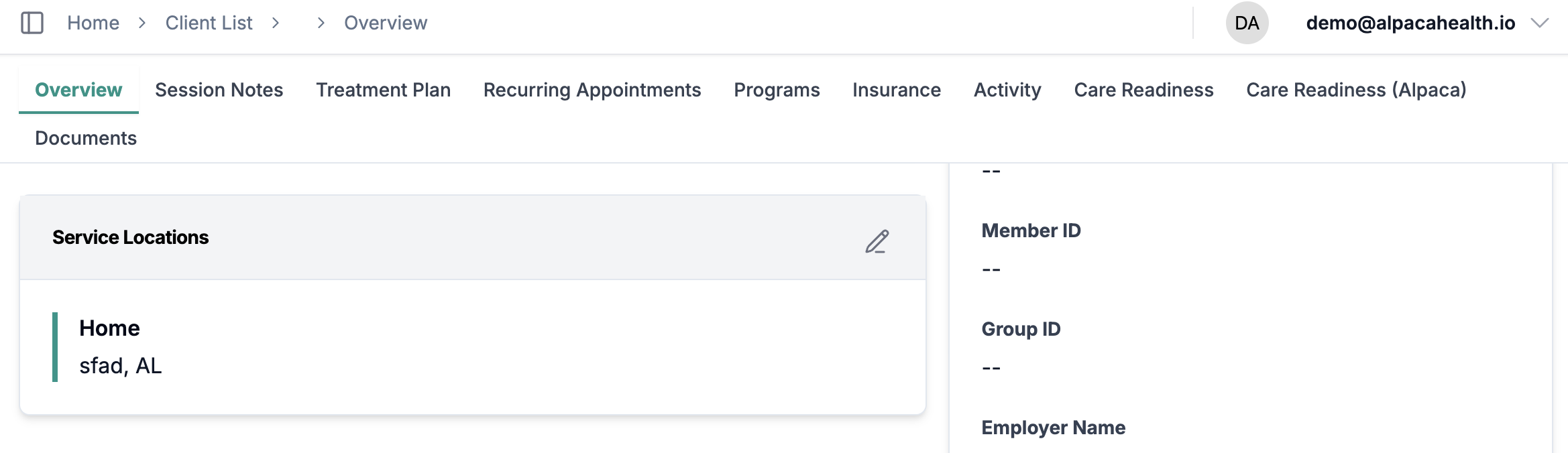
There are two options for adding a service location to a client.
You can find an existing service location through the dropdown. For instance, if you have a clinic, you've likely added this location for other clients, so you can select it here instead of creating a new one. Another example: if you have two clients that go to the same daycare, you can search for the existing daycare location.
If you are adding a totally new location, you can click Add New Location.
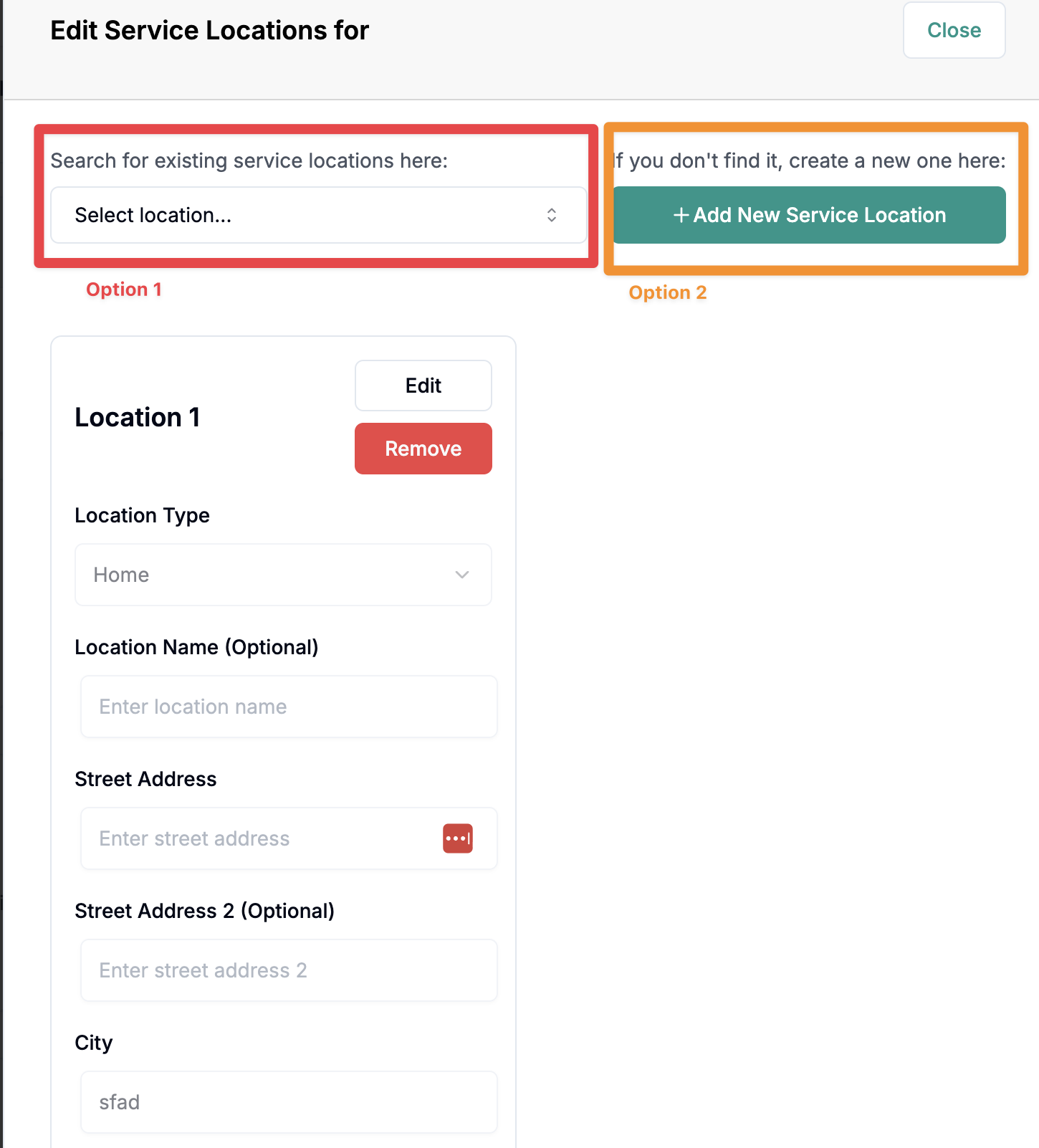
Editing a service location is just as easy - just click the edit button.
Note: If the service location is used by other clients, editing the service location for this client will edit it for all clients.
Example: If a daycare connected to 4 clients was 1234 Daycare Avenue, but the address has a typo and it should be 12345 Daycare Avenue, then you editing the address on one of the clients will change it for all 4 clients connected to the daycare.