6.10 Treatment Plan Checker
Last updated: August 19, 2026
The Treatment Plan Checker audits every treatment plan against the rules for that client's payer before it goes out for authorization. The rules come from real payer feedback on plans that were pended or denied, so the Checker catches those problems while you can still fix them.
It runs automatically when a plan is uploaded or generated, and again on Re-run check. It reads the plan against the client's primary payer and the authorization type, so a rule that only applies to further-treatment requests will not fire on an initial one.
For the upload, signature, and submission flow around it, see "Submitting a Treatment Plan: Upload, Review, Sign & Send to Care Readiness."
Reading the findings
Click the Audited badge on a plan card to open the Treatment Plan Reviewer panel. It names the payer it checked against, then groups findings by how much they matter.
Section | What it means | Fix label | Blocks submission |
|---|---|---|---|
Required fixes | Very likely to cause a pend or denial | To resolve | Yes |
Warnings | Payer requirements that improve first-pass approval; use clinical judgment | Recommended | No |
Suggestions | Lower-confidence quality notes; not every payer has them | Consider | No |
Passed | Rules the plan already meets (collapsed by default) | none | No |
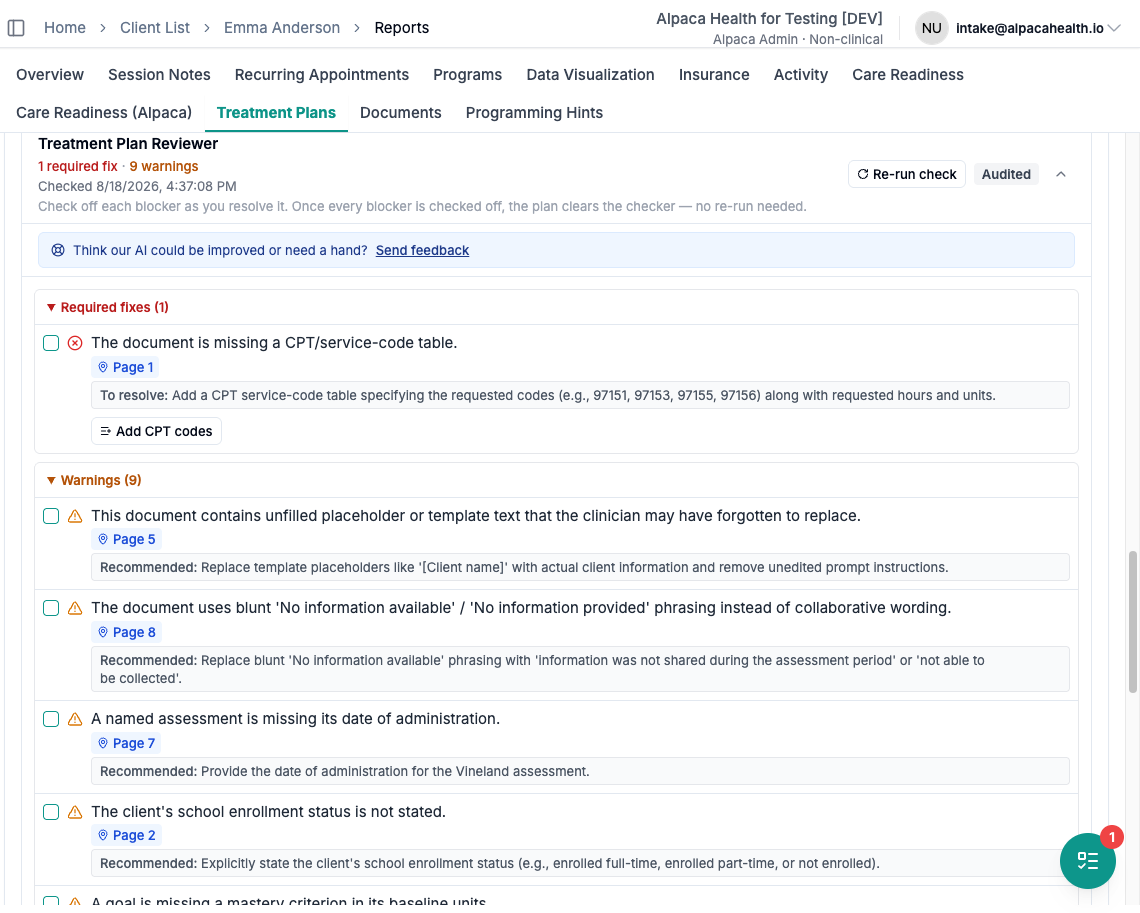
Each finding states the problem, gives the fix on the labelled line beneath it, and where possible links to the page of the PDF it came from.
Warnings need your judgment. They are real payer requirements, but only you can tell whether one applies to this client. A warning you have considered and ruled out is done: check it off.
Clearing findings
Check off a finding when you have fixed it, or confirmed it does not apply. It moves to the Resolved group; un-checking returns it. Check-offs save to the client's record and survive a re-run.
When every required fix is checked off, the plan clears the Checker — no re-run needed.
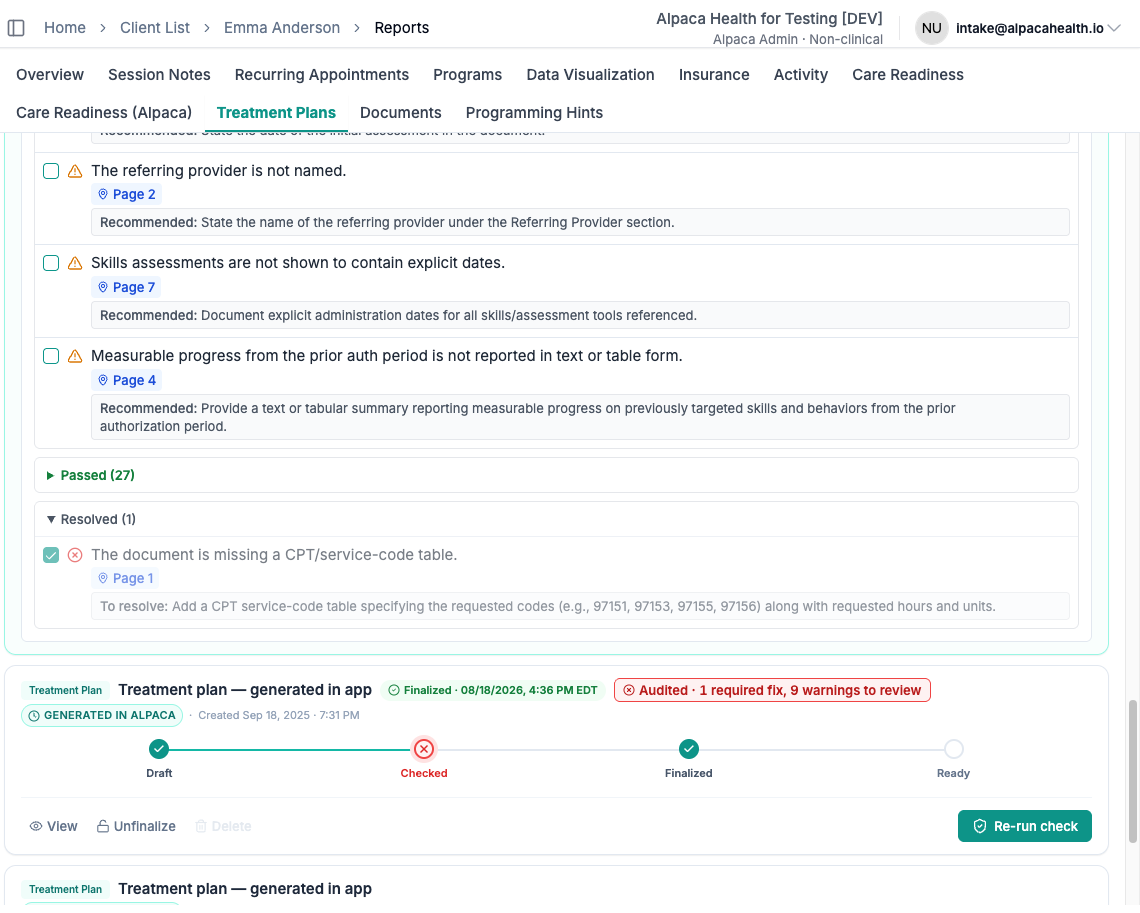
⚠ Check off a required fix only when the document you will actually submit is fixed. Dismissing clears Alpaca's gate, not the payer's review.
Then save your edited plan as a PDF and use Replace on the plan card to upload it.
Why two clients get different findings
Payers do not share one rule set. Each starts from a shared default set, then adds its own rules, overrides a default with stricter wording, or excludes one that does not apply. Health First Colorado, for example, excludes the ASD severity-level rule because Colorado relaxes that requirement.
So a finding you see on one client may be correctly absent on another.
If a rule looks wrong
Use Send feedback in the panel, or email Support@Alpacahealth.io — whether a rule is firing for a payer it should not apply to, missing for one that requires it, or misreading the document. Rule changes apply to everyone on that payer, so one report helps every clinician working with them.