6.2 Create clinical programs & goals
Last updated: July 23, 2026
Clinical Programming Walkthrough for BCBAs - Watch Video
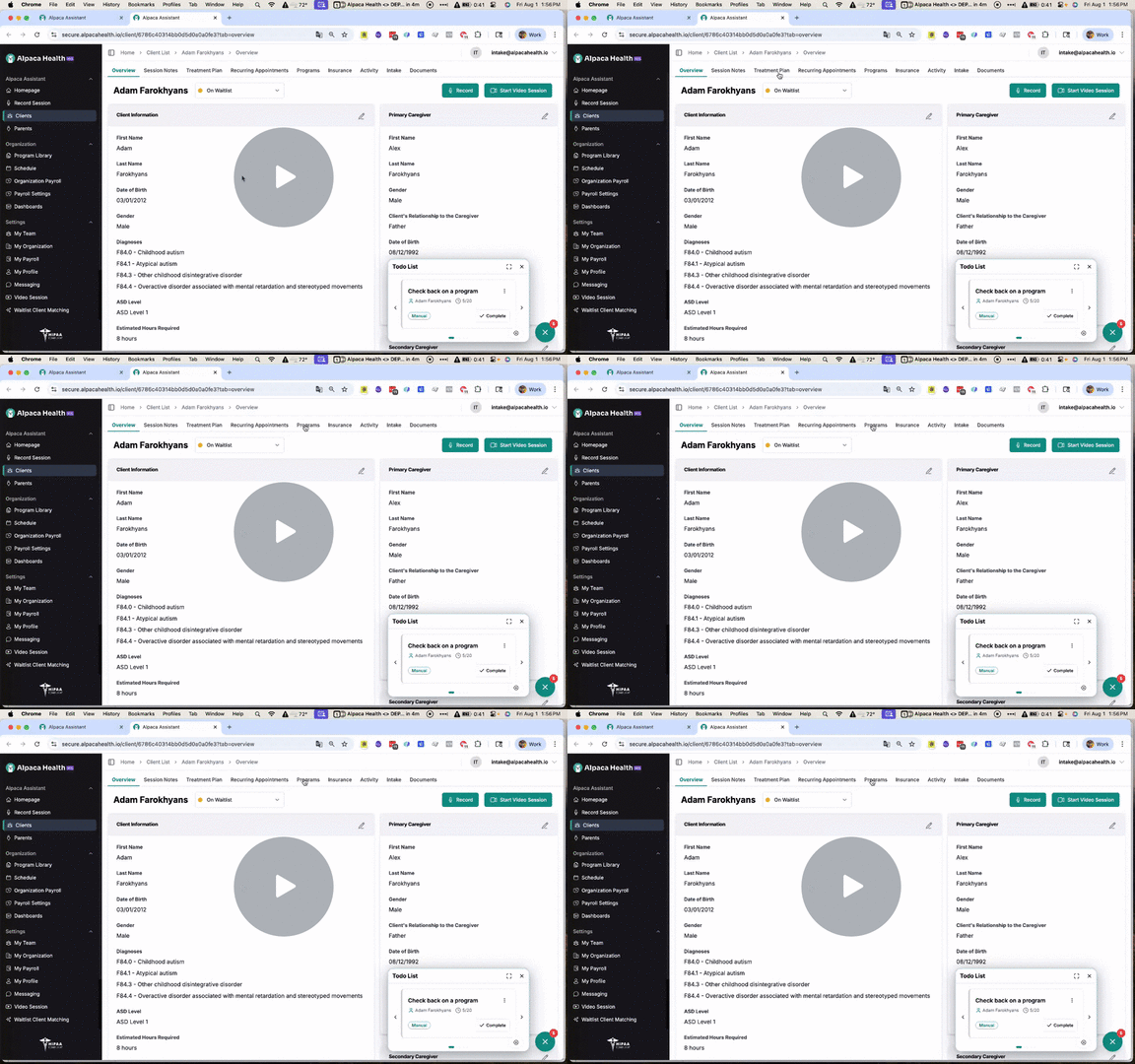
Overview
Alpaca provides a modern clinical programming workspace where BCBAs can manage behavior reduction, skill acquisition, and parent goals in one place — instantly reviewing ABC data from technicians, creating new targets with configurable data collection types and mastery criteria, and templating reusable programs with curriculum libraries. Real-time graphing allows phase changes, trend lines, event markers, and even raw data edits, while an automated reassessment generator and AI-powered treatment plan assistant pull program history directly into funder-ready report drafts. Alpaca’s AI also serves as a smart clinical co-pilot, surfacing automated to-do items (like suggesting targets to move to maintenance) and executing changes with one click — giving clinicians both precision and leverage without sacrificing oversight.
Steps
1. Accessing the Programs Tab 0:01
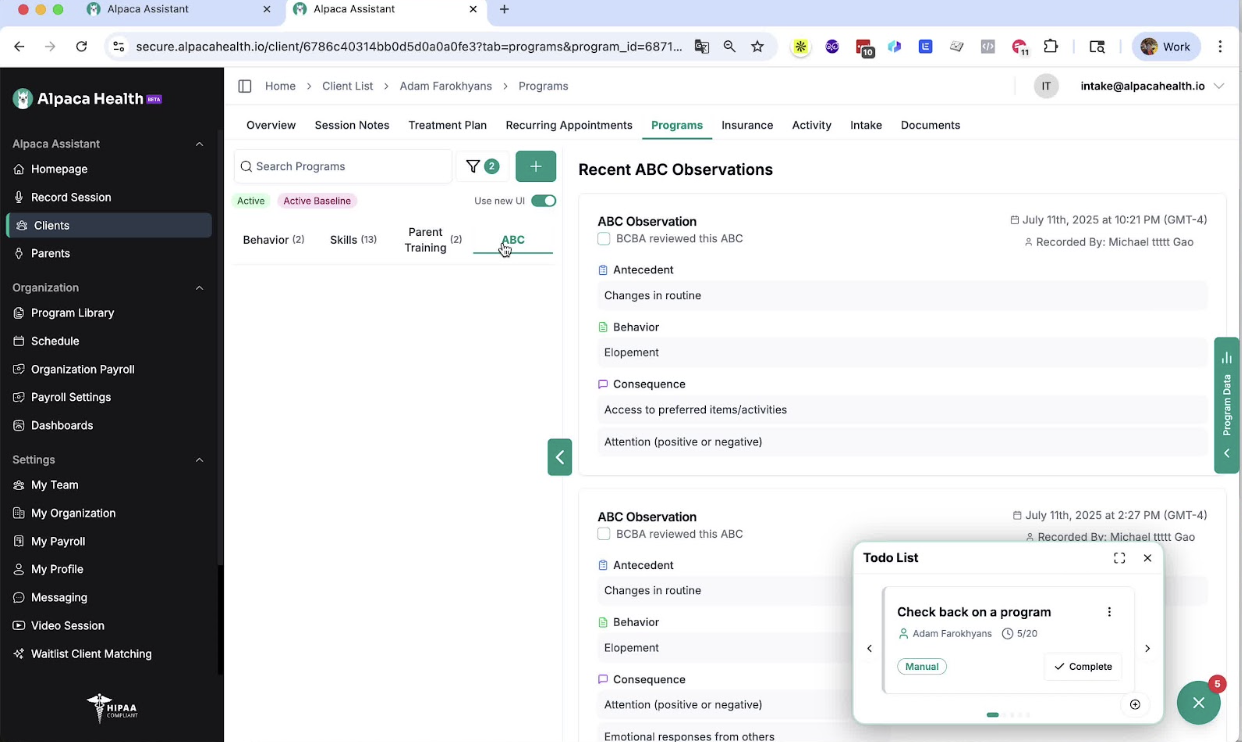
Navigate to the Programs tab on the Alpaca platform.
Familiarize yourself with the sections: behavior reduction programs, skill acquisition programs, parent goals, and ABC data.
2. Reviewing ABC Data 0:21
Review newly collected ABC data by staff.
Check off ABCs to confirm they have been reviewed.
3. Creating Behavior Reduction Goals 0:34
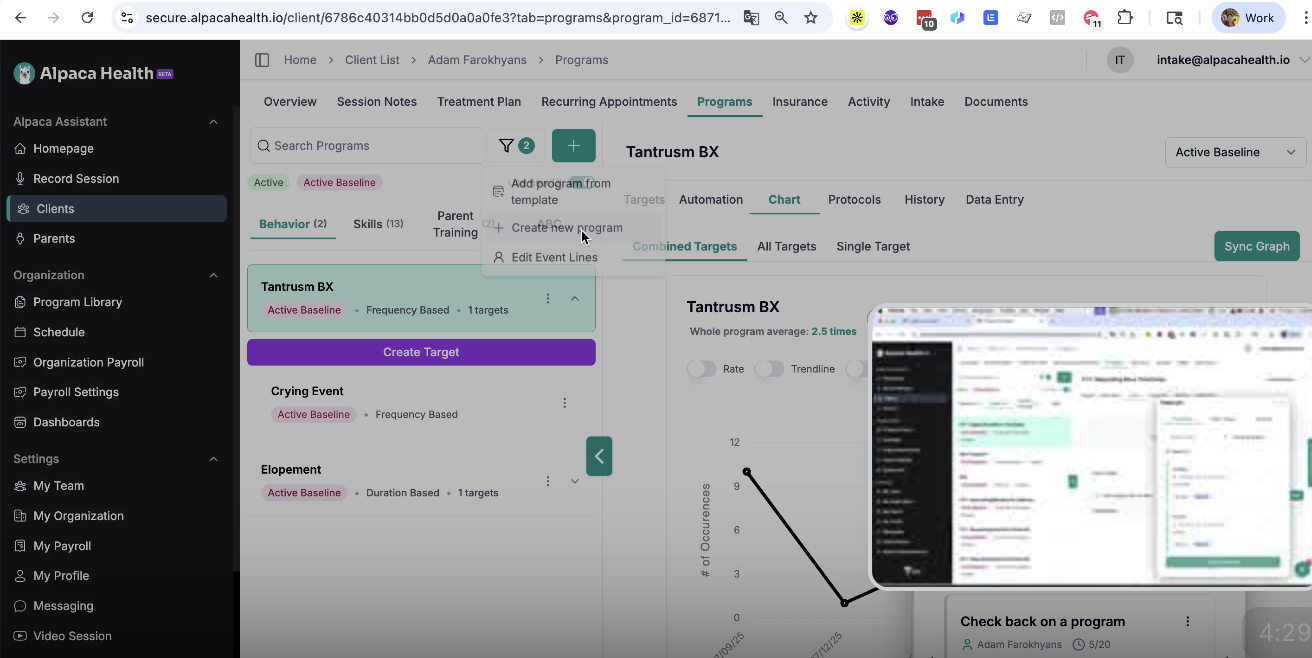
Select 'Behavior Reduction' and choose a data collection type (e.g., frequency).
Add targets under the selected behavior (e.g., 'throwing objects').
Specify the type of object (e.g., 'toy') and add a description.
4. Setting Mastery and Maintenance Criteria 0:54
Define mastery and maintenance criteria for the behavior reduction goal.
Click 'Create' to finalize the program.
5. Providing Protocol Directions 1:07
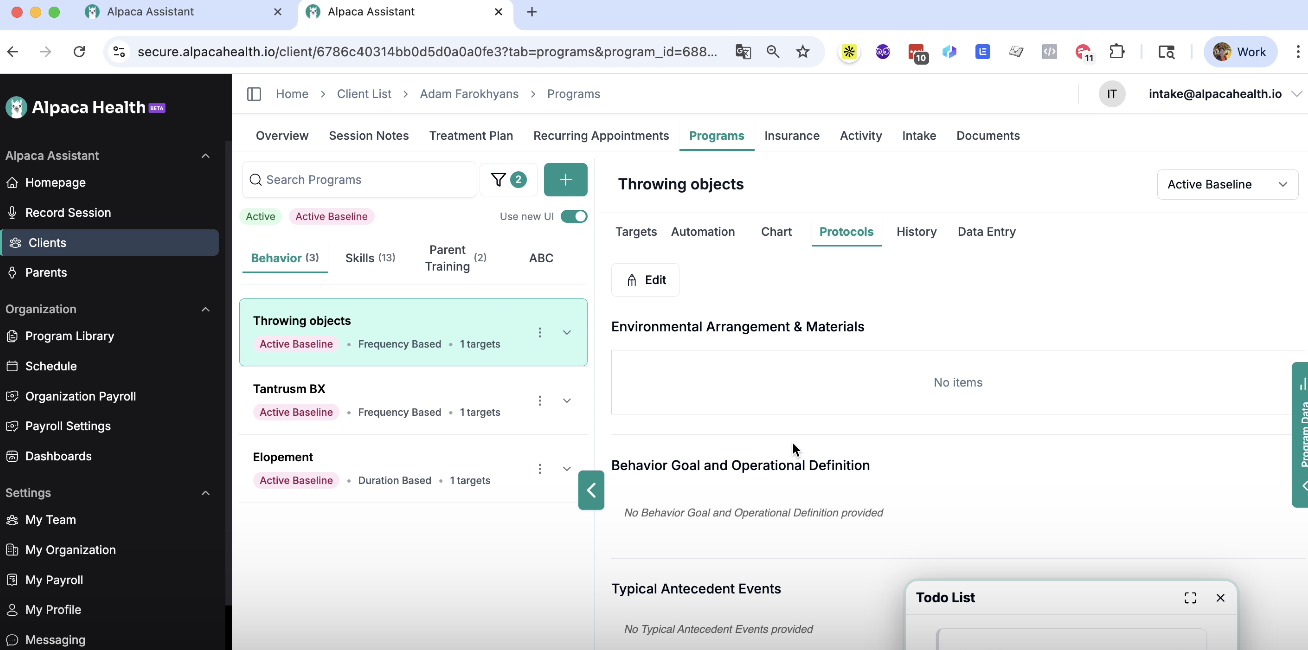
Access the protocol section of the program to provide additional directions for technicians.
6. Building Program Libraries 1:18
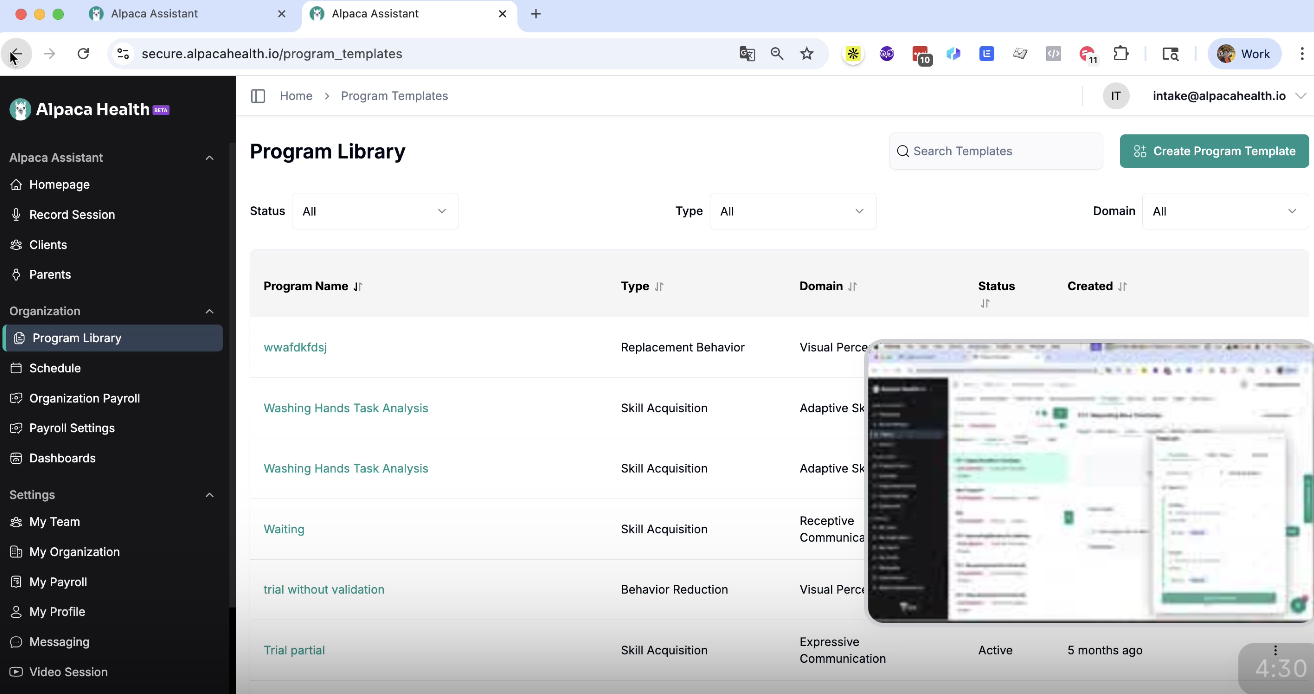
Use the program library page to create templates for future clients.
Add skill acquisition and parent training programs as needed.
7. Utilizing Graphing Features 1:37
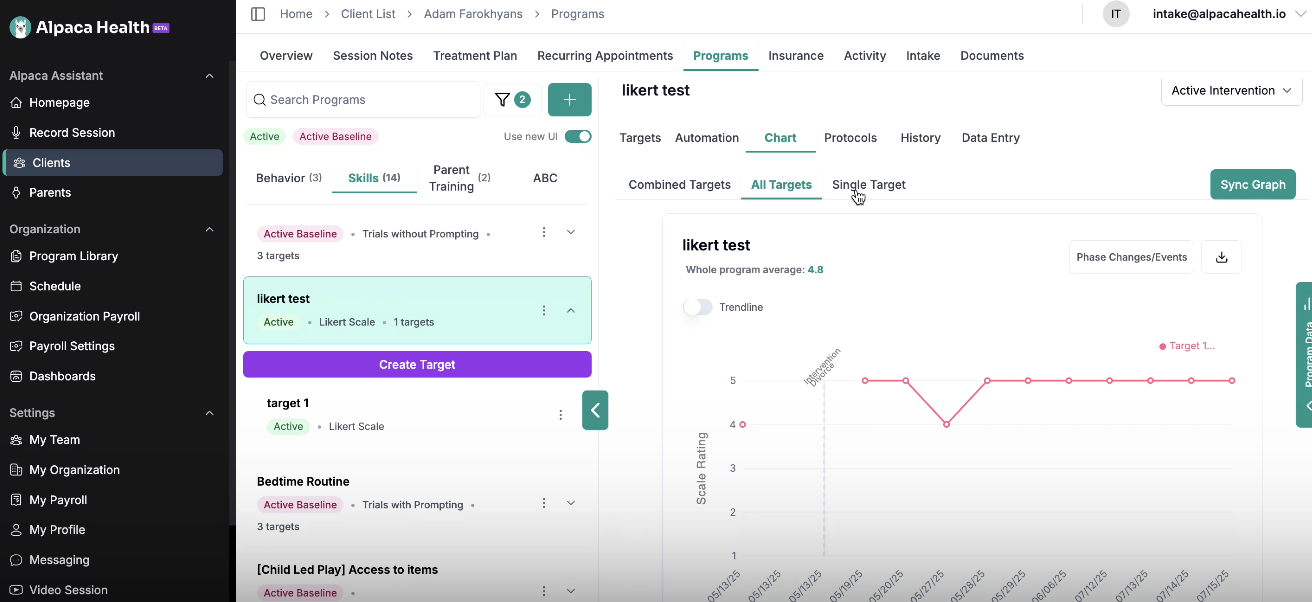
Access graphing tools to visualize learner performance.
Split data by target and technician for detailed analysis.
8. Adding Event and Phase Change Lines 2:01
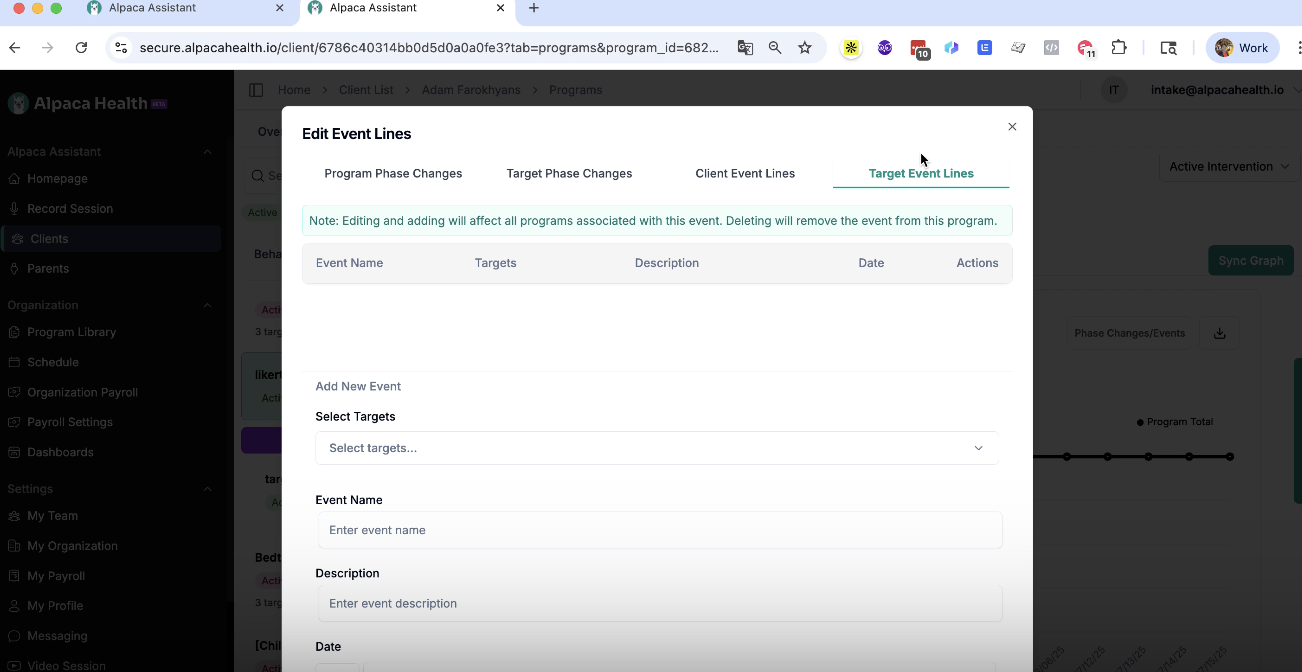
Add phase change lines and event lines to the program and targets as necessary.
9. Editing Raw Data 2:31
Edit raw data entries directly in the system to correct any inaccuracies.
📄 Add, Edit, and Delete Data has more information about how to work on this
10. Selecting Data Collection Types 2:56
Choose from various data collection types (e.g., frequency, duration, trials, etc.) based on the program requirements.
11. Conducting Reassessments 3:11
Use the reassessment generator to compile client information and generate reports.
12. Utilizing AI Treatment Plan Generator 3:30
Leverage the AI treatment plan generator to automate parts of the treatment plan, such as medical history.
13. Managing To-Do Lists 3:41
Use the to-do list feature to add reminders during protocol modification sessions.
14. Executing Maintenance Transitions 4:06
Review the program and graph to determine if a program is ready to transition to maintenance.
Click 'Execute' to finalize the transition.
Cautionary Notes
Ensure all data is accurate before finalizing any programs or reports.
Regularly review and update program libraries to reflect current practices.
Tips for Efficiency
Utilize the AI features to automate repetitive tasks and reminders.
Regularly check the to-do list to stay on top of necessary actions and updates.