Treatment Plan and Reassessment Document Editor
Last updated: October 7, 2026
When a finished treatment plan or reassessment needs changes the generator can't make, you can edit the document itself in Alpaca: reword anything, add paragraphs or a section, insert a table or a picture, or remove text that doesn't apply. You no longer need to download a Word file, edit it, and upload it back.
The editor makes three promises:
What you see is what prints. The page in the editor is the printed page, in the fonts the PDF can print. Preview PDF shows the PDF that finalizing will create.
A signature applies to exactly the text shown when it was signed. If you edit afterwards, you sign again.
Treatment Plan checker runs after you're done editing. Review the PDF and confirm it as your finalized document. The payer check then runs in the background on that PDF; its results appear in the Treatment Plans tab for a client. Finalized does not mean ready to submit to insurance.
Open the editor
Select Edit document in any of these places:
Treatment Plans tab: on the treatment plan's or reassessment's card. It shows as "Edit Document"
End of the treatment plan generator: the last step, Audit & Submit, shows a More changes to make? box with Edit document. To change generator fields instead, use the step tabs at the top.
Reassessment Document Export: the same More changes to make? box.

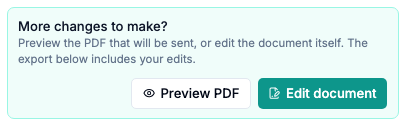
Opening the editor changes nothing until you finalize. Edits to the document are automatically saved, and finalizing the document actually changes the version that gets submitted to the payer.

If the plan is already finalized, Alpaca first asks you to unfinalize it. If a caregiver has signed, the button reads Void signature and edit, and their signature is voided; you finalize again and ask them to sign the updated plan (you can't get their signature then submit a different document). Otherwise it reads Unfinalize and edit. Cancel leaves the plan finalized.
The first time you open the editor, a short tour walks through what it is for, the formatting toolbar, saving, and finalizing. Select the ? at the right of the editor's header to see it again.
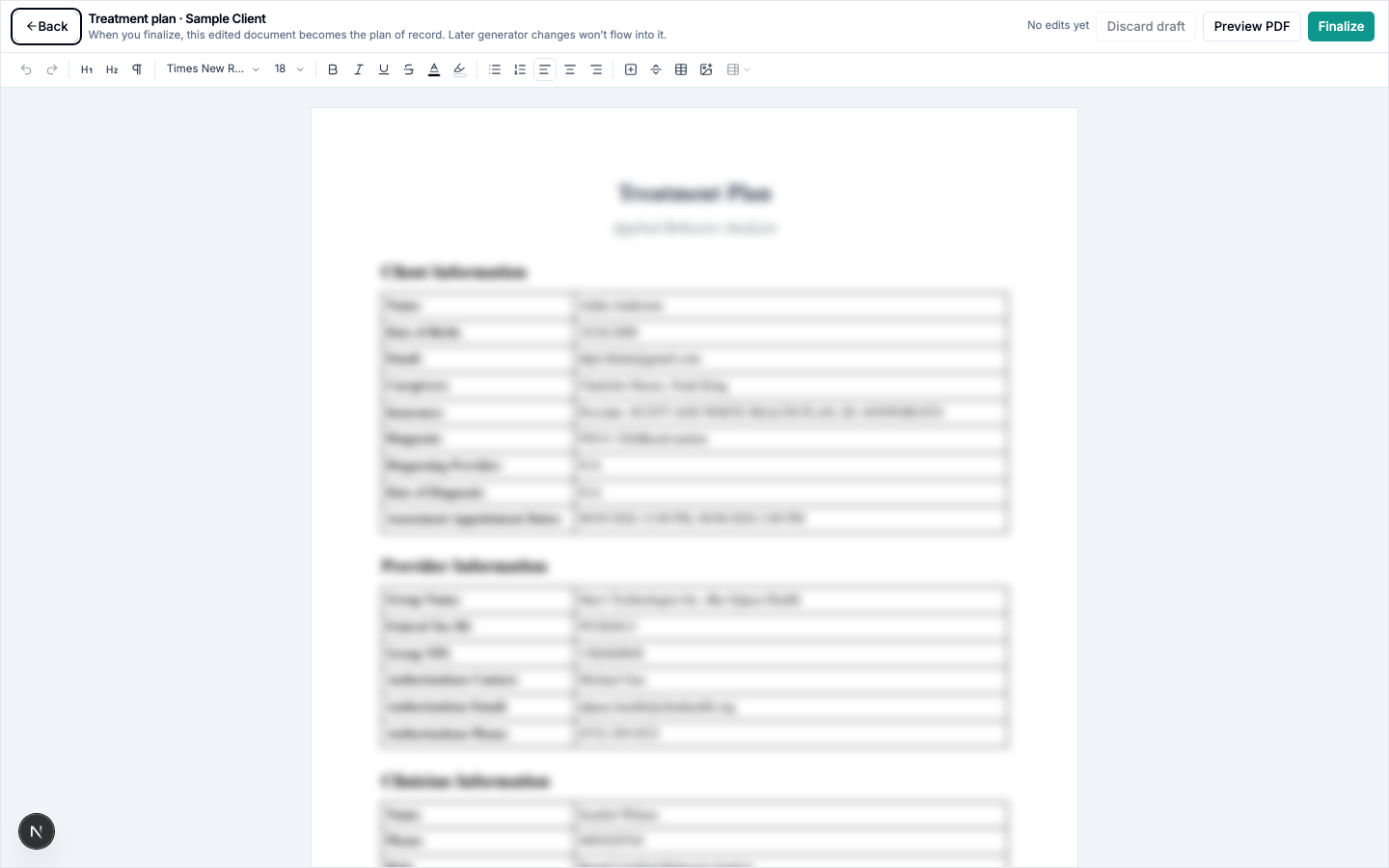
Edit the document
Click anywhere on the page and type.
The toolbar has undo and redo; Heading, Subheading and Body text; font and font size; Bold, Italic, Underline, Strikethrough, Text color and Highlight color; Bullets, Numbered and alignment; Insert section, Page break, Insert table and Image. Hover over a symbol to see its name.
Font offers Times New Roman (the plan's own font), Arial, Calibri and Courier New. These are the fonts the PDF prints, so the page matches the printout.
Tab and Shift+Tab indent and outdent list items, and move between table cells. Press Escape to leave the page and reach the toolbar.
Add a PNG, JPEG or GIF picture under 25 MB with Image, by pasting it, or by dragging it onto the page. Image shrinks a large picture to fit the page; a pasted picture goes in as it is, so if it is too large, add it with Image instead. Drag a corner to resize a picture. To remove one, select it and press Backspace or Delete. Large reassessments with many charts and photos can be edited.
The clinician signature is not part of what you edit. Alpaca adds it when you finalize.
Saving
Your changes save automatically. The status at the top shows Saving… and then when the document was last saved. If it shows Not saved, a message above the page says what to fix.
Sign again after editing
A signature covers exactly the text shown when it was signed. If you edit after signing, the plan needs signing again before it can be finalized. In the editor, Finalize then reads Sign & finalize: sign in the dialog and select Sign and continue. The same button shows on a plan that was never signed.
If you try to finalize from somewhere else, Alpaca says "This document was edited after it was signed. Open Edit document and choose Sign & finalize to sign it again."
The check runs on your edited document
When you leave the editor after editing a signed plan without finalizing, a check starts on the edited draft and its result appears on the plan's card.
Finalizing does not run a check inside the editor or wait for an earlier draft check. After you confirm the PDF, Treatment Plans shows the plan as finalized while its payer check runs in the background. Review any findings there. If the check fails to run, use Re-run check on the plan card. Caregiver signatures and payer-submission requirements still apply. Uploaded Word edits keep their existing check-and-review step before finalization.
Preview PDF and Finalize
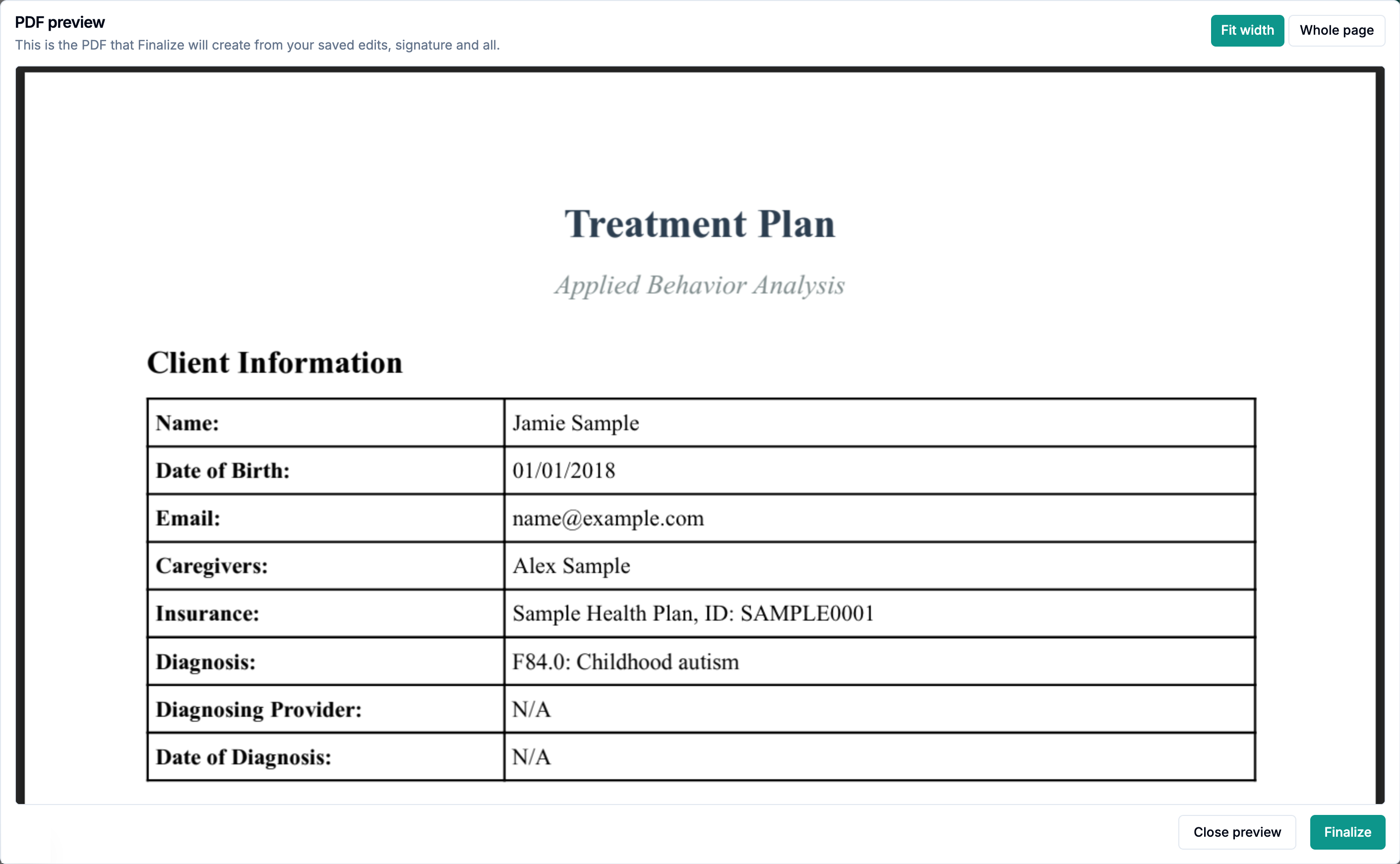
Select Preview PDF at the top of the editor to see the PDF finalizing will create. Dashed lines then show where each page starts. Use Page break to start a new page at a specific spot. The preview shows the signed version, so an unsigned plan must be signed first.
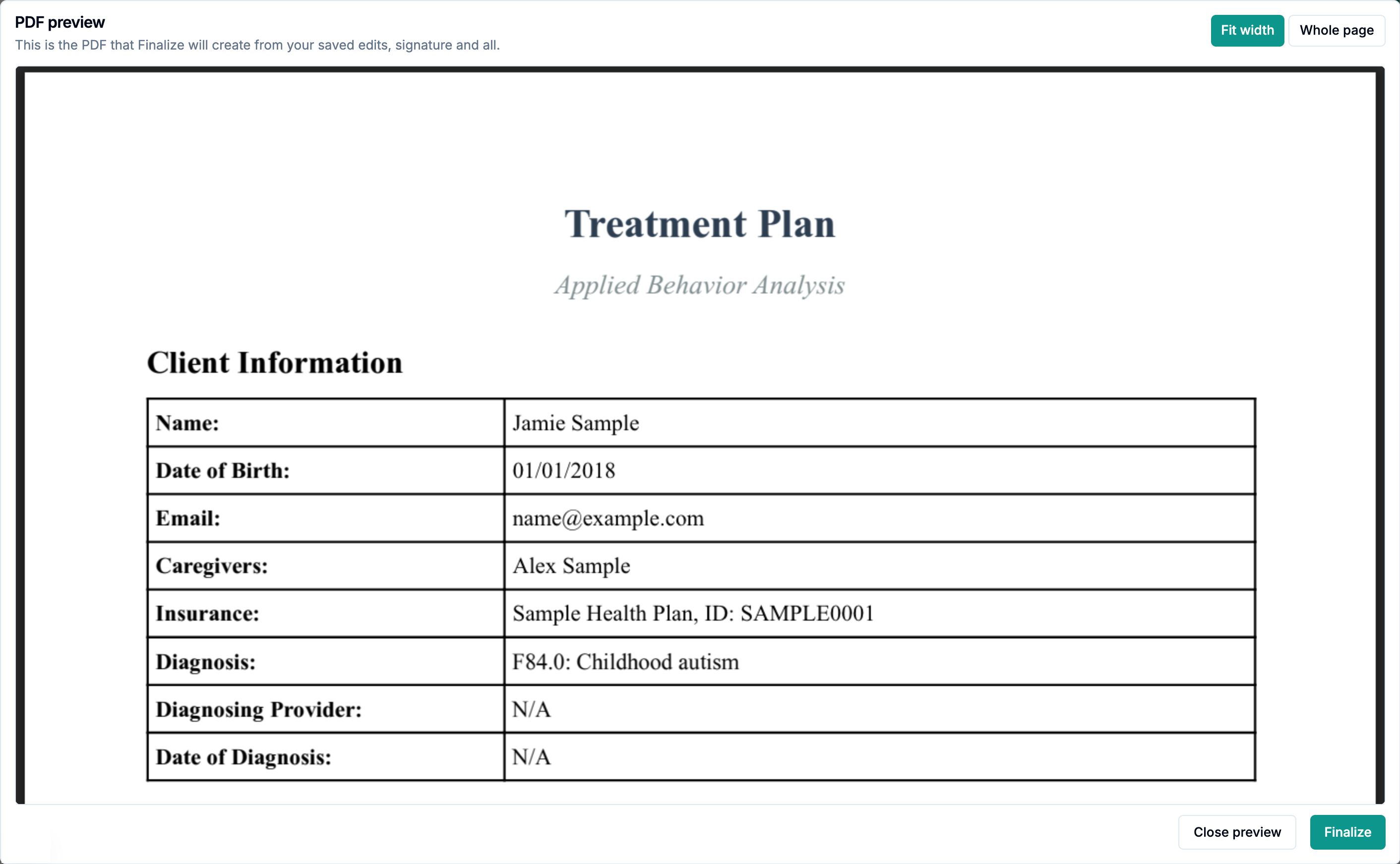
Select Finalize (or Sign & finalize).
Review the preview in the finalize dialog, confirm the acknowledgement, and finalize.
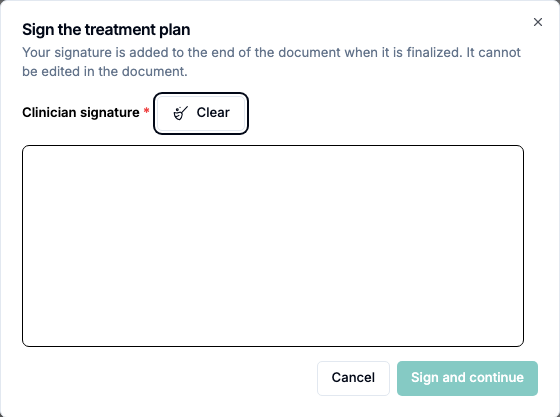
Your edited document becomes the plan of record. If you finalized from a generator, Alpaca returns you to Treatment Plans. A background check can still be running; you do not need to stay in the editor. Required assessment dates and a current clinician signature are still needed to finalize. Caregiver signatures and the authorization request continue as before.
Prefer to edit in Word?
Word still works (though we're trying to make sure you don't need to use it!). In the finalize dialog, Prefer to edit in Word? has the Word download and upload. A plan can't have both edits made in Alpaca and an uploaded Word edit at the same time. To switch, remove one first. This keeps a single version of the plan, so nobody signs or finalizes the wrong one.
Start over
Discard draft at the top of the editor throws away your edits and returns the plan to the generated version. After that, changes you make in the generator flow into the plan again. Discarded edits can't be recovered.
If the plan was signed for your edits and you discard them, the signature no longer covers the plan. Alpaca says "This plan was signed for edits made in Alpaca, so the signature does not cover the plan as generated. Sign it again in the generator, then finalize."
Once you start editing, later generator changes don't flow into the document, the same as editing in Word. It becomes the plan of record when you finalize.
Recover from common problems
What you see | What it means | What to do |
|---|---|---|
This plan was edited in another tab or by someone else. Load the latest version to keep editing. | The plan was saved from another tab or by a colleague. | Select Load latest version and continue from the saved copy. |
The plan changed in the generator after you started editing. Your edited document does not include those changes. | Someone changed the plan in the generator after editing began. | Choose Keep my edits, or Discard and start again to start from the current plan. |
The plan changed in the generator after this document was edited, so the document no longer matches it. | The same situation, shown when finalizing outside the editor. | Open Edit document and choose Keep my edits or Discard and start again, then finalize. |
A message that the document names one clinician but the reassessment is now signed by another | The reassessment names the clinician who signs it. | Choose Keep anyway. Your edits stay, and the Clinician Information section and closing signature update to the new signer. Check the rest of the document for the earlier name, then finalize. |
This document changed after you opened it, so your signature would not match what you read. Reload it, then sign again. | The document was saved elsewhere while you were signing. | Reload the editor, read the current version, and sign again. |
Sign & finalize instead of Finalize | The document was edited after it was signed, or was never signed. | Sign in the dialog. The signature covers the text as it is now. |
This plan has edits made in Alpaca. Open Edit document and discard them before uploading an edited plan. | Only one edited version can exist. | Select Discard draft in the editor, then upload the Word file. |
This plan has an uploaded edited document that is not finalized yet. Finalize or delete that upload before editing the document here. | Only one edited version can exist. | Finalize or delete the uploaded file, then edit in Alpaca. |
This document is too large to save. Remove or shrink some images, or remove large tables. | The document is over its size limit. | Remove or replace large pictures or tables. |
This document has too many pictures, or pictures that are too large, to print. Remove some pictures and try again. | The PDF can't hold all the pictures. | Remove some pictures or use smaller ones. |
This image is too large to add. Choose one under 25 MB. | The picture file is over 25 MB. | Crop it or choose a smaller file. |
No Edit document button | The plan was uploaded rather than generated, or your role can't edit or sign plans. | Check Who can use it, or ask your clinic admin about your role. |
Not saved | Something in the document stopped the save. | Fix what the message above the page asks, and your next edit saves. |
Current limitations
No tracked changes or comments.
No live co-editing. Two people editing at once get a prompt to load the latest version.
Pictures can't be placed freely on the page; they sit in line with the text.
Pictures are resized with the mouse only.