5.1 Scheduling Appointments
Last updated: September 16, 2026
Appointment types
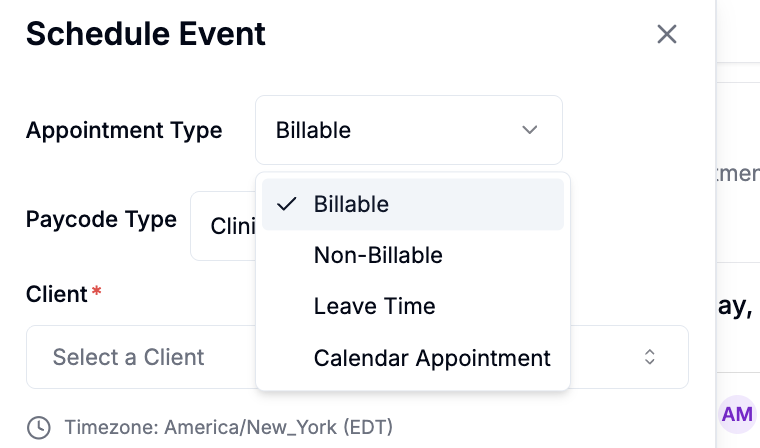
Before you build a schedule, it helps to know the kinds of appointment you can put on the calendar. Alpaca has four:
Billable. A therapy session you bill to insurance. It carries a CPT code, a service location, and a clinician. See 5.3 for the full billable and non-billable setup.
Non-Billable. Work time you track for pay but do not bill, such as Training, Travel/drive time, Admin, Materials Management, Clinical Programming, Staff Engagement, Client/Family Engagement, or Internal Meetings. It goes through a Pending to Approved/Verified approval flow before it reaches payroll. See 5.3 for details.
Leave Time. Time off (PTO) for a team member.
Calendar appointment. An unstructured block on the calendar that is neither billable nor non-billable. It has a title and a date and time, with optional clients and staff. It has no CPT code, no billing, no payroll, and no approval flow. Use it to make time visible, for example "Client is with their OT" or a family meeting.
Steps
Go to a client profile and click "Recurring Appointments"
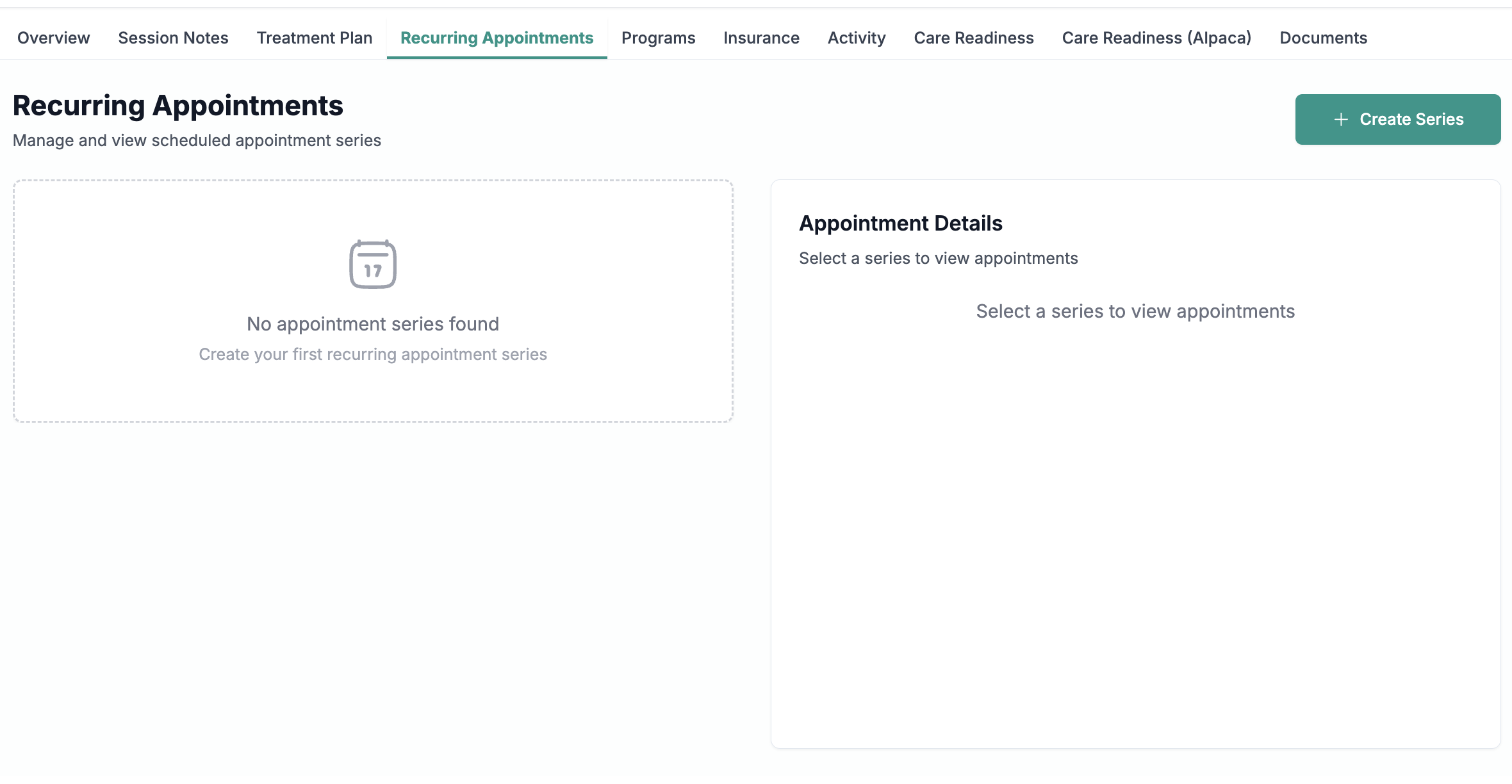
Fill in these details about the recurrence.
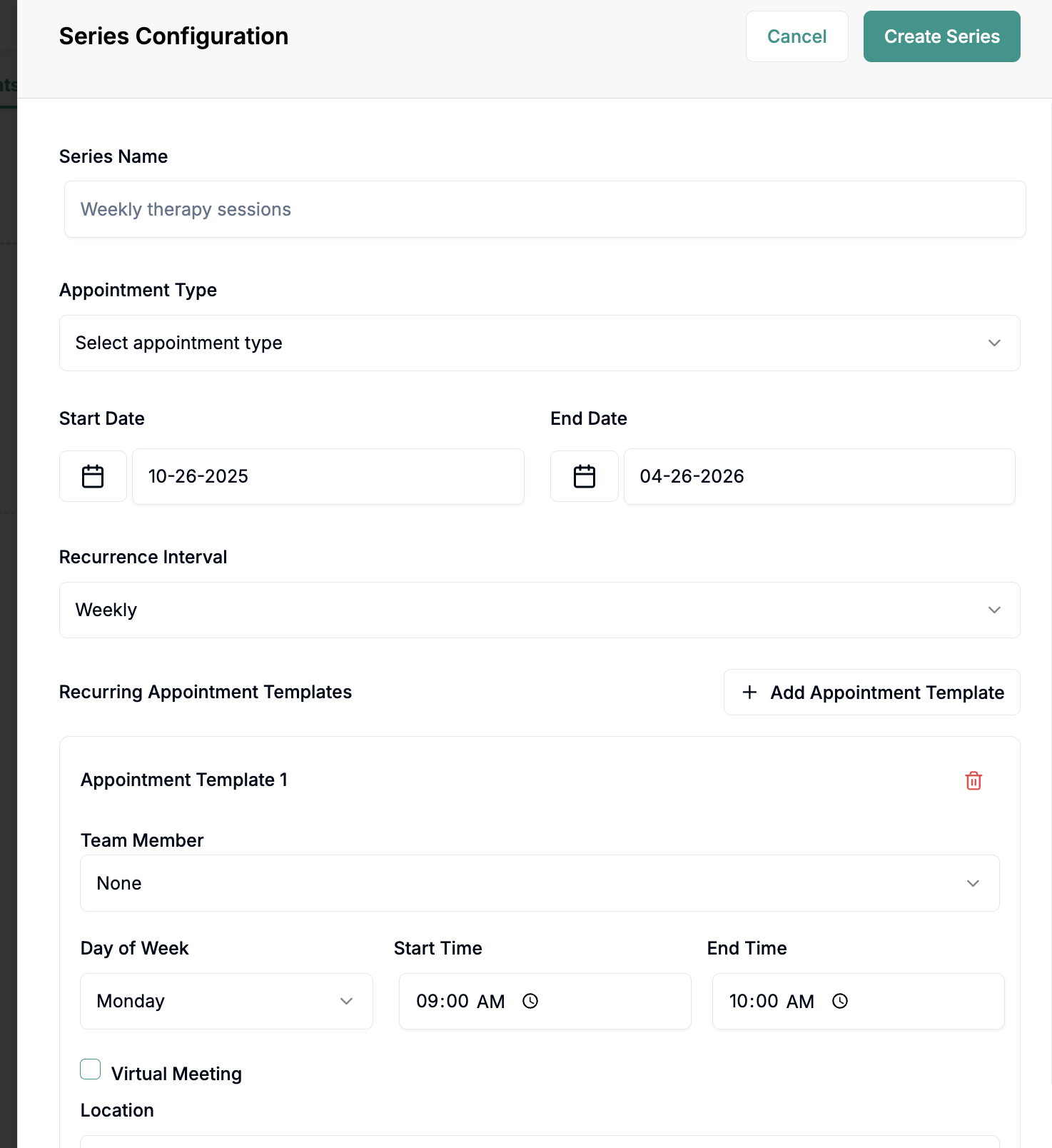
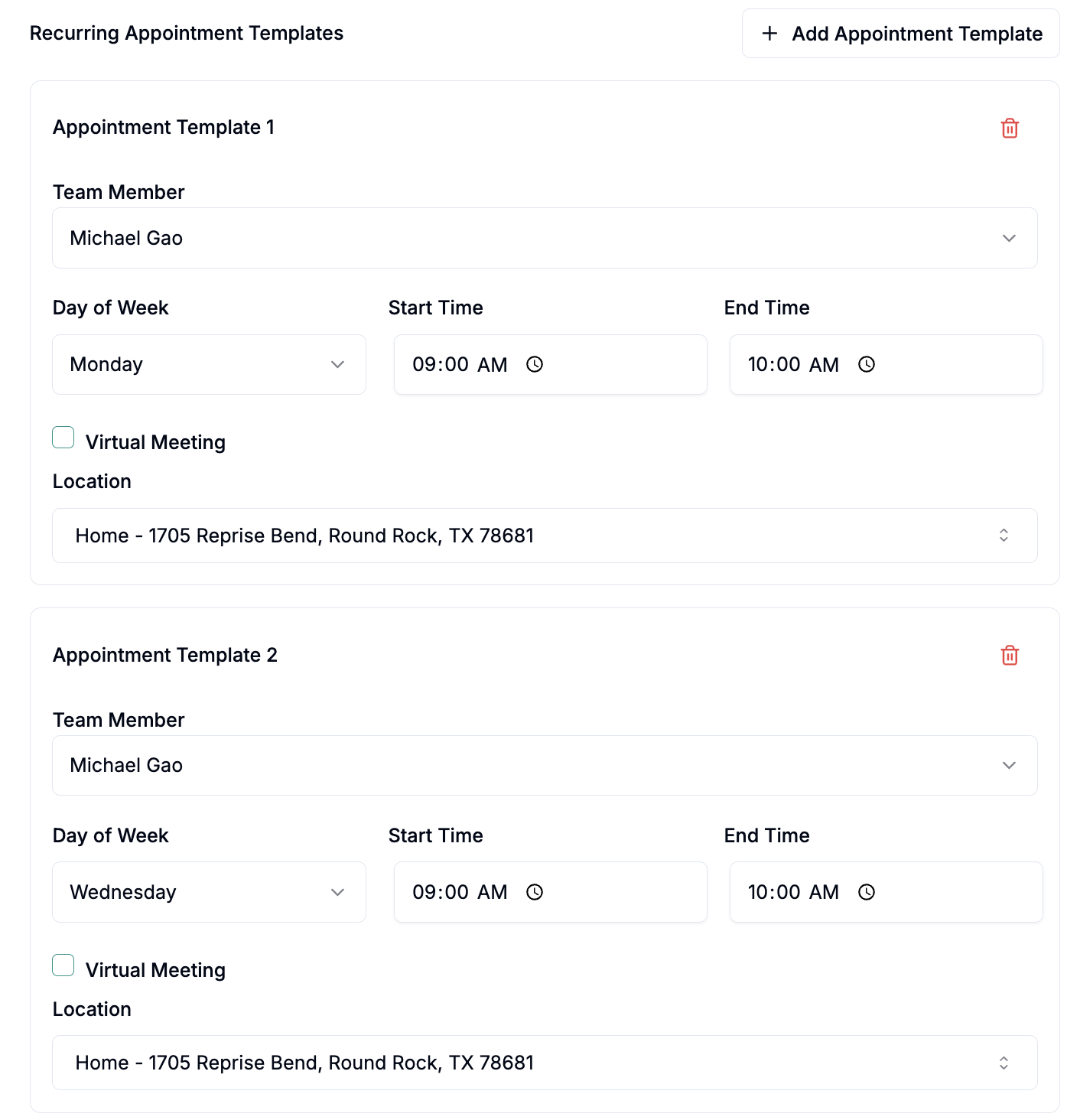
When defining the weekly/bi-weekly schedule, you can add "appointment templates".
For instance, if you wanted a weekly appointment Monday and Wednesday, this is what it should look like:
You don’t have to use the Recurring Appointments page. You can also set up a recurring schedule directly from the calendar page: create an appointment as usual, then set it to repeat when filling in the details. This is a convenient alternative when you’re already working in the calendar view.
Adding a calendar appointment
Use these steps when you just want a block on the calendar with no billing or payroll attached.
1. Open your Schedule page (the calendar).
2. Open the add-appointment sheet. Click the Schedule Event button at the top of the calendar, or click an empty time slot to open the same sheet with the date, time, and column already filled in. The sheet opens titled Schedule Event.
3. Open the Appointment Type dropdown and choose Calendar Appointment. The dropdown lists Billable, Non-Billable, Leave Time, and Calendar Appointment. Choosing Calendar Appointment hides the session fields (CPT code, location, clinician) you do not need here.
4. Enter a Title. Type a short description of what the time is for, for example "Client is with their OT". A title is required.
5. Attach at least one client, staff member, or both. Use the Clients picker (labeled "Clients (at least one client or staff member)") to add one or more clients, and the Staff picker (labeled "Staff (at least one client or staff member)") to add one or more team members. You need at least one person total.
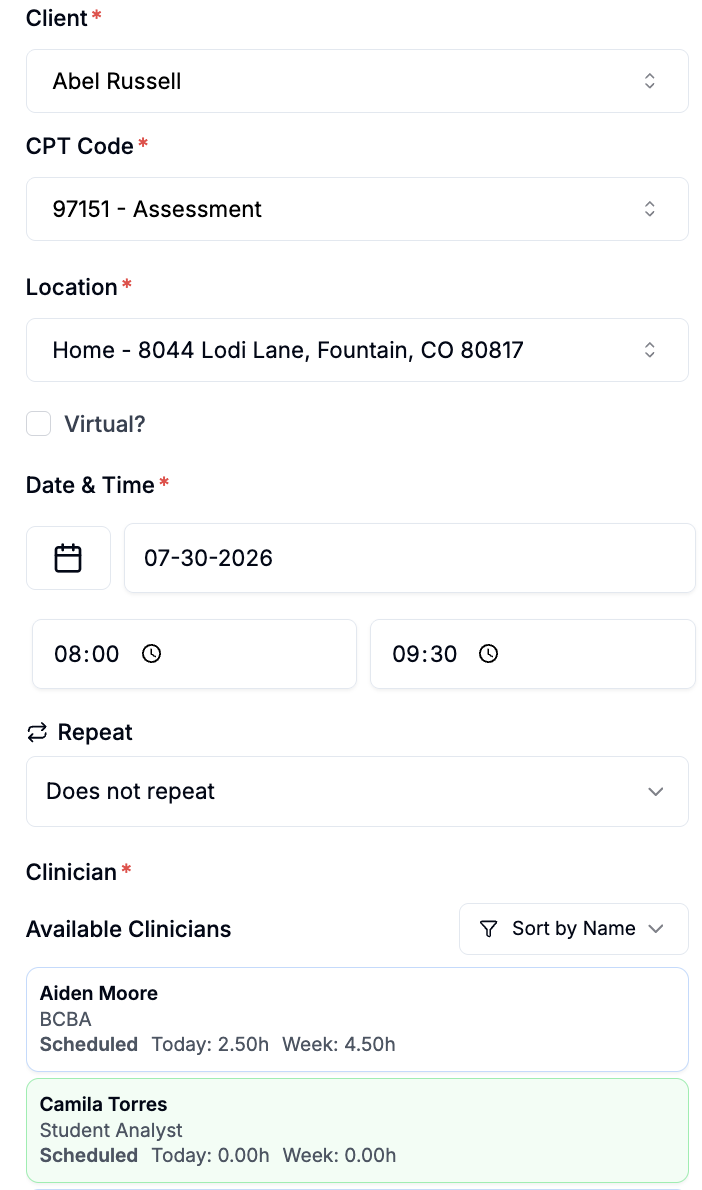
6. Set the date and time. Under Date & Time, pick the date, then set the start time and the end time. A calendar appointment is a single-day entry, so the start and end are on the same date and the end time must be after the start time.
7. Confirm the timezone. Near the bottom of the sheet, Alpaca shows your current timezone (for example, "Timezone: America/New_York (EST)"), so you know where the times will land.
8. Click Schedule to save. While it saves, the button reads Creating..., and the new block then appears on the calendar. Click Cancel to close without saving.
Good to know:
No CPT code, location, or clinician. Those belong to billable and non-billable sessions (see 5.3), not to calendar appointments.
Calendar appointments do not repeat. The "Repeat" options do not appear for this type, so add a separate calendar appointment for each day you need.
You cannot switch an existing entry's type. When you edit a calendar appointment (the sheet reopens titled "Edit Scheduled Event"), the Appointment Type is locked, so you cannot convert it into a session or the other way around.
You can now drag and drop sessions on the calendar. You can also add time to appointments in 15 minute increments by dragging the end of the appointment!