Repair a disrupted day with the Rescheduler
Last updated: October 21, 2026
When a therapist calls out, the Rescheduler shows you which sessions lost their therapist, builds a plan to cover them, and lets you decide on each change before anything touches the calendar. You can accept its suggestions, choose another option, ask it to try again, or move sessions yourself by dragging them on the grid.
It makes three promises:
Nothing changes until you apply it. Building, previewing, choosing and dragging all happen inside the plan. Only Apply writes to Schedule, and every approved change is checked again against the live schedule first.
It shows its work. Each suggestion lists its warnings, and the person you choose is checked by the same rules that produced the suggestion. A record that is missing is shown as missing, not treated as a pass.
It does not message anyone. Applying or undoing a plan sends nothing to staff or families. Telling people about new times stays with you.
Who can use it
The Rescheduler is available in every organization. You can use it if your role is Admin, Assistant Admin or Director. These roles hold the Manage Rescheduler permission by default.
Clinicians, RBTs, HR Managers, Accountants and parents do not see the Rescheduler button. If one of them opens the page directly, they see You do not have access to the rescheduler. The tool reassigns other people's sessions across the whole clinic, so it stays with the people who run the schedule.
The Rescheduler works on your active organization only. If you switch organizations, reopen it from that organization's Schedule.
Which cancellations create work
The Rescheduler only looks for cover when a staff member cannot deliver a session. The cancellation reason you choose decides this.
How the session was cancelled | What the Rescheduler does |
|---|---|
Provider initiated (for example Staff illness, Planned time off / PTO) | Treats the session as a hole to cover. It counts toward to reschedule and appears in the plan. |
Patient initiated | Treats it as a family cancellation. No cover is needed, and the therapist's time becomes free for other sessions or makeups. |
Reason not listed | Treated like a family cancellation: no cover is needed. |
Clinic or admin or External or environmental (other than a scheduling error) | Listed under Cancelled, reason unclear. It asks Who cancelled? and you answer The therapist or The family. |
Clinic or admin > Scheduling error / duplicate appointment | Ignored. A duplicate or mistaken booking is calendar cleanup, not lost care. |
Deleted appointments | Ignored. Deleting files a scheduling error. |
Sessions cancelled automatically after a staff member's last day | Listed separately under Left by a worker who departed. They are not counted as call-outs. |
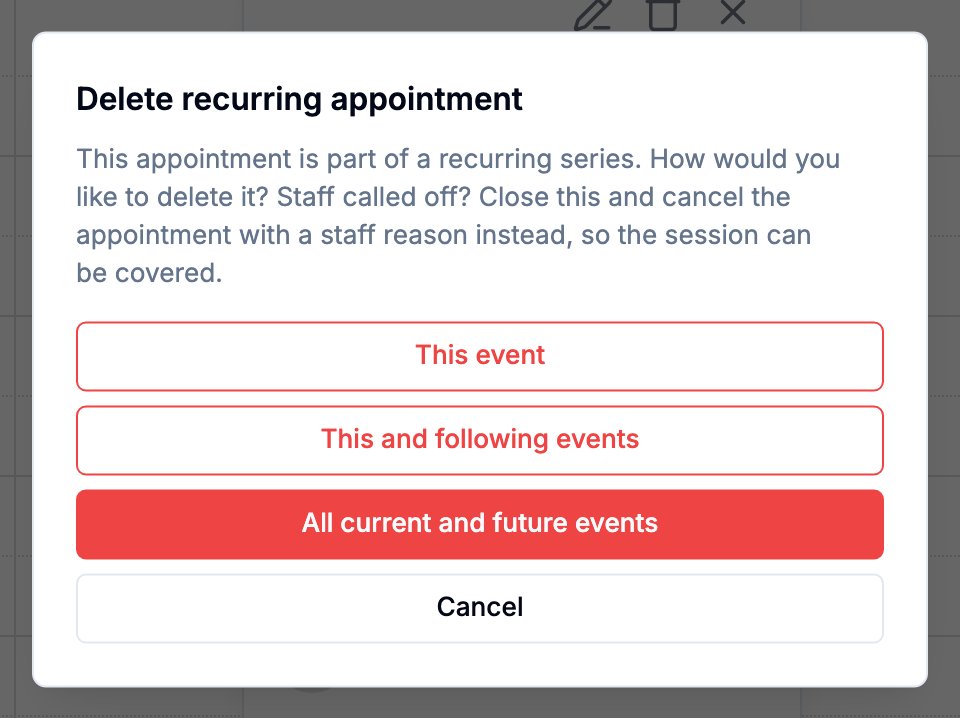
Because of this, cancel a call-off with a staff reason. Do not delete it. When you delete a billable appointment on Schedule, the confirmation reminds you: Staff called off? Close this and cancel the appointment with a staff reason instead, so the session can be covered.
Open the Rescheduler from Schedule
Open Schedule and go to the day that needs attention.
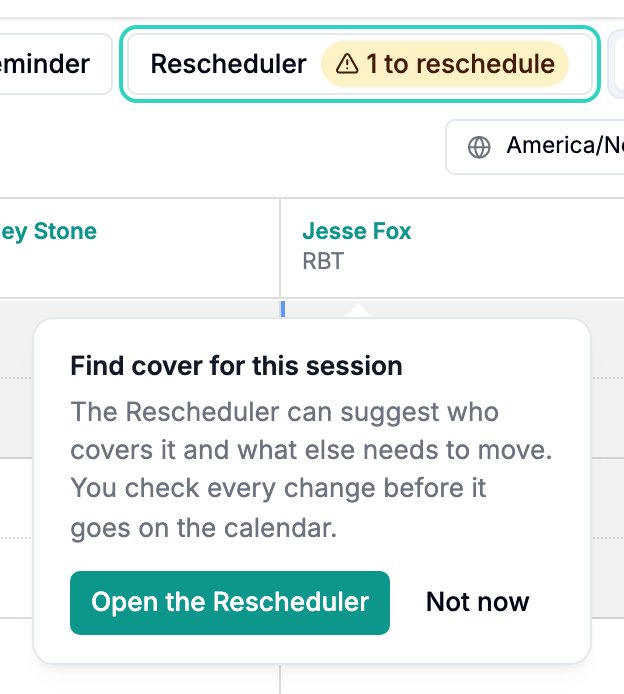
Select Rescheduler in the Schedule header. When the day has provider cancellations that nobody has covered yet, the button shows a count, for example 3 to reschedule.
Check the date at the top of the Rescheduler. You can choose another date there.
Right after you cancel a session as Provider initiated, Schedule points at the button once with Find cover for this session. Select Open the Rescheduler to go straight to that session's day, or Not now to dismiss it. This also works when you cancel a whole series or a group session. You only see this prompt once.
If you looked at the same day earlier, before anyone called out, the Rescheduler notices the new cancellation and starts that day again by itself. While it does, the day reads Still reading the day.
The count leaves out sessions that someone already covered by hand and sessions covered by a plan that was applied and not undone. A call-out that arrives after you apply a plan raises the count again.
The page remembers the date and the plan you were working on in this browser tab. Select Close to return to Schedule on the same date.

Step 1: Tell it what changed
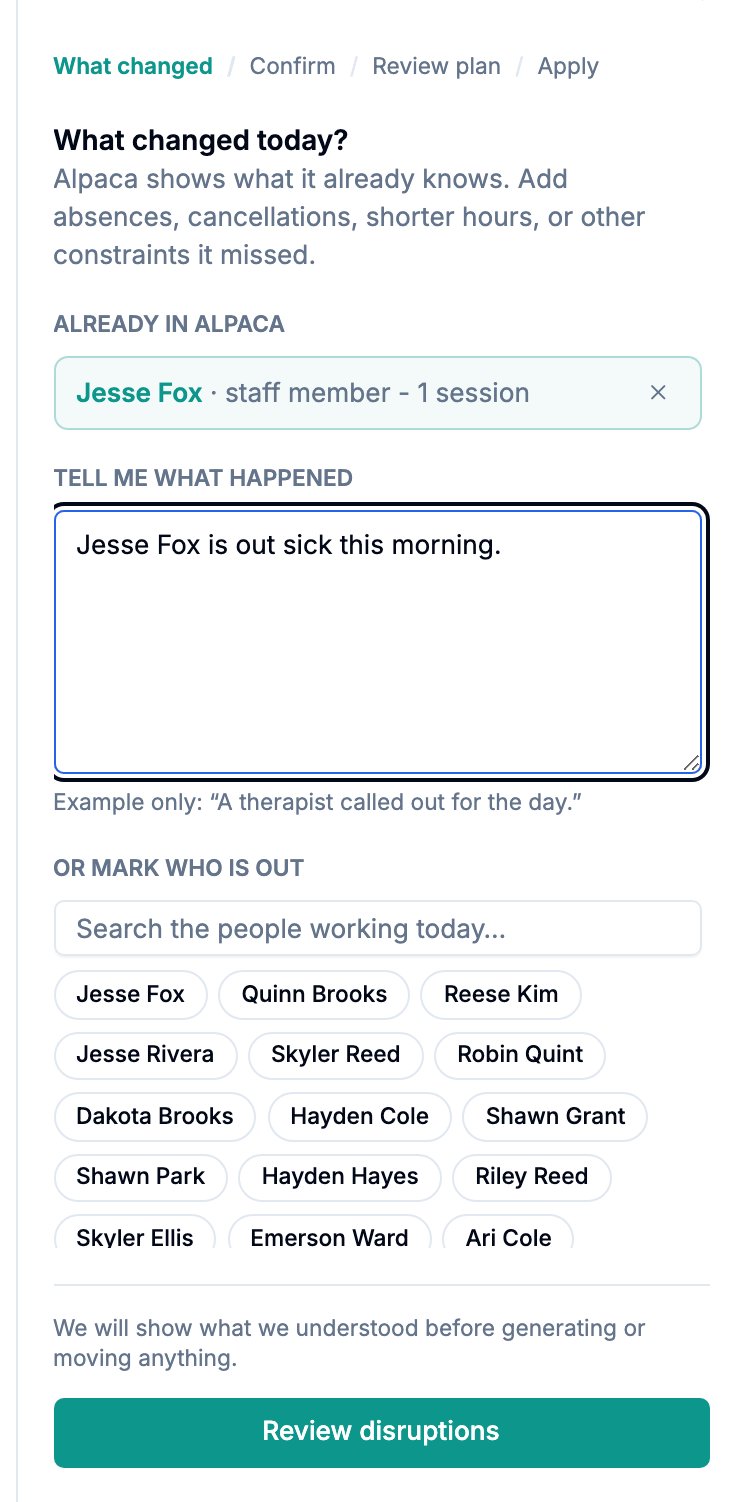
The side panel walks through four steps: What changed, Confirm, Review plan and Apply. The first panel asks What changed today?
Already in Alpaca lists staff call-outs that are already recorded for the day, with the number of sessions each one affects. Select the X beside a name to take it out of this plan.
Tell me what happened is a text box for anything Alpaca does not know yet. Type or paste the messages you received, such as a late start, a partial day or a family cancelling.
Or mark who is out lets you search the people working today and mark someone out for All day, Morning only, Afternoon only, from a set time, or for a time you enter. Select Not out to undo a mark.
Families who cancelled lists family cancellations. No cover is needed for these.
Cancelled, reason unclear asks Who cancelled? for each session whose reason does not say. Your answer is used when you start again.
Select Review disruptions. You will see what was understood before anything is generated or moved.
Step 2: Confirm what it understood
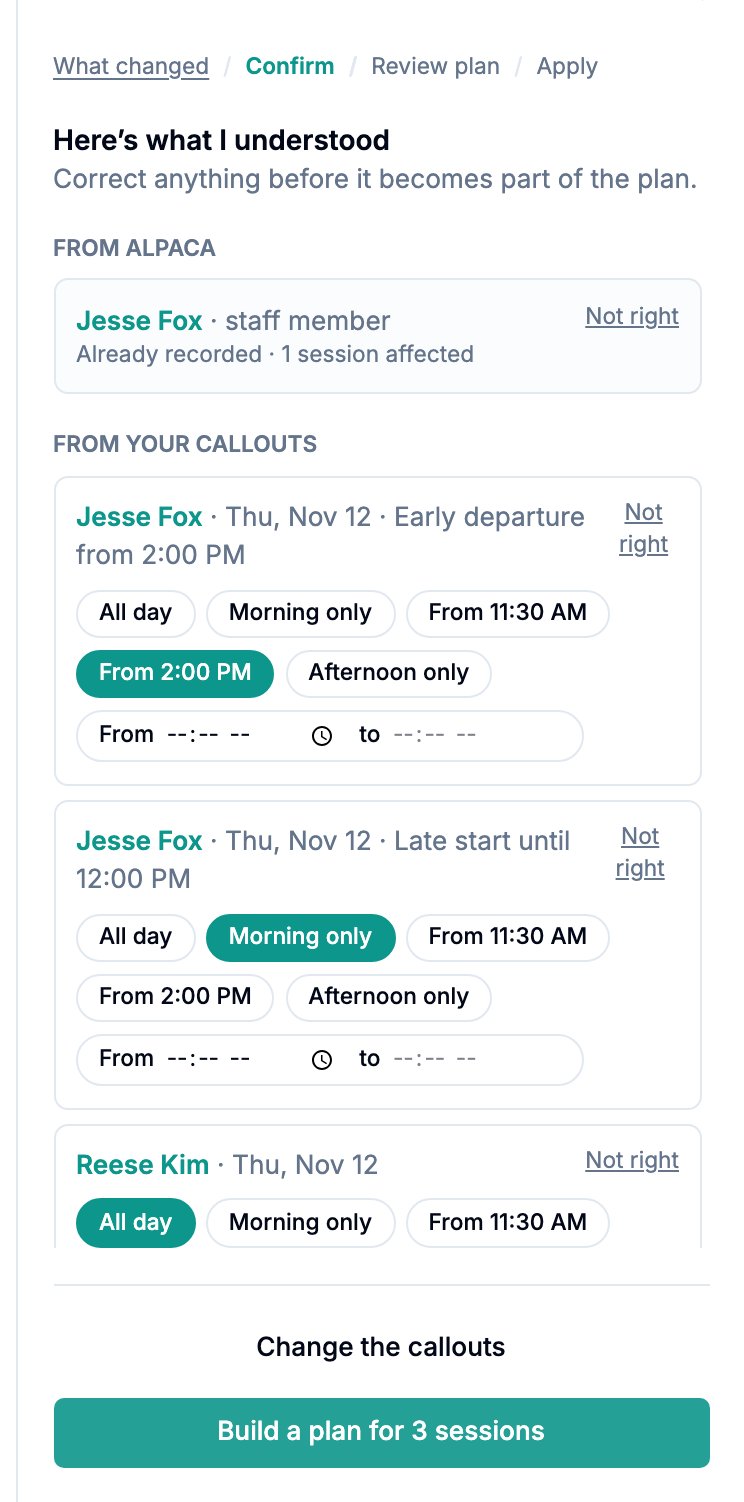
The Here's what I understood panel separates From Alpaca and From your callouts. Correct anything before you build the plan.
If a name in your text matched the wrong person, select Not right, then search clients or staff and choose the right one. The Rescheduler does not guess between two people with similar names.
If a family cancelled, select Cancel this family's sessions. In the Cancel family sessions dialog, choose the sessions, reason and note. Notify family and Notify clinician are unchecked unless you check them. This dialog cancels the sessions right away. It is not part of the plan, and Undo does not reverse it.
Select Change the callouts to go back a step.
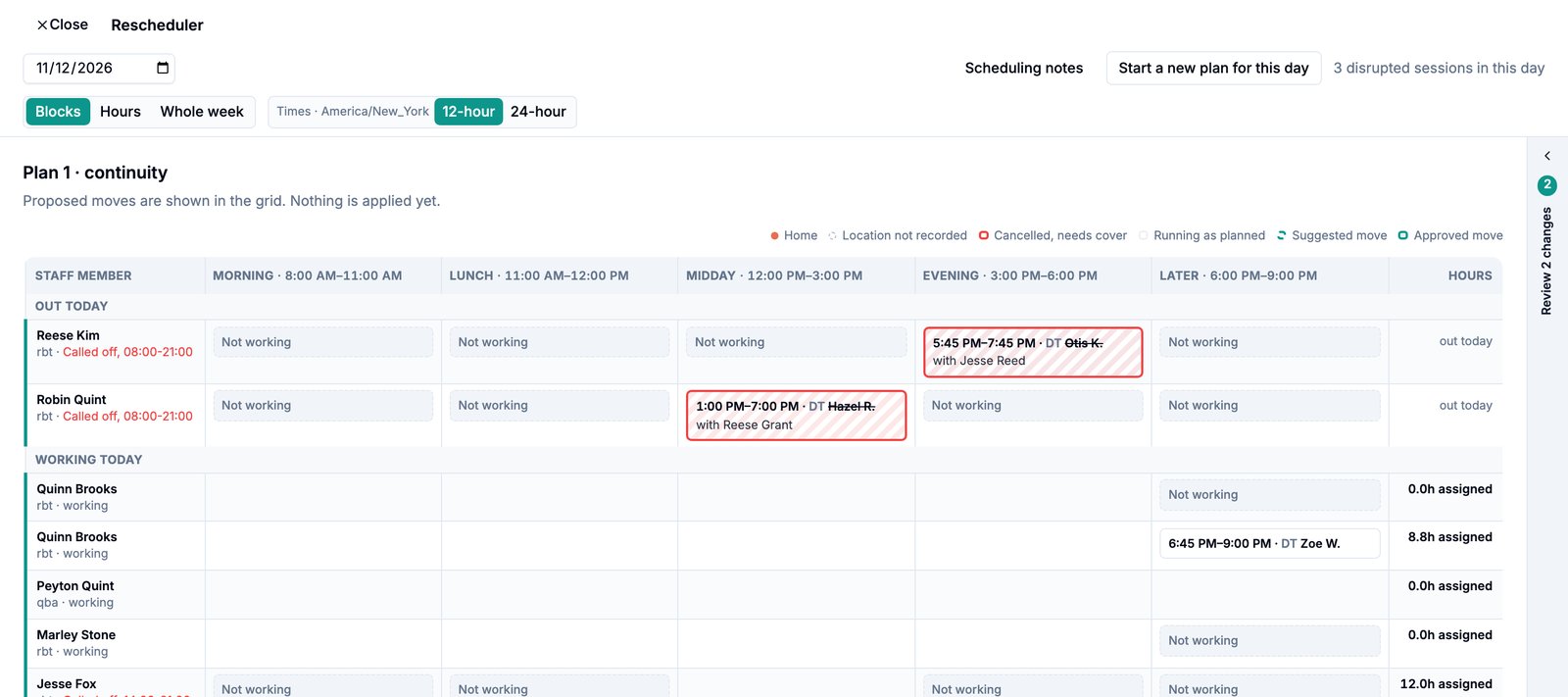
The panel then says how many sessions need attention, and red cells on the grid show where the day broke. If only families cancelled, it says Only families cancelled, so nobody needs covering. That time is now free for makeups.
Select Build a plan for N sessions. While it works, you see Building your plan: checking who is free, testing safe swaps, and validating every proposed move.
Step 3: Review each change
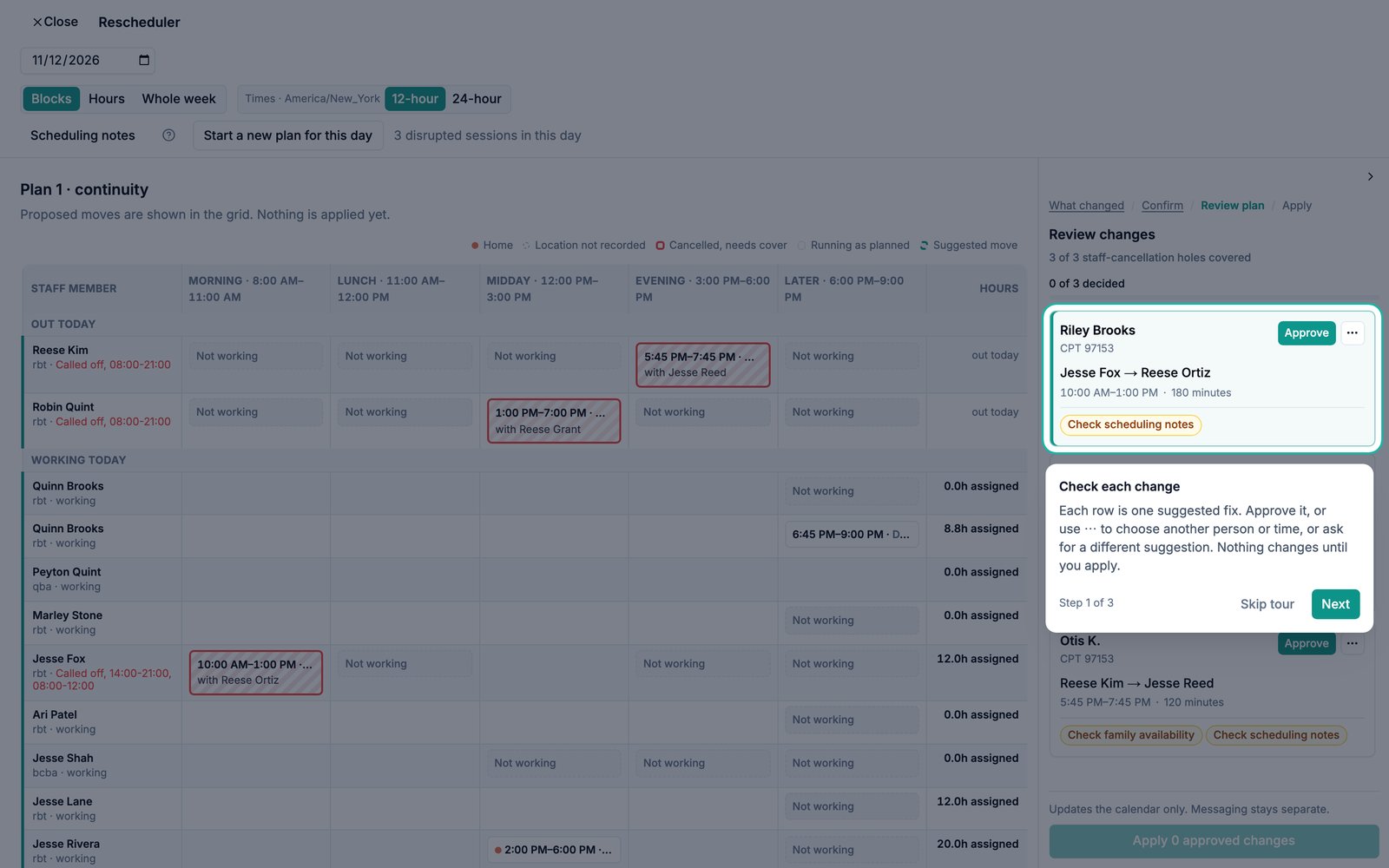
The Review changes panel shows how many cover holes the plan fills (for example 2 of 3 staff-cancellation holes covered) and a progress bar (1 of 4 decided). If the plan has alternatives, use the arrows to page between them (Plan 1 of 2).
Each card shows the client, the service code, from → to for the therapist, the old and new time, the length, the location, and any warnings. On each card:
Approve accepts the suggestion. For a session the plan could not cover, the button reads Accept no coverage.
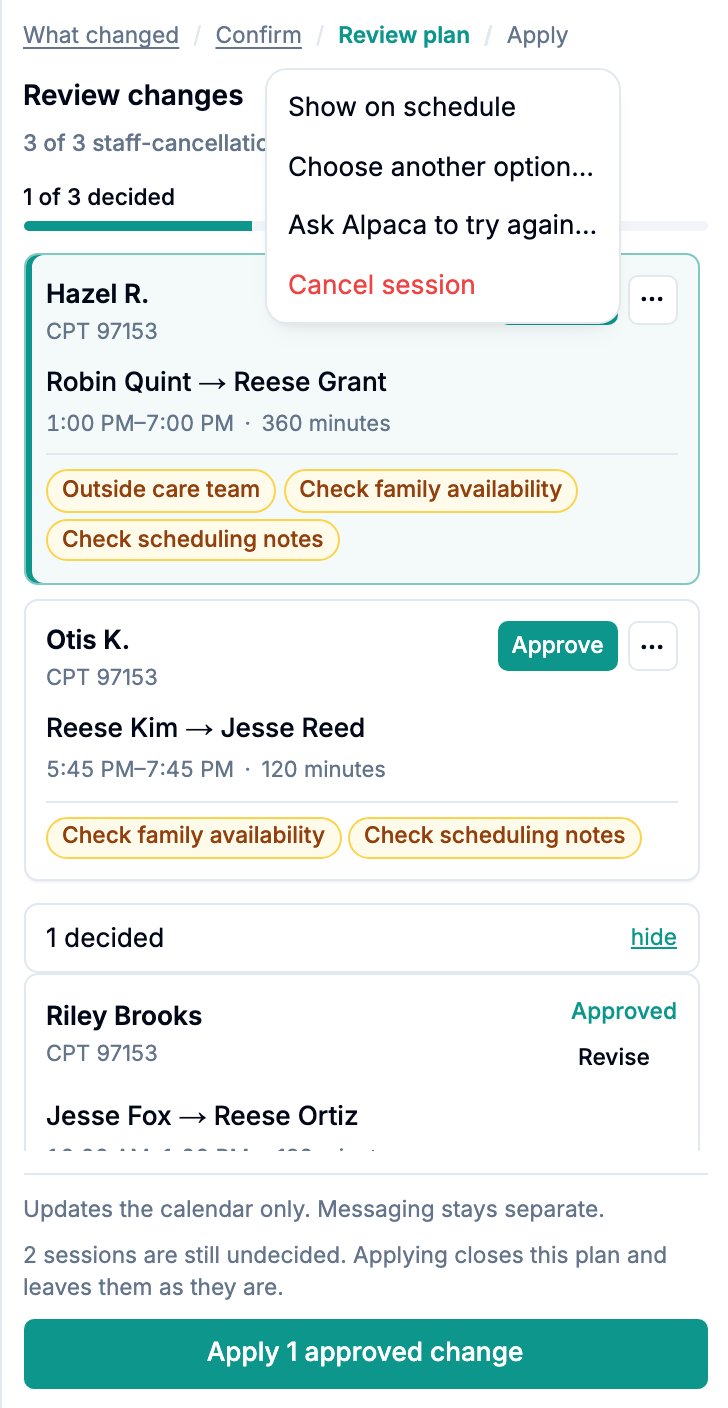
The ... menu has the other choices:
Show on schedule scrolls to and highlights where the session lands.
Choose another option… opens a list of checked alternatives (see below).
Ask Alpaca to try again… asks Why not? Choose a reason (Wrong person for this client, Family will not accept it, Wrong location, Too many hours or Needs to be someone else) and add a note if you want. Alpaca keeps the rest of the plan as it is and works on that one session again.
Cancel session marks the session to be cancelled when you apply.
Revise reopens a decision you already made.
After you turn down three suggestions for the same session, Alpaca stops guessing. It says I am not going to guess again and offers Pick somebody yourself or Leave it uncovered.
A session the plan could not answer at all appears at the top under One session has no answer, with Show other times. Applying the plan leaves it uncovered.
Some plans include a Linked move, where one session moves so another can be covered. A linked move is decided as a whole. Approving or rejecting one part applies to the whole chain, and Alpaca never applies half of one.
There is no bulk approval. Every change is a decision you make yourself.
The first time you open a plan, a short walkthrough points out three things: how to check each change, what warnings mean, and that Apply changes the calendar only. Select How this works (the ? in the header) to see it again at any time. Afterwards a one-time tip points at Hours for exact times.
Choose another option
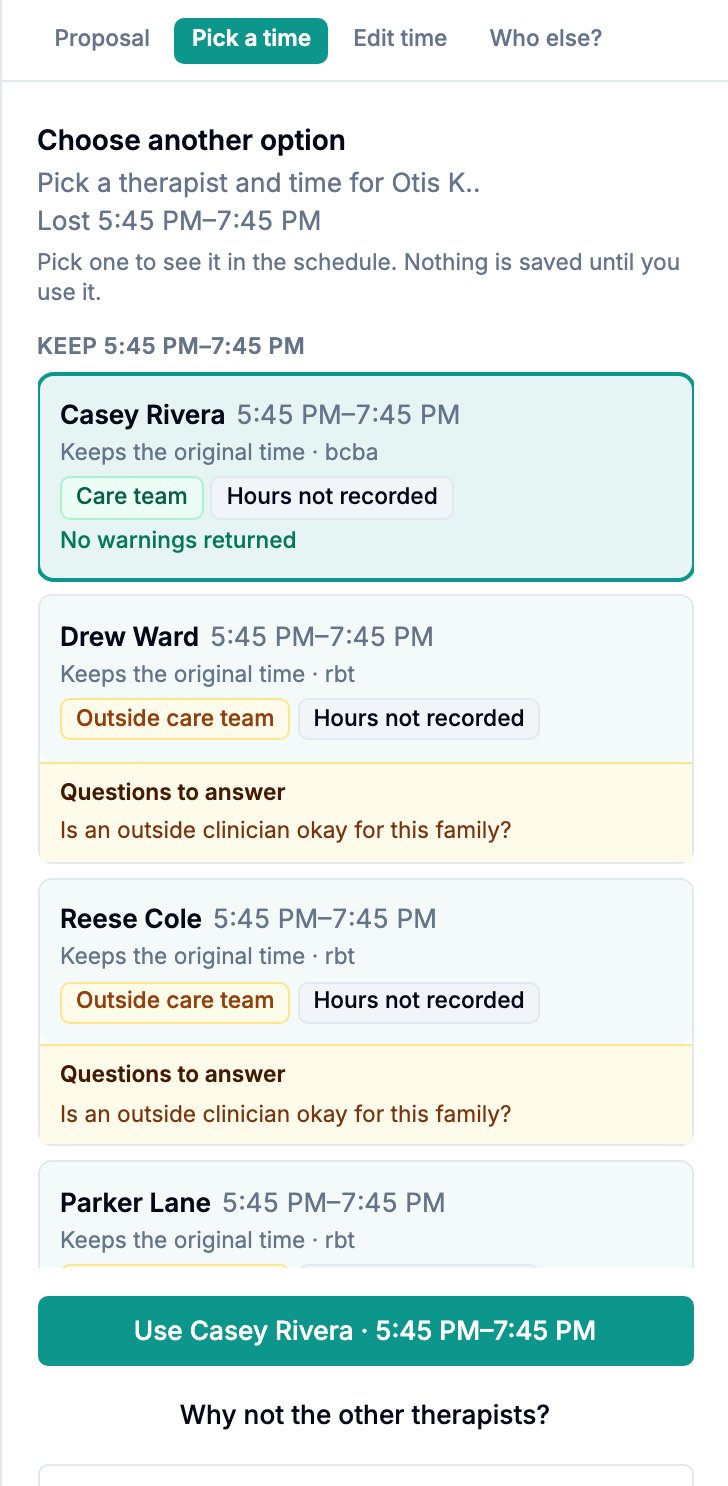
Choose another option… opens Choose another option for that session. Options that keep the original time come first, under Keep and the time. Other times that day follow under Other times today. Each option shows small tags:
who the person is to this client: Care team, Approved substitute, Floater or Outside care team;
what their recorded hours say: On shift, Outside recorded hours, Open availability or Hours not recorded.
Select an option to preview it on the grid. Nothing is saved until you use it. To save it, select the button that names the therapist and time, for example Use Jordan Lee · 9:00 AM–11:00 AM. If nothing else works, the panel says so instead of showing an empty list.
The tabs at the top switch between Pick a time, Edit time (choose a therapist and an exact Start time and End time, then Check time) and Who else? Who else? (also reached with Why not the other therapists?) opens Who could take this?, which lists every therapist with the reason each one is ruled out. You can pick anyone who is not ruled out. Your pick is recorded as your call, not the plan's.
"Hours not recorded", open availability and floaters
Hours not recorded means the person has no availability on file. Alpaca cannot check their hours, so it does not rule them out on hours. In Who could take this? this shows as Missing hours not recorded. Confirm with the person before you use them. Recording their availability makes future suggestions more accurate.
Open availability means the person's availability is set to open. Any hour counts as on shift.
A Floater can cover any client. Mark someone as a floater in Scheduling notes under Staff. Floaters are suggested after the client's care team and approved substitutes.
Move sessions yourself: Blocks, Hours and Week
Use the toggle in the header to switch between three views of the day. Blocks is the default. Your choice of 12-hour or 24-hour time also applies to every view.
Blocks shows each staff member as a row and the day's parts (such as morning and afternoon) as columns. Drag a session to another person in the same column to reassign it. Drag it to another column to move it to the start of that part of the day, keeping its length.
Hours shows a real timeline. Choose Staff in rows or Staff in columns.
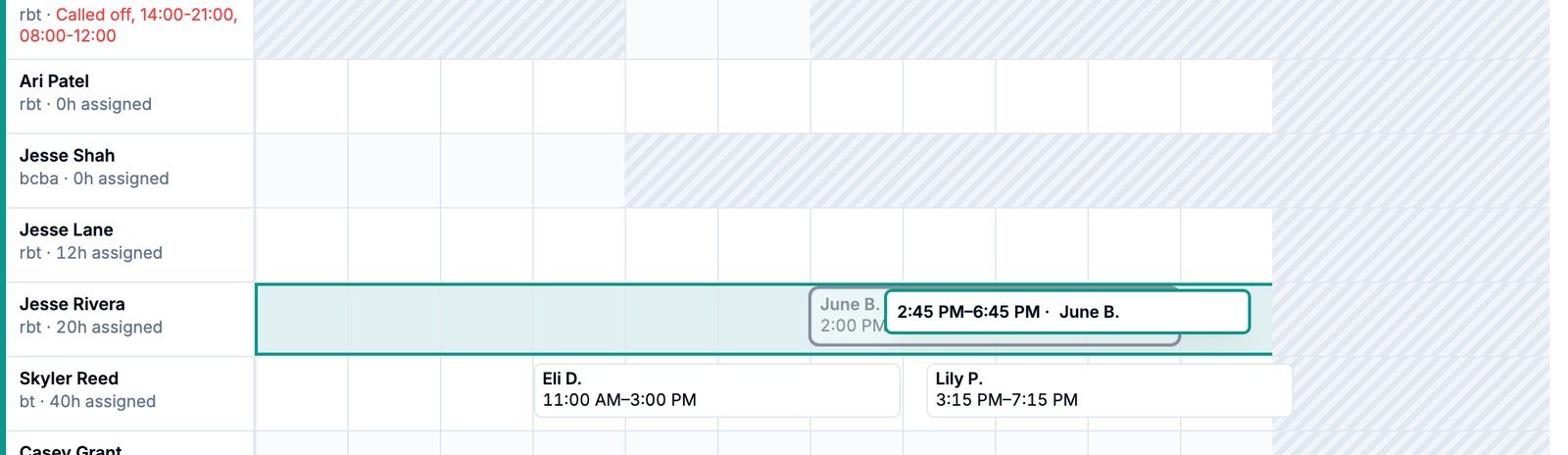
Drag a session to another person to reassign it at the same time.
Drag it along the day to change the time. Moves snap to 15 minutes.
Drag the start or end edge of a session to change its length.
For an exact time that does not land on a quarter hour, use Edit time and its Start time and End time fields.
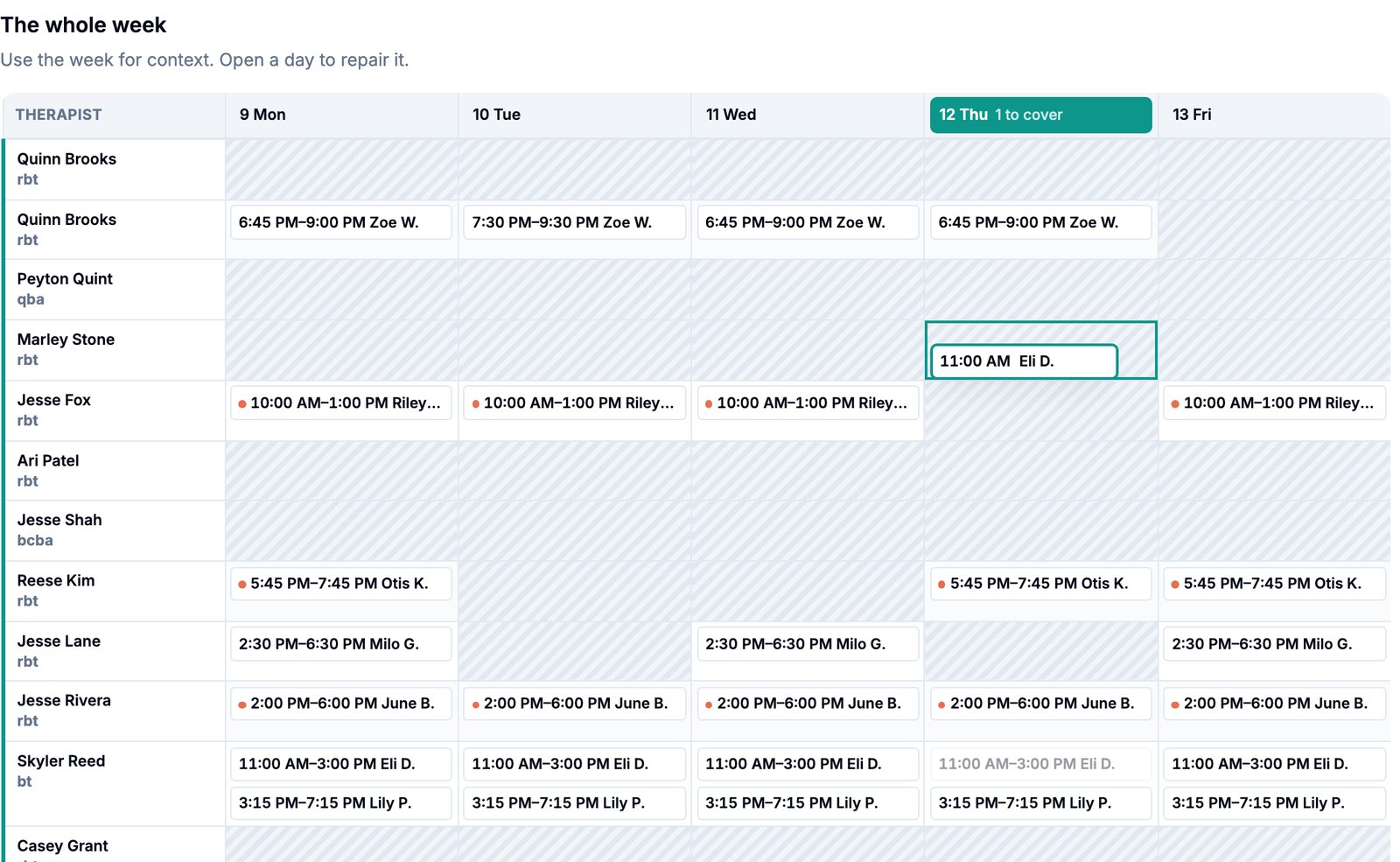
Whole week shows the week for context: Use the week for context. Open a day to repair it. You can drag a session from the day you are repairing to another person. It always keeps its hour, so the week view changes who, never the time. Moving a session to another day is not available yet, so a drop on another day is turned away. Select a day's heading to open that day for repair.
In Blocks and Hours, hovering over a session highlights the same client's other sessions that day and dims the rest. This makes it easier to spot a move that would put a child in two places.
You can also drag with the keyboard. Focus a session, press Space to pick it up, use the arrow keys to move it, and press Space or Enter to drop it. Press Esc to cancel.
Every drag is checked before it is saved. If a drop does not fit, nothing changes and you see why, for example That time is outside the clinic day. Nothing has changed. If a move overlaps another session, a notice offers Change time. A drag counts as your decision for that session, just like choosing an option.
Collapse the side panel
On a wide screen, select the arrow at the top of the side panel (Collapse the side panel) to give the grid the full width. The panel folds into a narrow strip that still shows what is left, such as Review 3 changes, Ready to apply or Open panel. Select the strip to open it again. The panel opens again on its own when something new needs your attention, such as a rebuilt plan or another day.
Step 4: Apply
Select Apply N approved changes at the bottom of the review panel. Above the button: Updates the calendar only. Messaging stays separate.
You do not need to decide every row first. If some are undecided, the panel warns you that applying closes this plan and leaves them as they are.
Each approved change is checked again against the schedule as it is now. Anything that no longer fits is skipped. The page lists it under N changes were not written: with the reason, so you never assume a hole was filled when it was not.
A session you chose to Cancel session is cancelled with the reason Reason not listed and the note Cancelled by Master Rescheduler after scheduler approval: no coverage available.
Applying closes the plan. To make more changes to the day, select Start a new plan for this day.
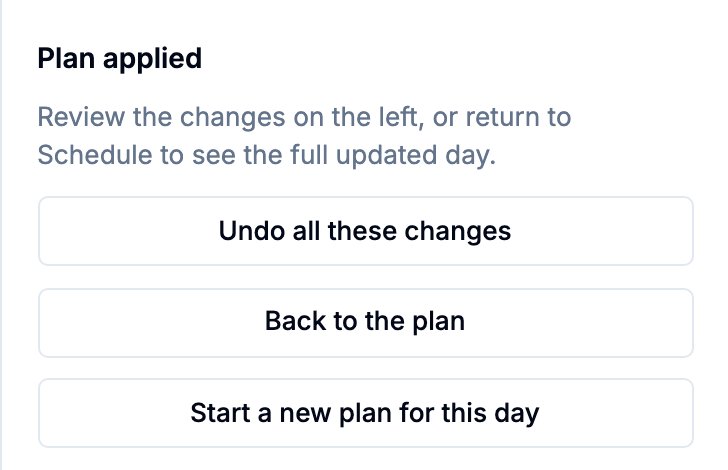
After applying, the panel shows Plan applied, along with Undo all these changes, Back to the plan, Start a new plan for this day and Return to Schedule.
Applying sends no messages to staff or families. Tell the people affected yourself.
Undo
Select Undo all these changes, then confirm in the Undo all these changes? dialog.
What Undo puts back: every appointment the plan changed that is still exactly as the plan left it. That includes the therapist, the time, and any cancellation the plan created, which is removed. These are restored together, in one step.
What Undo leaves alone:
Any appointment that someone changed or deleted after you applied. The panel tells you how many, for example 1 appointment was changed after the plan was applied and was left as it is. Undo never overwrites newer work.
Family cancellations made with Cancel family sessions, which were saved when you made them and are not part of the plan.
Substitute offers that Applying closed. They stay closed.
Your scheduling notes and your Who cancelled? answers.
Undo sends no messages either. The dialog reminds you: Anyone you have already told about the new times will need to hear from you again.
After an undo, the panel shows Plan put back.
What makes this safe
Checked twice. A suggestion is validated when it is built and again at Apply, against the live schedule. A change that stopped fitting in between is skipped and reported.
Stale plans are flagged. If the day changes after you build a plan (a new cancellation, a reassignment, a room or time change, or edited scheduling notes), a banner says The schedule changed since this plan was built. (or Scheduling notes changed—rebuild plan.) and offers Start again with the new one.
Two schedulers, one day. If a colleague is already building a plan for the same day, you see [Name] is already building a plan for this day. You are both in the same one, so talk to them before you apply anything.
Family cancellations stay cancelled. The Rescheduler will not reinstate a session the family cancelled.
Past days are read-only. If every session on the day has already started, the page says so and nothing can be moved.
Warnings are not hidden. A warning does not rule a person out, but it stays on the card. Common warnings are Outside staff availability, Check availability, Outside care team, Check payer credential, Check authorization, Over weekly hours, Supervision credit loss, Staff double-booked, Client double-booked, Travel conflict, Shorter session, Removes lunch break and Check scheduling notes.
Scheduling notes
Select Scheduling notes in the header to record what the calendar cannot show, such as how your clinic schedules, notes for each client and staff member, and per-person settings: Floater, Protect admin time and Remote only. You can also set how long someone can be late before a session goes to someone else, a Maximum time shift, and a lunch break. When you return, the Rescheduler brings you back to the same day and plan.
As the page says: Written notes are guidance. The Rescheduler reads free-text notes, but you should review every suggestion against them. Protect admin time, Remote only and each client's Do not schedule list are rules its suggestions never break. Sessions you book or edit by hand aren't checked against them.
Your data
The Rescheduler reads the day's appointments, cancellations, staff availability, care teams, credentials, authorizations and your scheduling notes for the active organization only.
To build a plan, Alpaca sends the schedule to the AI model providers it uses under its healthcare data agreements. The structured schedule is sent with opaque labels in place of names and IDs. Free-text notes and text you paste in Tell me what happened are sent as written, because reading names is that step's job.
Each plan, your decisions, and what Apply changed are stored with the plan, so Undo can restore exactly what changed. Calendar changes appear in each appointment's normal change history.
What it will not do
Message anyone. Apply and Undo never notify staff or families. The only notifications are the optional Notify family and Notify clinician boxes in Cancel family sessions, which are unchecked unless you check them.
Cover a family cancellation. A family cancelling frees time. It does not create work for another therapist.
Treat a deletion or duplicate as a call-out. Deleted appointments and Scheduling error / duplicate appointment cancellations are ignored.
Guess who cancelled. When the reason does not say, it asks.
Approve in bulk or apply on its own. Every change needs your decision, and only Apply writes to the calendar.
Apply half of a linked move. A chain is applied whole or skipped whole.
Overwrite later work on Undo. Rows changed after Apply are left as they are.
Recover from common problems
What you see | What it means | What to do |
|---|---|---|
No Rescheduler button on Schedule | Your role does not have the Manage Rescheduler permission. | Ask an Admin to confirm your role is Admin, Assistant Admin or Director. |
You do not have access to the rescheduler. | Same as above, reached by a direct link. | As above. |
The button shows no to reschedule count after a call-out | The session was not cancelled with a provider reason, or it was deleted. | Cancel the session with Provider initiated as the reason, then reopen the Rescheduler. |
No sessions need covering / Only families cancelled, so nobody needs covering. That time is now free for makeups. | Every cancellation is a family cancellation. | Nothing to plan. Use the free time for makeups if you want. |
Every disruption on this day is already handled. There are no open sessions to cover. | Each hole is already covered. | Nothing to do. |
The schedule changed since this plan was built. | Something on the day changed after the plan was built. | Select Start again with the new one. |
Scheduling notes changed—rebuild plan. | Notes or staff settings changed after the plan was built. | Select Start again with the new one. |
The day's cancellations changed since this plan was built. Start again to plan with the new day. | A cancellation was added, removed or answered differently. | Select Start again. |
This plan is finished, so it cannot be changed any more. It was either applied already or replaced by a newer plan for this day. Start a new plan to keep going. | The plan was applied or replaced. | Select Start a new plan. |
This day changed, or another plan is already being built for it. Wait a moment, then build the plan again. | Another build is running for this day. | Wait, then select Build again. |
[Name] is already building a plan for this day… | A colleague has the same day open. | Agree who applies before either of you does. |
N changes were not written: | Those approved changes no longer fit the live schedule. | Read each reason and fix those sessions on Schedule or in a new plan. |
There is no other time today that works for this session. | No other checked option exists that day. | Keep the proposed move, or cancel the session. |
Nobody clears every check for this session. The reason is on each card. | Every therapist is ruled out. | Read the reasons, or leave the session uncovered. |
That time is outside the clinic day. Nothing has changed. | A drag or time edit went past the clinic's hours. | Drop it within the day. |
moving to another day is not turned on for this clinic yet | Moving sessions to another day is not available. | Keep the session on its own day, or reschedule it from Schedule. |
This day has already happened… | Every session on the day has started. | View only. Make changes on Schedule if needed. |
That approval was saved, but the updated schedule could not be loaded. Try again. (or a similar "saved, but… could not be loaded" message) | Your decision was saved, but the grid did not refresh. | Select Try again to reload. Do not repeat the decision. |
Nothing was applied. The calendar is exactly as it was, and your decisions are saved. | Apply failed before writing. | Try again. If it keeps failing, contact support with the date you were repairing. |
The calendar could not be put back. Nothing changed; try again. | Undo failed before writing. | Try again. |
Current limitations
One day at a time. A plan repairs one day, and sessions cannot be moved to another day from the Rescheduler yet. Reschedule a makeup on another day from Schedule.
Records can be thin. Missing availability, credentials or weekly targets are shown as missing (Hours not recorded, Missing credentials not recorded). A person with a thin record can still be suggested, so confirm with them first.
Free-text notes are guidance, not rules. Only Protect admin time, Remote only and Do not schedule are enforced on suggestions.
Linked repairs are limited. If no verified chain appears, you may still need to resolve a session by hand. That does not mean no schedule exists.
Messaging is separate. You still tell staff and families about new times yourself.
Wide screens. Collapsing the side panel is available only on wide layouts.