Find and change your clinic's settings in My Organization
Last updated: October 13, 2026
My Organization is where a clinic admin sets how Alpaca works for the whole clinic: clinic details, scheduling rules, which messages families and staff get, messaging, payroll and tax details, and bank accounts. Every setting is on one page, grouped in a menu on the left, with one save bar for all of them.
Three things are true across the page:
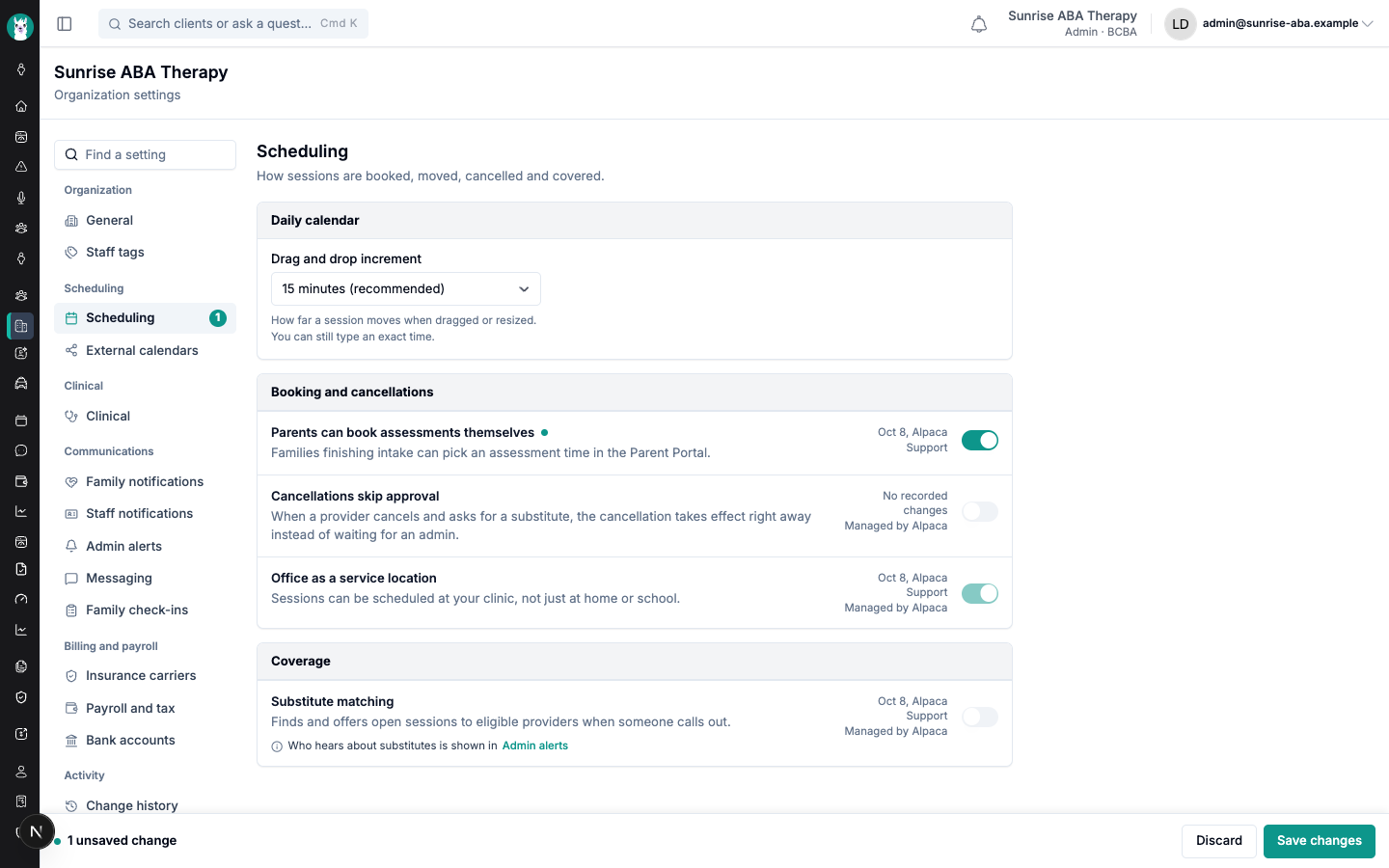
Nothing changes until you save. Edits are held as unsaved changes, counted in the menu and the save bar, until you choose Save changes. Discard throws them away.
Every change is recorded. Change history lists each change — the old value, the new value, who made it and when — including changes Alpaca Support made for you.
What you see is real. A switch that is on is actually on. Anything Alpaca does not support yet is marked Coming soon or locked rather than shown as a working control.
Who can use it
Clinic Admins can view and change the page. Assistant Admins can view it and change most switches, but not the clinic's details, such as the timezone and contact email, or which channels a message is sent on. They see You can view these settings. Only clinic admins can change most of them. at the top of the page.
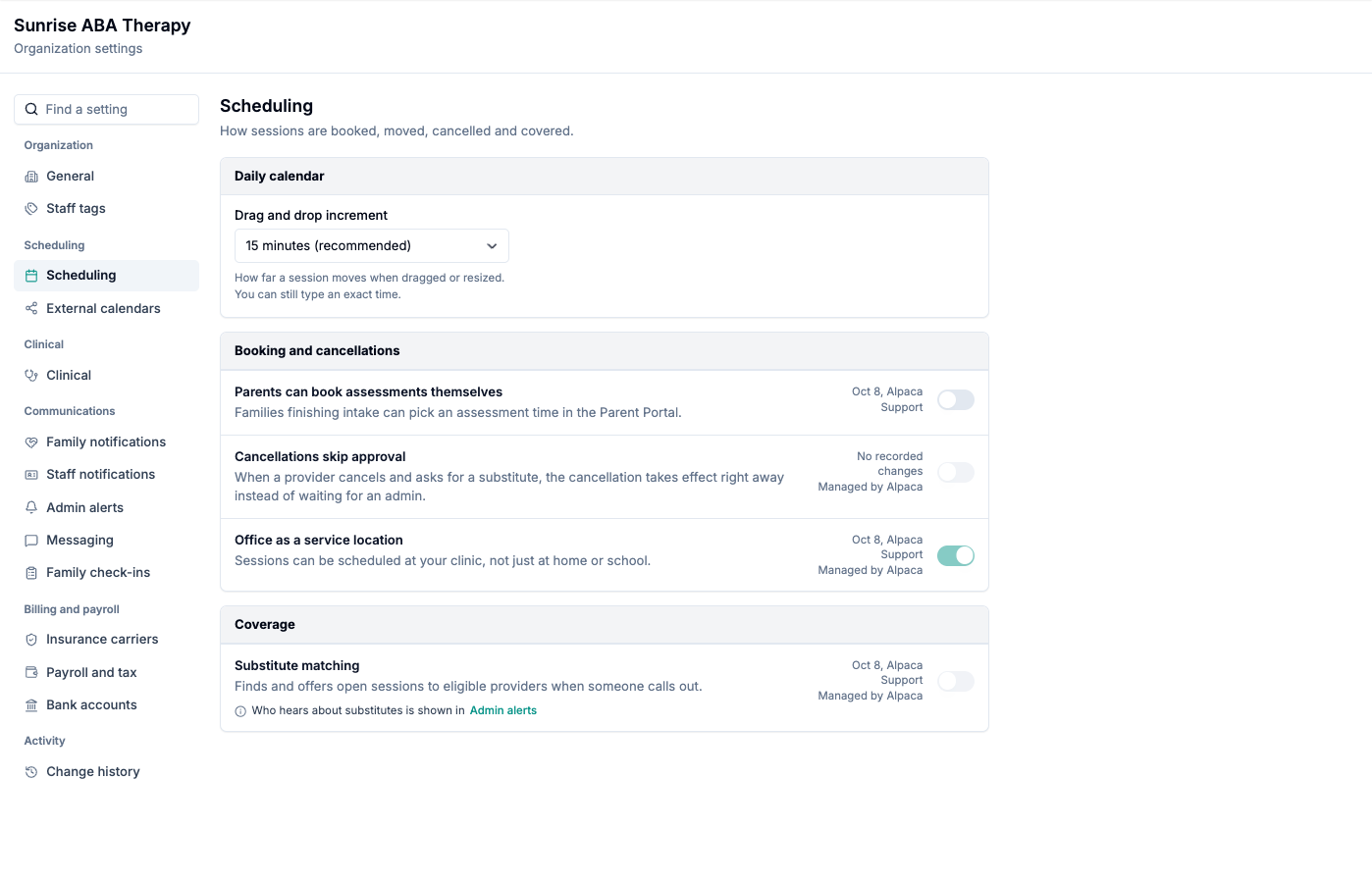
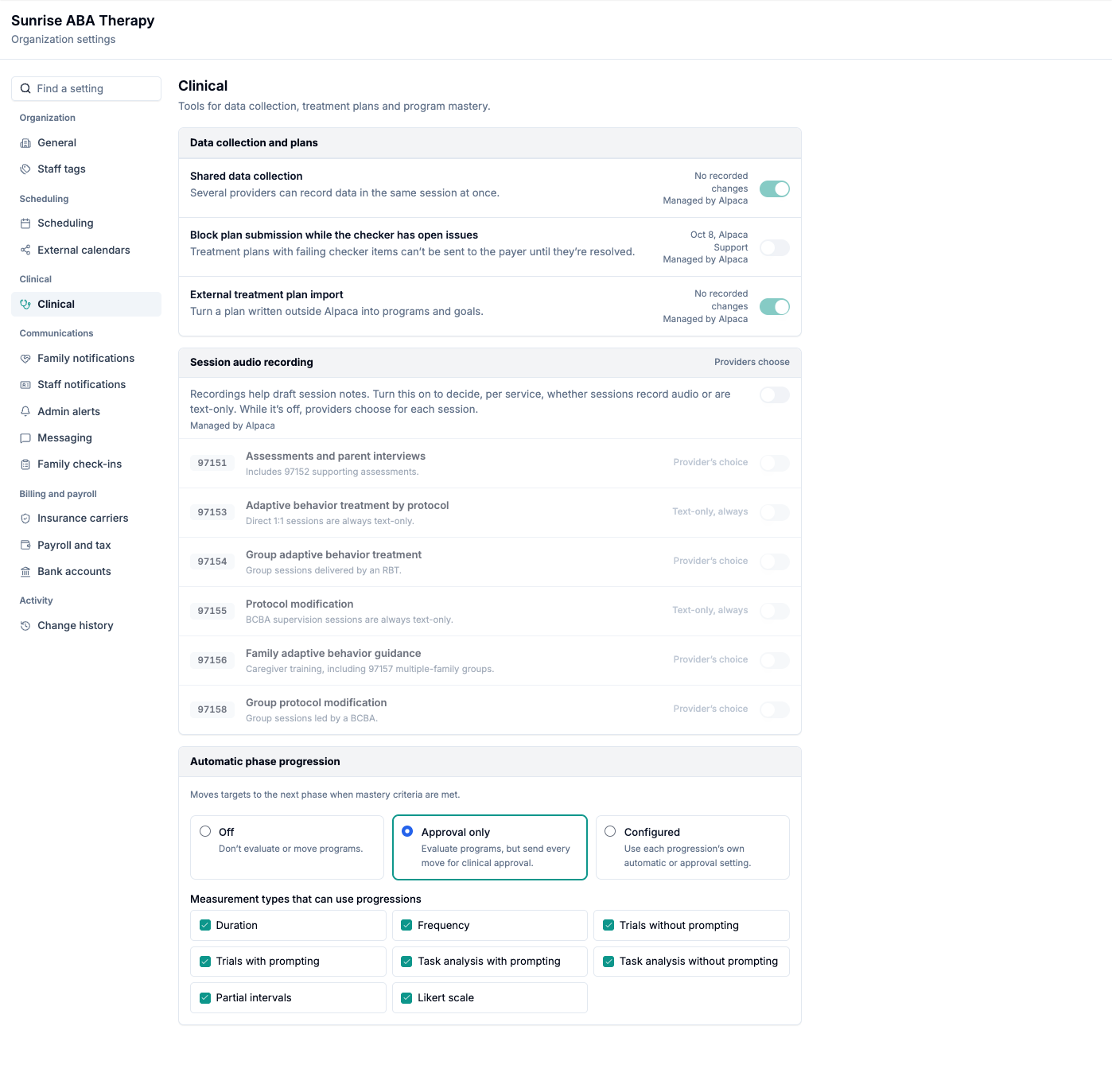
Some switches show Managed by Alpaca. These change billing, messaging or clinical behaviour in ways Alpaca sets up with you, so only Alpaca Support can turn them on or off. Hover over one to see Ask Alpaca Support to change this.
When Alpaca Support opens your page in a read-only support session, they can look but cannot change anything.
Open the page and find a setting
Open My Organization in the left sidebar, under Team.
Choose a section from the menu, or type in Find a setting.
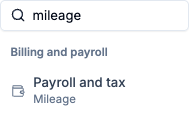
Find a setting matches section names and the words inside them. Typing mileage finds Payroll and tax, and the menu shows which word matched. If nothing matches, you see No settings match that search.
Each section has its own link, so you can bookmark one or send it to a colleague. Links to the old tabbed page still work and open the matching section.
Make and save changes
Change any setting. A dot appears next to it, and the section shows a count in the menu.
Move between sections as you like. Your unsaved changes stay.
Choose Save changes in the bar at the bottom of the page. Choose Discard to undo everything you have not saved.
When everything saves you see Settings saved. If one group of settings cannot be saved, Alpaca still saves the others. You see a message such as Could not save notification settings, and only the changes that failed stay unsaved, so you can try them again.
Unsaved changes belong to one clinic. If you switch organizations, they are discarded rather than carried into the other clinic's settings.
Under each switch you can see when it last changed and who changed it — for example Oct 8, Alpaca Support — or No recorded changes.
What each section holds
Organization
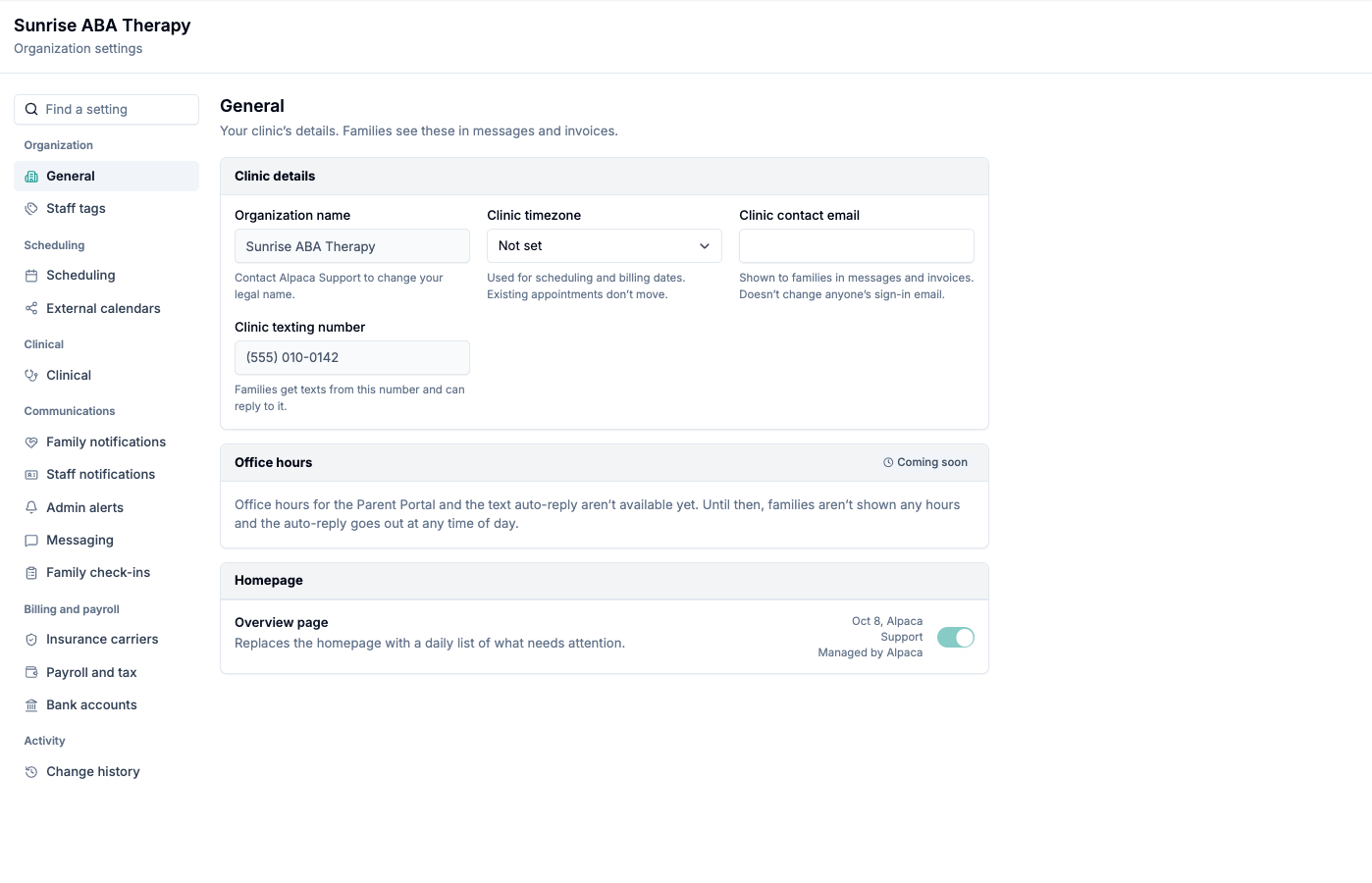
General — Clinic timezone (used for scheduling and billing dates; existing appointments don't move), Clinic contact email (shown to families in messages and invoices; it doesn't change anyone's sign-in email) and the Overview page homepage option. The organization name and texting number are shown but cannot be changed here. Contact Alpaca Support to change your legal name.
Staff tags — group your staff, then filter the schedule by tag. See Staff tags and schedule grouping. This section appears for roles that can manage staff tags.
Form I-9 — how your clinic verifies new hires. It appears only where Form I-9 is turned on.
Scheduling
Scheduling — the Drag and drop increment, whether Parents can book assessments themselves, whether Cancellations skip approval, Office as a service location, and Substitute matching.
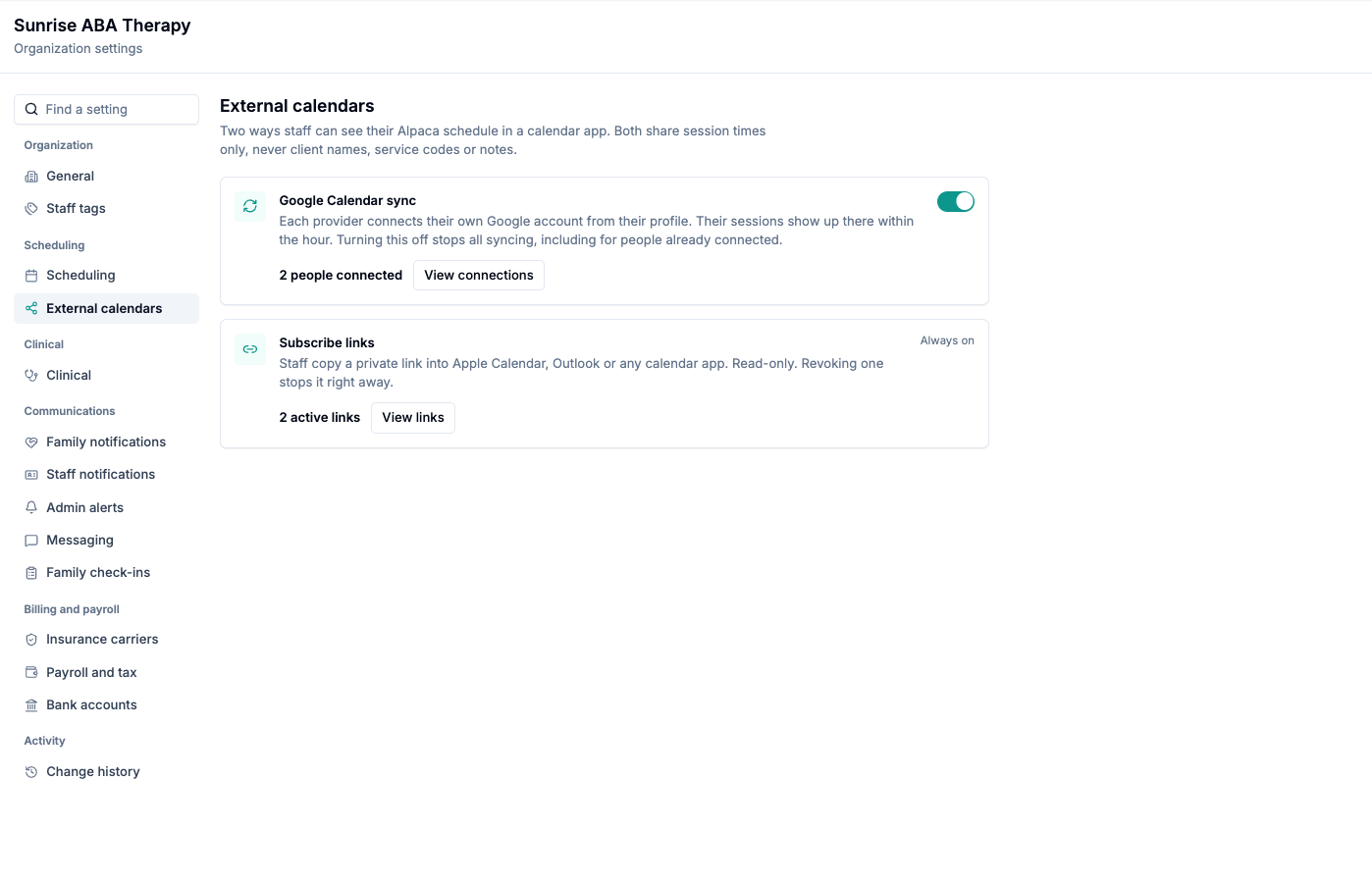
External calendars — Google Calendar sync and Subscribe links. Both share session times only, never client names, service codes or notes.
Clinical
Clinical holds shared data collection, the treatment plan checker, external plan import, session audio recording by service code, and Automatic phase progression.
Communications
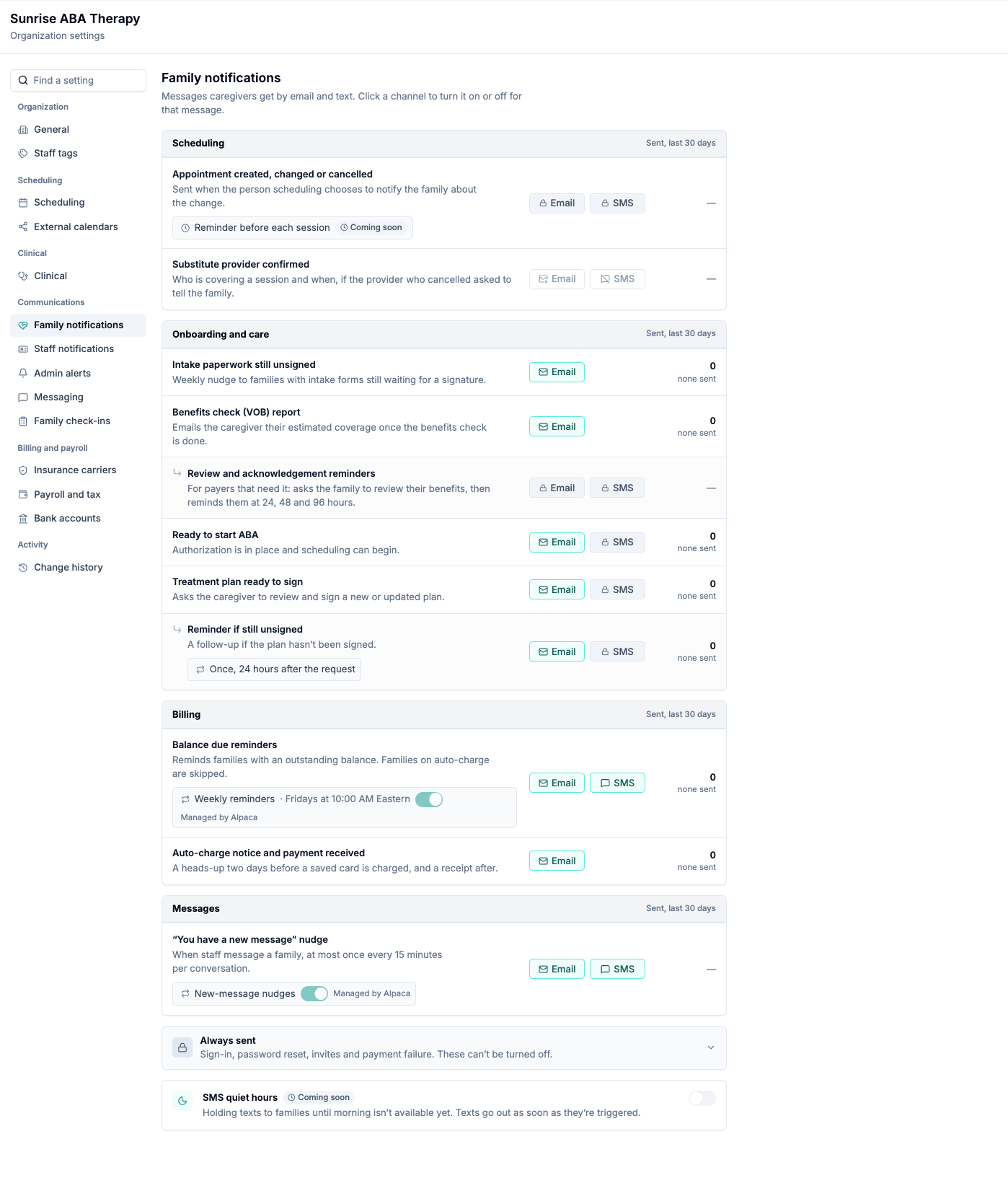
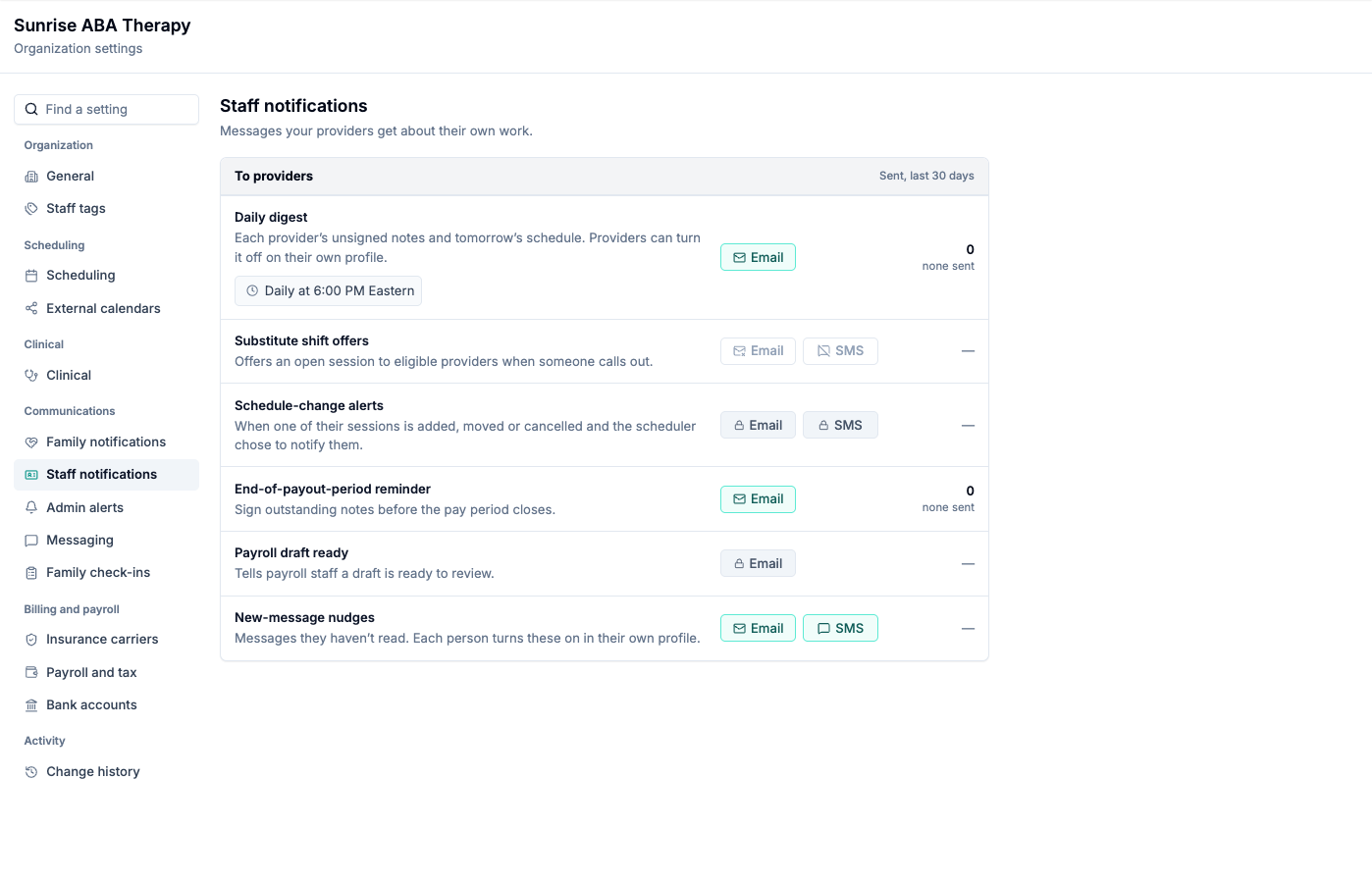
Family notifications and Staff notifications list every message Alpaca sends, with an Email and SMS chip for each one:
A chip you can click turns that channel on or off for that message.
A chip with a lock is always sent on that channel when the event happens. A switch for it is coming soon.
A greyed-out chip follows another setting and cannot be clicked here. Hover to see which setting.
The right-hand column shows how many of each message went out in the last 30 days. Always sent lists the messages that can never be turned off: sign-in, password reset, invites and payment failure.
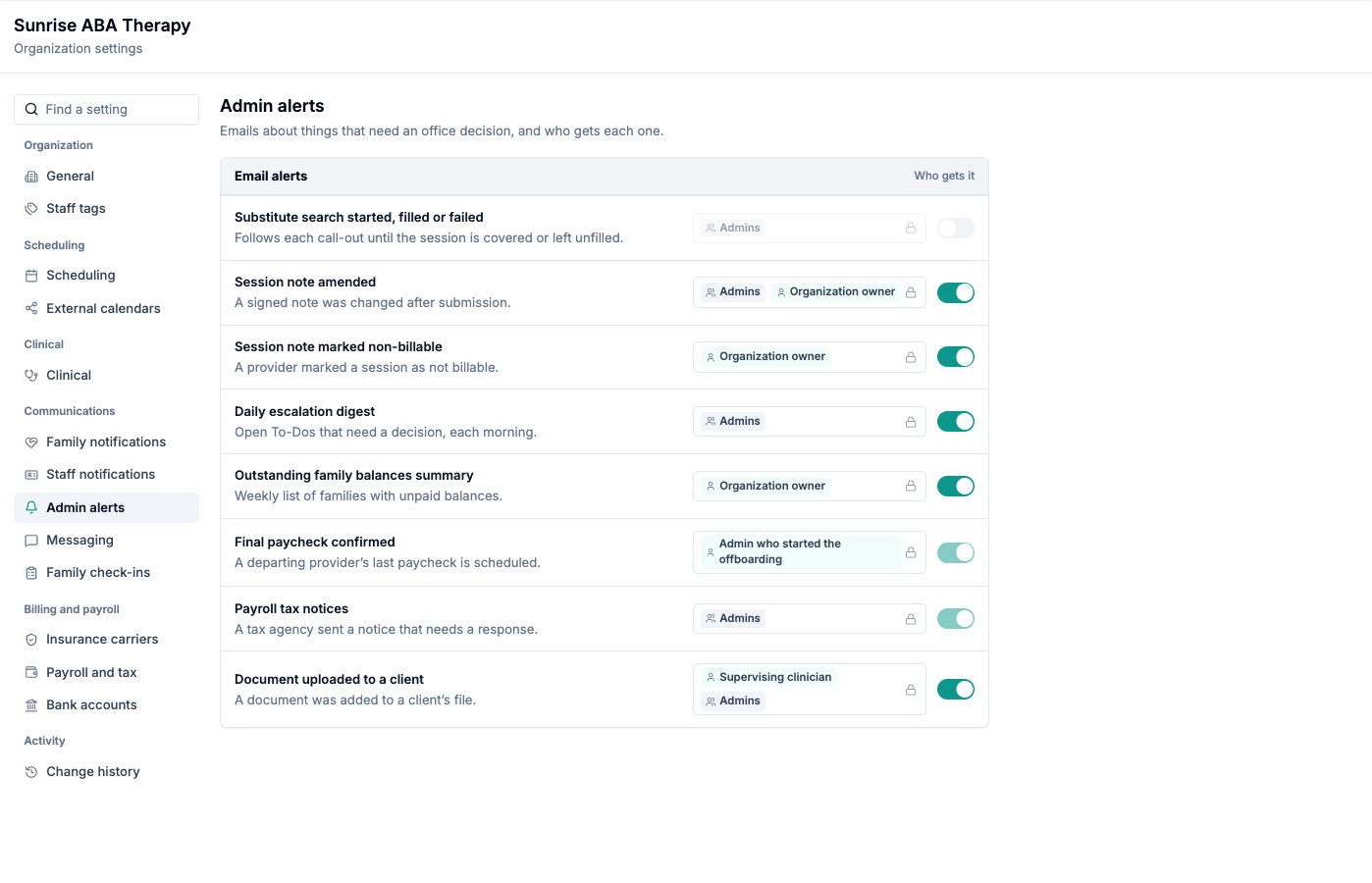
Admin alerts lists the emails about things that need an office decision, and who gets each one. You can turn an alert on or off. Choosing who gets each alert is coming soon.
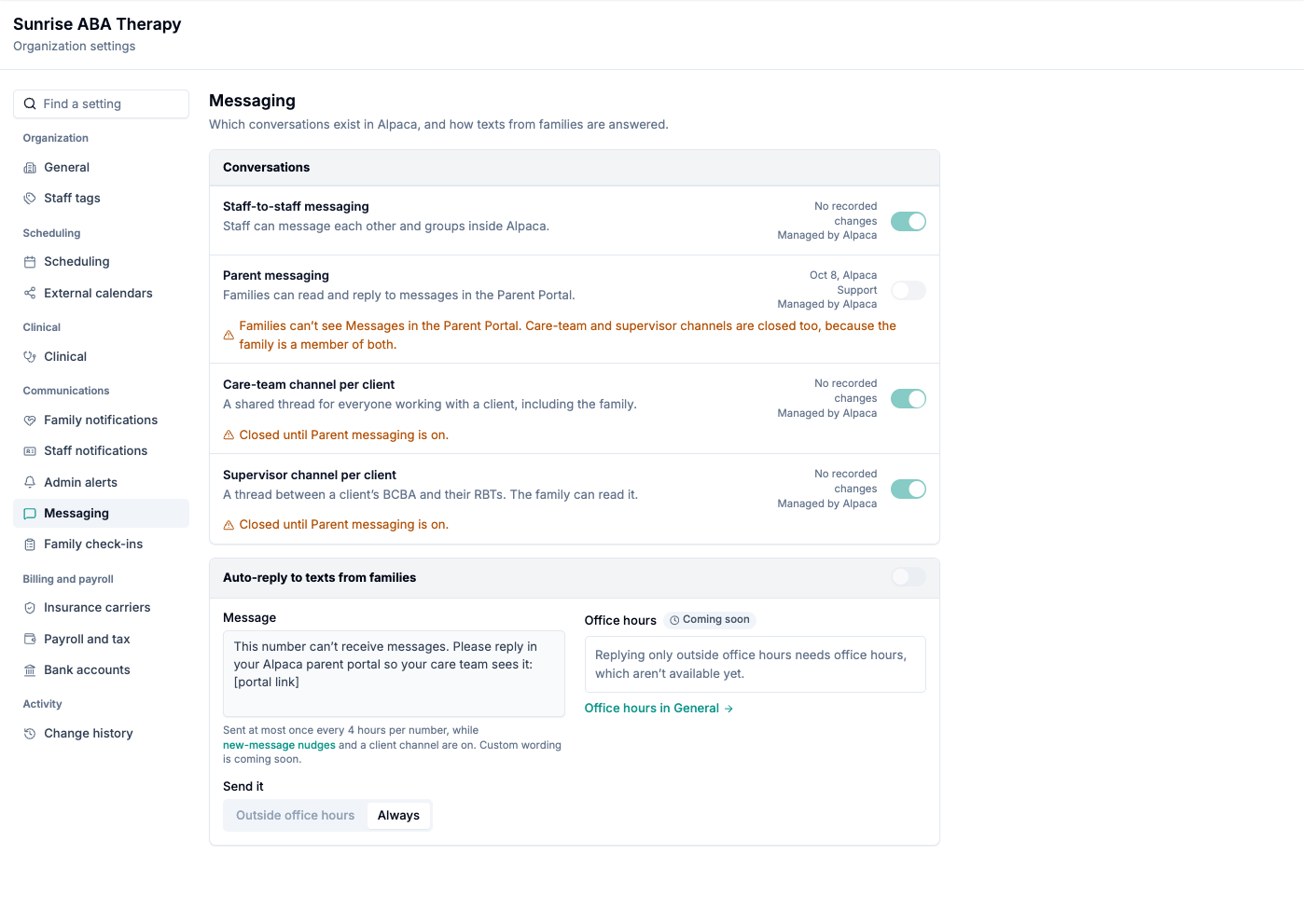
Messaging shows which conversations exist — staff-to-staff, parent messaging, and the care-team and supervisor channels for each client — plus the auto-reply to texts from families. If parent messaging is off, the page explains that the client channels are closed too, because the family is a member of both.
Family check-ins shows the recurring questions Alpaca Assistant texts to families. Check-ins are not sent automatically yet. Anything already set up is shown read-only and will carry over when check-ins launch.
Billing and payroll
Insurance carriers — the payers your clinic bills, and who is credentialed with each.
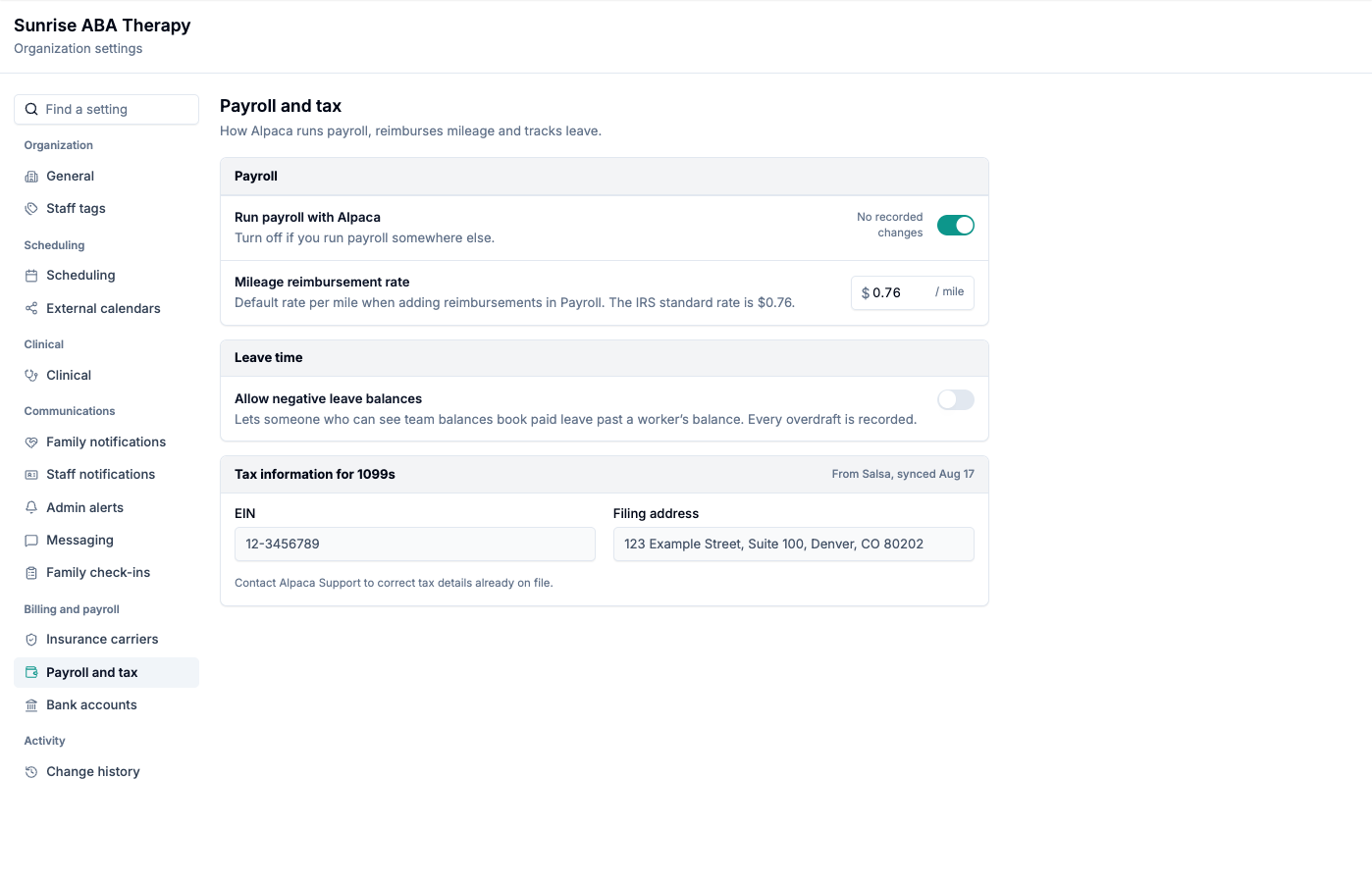
Payroll and tax — Run payroll with Alpaca, the Mileage reimbursement rate, Allow negative leave balances, and Tax information for 1099s. You can enter your EIN and filing address if none is on file. Contact Alpaca Support to correct tax details already on file.
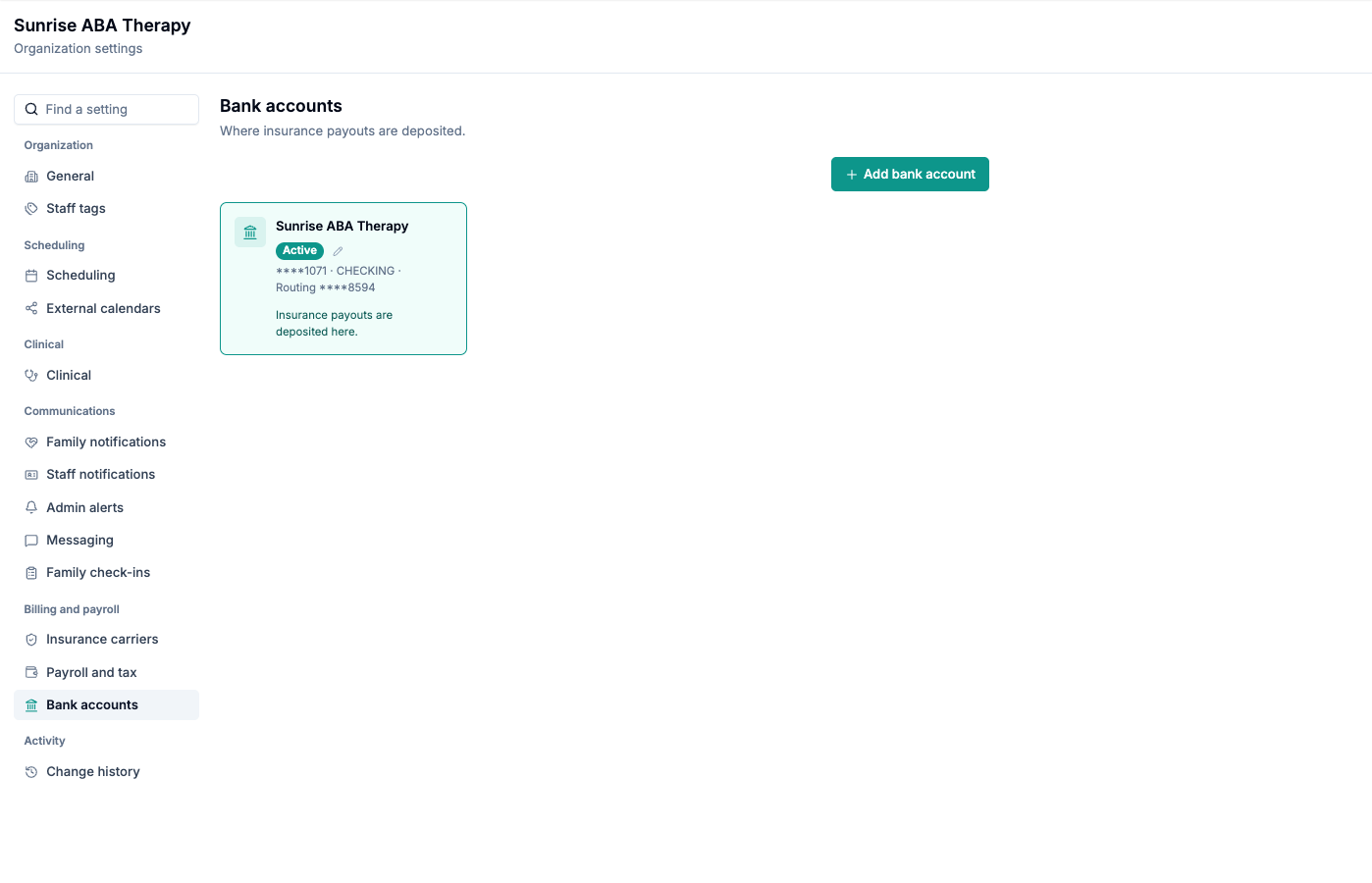
Bank accounts — where insurance payouts are deposited. Add an account, rename one, or make a different account the active one.
Check who changed what
Open Change history under Activity. Each row shows the setting, its section, the old value crossed out, the new value, and who made the change and when. Changes Alpaca Support made for you are labelled Alpaca Support.
Use Search setting or person to find a setting or a colleague, and All pages to filter by section.

History starts from the day this page launched. If nothing has changed since then, you see No changes recorded yet. Changes made from now on will show up here.
Your data
Change history stores the setting, the old and new values, the name of the person who made the change and the time. Your EIN is never stored in full in the history — only its last four digits. Bank account and routing numbers are shown masked on the page.
Recover from common problems
What you see | What it means | What to do |
|---|---|---|
You can view these settings. Only clinic admins can change most of them. | Your role can view this page but not change everything on it. | Ask a clinic admin to make the change. |
Managed by Alpaca under a switch | Only Alpaca Support can change this setting. | Ask Alpaca Support. |
A chip with a lock | This message is always sent on that channel. | Nothing to do. A switch is coming soon. |
Could not save … | One group of settings did not save. The rest did. | Choose Save changes again. The failed changes are still waiting. |
No settings match that search. | No section or setting matches your words. | Try a shorter or different word. |
Contact Alpaca Support to change your legal name. | The organization name cannot be changed here. | Contact Alpaca Support. |
Contact Alpaca Support to correct tax details already on file. | An EIN or filing address is already on file. | Contact Alpaca Support. |
Could not load this organization. | The page could not load your settings. | Refresh. If it keeps happening, email support. |
Current limitations
Office hours are not available yet. Until they are, families aren't shown any hours and the text auto-reply goes out at any time of day.
Reminder before each session, SMS quiet hours and custom auto-reply wording are marked Coming soon.
You cannot choose who receives each admin alert yet.
Some messages cannot be switched off on a channel yet. They are shown with a lock.
Change history does not include changes made before this page launched.
Still stuck? Email support@alpacahealth.io and we will take a look.