Bypass Scheduling Validations with a Reason
Last updated: September 22, 2026
Scheduling past a billing flag
When you book a billable session, Alpaca checks it against your clinic’s billing rules — is there an active authorization, is the client’s information complete, is the clinician credentialed with that payer, is the session inside the payer’s unit caps.
Anything that doesn’t pass shows on the scheduling form before you save.
Most of these are just information. Some ask you to record a reason before you continue. None of them stops you booking a session your clinical judgement says should happen — but where a reason is asked for, it’s kept on the record.
The three groups
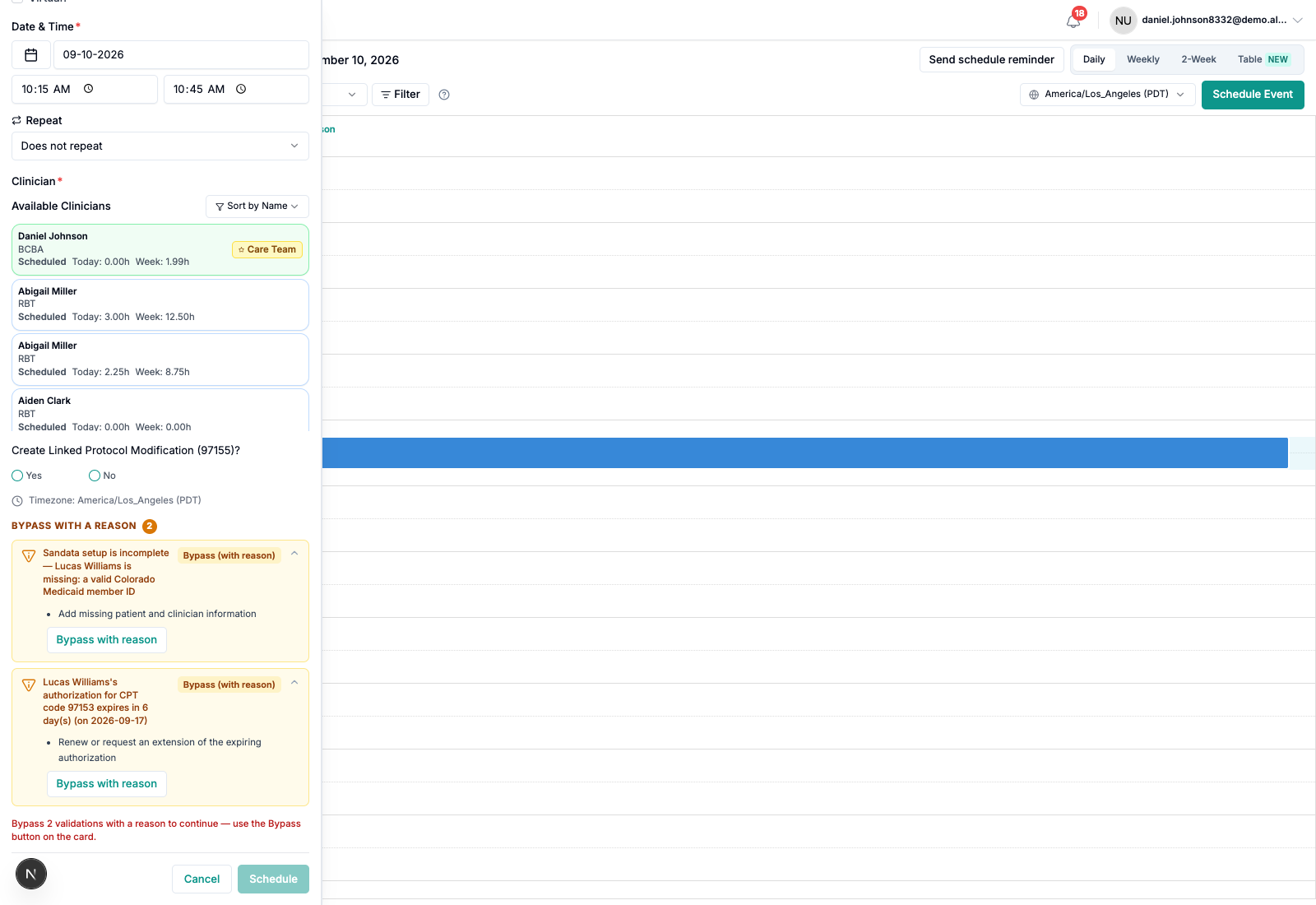
Flags appear above the Schedule button, most serious first.
Must resolve — a hard block. There’s no reason you can give: the underlying data has to be corrected first. Usually a missing field on the client or on the clinician, and usually an admin fixes it.
Bypass with a reason — you can book this once you pick a reason. The session stays billable and the claim goes out as normal.
Heads up — information only. Nothing is blocked, nothing is recorded. Read it and carry on.
Which check lands in which group is set per clinic, and it can differ between scheduling, starting a session and signing a note. A check that asks for a reason at scheduling but not at signing is configured that way on purpose.
Booking past a “Bypass with a reason” flag
1. Fill in the appointment as normal — client, CPT code, clinician, location, date and time.
2. Read the flags. Alpaca re-runs the checks as you fill the form, so they update as you go. Cards are open by default — you don’t need to expand anything to see what failed.
3. Check what’s outstanding. Everything still blocking the booking is listed directly above the buttons, and the Schedule button stays greyed out until it’s all answered. For a billing flag the line reads:
Bypass 1 validation with a reason to continue — use the Bypass button on the card.
4. Click Bypass with reason on the card.

5. Read what proceeding means. The dialog says it before it asks you anything:
This stays billable. Alpaca operations reviews every bypass, and the claim may still be denied.
That last part matters. Recording a reason is not a promise the claim will be paid — it’s a record of a judgement call, so that if the claim is denied, the billing team can see why the session went ahead.
6. Pick a reason. One is required:
Auth on file, not yet in Alpaca
Payer verbally approved
Client info being updated
Provider credentialing in progress
Retro-auth expected
Family / clinical urgency
Known payer exception
Other — notes required

7. Add notes. Optional for every reason except Other. Write what you confirmed, with whom, and when — this is what the billing team reads later:
✅ Spoke to Sunshine Health 9/8, ref #44821, retro auth confirmed backdated to 9/1
❌ ok to book
8. Click Bypass and log. The card changes to show the reason is recorded, and the Schedule button unblocks.
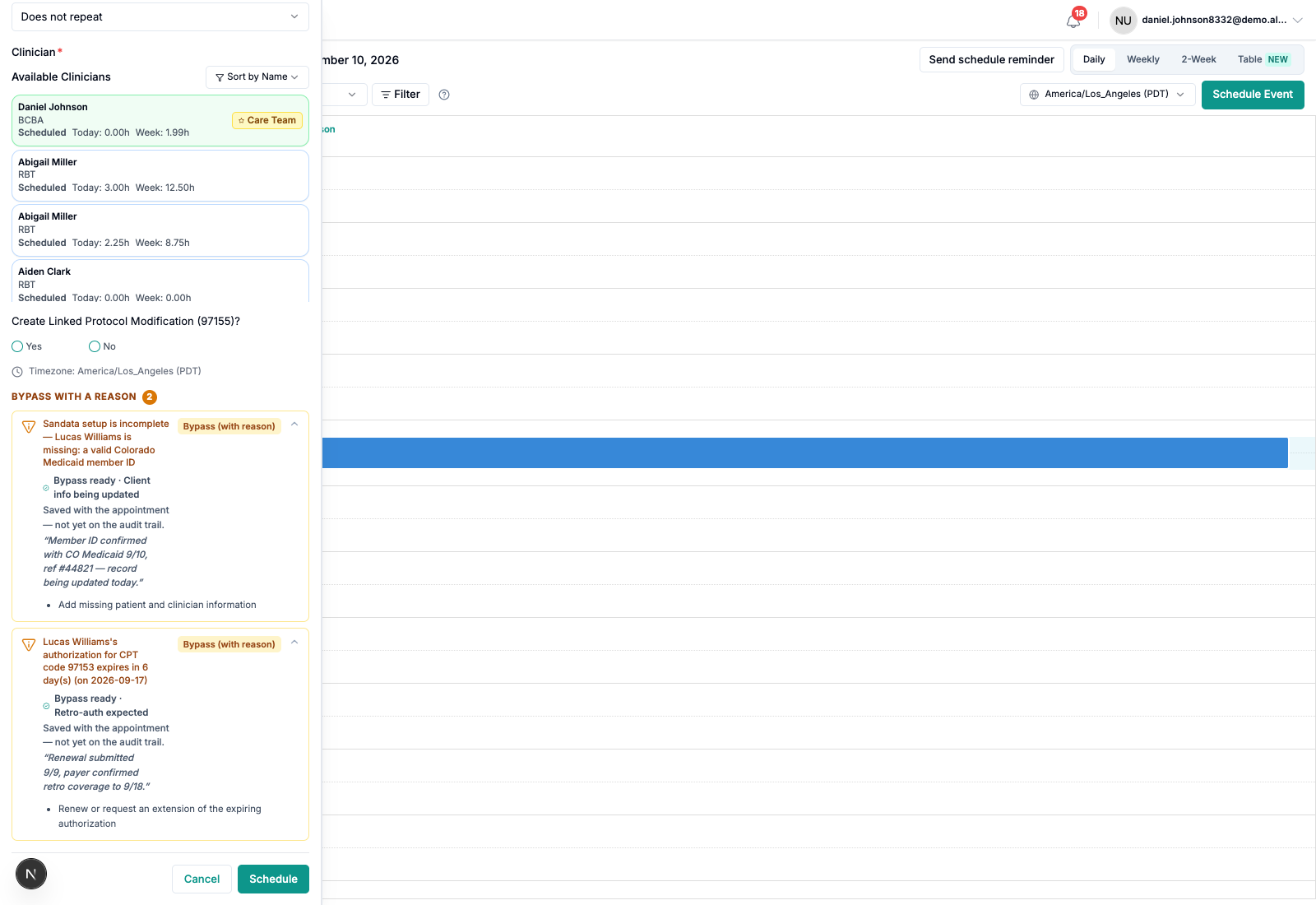
9. Click Schedule. The reason saves together with the appointment. If the appointment doesn’t save, neither does the reason — you’ll never end up with one without the other.
Recurring appointments
A reason recorded while booking a series covers every occurrence in it. The dialog tells you before you confirm:
Applies to all 12 occurrences in this series.
You won’t be asked again for each session.
Screenshot not captured — see the shot list below.
If you later split the series with “this and future”, the new series is a separate booking and the checks run against it again.
Where to see it afterwards
Once the appointment is booked, the reason is visible in four places — you don’t have to remember what you wrote.
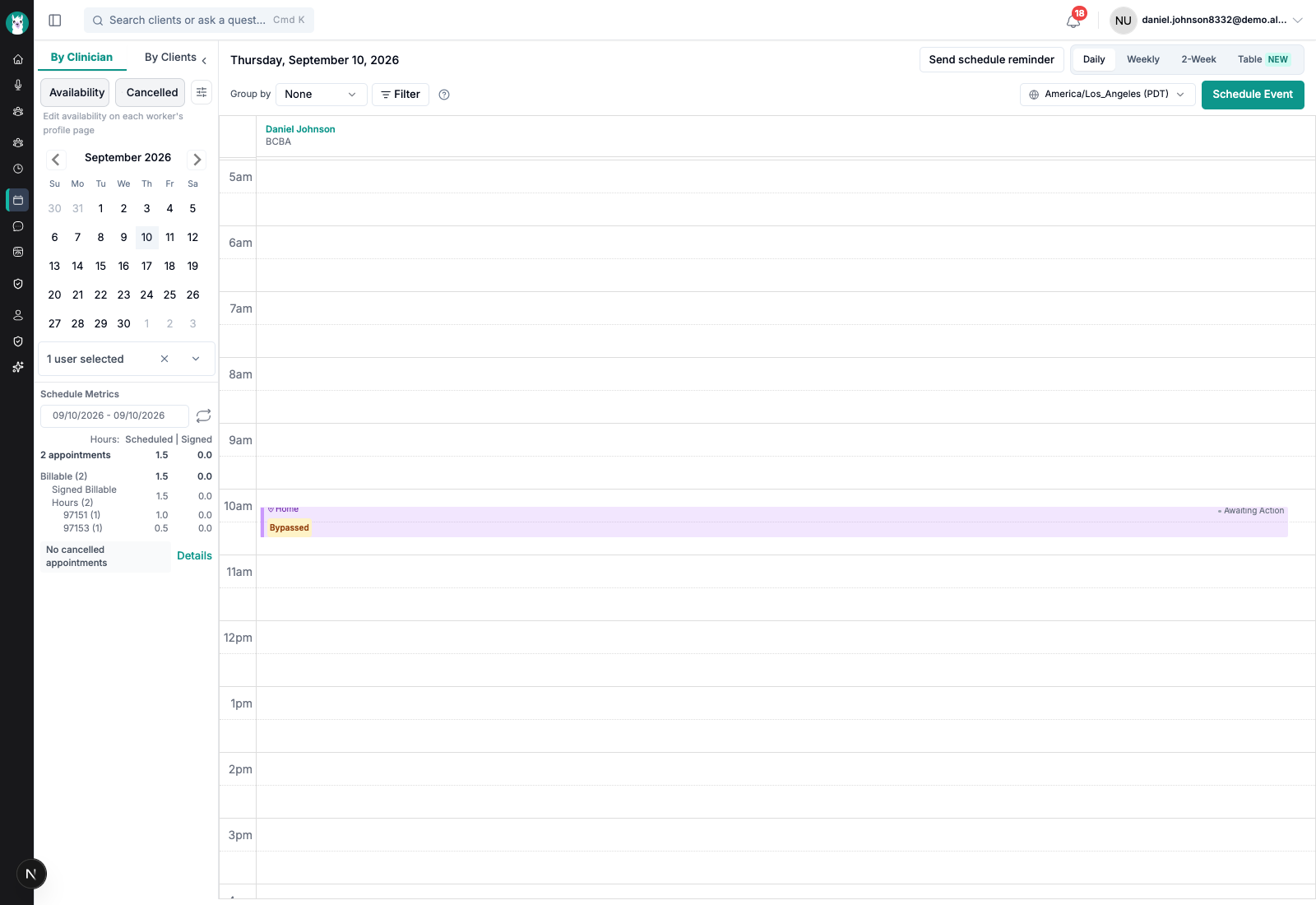
On the calendar. The appointment block carries a Bypassed tag. Hover it to read every reason recorded on that session without opening anything.
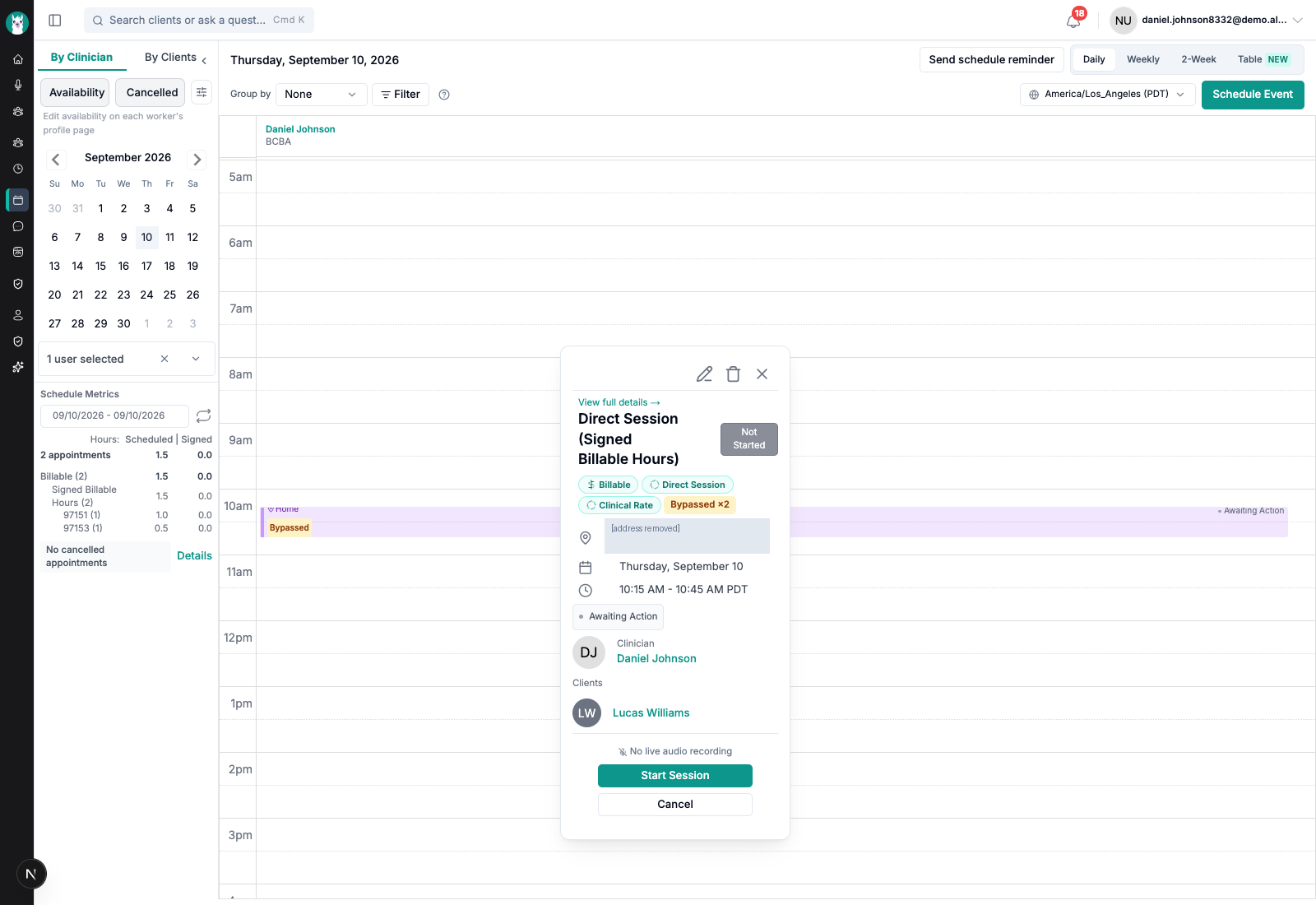
In the appointment popover. Click the block and it shows Bypassed ×2 alongside the other appointment details.
On the appointment page. Click through to the full appointment and there’s a panel headed Billing validations bypassed for this session, showing each check that was cleared, the reason, any notes, and who recorded it and when.
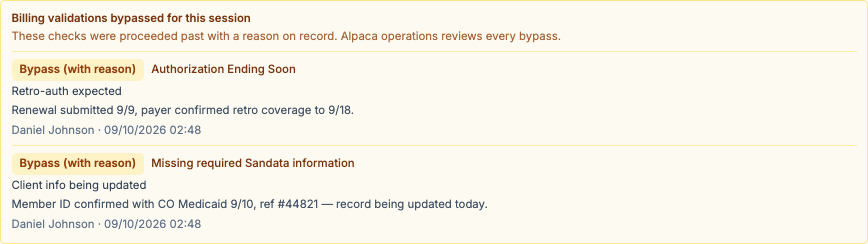
On the session note. The same panel appears on the note once the session is written up, so the reason travels with the documentation.
Private-pay clients
Private-pay clients aren’t asked for insurance details they’ll never have. If you see an insurance-specific flag — a missing member ID, for instance — on a client marked private pay, report it to support@alpacahealth.io.
Frequently asked
Does bypassing mean the claim will be paid?
No. It records that someone made a judgement call and why. The payer can still deny the claim.
Do I need an admin to do this?
No. Anyone who can book a session can record a reason and continue.
Can I undo it?
Not from the scheduling form once the appointment is saved. Contact your admin.
Who sees my reason?
Staff at your clinic, and Alpaca operations. It is never shown to families.
Nothing was flagged when I scheduled — is it working?
Almost certainly yes. Checks only fire when something is genuinely wrong for that client, clinician, payer and code combination.