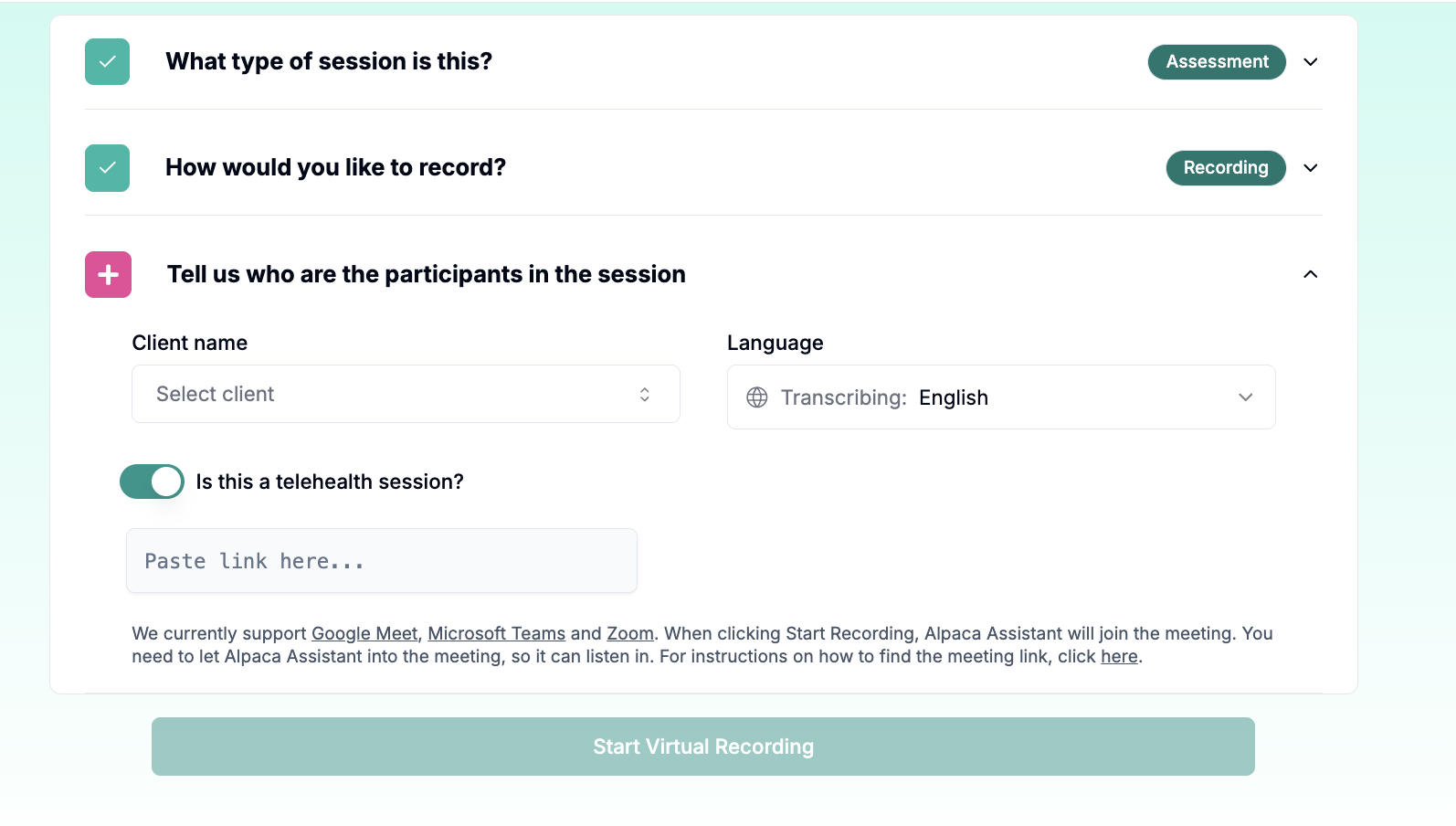
Schedule and Start a Telehealth Session on Alpaca Health
Last updated: October 10, 2025
Start from the Schedule
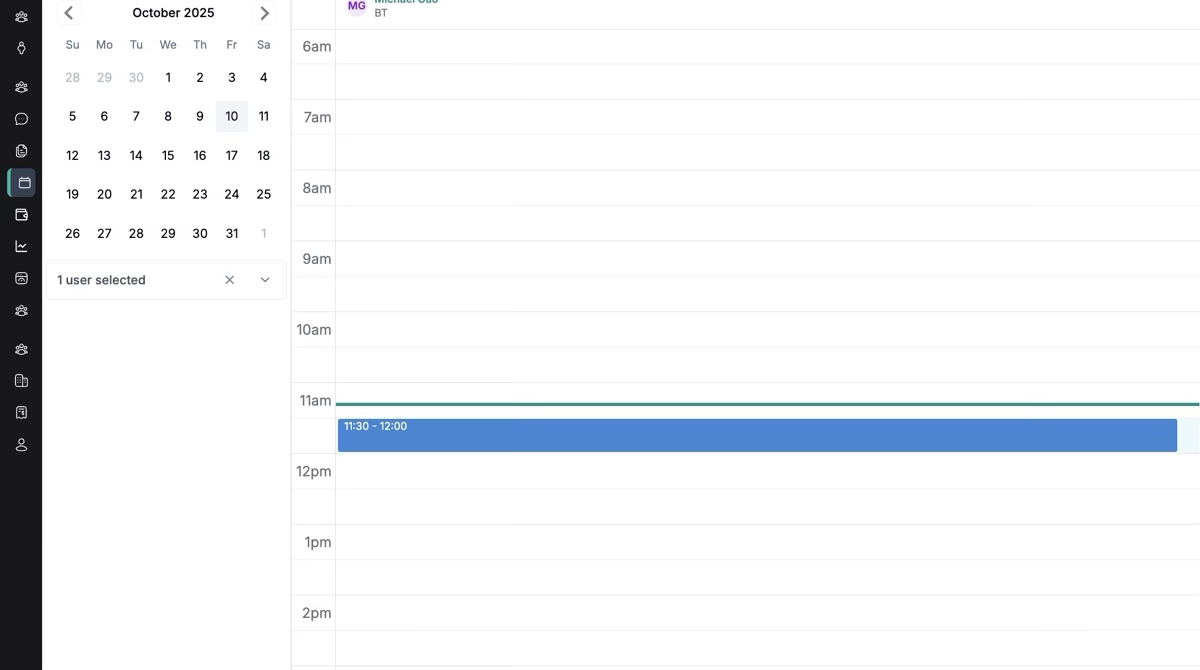
Navigate to your calendar. Click the date and time you want to schedule an appointment.
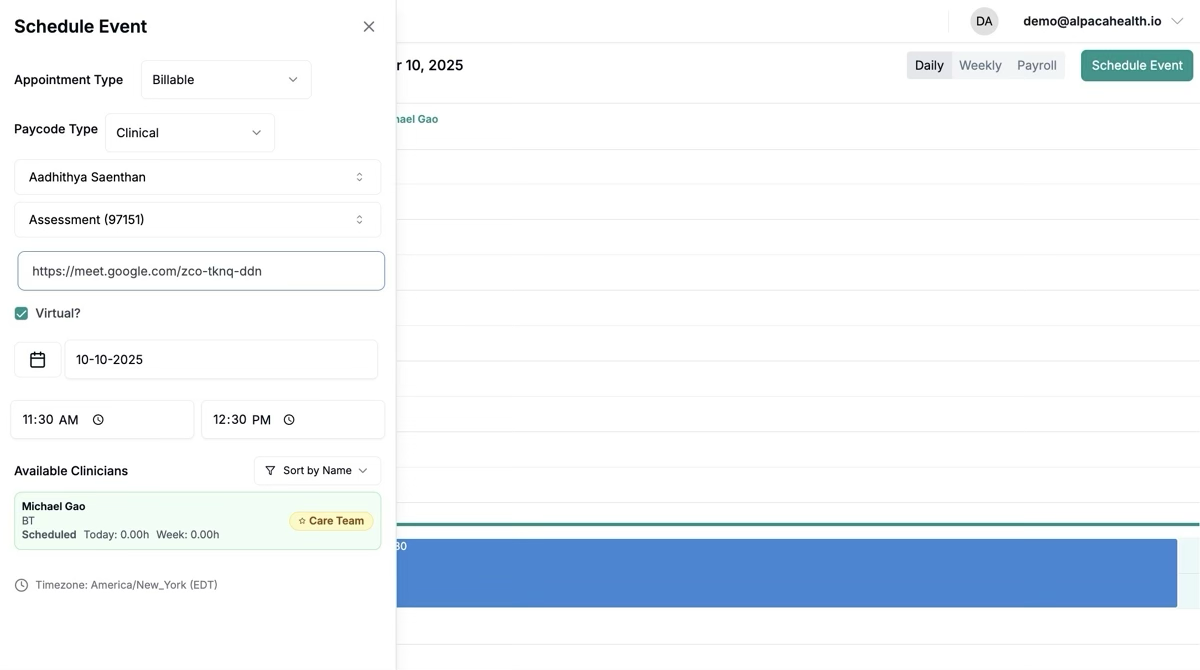
When scheduling an appointment, check the virtual box and copy/paste in your Zoom, Google Meets, or Teams meeting link.
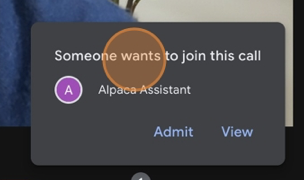
When you start the session (either from the homepage or the calendar), Alpaca Assistant will join the call.
When you are in the session, you can "Take Notes" as well as see a timeline of the Alpaca Assistant. While you are conducting the session and taking your own notes, Alpaca Assistant is also listening, recording, and taking notes.
If you are finished with a session, click "End Session", so Alpaca can synthesize your session note.
If you want to continue a session without Alpaca recording a meeting, you can click "Kick Alpaca from Meeting". You might do this if a parent starts discussing something sensitive and is uncomfortable with the recording.
Start from an Ad Hoc Recording
Didn't schedule a session? No worries -- you can start an "Ad Hoc Recording", which will let you start recording instantly and schedule a session at the end.
Just click "Start Ad Hoc Session" on the left hand side. Follow the instructions and then paste in your meeting link.