Organize Client Programs with Folders
Last updated: September 22, 2026
Open the client’s Programs tab
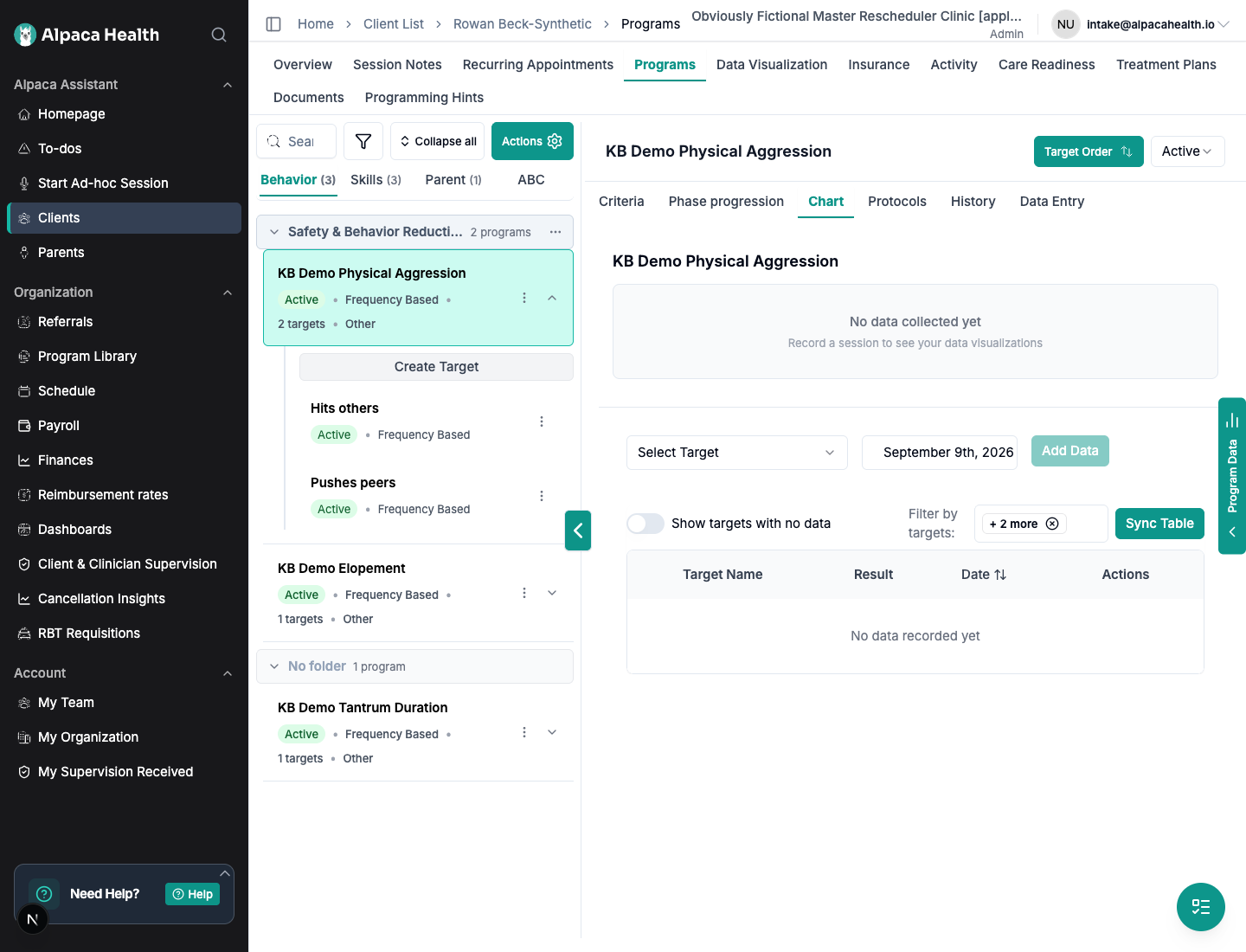
Step 1. In the left sidebar, click Clients, then open the client you want to work on.
Step 2. Click the client’s Programs tab.
Step 3. Choose the sub-tab you want to organize:
Behavior
Skills
Parent
Folders are managed separately in each sub-tab. A folder you create in Behavior does not also appear in Skills or Parent.
Note: the ABC sub-tab lists ABC observations, not programs, so it does not use folders.
Create a folder
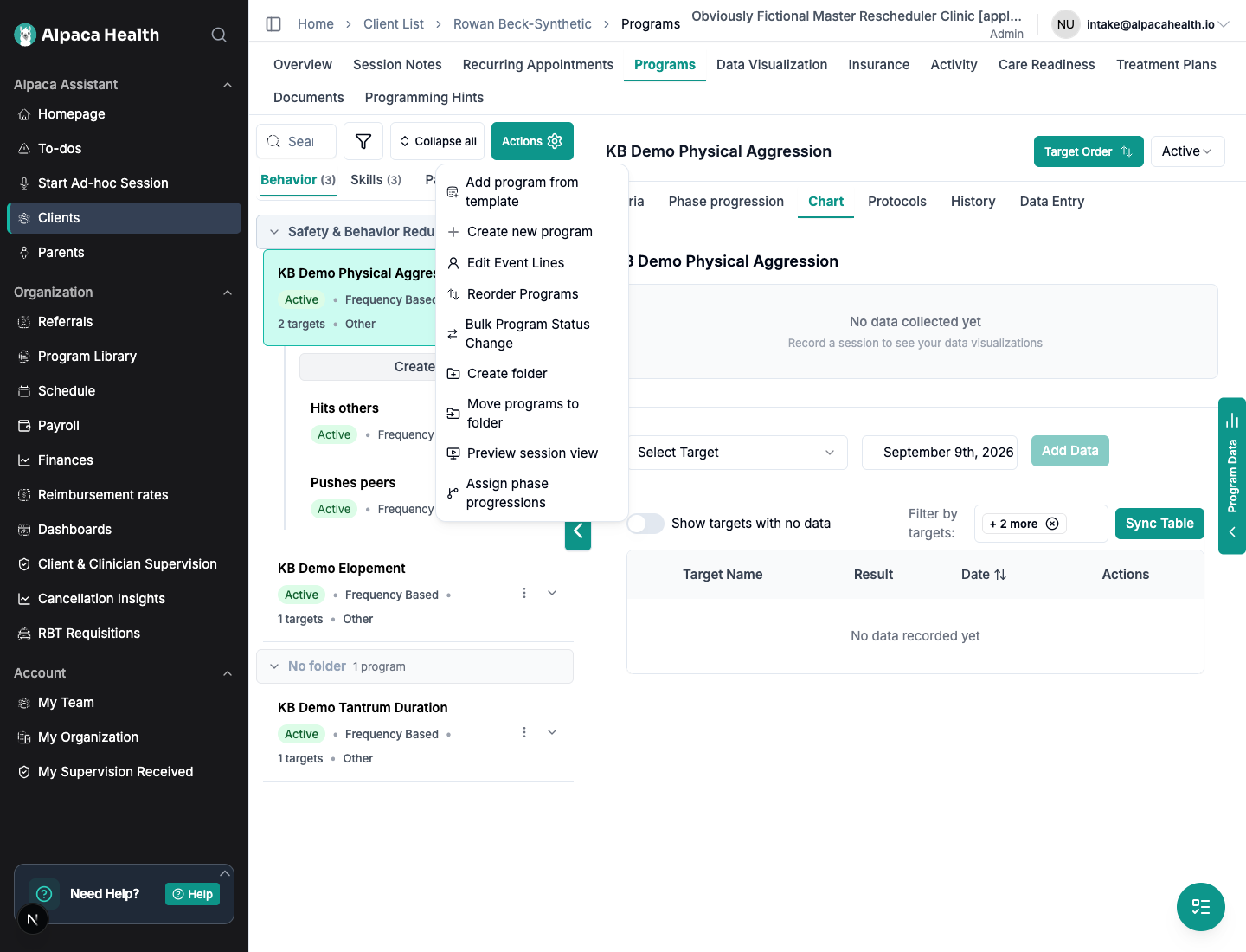
Step 1. From the Programs tab, open the green Actions menu.
Step 2. Choose Create folder.
Step 3. Type the folder name in the new folder row and press Enter. You can also click away from the row to save it.
The new folder appears in the current sub-tab. Empty folders stay visible, so you can create your structure before moving programs into it.
Tip: folder names must be unique within the same sub-tab. You can reuse the same folder name in a different sub-tab if it helps your team.
Move one program into a folder
Use this when you only need to file one program.
Step 1. Find the program in the list.
Step 2. Open the program’s ⋮ menu.
Step 3. Choose Move to folder….
Step 4. Pick the destination folder, then confirm the move.
Moving a program into a folder does not change its status, targets, data, mastery criteria, or protocols. It only changes where the program appears in the list and during data collection.
Move several programs at once

Use this when you are setting up a client with many programs or reorganizing an existing plan.
Step 1. From the Programs tab, open the green Actions menu.
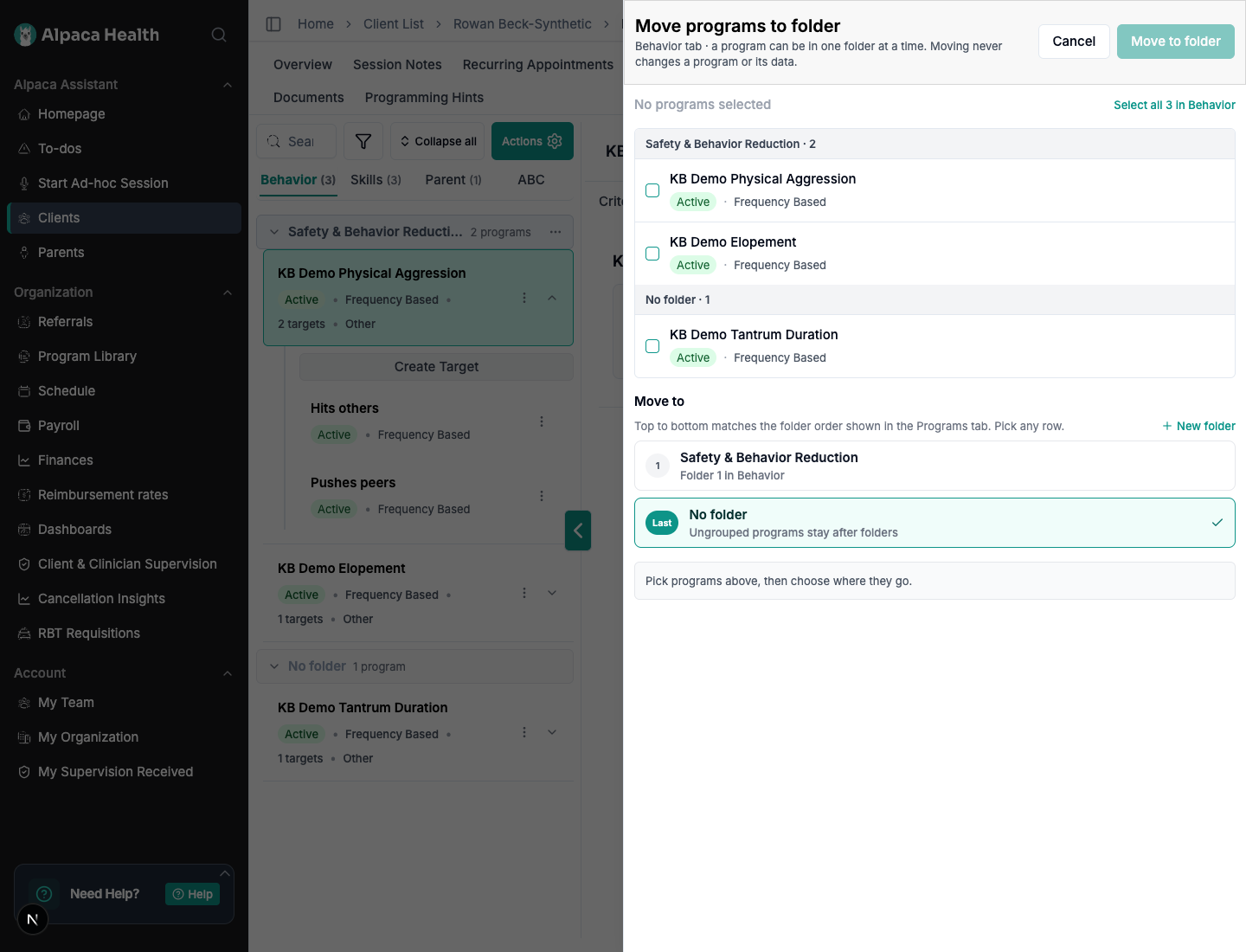
Step 2. Choose Move programs to folder.
Step 3. Select the programs you want to move. You can also use Select all for the current sub-tab.
Step 4. Under Move to, choose the destination folder.
Step 5. Click Move.
The destination list is shown in the same top-to-bottom folder order you see on the Programs tab. No folder appears last and means the selected programs will be ungrouped.
Create a folder while moving programs
If the folder you need does not exist yet:
Step 1. In the Move programs to folder panel, click New folder.
Step 2. Enter the folder name and click Create.
Step 3. Alpaca selects the new folder as the destination. Confirm the move when your program selection is ready.
Drag a program between folders
You can also move a program by dragging the whole program row into a folder.
Step 1. Make sure you are not filtering or searching the program list.
Step 2. Click and drag the program row.
Step 3. Drop it on the folder where it belongs.
If dragging is not convenient, use the program’s ⋮ → Move to folder… action instead.
Rename or delete a folder
Each folder has its own ⋮ menu.
Rename a folder
Step 1. Open the folder’s ⋮ menu.
Step 2. Choose Rename folder.
Step 3. Edit the name and press Enter.
Delete a folder
Step 1. Open the folder’s ⋮ menu.
Step 2. Choose Delete folder….
Step 3. Choose where the folder’s programs should go.
Step 4. Confirm the deletion.
Deleting a folder deletes the folder only. The programs inside it are kept and moved to the destination you choose.
Reorder folders and programs for sessions
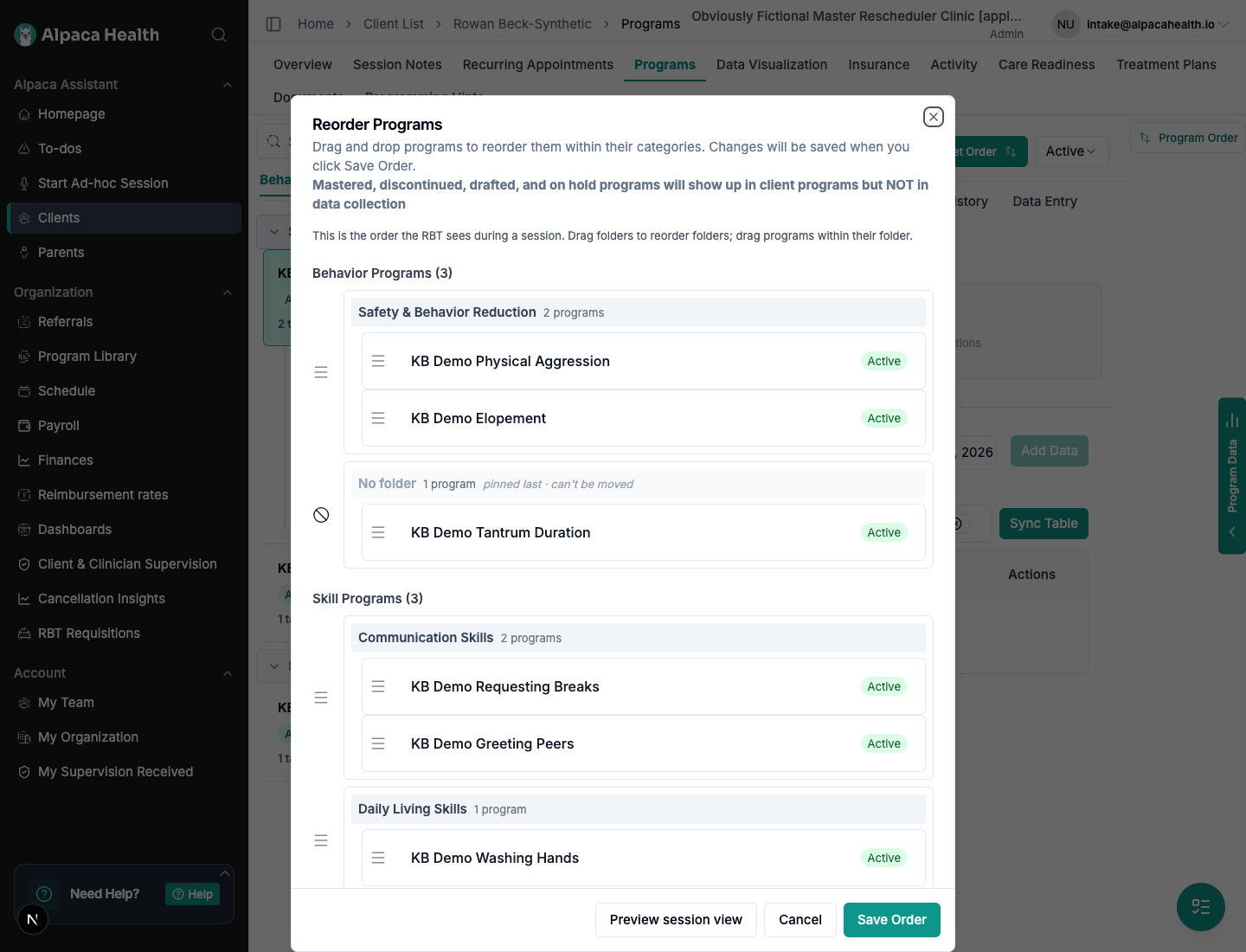
The order you set here is the order technicians see during data collection.
Step 1. From the Programs tab, open the green Actions menu.
Step 2. Choose Reorder Programs.
Step 3. Drag folders to change the folder order.
Step 4. Drag programs within a folder to change their order inside that folder.
Step 5. Optional: click Preview session view to check how the order will look during data collection.
Step 6. Click Save Order.
Important: programs cannot be dragged into another folder from the Reorder Programs dialog. To move a program to a different folder, use Move programs to folder, Move to folder…, or drag the program on the main Programs tab.
Preview the session view

Use Preview session view to see the technician-facing data-collection layout before a session starts.
The preview uses the client’s current programs, folders, and order, but it is a safe preview: tapping targets, collapsing folders, or using Undo does not record session data.
Step 1. From the Programs tab, open the green Actions menu.
Step 2. Choose Preview session view.
Step 3. Review the folder grouping, program order, and target order.
Step 4. Optional: use Jump To to move between sections or Collapse all to check how the grouped list feels when folders are collapsed.
Step 5. Click Close when you are done.
You can also open the preview from the Reorder Programs dialog. This is useful when you are adjusting folder or program order and want to confirm the technician view before clicking Save Order.
Add targets from an expanded program

Folders do not change how you add targets.
Step 1. Expand the program.
Step 2. Click Create Target above the program’s target list.
You can also open the program’s ⋮ menu and choose Create target.
Both options open the same target panel and save the target to that program.
What technicians see during data collection
During a session, technicians see active programs grouped by the folders you set up. This makes it easier to move through a large number of programs without losing the structure of the treatment plan.
Programs still follow the usual visibility rules. For example, programs with statuses such as Mastered, Draft, Future, On Hold, or Discontinuedmay appear in the client’s Programs tab but are not shown for ordinary data collection.
Use Preview session view to check what the data-collection view will look like before your team runs sessions from it.
Frequently asked questions
Do folders change program data?
No. Folders only organize the list. Moving a program to a folder does not change its targets, data, criteria, protocols, or graph history.
Can one program be in more than one folder?
No. A program can be in one folder at a time.
What is “No folder”?
No folder is the ungrouped section. Programs in No folder still work normally; they just are not inside a named folder.
Can I use folders on the ABC tab?
No. The ABC tab contains ABC observations instead of programs, so folders are not available there.
What happens if I change a program’s type?
If changing the program type moves it to a different sub-tab, Alpaca moves it to No folder in the new sub-tab. You can then move it into the right folder for that tab.
Why can’t I collapse folders while searching or filtering?
When the list is narrowed by search or filters, Alpaca keeps matching folders open so you do not accidentally hide the programs you are looking for. Clear the search or filters to use normal folder collapsing again.