6.8 Track your supervision hours & ratios
Last updated: July 30, 2026
Supervision is a cornerstone of quality ABA service delivery, serving two distinct but complementary purposes.
Patient-level supervision ensures that each client's treatment plan is being implemented correctly and adjusted as they progress, typically requiring a BCBA to oversee at least 10% of a client's direct service hours (97153) through protocol modification sessions (97155).
Clinician-level supervision ensures that RBTs maintain competency and ethical practice, requiring BCBAs to supervise at least 5% of the hours each RBT spends delivering services each month, per BACB standards.
Together, these requirements protect treatment fidelity, support clinical progress, and keep the organization aligned with both payer policies and certification standards. Meeting them isn't just a compliance checkbox — it's how we ensure every client receives effective care and every technician is set up to succeed.
Alpaca gives you two places to track this. My Supervision is your own personal page for your own 5% requirement. The Supervision Dashboard is an organization-wide view for admins and directors that tracks both the 10% client target and the 5% RBT target across everyone.
My Supervision (your own page)
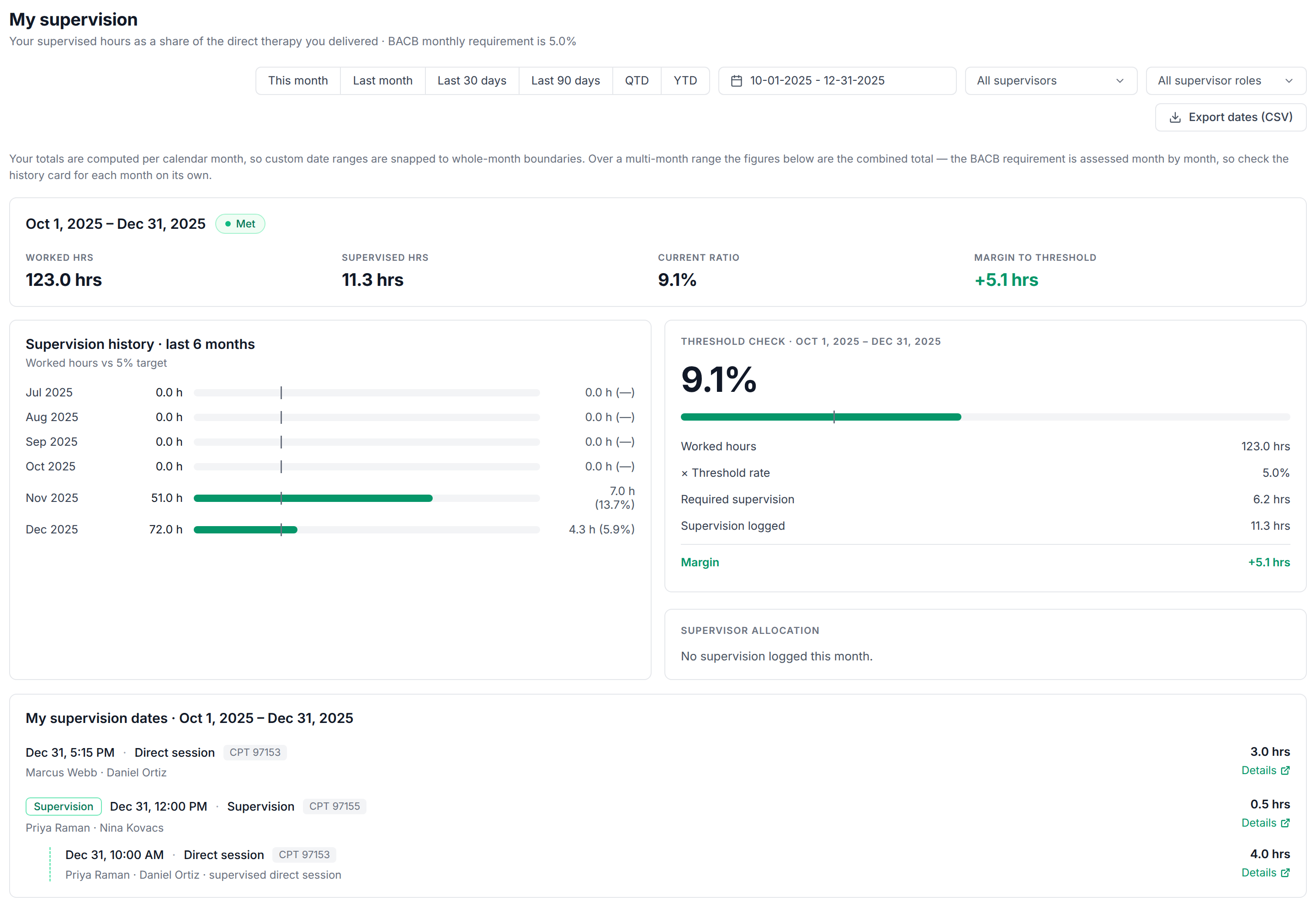
My Supervision is your own supervision, all in one place. It shows how much direct therapy you delivered, how many supervision hours you received, where that puts you against the BACB monthly requirement, and every supervision date behind the numbers. It is your page, showing your numbers, so you can check your standing at any time and pull a clean record when you need one.
How to get there
1. Log in to your Alpaca dashboard.
2. In the left navigation, open My Supervision.
The page opens on the current calendar month by default.
The BACB requirement, in plain terms
The BACB asks that at least 5% of your direct therapy hours be supervised each month. My Supervision measures exactly that: your supervision hours as a share of the direct therapy you delivered, checked month by month.
At the top of the page you will see a status label for the range you are looking at:
Met means you are at or above 5%.
On track means you are close (about 4% or higher).
At risk means you are partway there (about 2.5% or higher).
Behind means you are below that.
No data appears when there is no direct therapy or supervision recorded for the range yet.
The four numbers at the top
Once there is activity in your range, you will see a card with the date range, a status label, and four tiles:
Worked hrs is the direct therapy you delivered in the range. This is the denominator the 5% is measured against.
Supervised hrs is how many supervision hours you received.
Current ratio is your supervised hours as a percentage of your worked hours. This is the figure compared against the 5% requirement.
Margin to threshold shows how far above the 5% line you are, in hours, shown in green with a plus sign. If you are under the line, this tile flips to Shortfall and shows in red how many supervision hours you are missing.
Reading the threshold check
Below the tiles, the Threshold check card shows the math spelled out for the range you picked:
Worked hours, your direct therapy total.
× Threshold rate, the 5% requirement.
Required supervision, the hours you need (your worked hours times 5%).
Supervision logged, the hours you actually received.
Margin or Shortfall, the difference between the two.
It is the same story as the top tiles, laid out so you can see how the required number was calculated.
Supervision history
The Supervision history · last 6 months card shows a row per month for the last six months, each with your worked hours, a bar against the 5% target, and your supervision hours and percentage for that month. This is the quickest way to spot a month that slipped, since the requirement is judged one month at a time.
Who supervised you
The Supervisor allocation card lists the supervisors who logged supervision with you in the range and how many hours each one provided, most hours first. If nothing has been logged yet, it will say so.
Your supervision dates
The My supervision dates section is the detailed timeline behind the numbers. Each entry shows the date and time, the type of session (Supervision, Group supervision, Direct session, or Group direct session), the CPT code, the client, the clinician, and the hours. When a supervision session is tied to one of your direct sessions, the direct session appears nested underneath it, so you can see the pairing. Each entry has a Details link that opens that appointment in a new tab.
Choosing a date range
You have a row of quick presets plus a calendar picker in the top right:
This month
Last month
Last 30 days
Last 90 days
QTD (this quarter to date)
YTD (this year to date)
The date picker for a custom range.
One thing to know: your totals are calculated per calendar month, so any range you pick is snapped to whole months (the first day of the start month through the last day of the end month). If you choose a range that spans more than one month, the tiles show the combined total for the whole range, but remember the 5% requirement is judged one month at a time, so use the Supervision history card to check each month on its own.
Filtering by supervisor
You can narrow the page to a single supervisor (or a type of supervisor) to see just their contribution to your hours. When a filter is on, the Supervised hrs and Current ratio tiles show that supervisor's share, with your overall totals noted underneath, and the timeline narrows to their sessions. Your worked hours and your official percentage do not change, since the filter is about who supervised you, not about your compliance number. The Supervision history card hides itself while a filter is on, because the monthly history is not broken out by supervisor.
Exporting your dates (CSV)
When you need a record to evidence the monthly requirement, use Export dates (CSV) in the top right.
1. Set the date range you want the export to cover.
2. If you have a supervisor filter on, the export matches what is on screen (the same supervisor, the same dates).
3. Click Export dates (CSV). The file downloads (it opens in a new tab first) with one row per supervision date.
The file includes the date, start and end times, the CPT code, the supervisor, the client, the session hours, and the credited hours. Credited hours is the portion actually supervised, which is what counts toward the 5%. For example, a two hour supervision session that observed you for ten minutes credits ten minutes, so the session hours and credited hours can differ. The button is greyed out when there are no supervision dates in the range to export.
Frequently asked questions
Whose numbers am I seeing?
Only your own. This page always shows the supervision for the person who is signed in.
Why did my range change to whole months?
Supervision is totaled per calendar month, so any custom range is snapped to full months. Pick the months you want and the page fills in the rest.
My range covers several months. Which number is the requirement checked against?
The tiles at the top are the combined total for the whole range. The 5% requirement is judged month by month, so check the Supervision history card to see how each individual month landed.
Why is one number labeled "credited hours" and lower than the session length?
Credited hours is the part of a session that actually supervised you, and that is what counts toward the requirement. A longer session that only observed you for part of the time credits just that part.
I do not see any activity.
If there is no direct therapy or supervision recorded for the range you picked, the page will say so. Try a wider range or a different month.
Can I still see this if my account is suspended?
No. If your account is suspended, this page is not available to you.