Get a client authorized from Prior Authorizations
Last updated: October 27, 2026
Availability: Prior Authorizations is a new view being introduced by clinic. Use these steps only when Switch to new view appears in the client's Treatment Plans tab. If it does not appear, continue with the existing treatment-plan submission guide, or ask your Alpaca contact about availability. Availability is controlled by your clinic’s rollout. During the transition, the new guide and the classic submission guide both remain available; use the one that matches your screen.
The new Prior Authorizations view brings a client's treatment plan, review, caregiver signatures and insurer requests together. It uses the same saved plans and requests as Treatment Plans and Care Readiness.
Each insurer has its own status. Approval from one insurer does not mark the other insurer's request approved.
You can see who acts next. An insurer's row distinguishes clinic work from waiting on a caregiver, Alpaca or the insurer.
Creating a request is separate from submitting it. Review the details first, then complete the files and units the payer requires.
Who can use it
Staff who can access the client's clinical details can open the view when Alpaca has enabled it for their clinic. Your existing permissions still control editing, signatures and authorization requests. The view does not give access to another clinic's records or add clinical permissions. It is a staff workflow; caregivers receive their signature requests through the parent portal.
Open the client's Treatment Plans tab and select Switch to new view. Switch to classic view returns to the familiar layout. Switching views does not duplicate a plan or request. The switch applies to this visit; reopening a client uses the application's default view.
Read the page
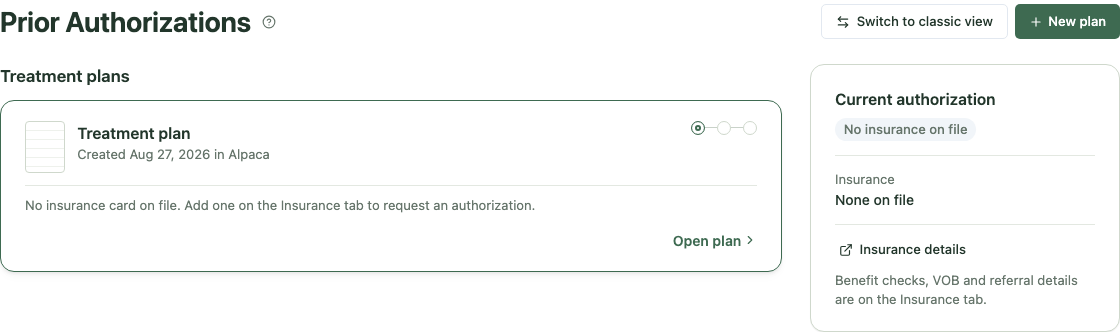
Example using a synthetic client with no insurance card on file. Add insurance before requesting an authorization.
Current authorization shows the recorded authorization period and insurers. Use Insurance details to open the Insurance tab for insurance records. A plan's submission status does not establish that the client is cleared for care; continue checking Care Readiness for the client's overall readiness requirements.
Each treatment-plan card shows the plan's progress and one row per insurer. Click the card to open the plan. Buttons and links inside it keep their own actions. Open plan also opens it using the keyboard.
Older plans appear under Past plans. A plan with unfinished work may stay active, so creating a new draft does not automatically hide every older plan. Requests not tied to a treatment plan contains open requests that cannot be shown on one plan's card; resume the request from its own row.
Select ? beside the page title to revisit the page walkthrough. This introduces the page, current authorization, suggestions and insurer rows.
Start or resume a plan
Alpaca may suggest an initial plan when no treatment authorization is recorded, a reassessment when an authorization is approaching its end, or submitting an existing plan to an insurer that needs its own authorization. These suggestions depend on the records on file; check the dates and payer requirements before proceeding.
To start one yourself, select New plan. Choose Initial treatment or Reassessment, then Create in Alpaca or Upload a plan. The existing treatment-plan and reassessment generators remain the place to build a generated plan and move its goals into Programs.
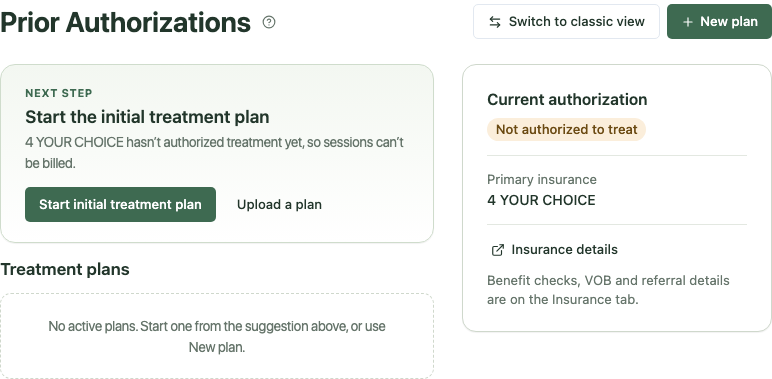
Example with synthetic records: an insurer is on file, no active plan exists, and Alpaca suggests starting the initial treatment plan.
Review and finalize the plan
Open the plan and work through the steps in order.
Generate or upload plan. Finish the plan in the generator, including the clinician signature, or upload the completed document.
Review plan. Review the Treatment Plan Reviewer's findings. Edit document changes the document's wording; Edit in generator changes the generator fields. Generated and uploaded plans can have different check and finalization requirements.
When results are available, select I reviewed these results, then use Finalize & continue to signatures when it is available. Review the exact document and confirmation in the finalize dialog.
In the updated Review step, opening an unchecked plan that is ready for review starts its check automatically. The heading shows Checking…, the findings count or the check result. A completed check is not started again just because you reopen the plan. The full checker includes required fixes, warnings, suggestions when present, passed rules and resolved findings. Findings may link to the PDF or the relevant generator section. Check off a finding only after resolving it or confirming it does not apply.
The review actions stay visible while you scroll a long results list. Re-run check checks the plan again. Finalize anyway remains available where the existing workflow allows it; it does not mean the payer's requirements are met. Uploaded documents that require a check and review still require them.
If your app still shows the earlier Review layout, use its Run check or Re-run check action and review the results before finalizing. The updated layout is being introduced with the new view.
Get a caregiver signature when required
Caregiver signatures appears when an insurer requires it. Finalize the document first, then select Request signature. This sends a request to the caregiver's parent portal. Use Signature already printed on PDF only when you have checked that the uploaded document already contains the caregiver's signature.
The signature applies to the finalized document. Changing that document can require a new caregiver signature. A clinician's signature and a caregiver's signature are separate.
While a required signature is outstanding, the insurer may show Waiting on caregiver. A request's Attach files action can still let you prepare other files while waiting; it does not remove the signed-plan requirement. Because the current signature gate is shared across the client's insurers, a required signature can hold requests to insurers that do not require one themselves.
Submit to each insurer
Each insurer needs its own request. The workspace shows Request details, Files & units, then Submitted.
Open the intended insurer's action. From a plan's insurer row, the insurer, request type and authorization type are already fixed for that plan. Review the proposed start date; it remains editable within the payer's rules. Different insurers may need different dates and authorization periods.
Select Create in the request form. This creates the request. It does not submit the completed packet.
On Upload Information, review the selected treatment plan and required documents. The payer's requirements become available after creation. Verified files can be selected for you. You can select an existing document, upload a replacement, add optional documents, and review or edit service codes when those controls are available. Some required files must be verified before you can finish.
Use the form's final action, such as Submit, Submit to Alpaca or Update Authorization. Wait for confirmation, then check the insurer's status.
File uploads needed means there is an existing request to finish. Select Attach files to resume it; creating a second request is not the recovery step.
After one insurer's request, Send to [insurer] may offer to reuse its files. Review every reused selection. Payer-specific documents, dates, service codes and units can differ. Reopening an unfinished request from the plan can select compatible files again; the packet is not sent until the final submission action.
In review means Alpaca or the insurer is handling the request. Submitted is not Approved. Review approval opens a partial approval so you can inspect what was approved. When all applicable insurer requests are approved or do not require authorization, the workspace shows the completed result and View approval where a request exists.
Complete payer-specific forms
For BCBS Texas Commercial, Submit authorization may show Review BCBS form. Review and approve the form for the current plan before submitting. Once approved, View form lets you reopen it. The request form can attach a matching approved version automatically. If it cannot find one, follow the reason shown and review the form or select/upload another authorization form where offered. Retry retries a failed approved-form lookup. Read the BCBS Texas form guide.
Some requests require physician approval of a CCP form before insurance submission. When your submission shows Awaiting Physician, Alpaca is obtaining that approval. The confirmation explains that the authorization is submitted automatically after the signed CCP is received; you do not need to submit a second request. Until then, the insurer's row can remain In review with a note about physician approval. This is a processing stage, not payer approval. Read about the physician-approval stage.
Change or download a plan
Plan & documents contains the document and available download actions. Generated plans can offer PDF and Word; an uploaded plan downloads as its existing file type. Available formats depend on the saved document and signature state.
For a generated plan, Edit document changes its wording and layout. Edit in generator changes the source fields. Read the document-editor guide before editing a signed or finalized plan, including how edits affect clinician and caregiver signatures.
An approved plan offers Create amendment for an eligible insurer. Unfinalize and replacement actions are withheld once an insurer has approved. Use More for less frequent actions such as Download CCP, another check, or Delete, when available.
Recover from common problems
What you see | What it means | What to do |
|---|---|---|
File uploads needed | A request exists but its submission is incomplete. | Select Attach files, complete its requirements and use the final submission action. |
Waiting on caregiver | A required caregiver signature is outstanding. | Check the signature step. You can prepare other available files while waiting. |
Insurance requests aren’t set up for this organization. Contact your administrator. | Requests are not connected for this organization. | Ask your clinic administrator or Alpaca contact. |
Authorization requests couldn’t be loaded. Refresh before submitting. | The existing request list did not load. | Refresh before attempting another request. |
The BCBS authorization form has to be approved before submitting. | The required BCBS form has not cleared review. | Use Review BCBS form and complete that form's requirements. |
No insurance card on file. Add one on the Insurance tab to request an authorization. | There is no insurer to request from. | Add the card on Insurance, then return to the plan. |
Delete (unfinalize first) | A finalized plan cannot be deleted in its current state. | Review whether unfinalizing is appropriate. Approved plans use amendments. |
Limits and your data
This view does not replace Care Readiness, start a new request without your action, or provide an archive-and-restore workflow. Documents and requests use the existing client records; changing views does not create a second copy. The new view adds workflow-step and count properties to existing product analytics. It does not add client names or document contents to those event properties.
If a plan list is unexpectedly empty, check the clinic selected in the top-right clinic switcher, then reopen the client. For help with unresolved errors, contact support@alpacahealth.io.