Guide to Your Program Library
Last updated: September 16, 2026
Learn how to build, customize, and assign new program templates to clients within the Alpaca Health platform. This guide covers the full process from setting up templates, creating templates from existing programs, and managing templates for your organization.
Create a Program Template
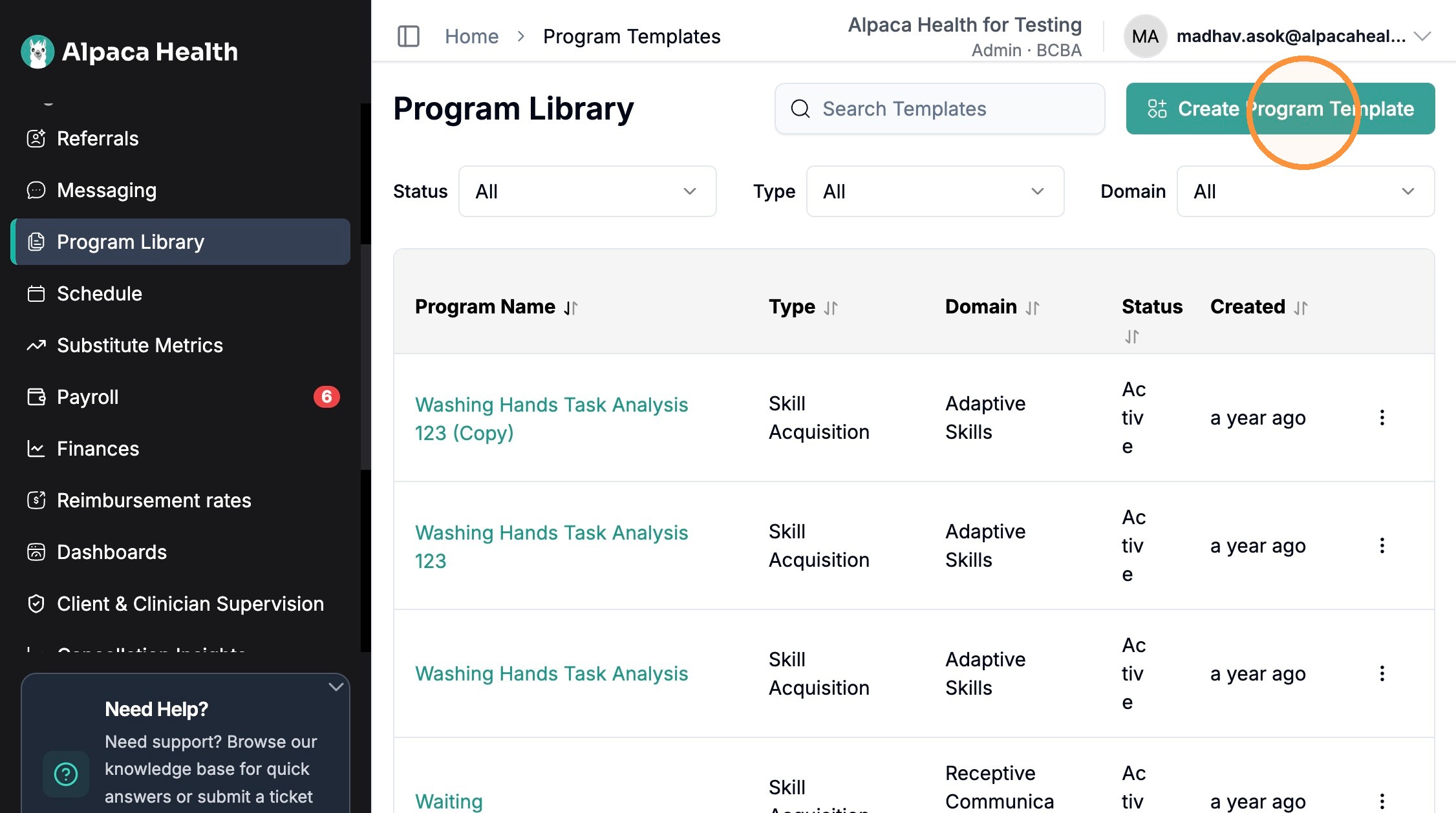
Click "Create Program Template" under your program library.
Name your program, and fill out required fields
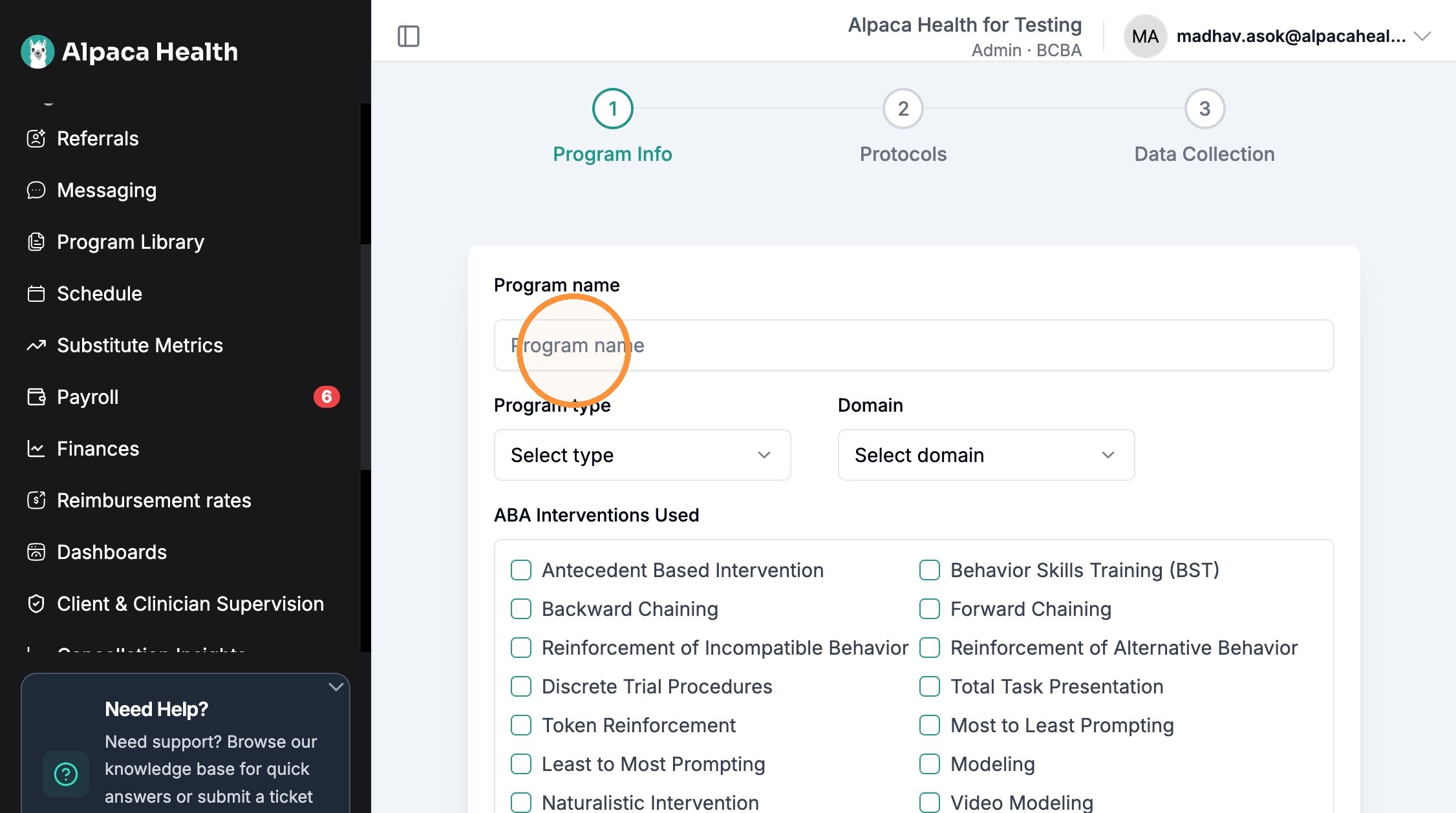
You can create a program by:
Skill acquisition
Behavior reduction
Replacement Behavior
Parent Training
Protocol Configuration
Define Medical Necessity, interventions to be used, antecedent and consequential procedures by filling out the prompted text boxes. When creating a template, you will only have to do this step once.
Select your Measurement Type
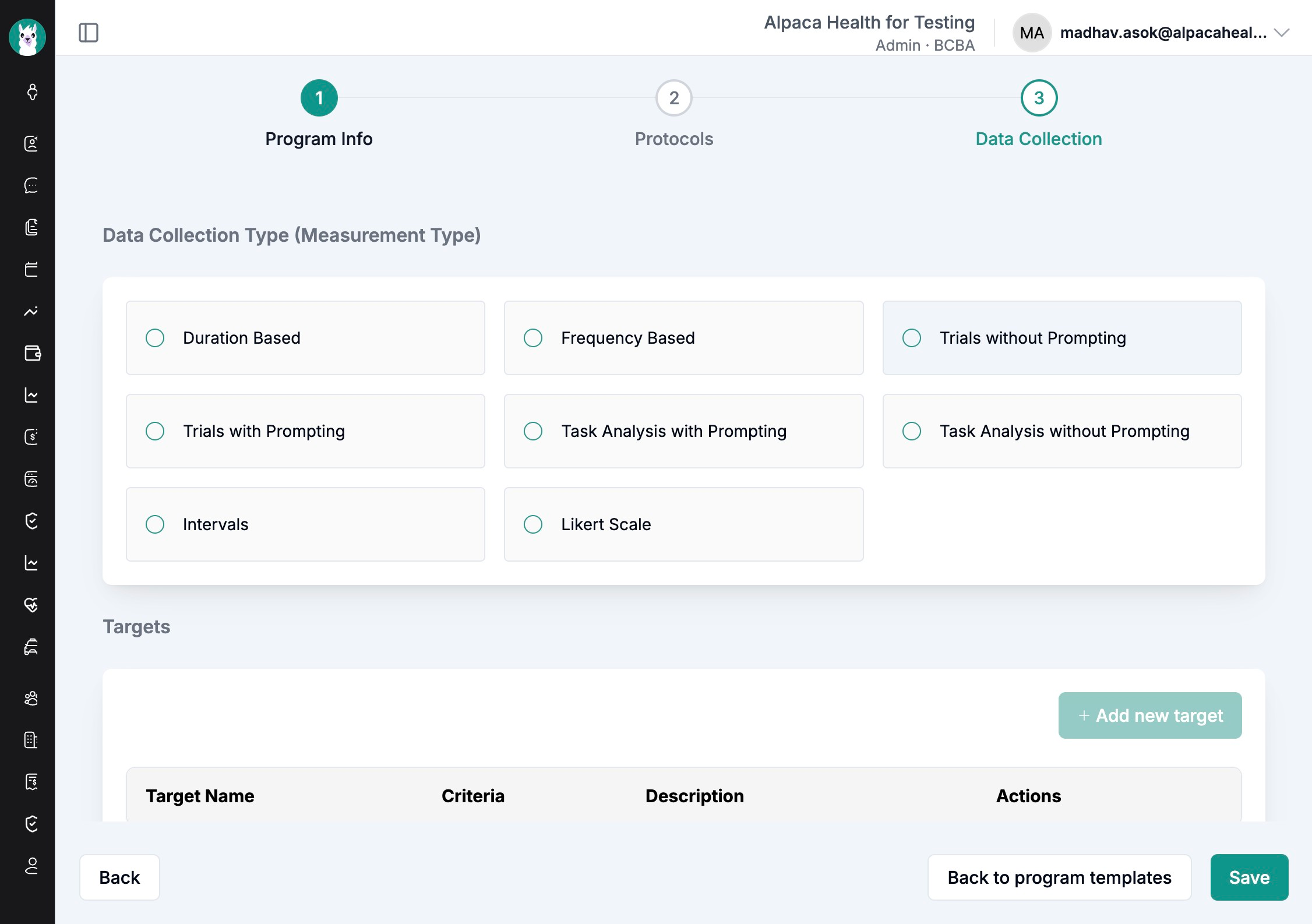
See measurement type will be defined at the program level, and will all targets within will follow this measurement type
Create Targets, define target mastery, and target maintenance criteria
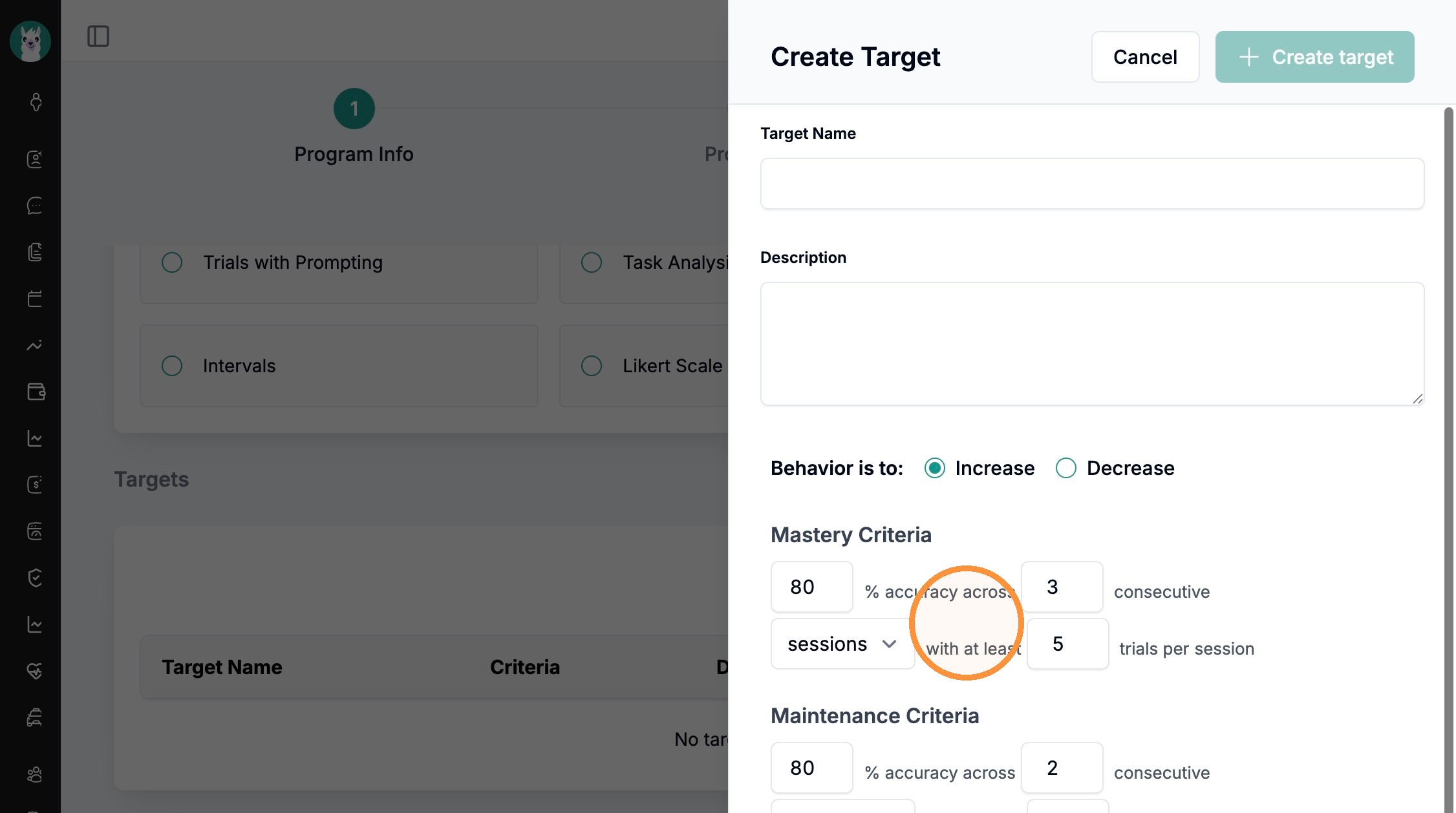
You can define your target's mastery criteria using the drop down option
You can define maintenance criteria by sessions, days, weeks, etc.
When finished, click "+ create target"
Define your program mastery
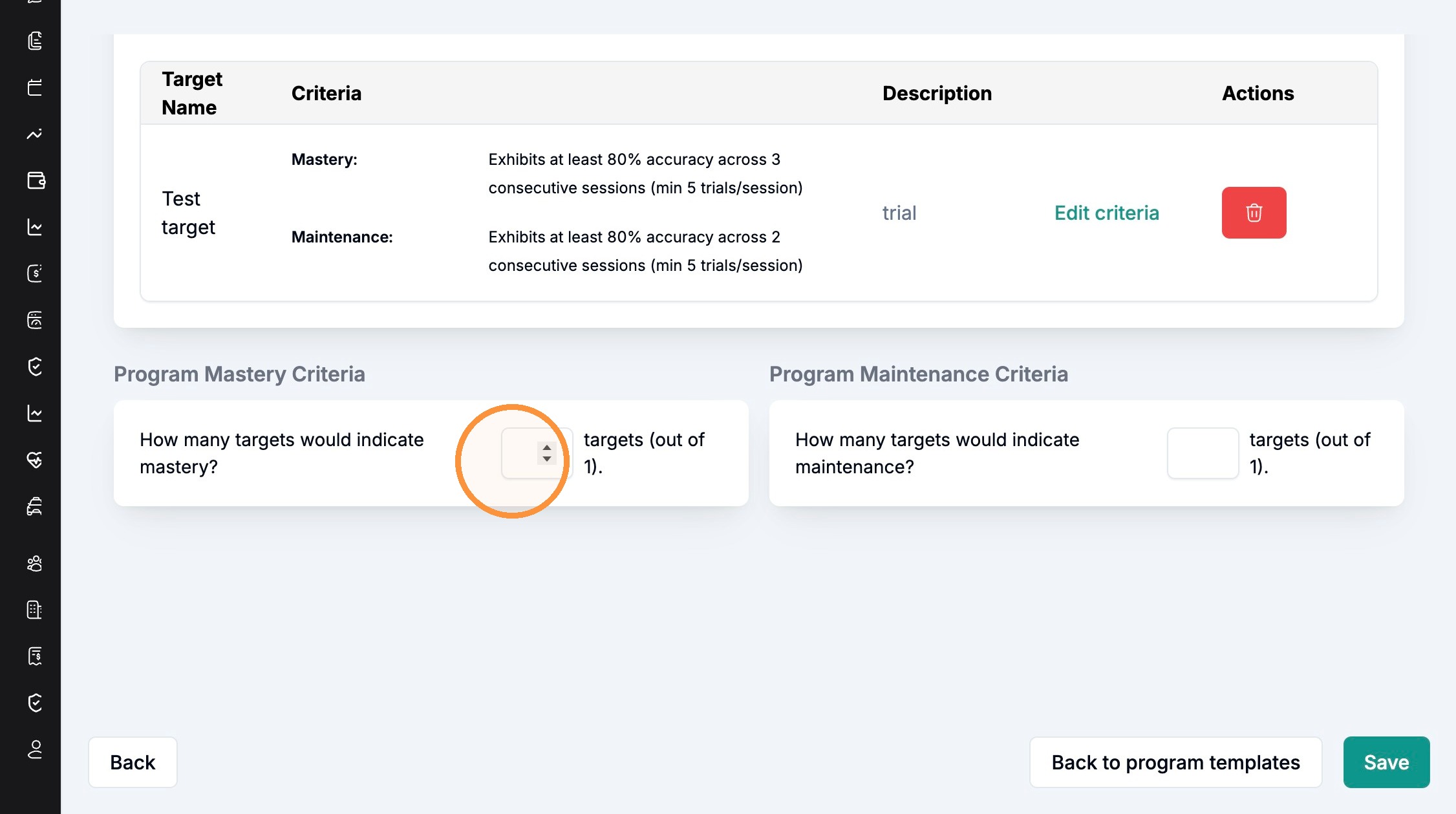
Program mastery is determined by the number of targets meeting mastery criteria within a program
Save your program, and return to your program template list
Adding Templates to Client
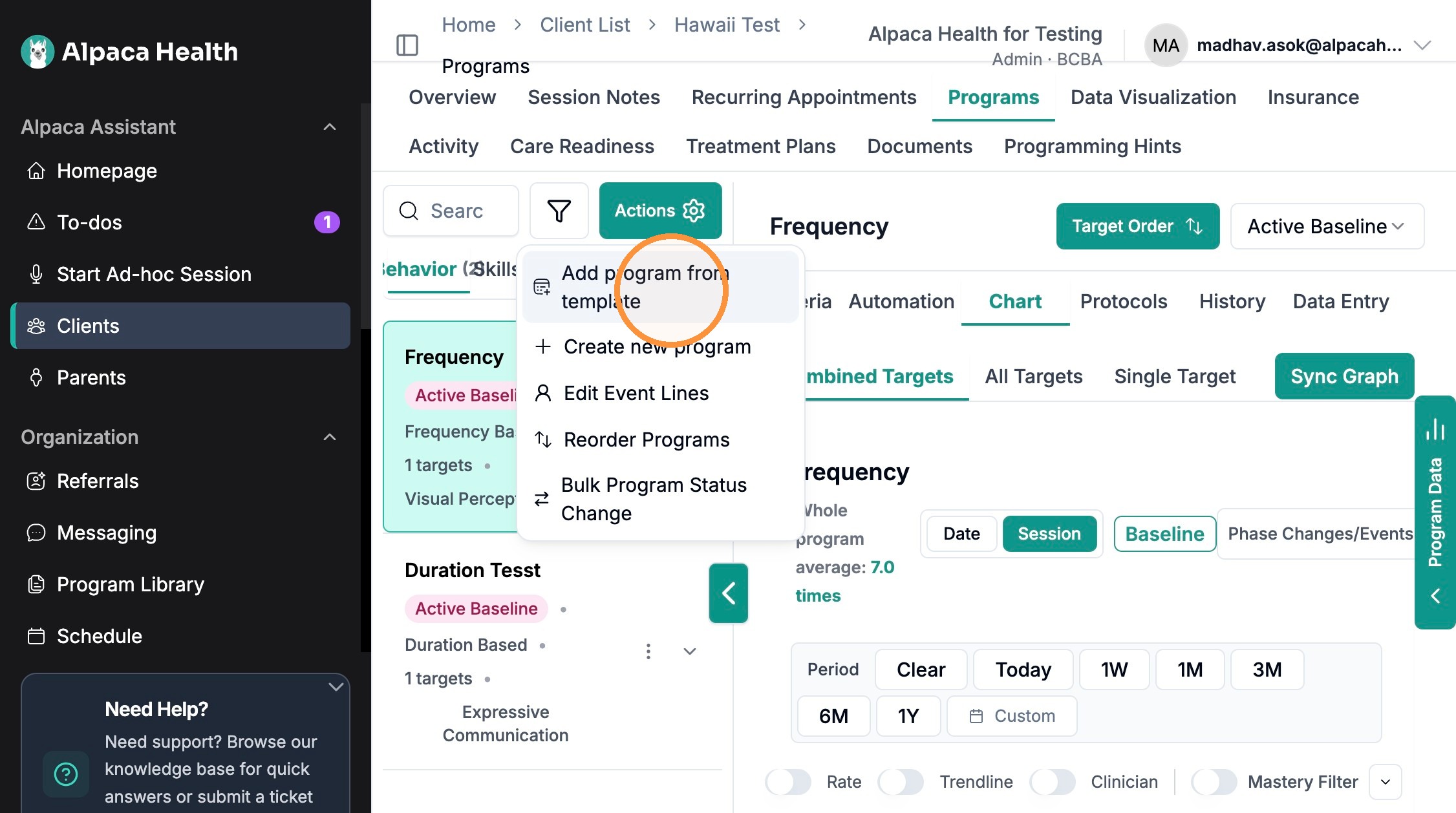
Select your client, navigate to their program list, select the actions button
Click "Add program from template"
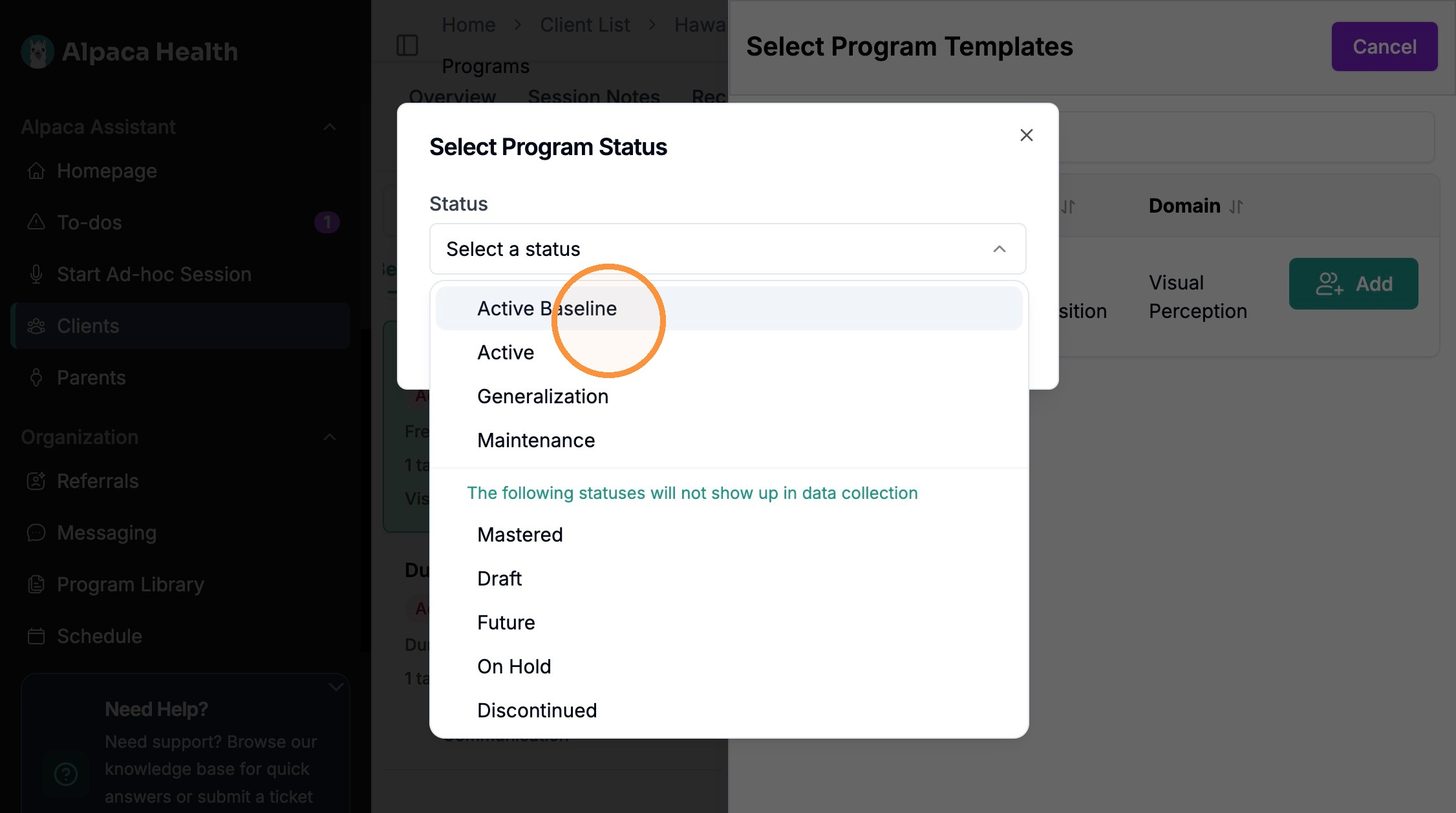
Select your program template and select program status, then add program.

Creating a Template from an Existing Program
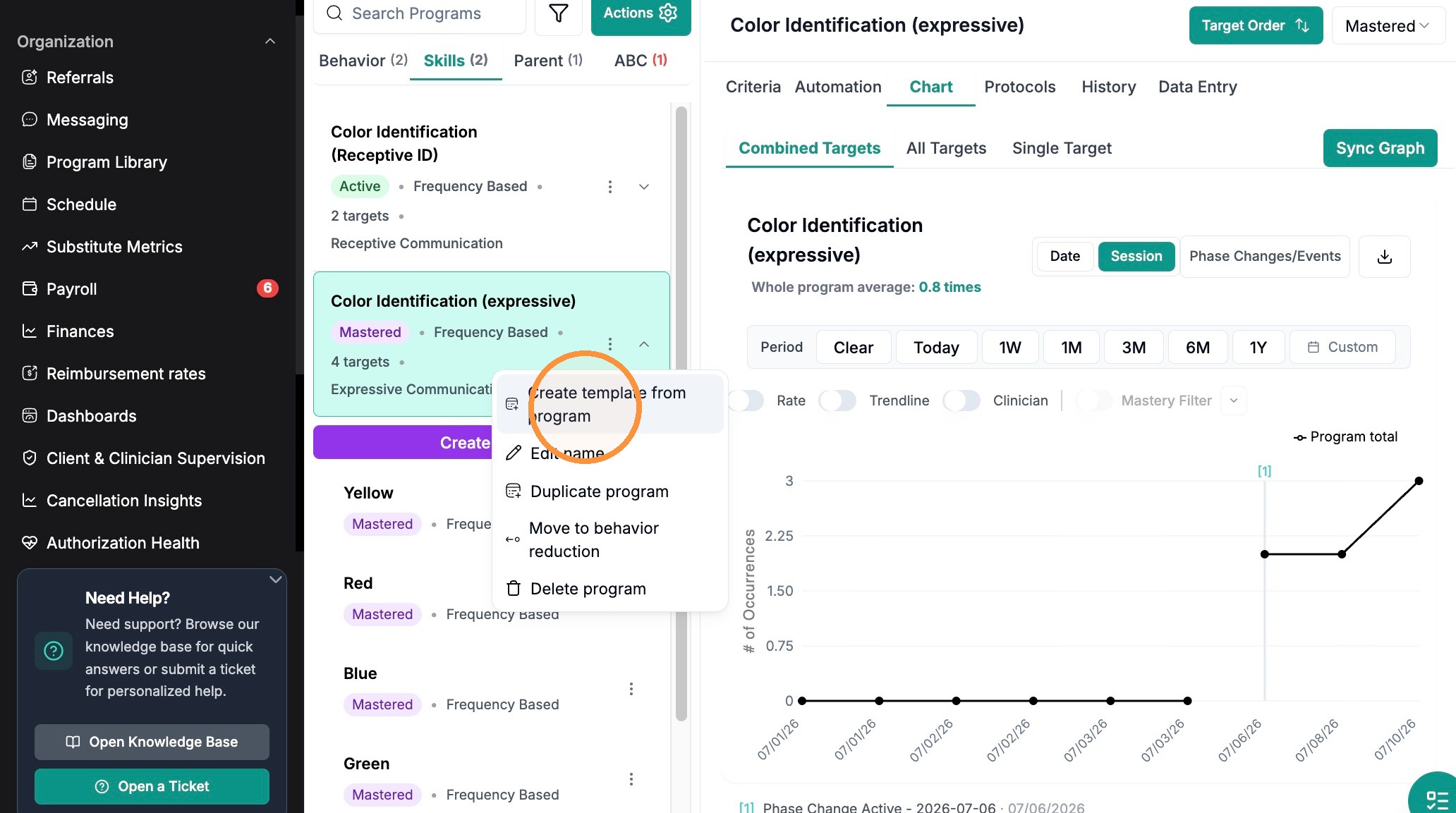
Select the program you would like you make a template from and click the 3 dots
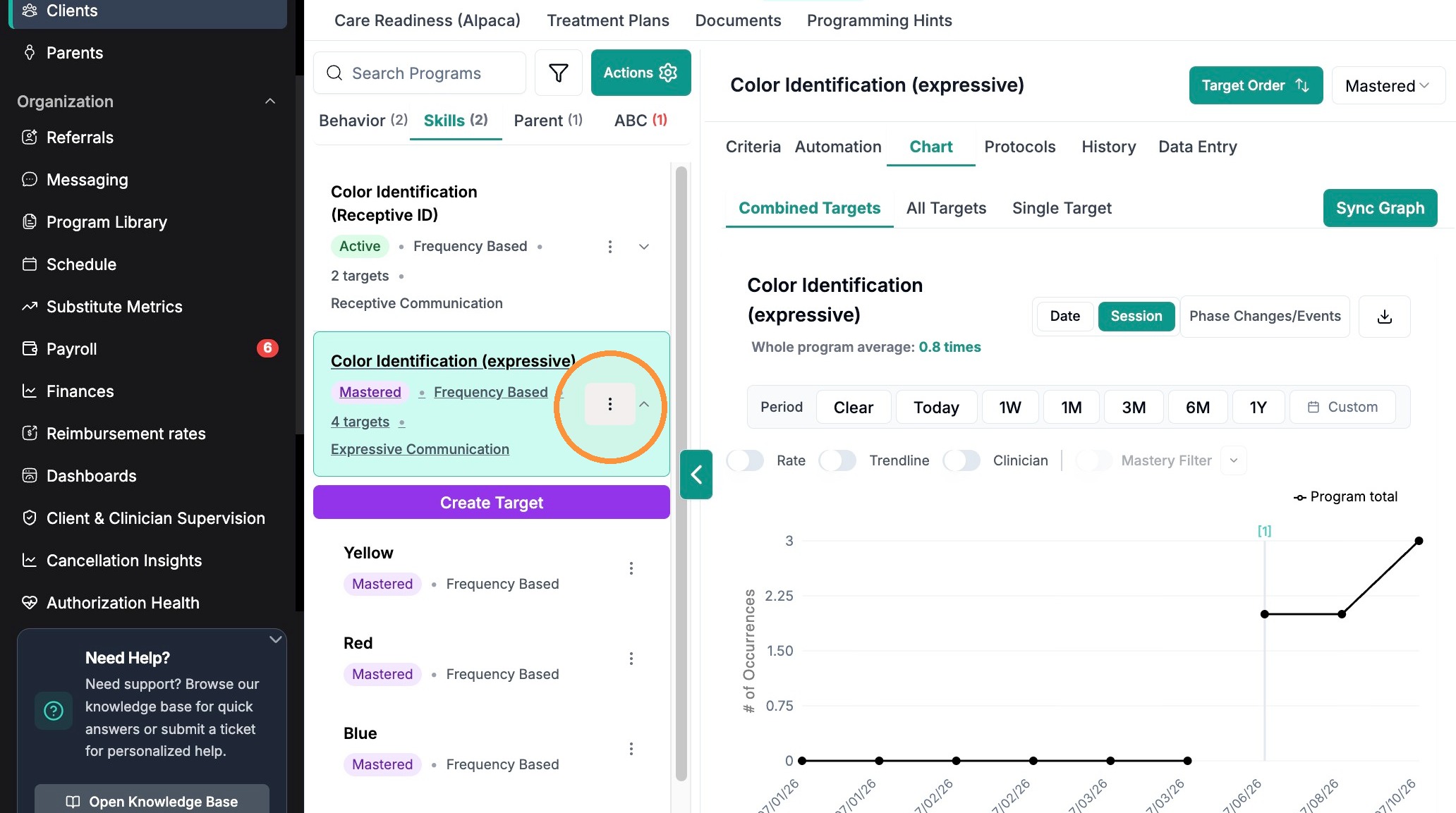
Click "Create template from program"
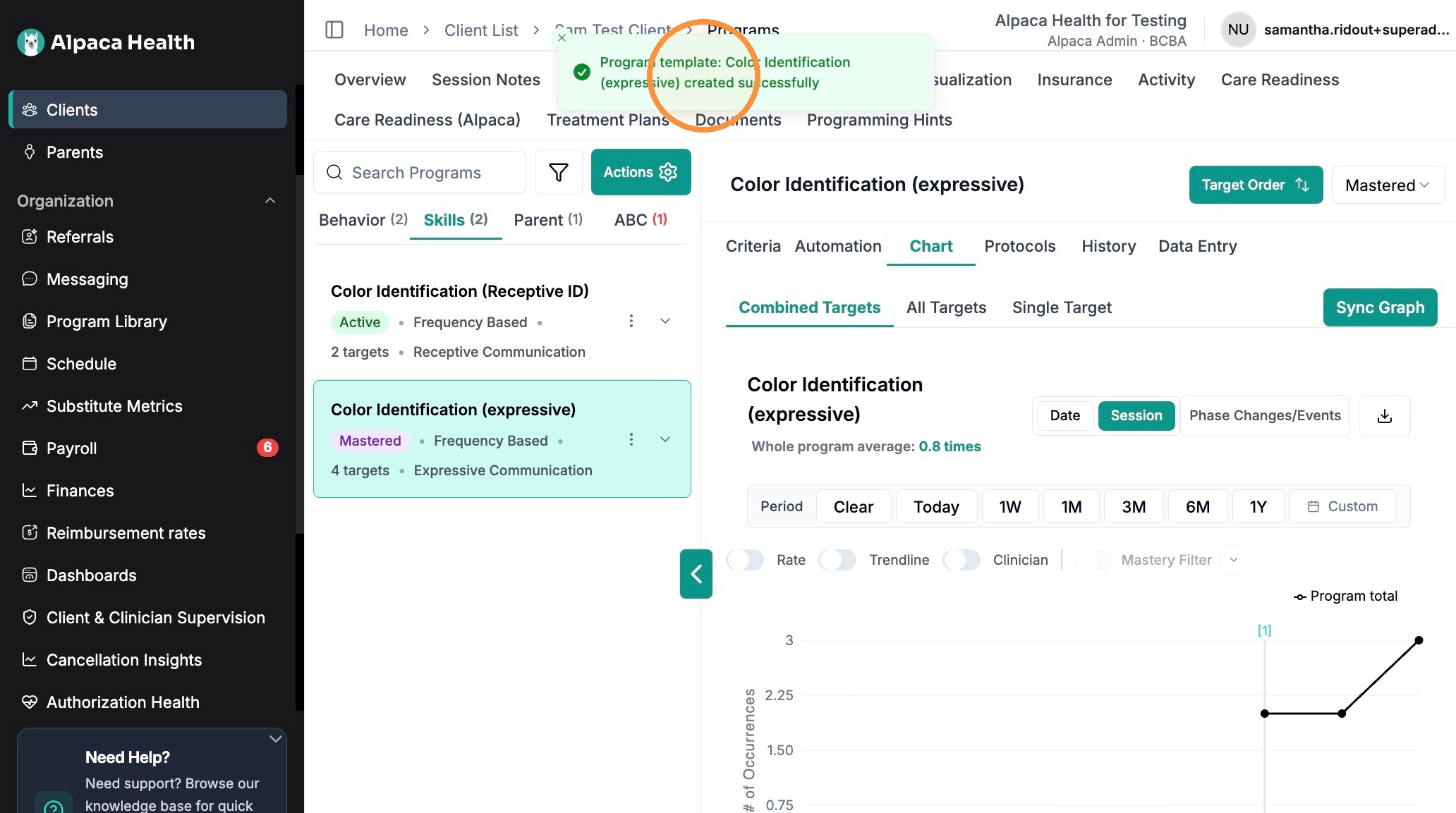
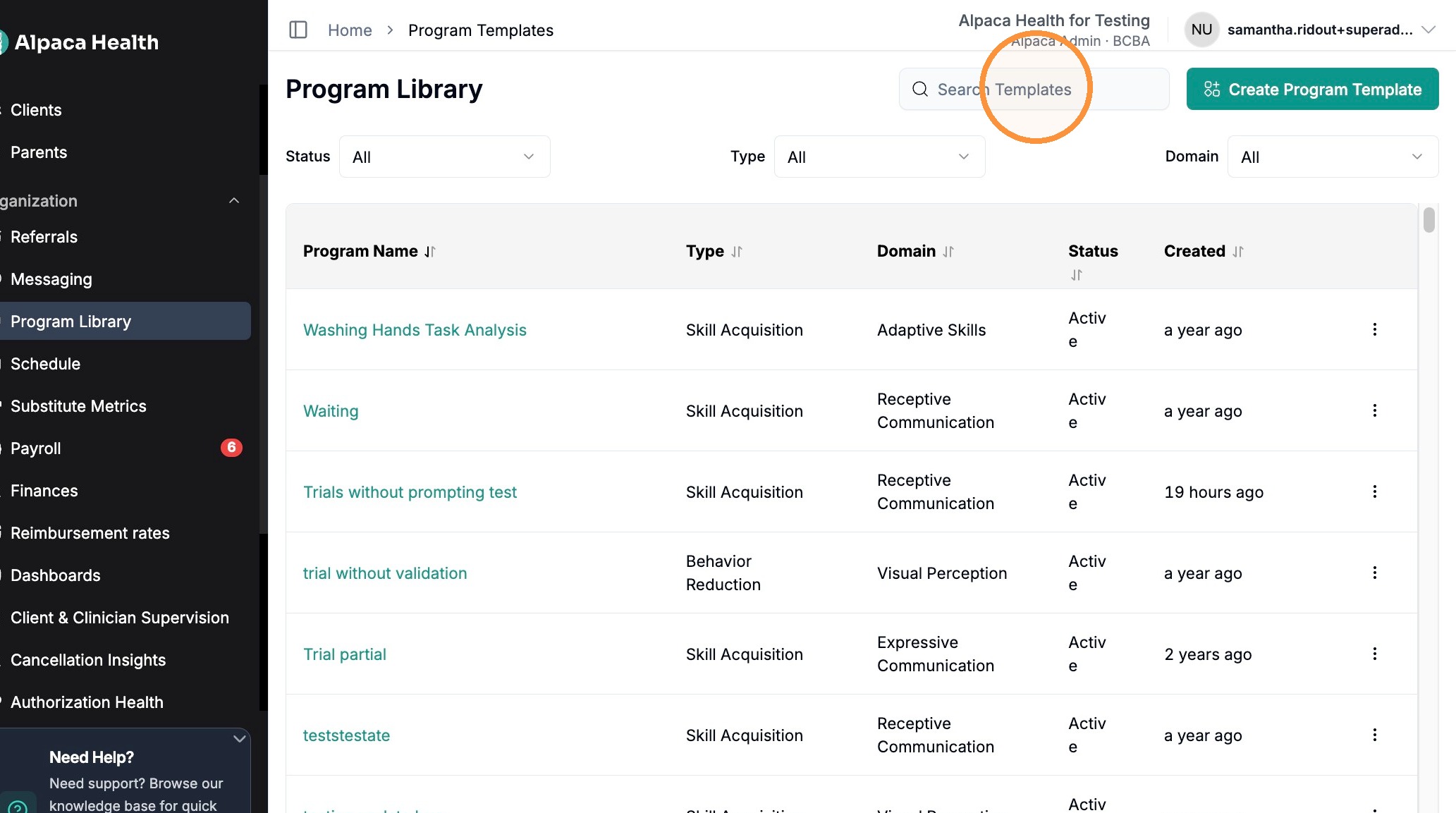
Search your new program in the program library
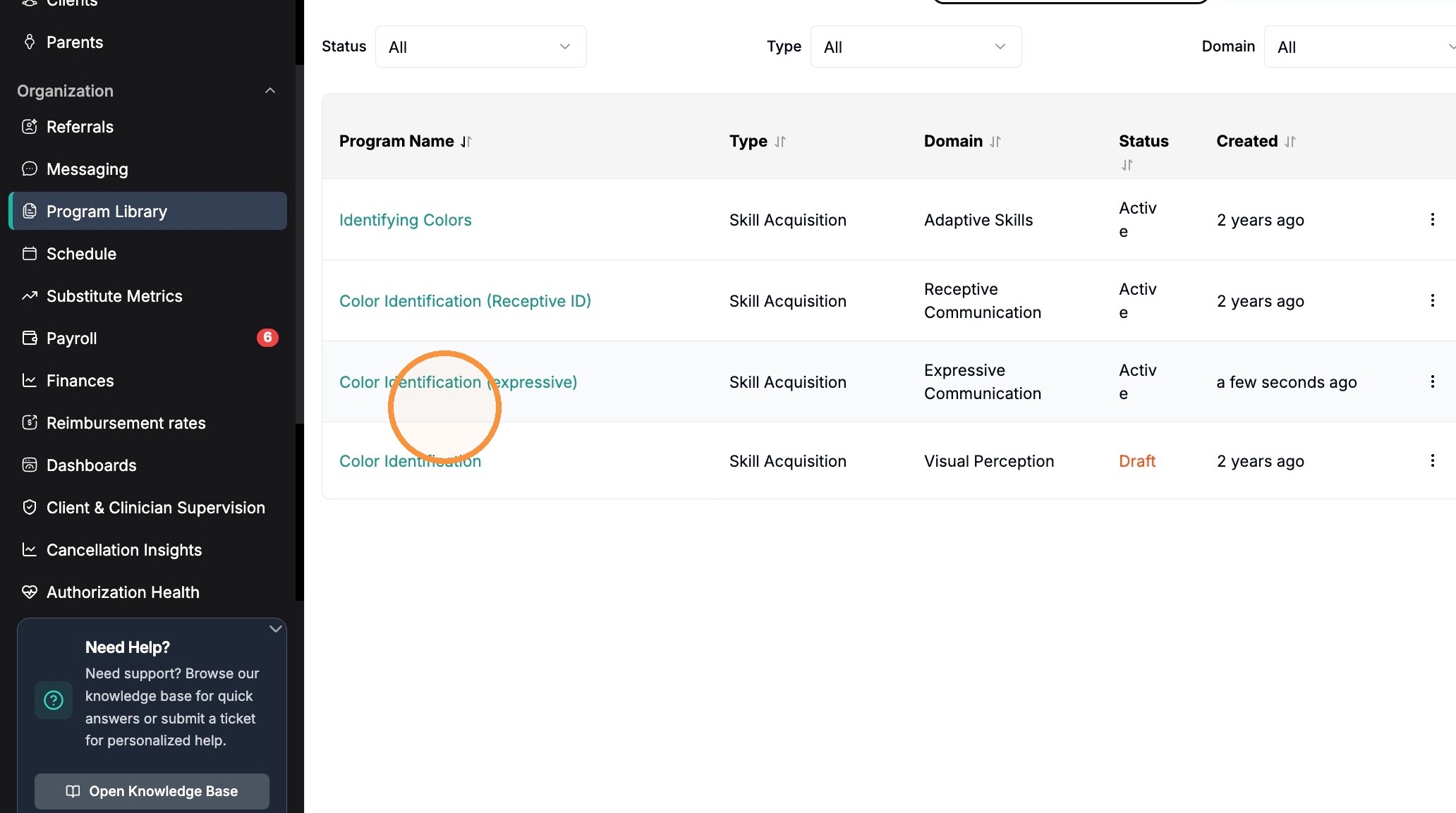
Confirm your program is there
Manage Templates
You can manage your organization's templates by clicking the 3 dots next to your program's name
Here you can select an action based on your organizations's needs
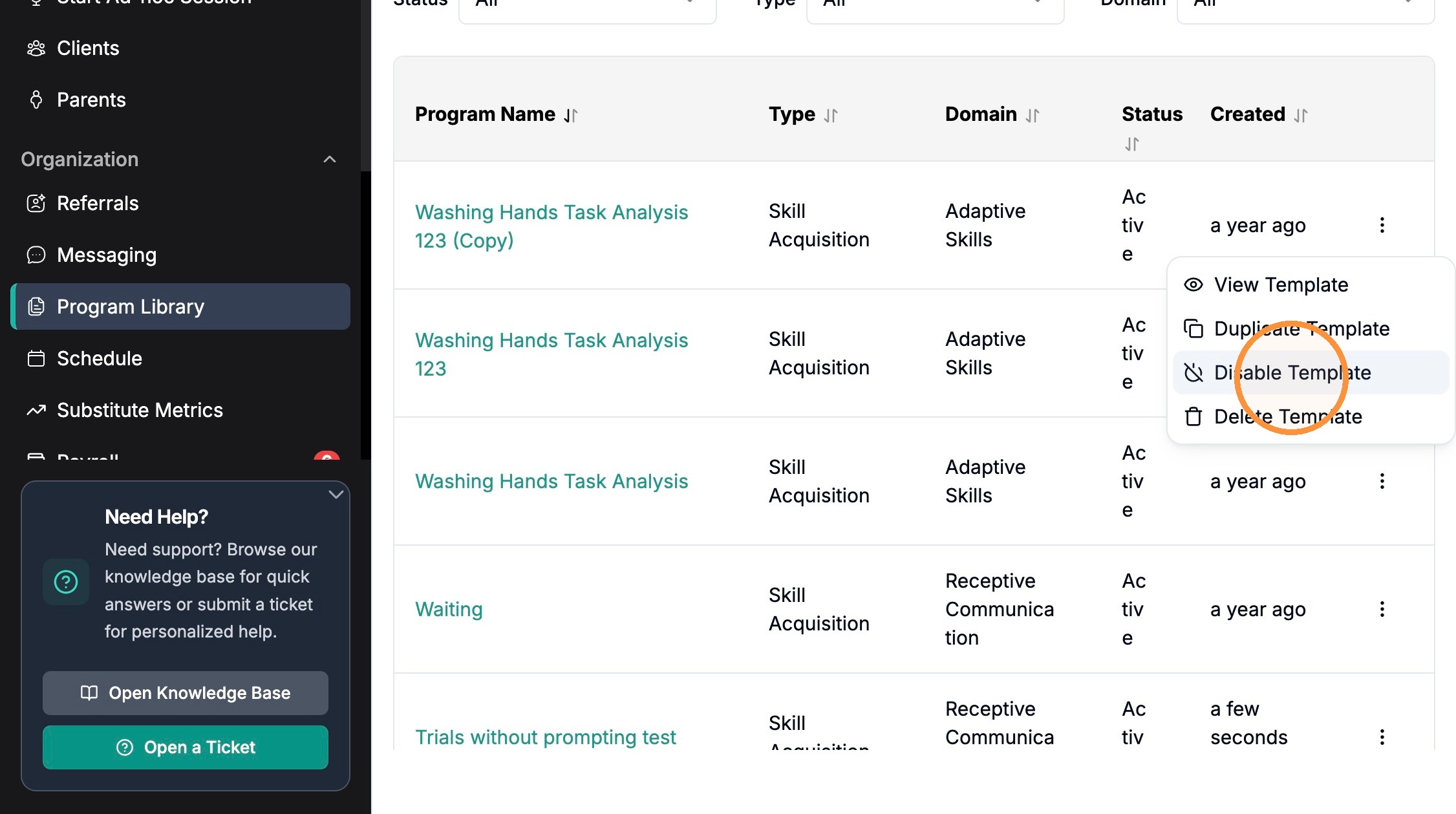
You can manage templates by:
Duplicating- to create a similar program within your library
Disabling- will clear the template from the list and no one in the organization will be able to view or use it
View template
Delete template: remove from your program library, removes access from the entire org.
Filtering and Ordering Programs
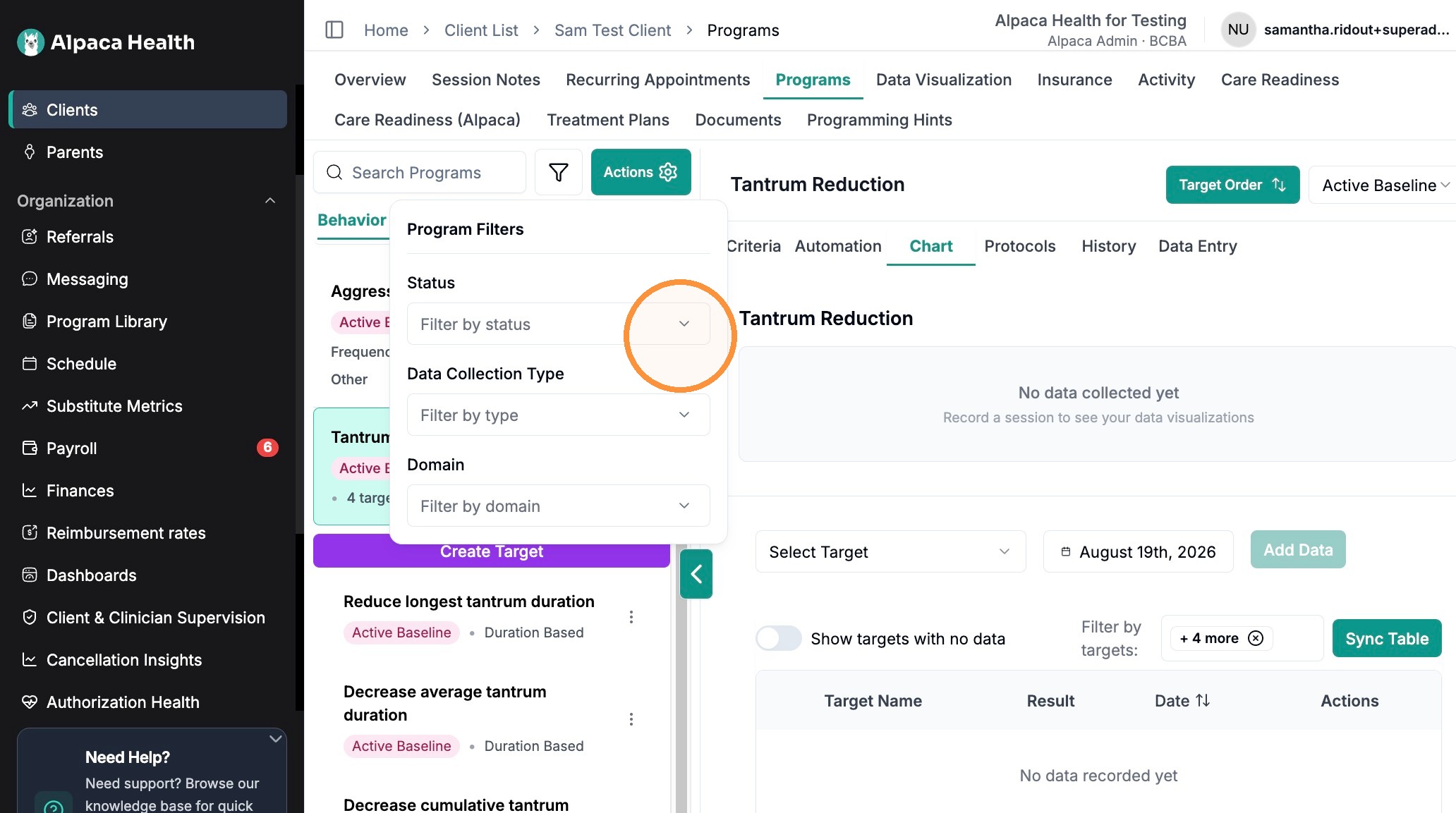
You can filter a client's programs by status, domain and measurement type. You can also change the order of programs and targets.
Click this icon.
Select how you would like to filter
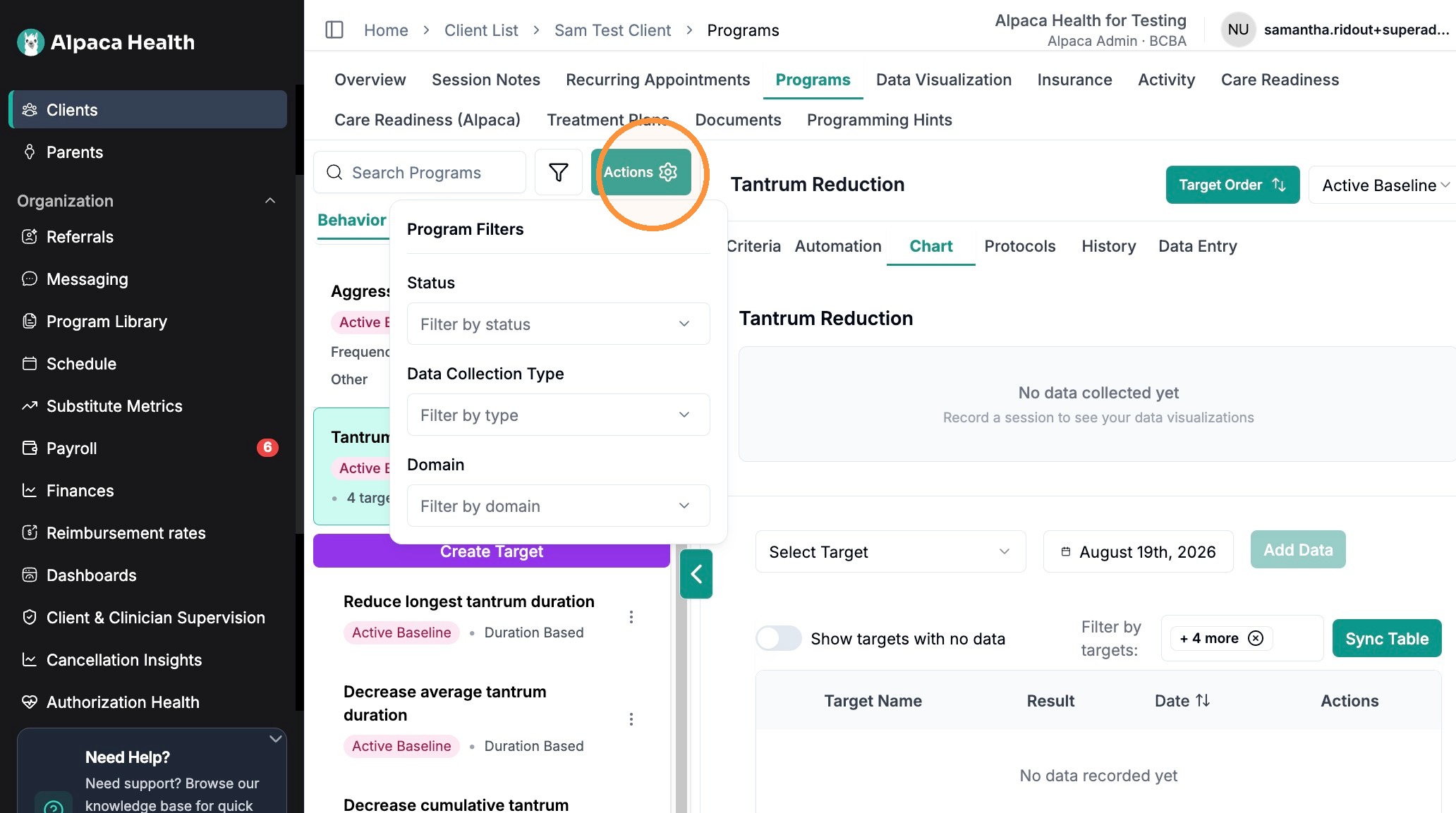
To Prioritize or Re-order Programs, Click "Actions" -->"Reorder Programs"

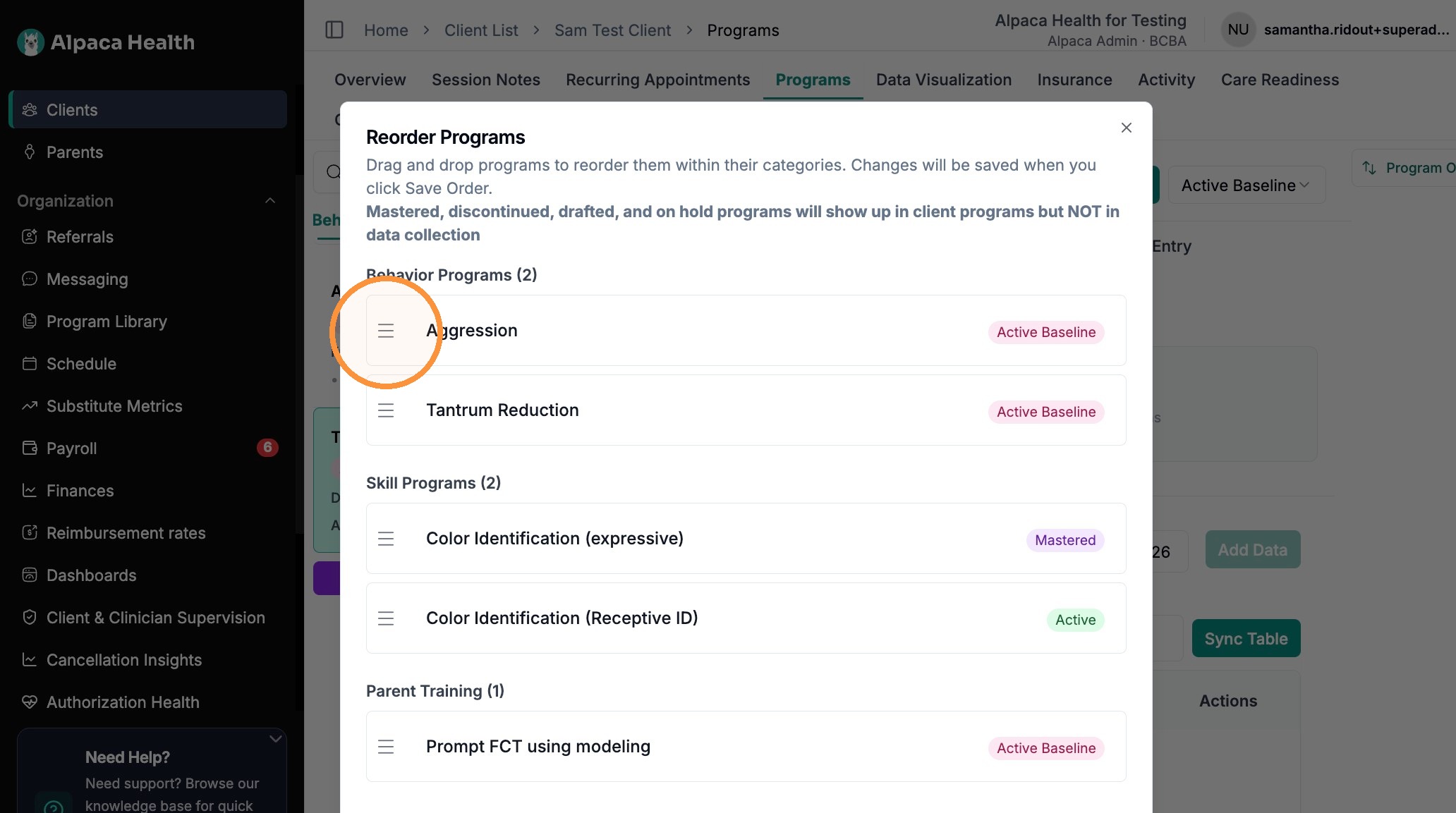
Drag programs to reorder
Targets are re-order the same way by selecting "target order"
Frequently Asked Questions
1. What's the difference between disabling and deleting a template?
Both remove the template from your program library list, but they differ in scope and reversibility:
Disabling clears the template from the list so no one in the organization can view or use it — use this when you want to retire a template without permanently removing it.
Deleting permanently removes the template from your program library and revokes access for the entire organization.
If you only need a variation of an existing template, use Duplicate instead of recreating it from scratch.
2. Can I set a different measurement type for individual targets within a program?
YES. You can now set different measurement types within programs. For example, you could define measurement at the program level as trials without prompting, and set a frequency target within that program.
3. Can I turn a program I've already built into a reusable template?
Yes. Open the program you'd like to reuse, click the three dots, and select "Create template from program." The program will be added to your Program Library, where you can search for it to confirm it's available. From there it behaves like any other template — you can assign it to clients via Actions → Add program from template.